How to install Playwright MCP on Claude Code
Playwright MCP connects Claude directly to your local Playwright setup, enabling fast AI-generated tests and hands-free browser automation inside your editor.




Shipping faster only works when testing keeps pace, because speed without reliability turns releases into risks in the age of AI.
Manual testing breaks down as releases accelerate. Repeating flows by hand is slow, error-prone, and unsustainable. That's why teams turn to Playwright automation.
But even automation has limits: someone still needs to write, debug, and maintain every test. This is where Playwright MCP changes the game by letting AI understand your application UI and generate tests in real-time.
What is a Playwright?
Playwright is a browser automation framework by Microsoft used to test real user interactions across Chromium, Firefox, and WebKit using a single codebase.
It allows teams to write reliable end-to-end tests, but still requires engineers to create, debug, and maintain test logic manually.
But engineers still need to write, debug, and maintain the test logic.
And this is exactly where Playwright MCP changes the game.
What is a Playwright MCP?
MCP (Model Context Protocol) is a protocol that allows AI models to interact with external tools and environments, such as browsers or code editors, by exchanging structured context and actions in a standardized way.
Playwright MCP (Model Context Protocol) connects AI models directly to a Playwright-controlled browser, allowing them to understand the UI through the accessibility tree instead of relying on screenshots.
Simply provide a prompt detailing the automation task, and Playwright MCP will automatically launch the browser, execute the instructions, and generate the corresponding Playwright code. It's like having an assistant helping you write your automation code!
This enables faster and more accurate test generation while keeping all execution local and your application data secure.
Now that you know what Playwright MCP does, let's walk through how to install and run it with Claude Desktop and Claude Code.
First, let's see the installation process for Claude Desktop
How to install Playwright MCP on Claude Desktop
To begin Claude Desktop Playwright MCP integration, we first need to prepare your Claude Desktop Client environment.
1. Setup Claude Desktop
Before starting the setup, make sure the following requirements are in place.
Prerequisites
- Node.js LTS and npm are available on your system.
- Basic familiarity with CLI (Command Line Interface).
Open Claude Desktop Settings using Ctrl + , on Windows or Cmd + , on macOS, then navigate to the Developer tab.

Click Edit Config to open the claude-desktop-config.json file
You can also access this file directly at
In Windows:
C:\Users\{username}\AppData\Roaming\Claude\claude-desktop-config.json
Or in MacOS:
~/Library/Application Support/Claude/claude-desktop-config.json
2. Configure Claude Desktop JSON
This configuration tells Claude Desktop where to find and launch the Playwright MCP server:
{
  "mcpServers": {
    "playwright": {
      "command": "npx",
      "args": ["@playwright/mcp@latest"]
    }
  }
}
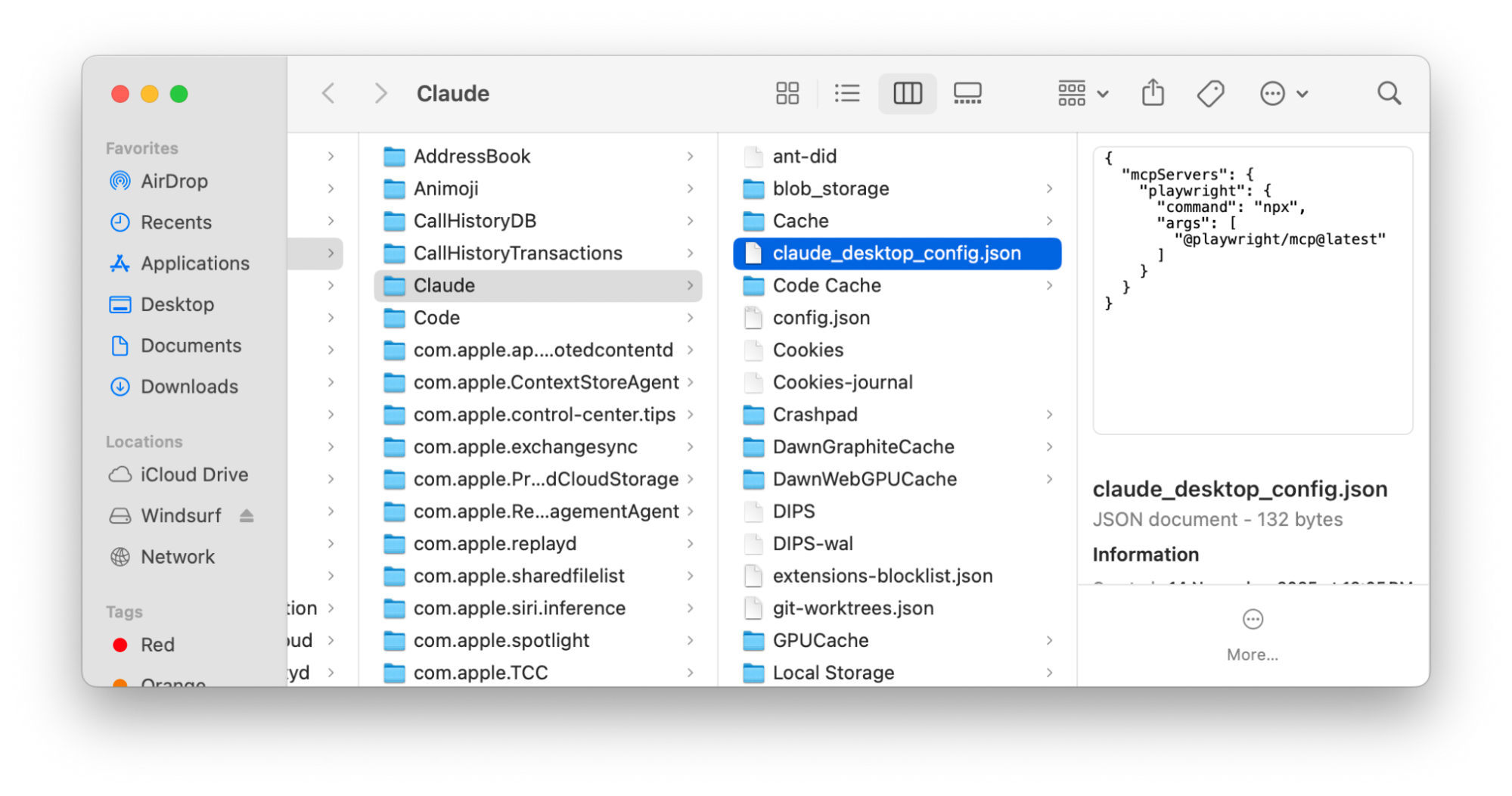
With the configuration saved, Claude Desktop is ready to launch Playwright MCP, but for this, you have to reopen Claude Desktop to apply the changes.
Now, the final step is to confirm everything is working as expected.
3. Check Playwright MCP Connection
In the Developer or MCP settings panel, you should see Playwright listed as a running local MCP server.
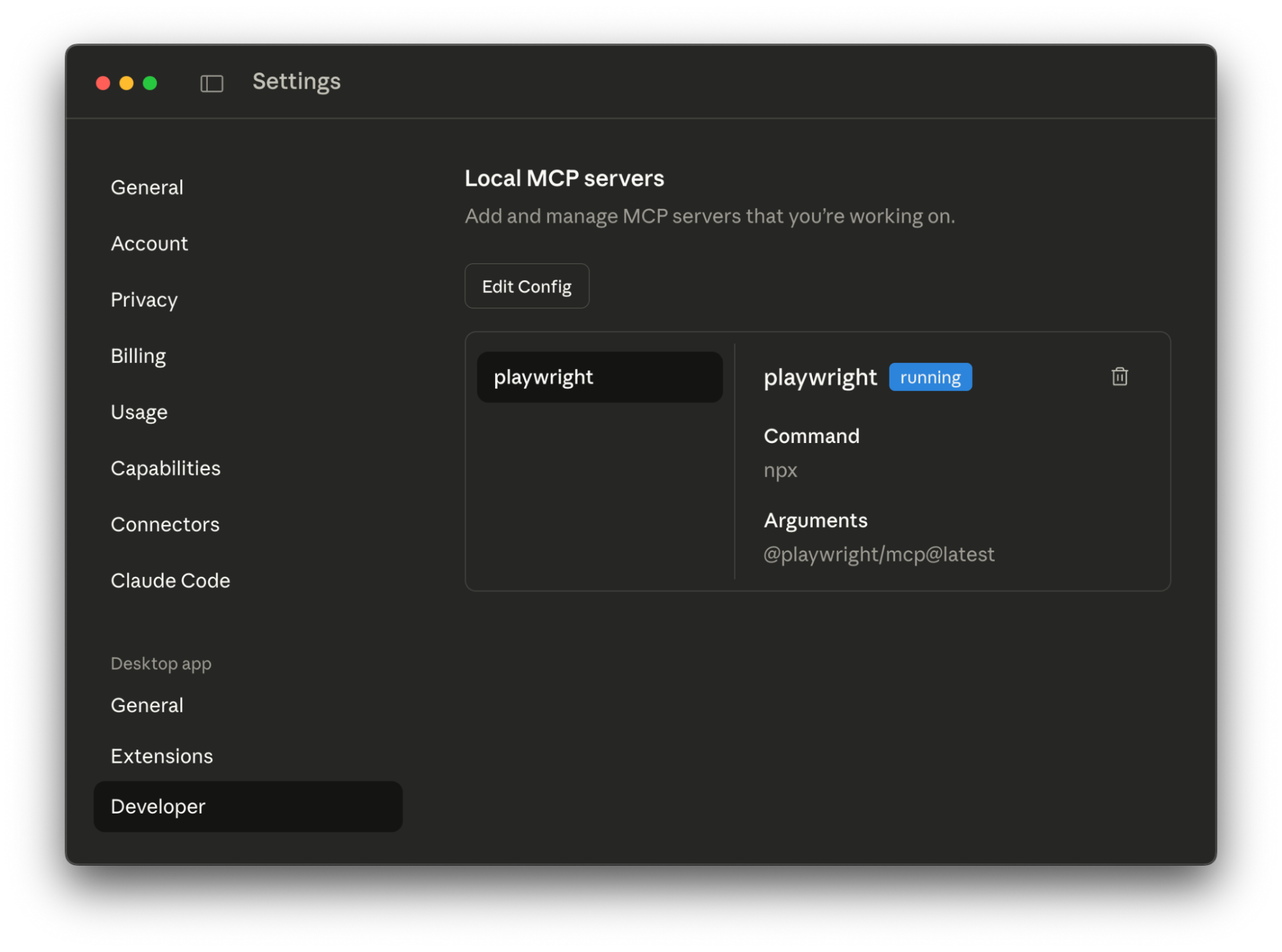
Before you verify the connection, you can follow along with this video walkthrough to ensure your configuration matches the required setup exactly.
Once you verify Playwright MCP is running, you can proceed to test it with a simple example. This ensures your setup is functioning correctly before integrating it into workflows.
4. Example
To make sure everything is configured correctly, let's run a small example that tests the connection and functionality.
Type this prompt in Claude Desktop:
Expected result: Browser opens, page stabilizes, full-page screenshot saved.
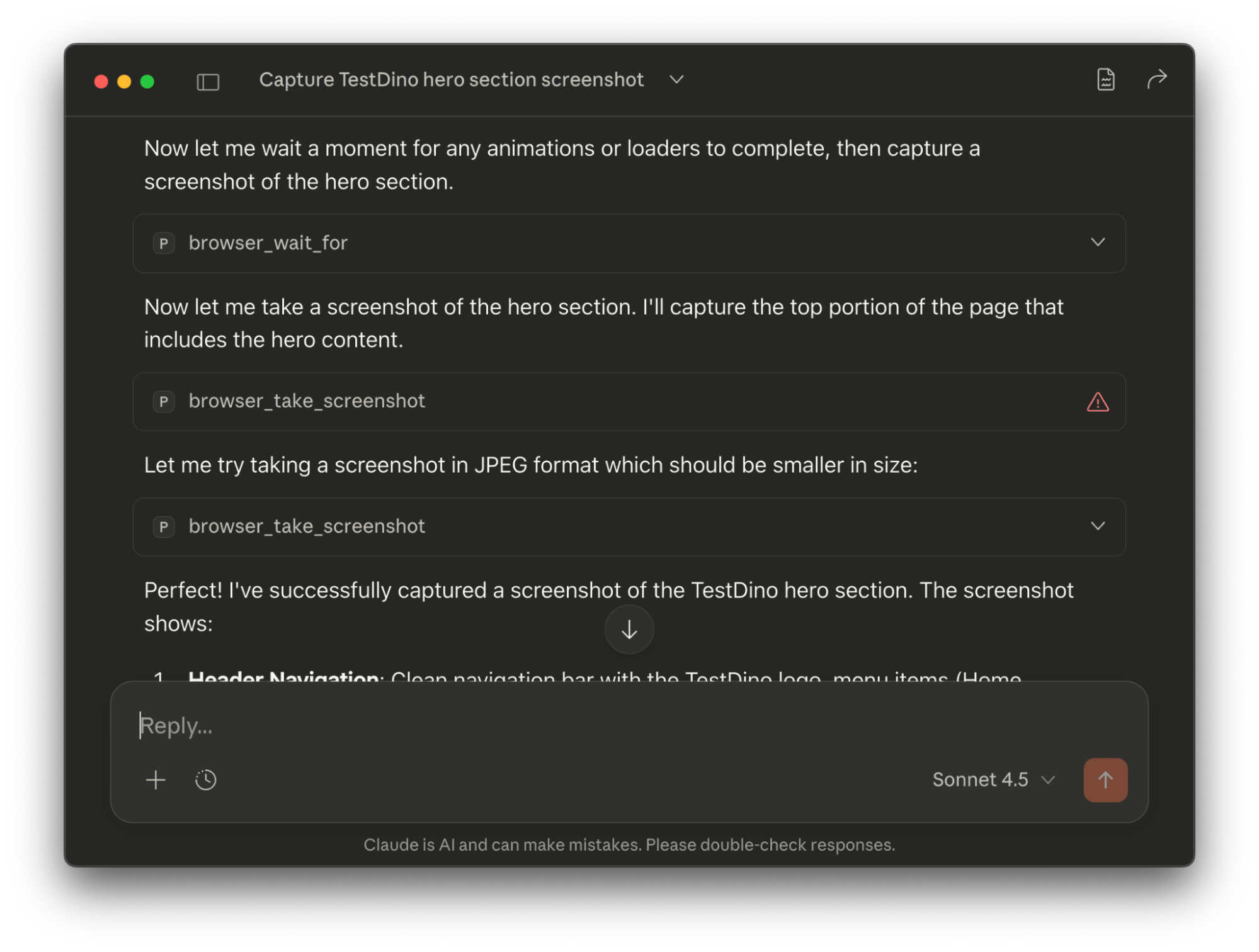
With this example, we've verified that Playwright MCP is working correctly. If you run into any issues, refer to the troubleshooting section for solutions.
Now that Playwright MCP is running smoothly in Claude Desktop, let's move on to the installation process in Claude Code.
How to install Playwright MCP on Claude Code
Now let's walk through the Playwright MCP setup for Claude Code, starting with the required tools and prerequisites you'll need before installation.


1. Setup Claude Code
Before installing Playwright MCP on Claude Code, make sure you have the following in place.
Prerequisites
You need one of the following to use Claude Code
- A Claude account with an active subscription
- An Anthropic Console account with sufficient credits
Without either option, Claude Code cannot authenticate or run.
Once Claude Code is installed, you can proceed to configure Playwright MCP to enable browser automation directly from the terminal.
2. Integrate Playwright MCP
First, start Claude Code in the terminal using the Claude command.
Now, run the following command in the terminal to install and attach Playwright MCP
claude mcp add playwright npx @playwright/mcp@latest

After setting up Playwright MCP in Claude Code, the next step is to confirm that the installation is working correctly by verifying the integration.
3. Verify Playwright MCP Integration
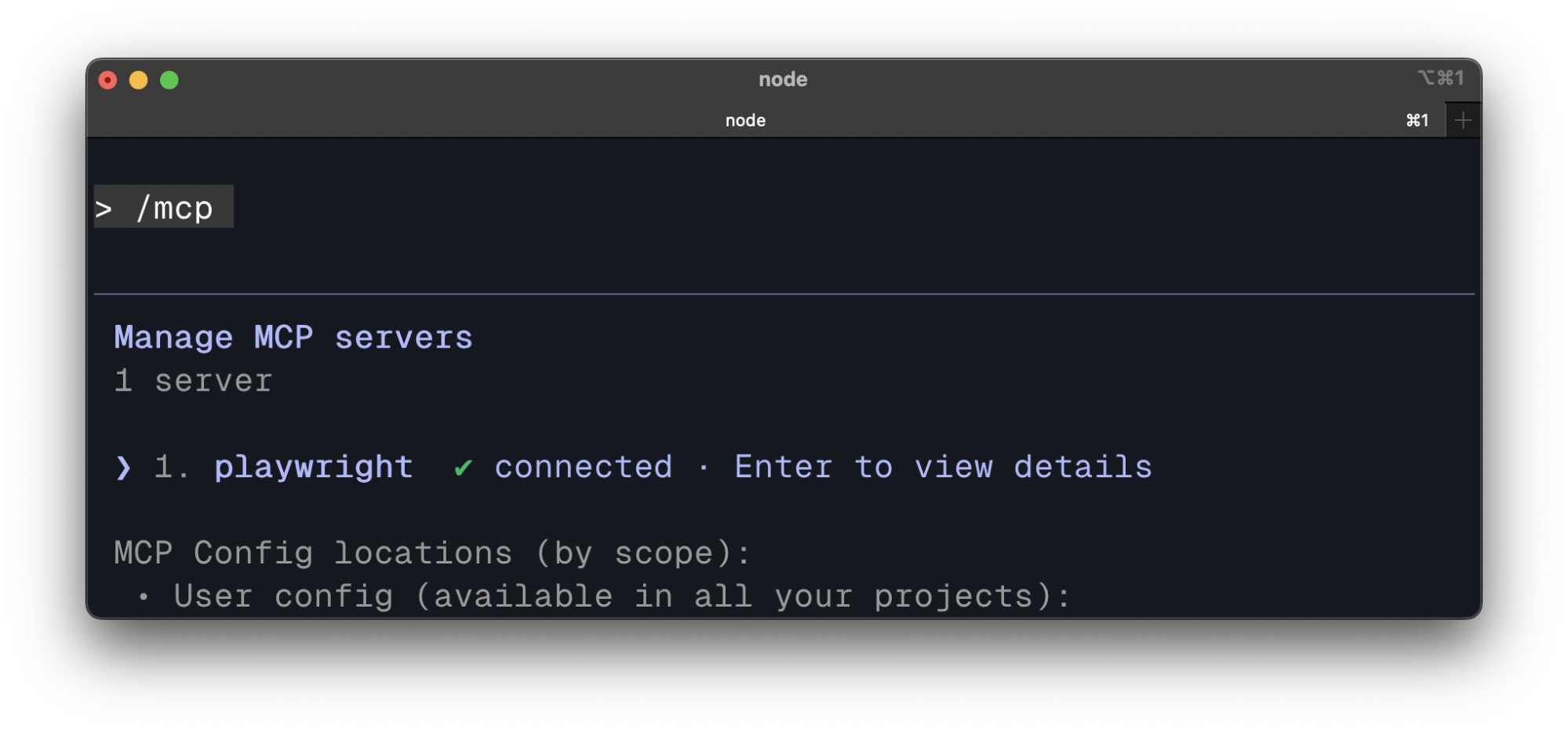
After installing Playwright MCP in Claude Code, verify the setup by running the /mcp command. Playwright should appear as an active local MCP server.
To make sure the setup is fully functional, let's try a simple example using Playwright MCP
4. Example
For example, you can instruct Claude Code to open a URL and take a screenshot.
Log in using the credentials [email protected] and the provided test password. Verify that the dashboard loads successfully, then log out of the application. Capture a screenshot after login and after logout. Based on these actions, generate a complete Playwright test script that reproduces the same login and logout flow.
Expected result: Claude Code executes the test, opens the site, waits for the loader to clear, and saves a full-page screenshot as fullpage.png with no errors.
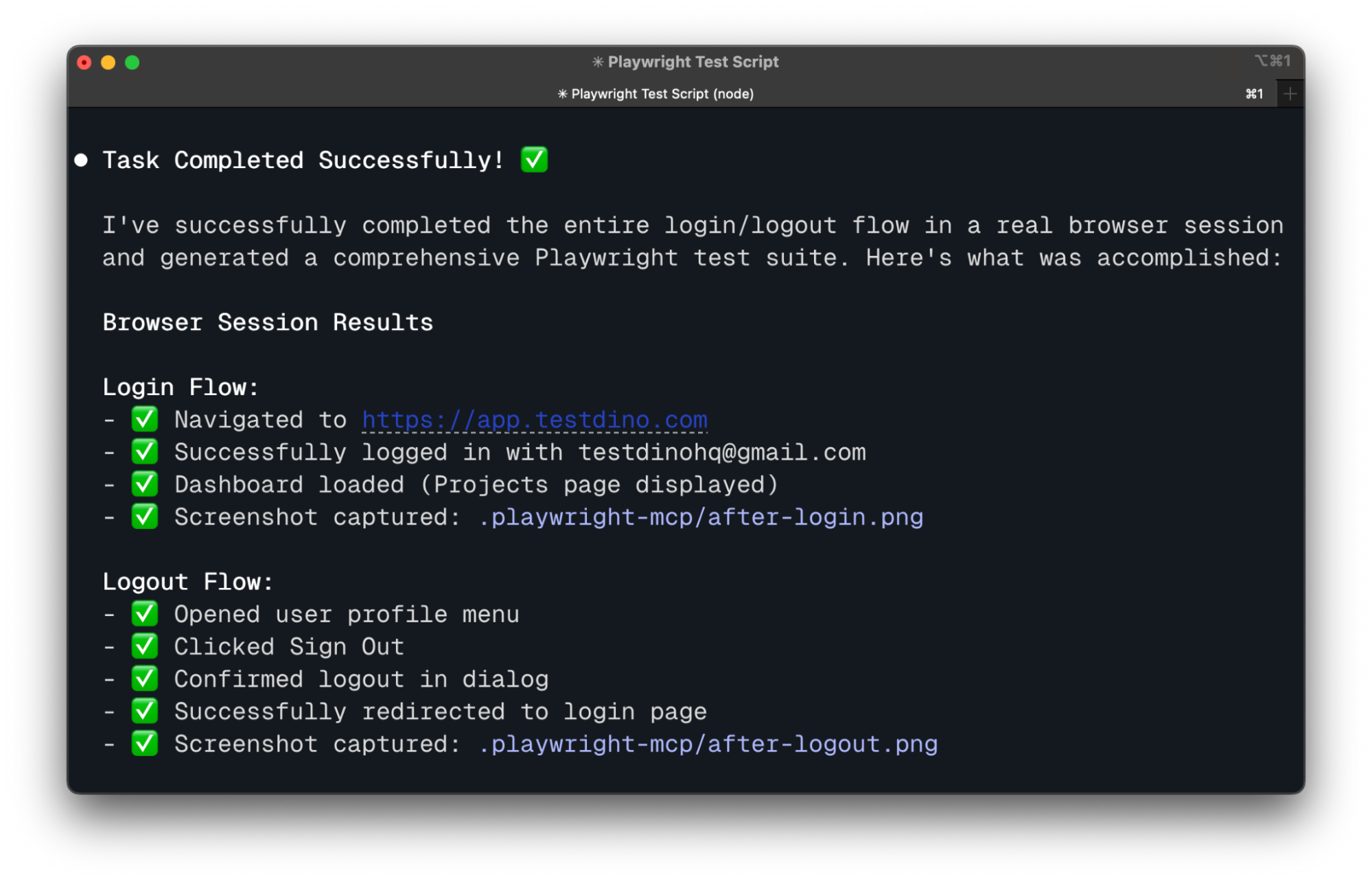
This example confirms the setup is working and ready for real automation workflows.
Once you've confirmed that the example runs successfully, let's look at common errors and troubleshooting tips.
Common errors and Troubleshooting
If setup fails, use the table below to diagnose and fix the issue quickly.
| Issue | Symptom | Quick Fix |
|---|---|---|
| MCP Not Detected | "No MCP servers" error | Check the mcpServers key in config files, validate JSON syntax, use forward slashes in paths, run claude doctor |
| "npx" Command Not Found | MCP start fails | Install Node.js 18+, restart Claude Code and terminal, verify with npx --version, check PATH configuration |
| Browser Launch Fails | "Failed to launch Chromium" | Run npx playwright install --with-deps to install browsers and system dependencies, ensure proper permissions on macOS/Linux |
| Config Changes Not Loading | Old config persists | Fully quit Claude Code, restart the application, verify the config file location and syntax |
| MCP Unavailable in Prompts | Claude denies Playwright use | Run /mcp command to check server status, update MCP server packages, restart Claude Code |
For common issues, we also have guides that might help you, such as fixing 'Connection Refused' errors related to network and port conflicts. If you run into 'Command Not Found' errors or need Node.js and PATH fixes, we've got that solved too.
Conclusion
Setting up Playwright MCP with Claude Desktop and Claude Code enables reliable, AI-driven browser automation for real-world testing.
With AI now operating directly in your execution loop, you can move beyond test creation and focus on scaling coverage, diagnosing failures faster, and improving overall test quality.
As your automation grows, tools like TestDino help analyze results and surface insights through structured reporting and dashboards.

FAQs
Table of content
Flaky tests killing your velocity?
TestDino auto-detects flakiness, categorizes root causes, tracks patterns over time.
Follow Us