Playwright MCP Explained: Setup, Config & Real-World Examples
Playwright MCP connects AI directly to real browsers, reducing time spent debugging flaky tests and understanding failures. This guide explains how Playwright MCP works, when to use it, and best practices for effective test automation.
Looking for Smart Playwright Reporter?
Playwright MCP lets AI control a real browser. Not a simulated one.
It reads the page through the accessibility tree, the same semantic structure screen readers use, and returns structured data instead of screenshots. That single design decision is what separates Playwright MCP from every vision-based automation tool on the market right now.
If you've been writing Playwright tests manually, translating test cases into selectors, waits, and assertions by hand, Playwright MCP changes the workflow. You describe what to test in plain English. The AI opens a real browser, interacts with your app, and generates working Playwright code from actual page state.
This guide covers what Playwright MCP is, how it works (including the 2 operating modes most guides skip), how to set it up across every major IDE, and what changed in the 2026 updates that shifted the entire Playwright AI ecosystem. We also compare it to the newer Playwright CLI, so you can pick the right tool for your setup.
New in 2026: Microsoft now recommends Playwright CLI over MCP for coding agents. CLI uses 4x fewer tokens per session. Playwright 1.59 added Screencast, browser.bind() interoperability, and CLI debugging for agents. This guide covers all of it.
What is Playwright MCP?
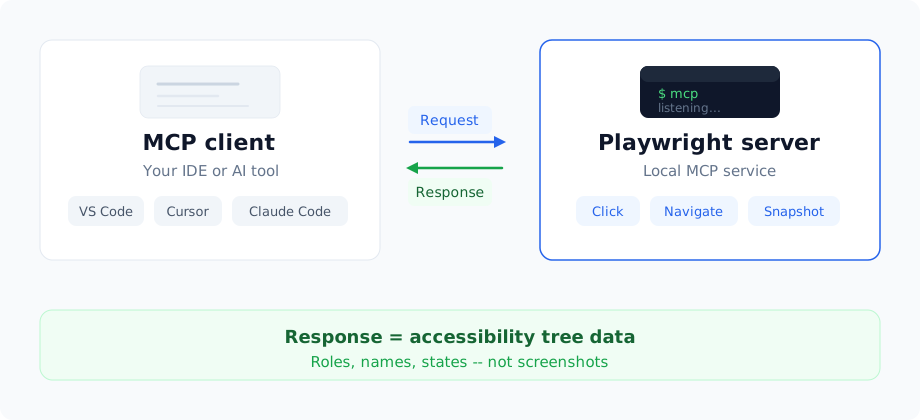
The Playwright MCP server is a lightweight local service that exposes Playwright's browser automation as callable tools through the Model Context Protocol.
MCP, or Model Context Protocol, is an open standard created by Anthropic that lets AI models interact with external tools in a structured way. Think of it as a universal adapter between AI and software. Instead of just generating text, a model connected through MCP can request actions and receive structured results back.
The Playwright MCP server is the official implementation maintained by Microsoft. It runs locally, which keeps your browser automation private and secure. No data leaves your machine.
In practice, it sits between an AI client (like VS Code with GitHub Copilot, Cursor, Windsurf, or Claude Code) and your Playwright browser automation stack. The AI decides what needs to happen. The MCP server executes it in a real browser and returns page state. The AI reads the response and decides the next step.
I've been using Playwright MCP since its early releases, and the thing that surprised me most was how different it feels from traditional test generation. The AI isn't guessing. It's observing the actual page and reacting to what it sees. That feedback loop changes everything about how you write tests.
How it works: the client-server model
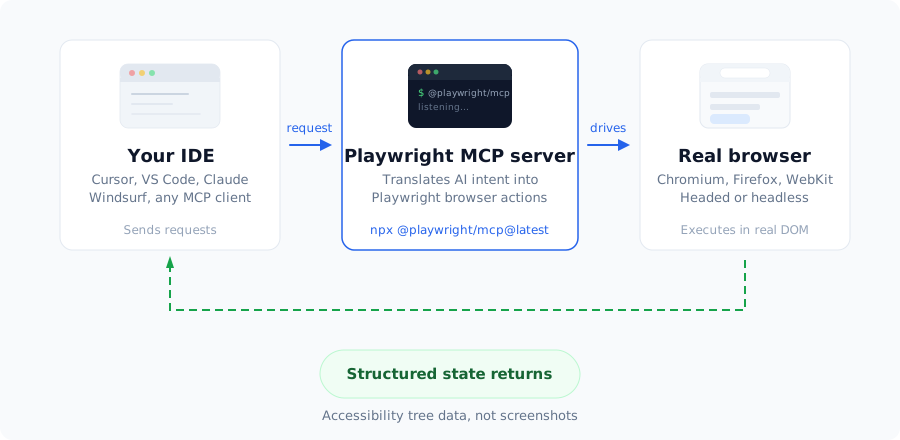
The MCP architecture has 2 sides:
MCP client: the AI tool you interact with. This could be Cursor, VS Code with GitHub Copilot, Claude Code, Claude Desktop, or any MCP-compatible interface.
MCP server: a local service (started via npx @playwright/mcp@latest) that receives requests from the client, executes browser actions using Playwright, and returns structured results.
The server extends what LLMs can do. Instead of generating code and hoping it works, the model can navigate pages, click elements, fill forms, capture screenshots, and read the page's accessibility tree, all through well-defined tool calls.
This creates a feedback loop. The AI acts, observes the result, and adapts. That's what makes Playwright MCP different from static code generation. It transforms Playwright test automation from a scripting exercise into an interactive, context-aware process where the model understands intent, not just syntax.
For teams already tracking Playwright market share trends, MCP is the feature that's accelerating adoption among AI-first engineering teams.
The next step is determining whether MCP adoption makes sense for your team, workflows, and long-term automation strategy. Read more about Advanced Playwright MCP orchestration.
Why use Playwright MCP for automated testing?
Speed. That's the short answer.
The longer answer: most test automation effort goes into translating human intent into stable code. You write test cases in a document, then spend hours converting those steps into selectors, waits, and assertions that don't break every sprint.
Playwright MCP shortcuts this entire process. You describe what to test. The AI opens a real browser session, interacts with your app through the MCP server, and generates Playwright code from real page state, not guesswork.
The AI picks better locators because it reads the accessibility tree. It adds correct waits because it observes actual load behavior. It captures artifacts like traces and screenshots automatically.
Teams still review the generated tests. But they spend far less time scripting and more time deciding test coverage and CI priorities.
When NOT to use Playwright MCP: Full regression suites running on every CI commit. MCP is best for generating and validating new tests. For execution at scale, use standard Playwright sharding in your CI pipeline
How Playwright MCP works
Snapshot mode vs vision mode
This is the part most guides skip, and it matters a lot.
Playwright MCP operates in 2 distinct modes that determine how the AI perceives the page:
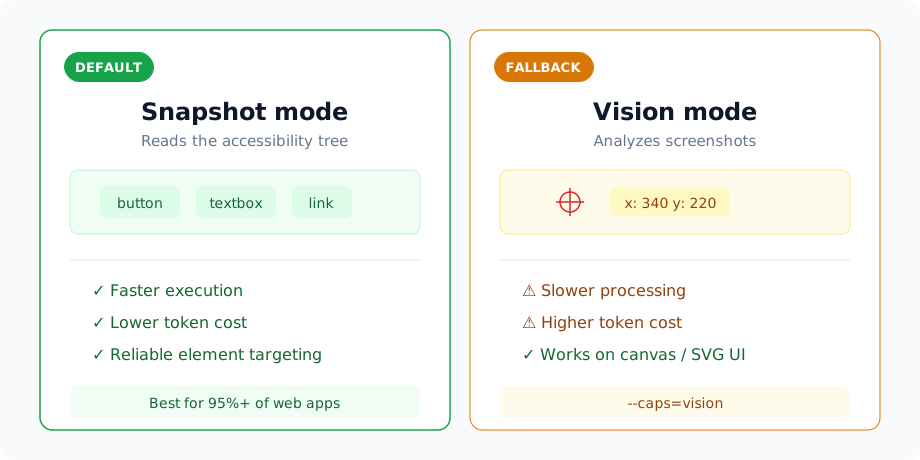
Snapshot mode (default) is the core innovation. Instead of taking a screenshot and analyzing pixels, the server reads the browser's accessibility tree, the same semantic structure that screen readers use. Every element on the page gets a role, a name, a state, and a position in the hierarchy.
This is why Playwright MCP is more reliable than vision-based tools. The AI knows that a button labeled "Submit" is a button, regardless of its CSS styling, position on screen, or visual appearance. No pixel matching. No OCR. Just structured semantic data.
Vision mode is the fallback for edge cases. Some UI elements don't have good accessibility tree representations, think canvas-based apps, complex SVGs, or custom-drawn game UIs. Vision mode uses coordinate-based interaction, where the AI analyzes a screenshot and clicks at specific pixel positions.
You enable it by adding --caps=vision to your server configuration. But here's my honest take: for the vast majority of web apps, snapshot mode is faster, cheaper on tokens, and more reliable. I've only needed vision mode twice across dozens of projects, both times for canvas-based charting libraries.
Bottom line: start with snapshot mode (it's the default). Only switch to vision when the accessibility tree isn't giving you what you need.

Pro Tip: If your app has proper accessibility attributes, snapshot mode works even better. Good a11y = good MCP results
Architecture and components
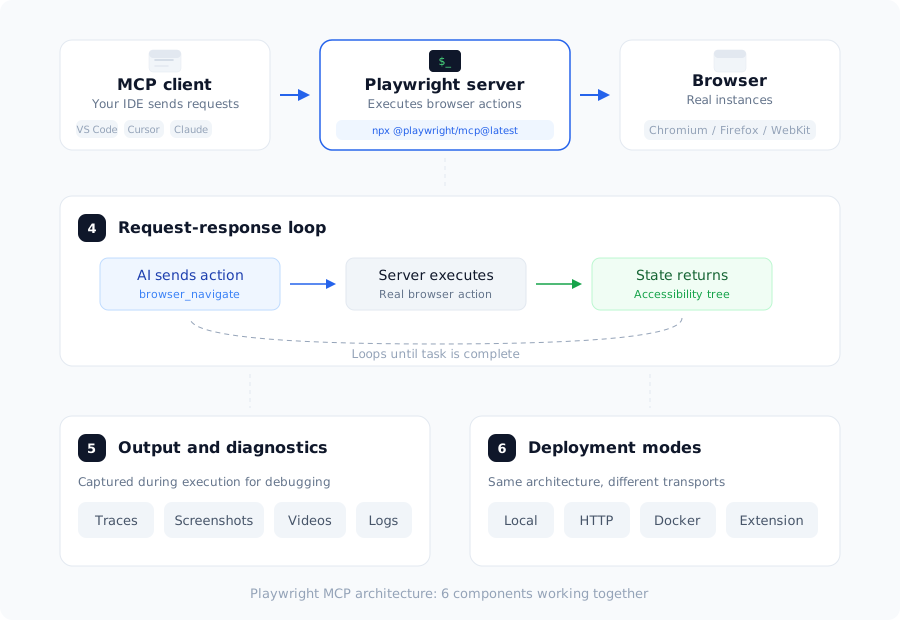
Playwright MCP architecture has a few focused components that work together to let AI safely drive a real browser.
1. MCP client
An AI-enabled tool like VS Code, Cursor, Windsurf, or Claude Desktop sends structured MCP requests. It decides what needs to happen but never executes browser actions itself.
2. Playwright MCP server
A local or remote service started via npx @playwright/mcp that exposes browser actions as MCP tools. It uses Playwright internally to execute navigation, interactions, waits, tracing, and assertions.
3. Browser and context
The server controls real browser instances and their state. It can reuse persistent profiles for realistic flows or run isolated sessions for clean, test-like execution.
4. Request-response loop
The client sends an action request, the server executes it, and structured page state comes back. Feedback is semantic, based on accessibility and DOM state, not screenshots.
5. Output and diagnostics
During execution, the server can capture traces, videos, logs, and session state to support debugging and replay.
6. Deployment modes
The same architecture runs locally via npx, as a standalone HTTP MCP server, inside Docker, or through the Playwright MCP Bridge Chrome extension. Only the transport changes.
Playwright MCP workflow example
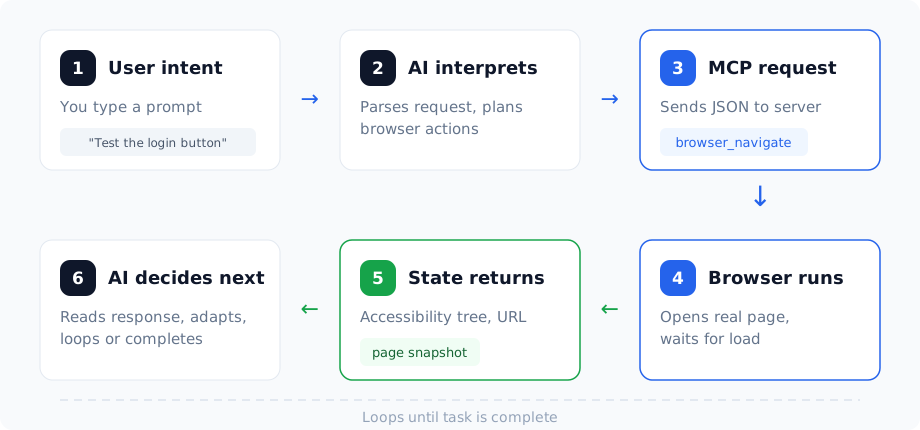
Here's how a simple natural-language request flows through Playwright MCP, from AI intent to real browser execution and back:
- User intent: You type: "Test the login button."
- AI interpretation: The AI determines that it needs to open the login page and inspect the UI.
- MCP request: The AI sends a structured MCP request to the Playwright server to navigate to /login.
- Browser execution: The Playwright MCP server opens the page in a real browser and waits for it to load.
- Structured response: The server returns page state and metadata, including URL, load status, and the page's accessibility tree snapshot.
- Next action: The AI analyzes the response and decides the next step, for example, locating and clicking the login button, then verifying the result.
This loop continues until the task is complete. Each step is informed by real browser state, not predictions.
Playwright MCP vs Playwright CLI
This is the biggest ecosystem shift since MCP launched. If you're evaluating Playwright's AI capabilities in 2026, you have 3 distinct tools to choose from, not just 2.
In early 2026, Microsoft released @playwright/cli, a companion tool that takes a completely different approach to connecting AI agents with Playwright."
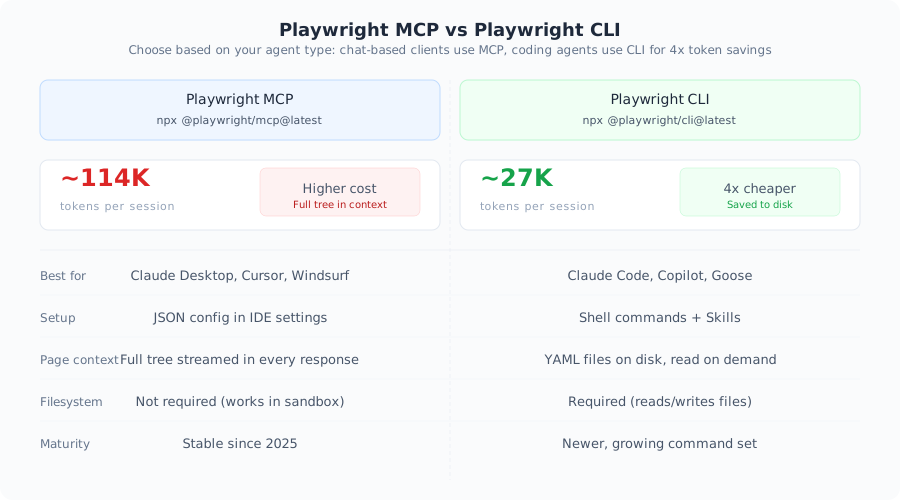
The key difference: token efficiency. A typical browser automation task consumes about 114,000 tokens through MCP. The same task through CLI uses about 27,000 tokens. That's roughly a 4x reduction.
Why the gap? MCP streams the full accessibility tree and screenshot data into the AI's context window at every step. CLI saves snapshots and screenshots to disk as YAML files, and the agent reads only what it needs. For coding agents like Claude Code or GitHub Copilot, this is a much more natural workflow, since they already operate through terminals and file systems.
Here's a comparison to help you decide:
| Category | Playwright MCP | Playwright CLI |
|---|---|---|
| Best for | Chat-based agents (Claude Desktop, Cursor, Windsurf) | Coding agents (Claude Code, Copilot, Goose) |
| Token usage | ~114K per session | ~27K per session (4x less) |
| Setup | JSON config in IDE settings |
Shell commands + Playwright Skills |
| Page context | Full accessibility tree in every response | Saved to disk as YAML, read on demand |
| Sandbox support | Works without filesystem access | Requires filesystem access |
| Persistent state | Configurable (ephemeral or persistent) | Persistent profiles by default |
| Ecosystem maturity | Stable since 2025 | Newer, growing command set |
What's new in Playwright MCP and the Playwright agentic stack (2026)
The Playwright MCP ecosystem evolved fast since the original release. If you learned MCP in 2025, things have changed. Here's what shipped, organized by what matters most for your workflow.
Playwright CLI companion (v0.0.56+ / Playwright 1.58+)
The biggest addition. Microsoft's own README now says: "If you are using a coding agent, you might benefit from using the CLI+SKILLS instead." Agents learn CLI syntax from Playwright Skills (structured markdown guides) rather than loading MCP protocol schemas. Full details in the CLI deep dive.
Screencast API and agentic video receipts (v1.59)
Playwright 1.59 introduced a unified page.screencast API that's particularly useful for agentic workflows. A couple of days earlier, Playwright MCP v0.0.69 shipped browser.video.chapter,a powerful MCP tool that lets the agent narrate its own recording. The combination matters more than either piece alone, the agent produces evidence as part of its normal tool-calling flow, not as a separate instrumentation step.
The key use case: coding agents can now produce video evidence of their work.
Here's what that looks like in practice:
await page.screencast.start({ path: 'receipt.webm' });
await page.screencast.showActions({ position: 'top-right' });

await page.screencast.showChapter('Verifying checkout flow', {
  description: 'Added coupon code support per ticket #1234',
});

// Agent performs the verification steps...
await page.locator('#coupon').fill('SAVE20');
await page.locator('#apply-coupon').click();
await expect(page.locator('.discount')).toContainText('20%');

await page.screencast.showChapter('Done', {
  description: 'Coupon applied, discount reflected in total',
});

await page.screencast.stop();
The resulting video serves as a receipt: Chapter titles provide context, action annotations highlight each interaction, and a human reviewer can watch the walkthrough much faster than reading through text logs. This is the single best feature for teams adopting autonomous agents in their test workflow, because it solves the "how do I trust what the agent did" problem.
The Playwright Screencast API also supports real-time frame streaming, which lets you pipe JPEG-encoded frames directly into an AI vision model:
await page.screencast.start({
  onFrame: ({ data }) => sendToVisionModel(data),
  size: { width: 800, height: 600 },
});
Browser interoperability with browser.bind() (v1.59)
This one is subtle but powerful. The new browser.bind() API lets you launch a browser once and share it across multiple clients, Playwright tests, the MCP server, the CLI, and any custom Playwright client.
// Bind a browser session
const { endpoint } = await browser.bind('my-session', {
  workspaceDir: '/my/project',
});

// Then connect from playwright-cli
// $ playwright-cli attach my-session

// Or point @playwright/mcp to the same session
// $ @playwright/mcp --endpoint=my-session

// Or connect another Playwright client programmatically
const browser = await chromium.connect(endpoint);
Why this matters: before v1.59, if you wanted the AI to work in the "same browser" a user was already in, you had to hack it together. Now the MCP server, the CLI, and human-driven tests can all share a single bound browser, which is exactly what you want for mixed human/agent workflows.
Observability dashboard for agents (v1.59)
playwright-cli show opens a visual dashboard that lists every bound browser, its status, and lets you interact with any of them. This fills a long-standing gap: if you have a coding agent running tasks in the background, you couldn't see what it was doing without instrumentation.
The dashboard gives you:
-
A live screencast preview of every active session
-
Current URL and page title for each session
-
Click-to-zoom for manual intervention (useful when the agent gets stuck)
-
DevTools access for inspecting pages the agent is driving
Set PLAYWRIGHT_DASHBOARD=1 to also see all @playwright/test browsers in the dashboard, not just CLI-bound ones.
CLI debugger for agents (v1.59)
Coding agents can now run npx playwright test --debug=cli to attach and debug tests over playwright-cli, which is perfect for automatically fixing flaky or failing tests.
$ npx playwright test --debug=cli
### Debugging Instructions
- Run "playwright-cli attach tw-87b59e" to attach to this test

$ playwright-cli attach tw-87b59e
### Session `tw-87b59e` created, attached to `tw-87b59e`.
Run commands with: playwright-cli --session=tw-87b59e <command>
### Paused
- Navigate to "/" at output/tests/example.spec.ts:4

$ playwright-cli --session tw-87b59e step-over
### Page
- Page URL: https://playwright.dev/
- Page Title: Fast and reliable end-to-end testing for modern web apps | Playwright
### Paused
- Expect "toHaveTitle" at output/tests/example.spec.ts:7
This pairs beautifully with Playwright test agents such as Healer agent. When the Healer hits a failing test, it can attach via the CLI debugger, step through the failure, and inspect state, rather than relying on logs and screenshots after the fact.
CLI trace analysis for agents (v1.59)
Coding agents can run npx playwright trace to explore Playwright Trace files from the command line, no Trace Viewer UI required. This is a big deal because it means an agent can investigate a failed CI run the same way a human engineer would, by opening the trace, searching for failed assertions, and inspecting before/after snapshots.
$ npx playwright trace open test-results/example-has-title-chromium/trace.zip
  Title:        example.spec.ts:3 › has title

$ npx playwright trace actions --grep="expect"
     # Time       Action                                                     Duration
  ──── ─────────  ─────────────────────────────────────────────────────── ────────
    9. 0:00.859  Expect "toHaveTitle"                                 5.1s  ✗

$ npx playwright trace action 9
  Expect "toHaveTitle"
  Error: expect(page).toHaveTitle(expected) failed
    Expected pattern: /Wrong Title/
    Received string:  "Fast and reliable end-to-end testing for modern web apps | Playwright"
    Timeout: 5000ms
Copy as prompt (v1.51+)
The HTML report, Trace viewer, and UI Mode all now have a "Copy prompt" button on test errors. Click it and you get a pre-filled LLM prompt with the error message and relevant context, ready to paste into Cursor, Claude Code, or ChatGPT. Small feature, massive productivity boost.
New locator APIs for agents (v1.59)
Playwright 1.59 also added locator.normalize() (converts any locator to follow best practices like test IDs and ARIA roles) and page.pickLocator() (enters an interactive mode where hovering highlights elements and returns their Locator). Both are designed for agents that need to produce high-quality, stable locators rather than brittle CSS paths.
Session management overhaul (v0.0.64+)
The old session-* commands are gone. Replaced with simpler alternatives:
-
list to see all active sessions
-
close-all to shut down browsers gracefully
-
kill-all to force-terminate everything
Sessions are now binary: running or gone. No more confusing "stopped" state. Browser profiles are ephemeral by default (in-memory), starting clean with no leftover state. Use --persistent or --profile=<path> if you need cookies to survive between sessions.
Security hardening
Playwright MCP now ships with tighter defaults out of the box:
File system access is restricted to the workspace root. Navigation to file:// URLs is blocked.
Use --allow-unrestricted-file-access to opt out (think twice before using it).
New origin controls: --allowed-origins and --blocked-origins let you whitelist or blacklist domains the browser can access.
For enterprise teams evaluating Playwright MCP for production CI workflows, these defaults make the security conversation much easier.
Docker support
An official Docker image is available at mcr.microsoft.com/playwright/mcp:
{
  "mcpServers": {
    "playwright": {
      "command": "docker",
      "args": ["run", "-i", "--rm", "--init", "--pull=always", "mcr.microsoft.com/playwright/mcp"]
    }
  }
}
One limitation: Docker currently supports headless Chromium only. No Firefox or WebKit in containers yet. For cross-browser testing, use the local npx installation.
Chrome Extension: Playwright MCP Bridge (v0.0.67)
This Chrome extension connects MCP to pages in an existing browser session. It uses your default profile, meaning cookies, logged-in state, and localStorage are all intact.
Why this matters: testing authenticated flows without scripting a login sequence. Log in manually once in Chrome, then let the AI automate everything else through the bridge. This alone has saved me 20+ minutes per exploratory session on apps with complex auth flows.
Video recording and DevTools (v0.0.62+)
On-demand video recording is available via --save-video=800x600. Combined with --caps=devtools, you can capture performance traces, Core Web Vitals (LCP, CLS, INP), and full video playback. This pairs well with Playwright's built-in trace viewer for deep debugging.
GitHub Copilot integration
Playwright MCP is configured automatically for GitHub Copilot's Coding Agent. No setup needed. The agent can navigate, interact with, and screenshot web pages on localhost during code generation.
Incremental snapshots (v0.0.67+)
Snapshot mode now defaults to incremental. Instead of sending the full accessibility tree on every step, it sends only what changed. This cuts token usage and speeds up responses in long sessions.
Want the full AI ecosystem picture? MCP is just 1 layer. The Playwright AI ecosystem guide covers the complete stack: MCP, CLI, built-in Test Agents (Planner, Generator, Healer), Screencast receipts, browser binding, and third-party platforms.
Benefits and limitations of Playwright MCP
You should know both sides before committing to MCP in your test automation workflow.
| Playwright MCP benefits | Playwright MCP limitations |
|---|---|
| Uses a real browser through the Playwright MCP server, not simulated DOM logic |
Not suitable for large-scale regression suites on every CI commit |
| AI works with live page state and accessibility data, improving locator quality | Higher CPU and memory than standard headless Playwright runs |
| Speeds up test creation for new features and bug reproduction | Token consumption is high (~114K per session). Consider CLI for long sessions |
|
Reduces flakiness by validating against actual UI behavior |
Requires caution when testing production or sensitive environments |
|
Improves debugging with traces, screenshots, and structured responses |
Depends on MCP-compatible clients, which may limit tooling choices |
| Keeps exploration, execution, and generation in 1 workflow | Generated tests still need human review before CI adoption |
| Works with any MCP-compatible AI, no vendor lock-in | Non-deterministic: same prompt may produce slightly different actions |
How to set up Playwright MCP
Before setting up, make sure your system meets a few basic requirements so installation and connection work smoothly. Once configured, the Playwright MCP server acts as the execution layer between AI clients and your Playwright browser automation stack.
If you're brand new to Playwright, set up the framework first, then come back here for MCP.
Install Playwright browsers (recommended)
Install browser binaries once so Playwright can run reliably:
npx playwright installCommon MCP configuration
Many popular editors, including Cursor and Windsurf, are built on the VS Code codebase and follow the same configuration approach. The setup relies on a common JSON configuration file (mcp.json) that works consistently across these environments.
You don't need to install the Playwright MCP package globally. Your IDE runs the server through npx.
{
  "mcpServers": {
    "playwright": {
      "command": "npx",
      "args": [
        "@playwright/mcp@latest"
      ]
    }
  }
}
1. VS Code setup
VS Code natively supports MCP server configurations.
This setup follows the MCP configuration flow used by VS Code-based editors to connect external execution servers.
- Open Visual Studio Code (v1.105+ recommended for Test Agents support) and make sure GitHub Copilot is enabled.
- Place the common MCP configuration file at <project root>/.vscode/mcp.json in your project.
- Save this JSON file.
- Restart VS Code to apply the MCP configuration.
- Verify the setup by asking Copilot to perform a real browser action, such as opening a page or capturing a screenshot.
You can also use the command line shortcut:
code --add-mcp '{"name":"playwright","command":"npx","args":["@playwright/mcp@latest"]}'Once configured, VS Code connects to Playwright MCP. AI tools inside the editor can run tests, inspect results, and debug directly from your workspace.
2. Cursor setup
Cursor lets you register MCP servers directly from its settings, making Playwright MCP part of the editor workflow.
Cursor follows the same MCP registration pattern, with editor-specific UI differences handled at the settings level.
- Open Cursor Settings.
- Navigate to the Tools & MCP tab and click the Add Custom MCP button.
- Place the common MCP configuration file at <project root>/.cursor/mcp.json in your project.
- Save the JSON file and restart the Cursor IDE.
- Verify the Playwright MCP integration by returning to Tools & MCP and confirming it appears as configured.
For the full Cursor + MCP + TestDino workflow (including using Playwright Skills and the Playwright Healer agent), see our dedicated Cursor with Playwright guide.
3. Windsurf setup
Windsurf installs Playwright MCP through its built-in marketplace, which abstracts away most of the manual MCP configuration steps.
- Open Windsurf Settings using Ctrl + , or Cmd + ,
- Switch to the Cascade tab.
- Open the MCP Marketplace and search for Playwright MCP.
- Click Install to add the MCP integration.
- Confirm that Playwright MCP appears as active in the Marketplace.
If you're using an IDE not listed above, the setup follows a similar pattern. We've documented JetBrains, Zed, and Goose configurations separately.
Set up Playwright MCP on other IDEs
4. Claude Code setup
Claude Code is Anthropic's developer-focused CLI that lets you run Claude in your terminal and connect it to local tools through MCP.
Claude Code connects to Playwright MCP through explicit command registration, as defined by the MCP server specification.
- Install Claude Code and ensure you're authenticated. (Requires an active Claude subscription or Anthropic Console credits.)
- Launch Claude Code from the terminal by entering: claude
- Add and connect Playwright MCP:
claude mcp add playwright npx @playwright/mcp@latest4. Check that the integration is successful by running: /mcp
5.You should see Playwright listed as an active local MCP server.
For the Test Agents experience in Claude Code specifically, also run:
npx playwright init-agents --loop=claudeThis adds the Planner, Generator, and Healer agent definitions as Claude Code subagents you can invoke by name.
Claude Code users: Consider trying Playwright CLI instead of MCP. CLI uses 4x fewer tokens and works more naturally with terminal-based agents. You can also connect TestDino's MCP server alongside Playwright MCP to query test results and failure patterns directly in your IDE.
5. Claude Desktop setup
Claude Desktop offers native MCP support and is popular for non-coding workflows like exploratory testing and bug reproduction.
- Locate the Claude Desktop config file:
- macOS: ~/Library/Application Support/Claude/claude_desktop_config.json
- Windows: %APPDATA%\Claude\claude_desktop_config.json
2. Add the Playwright MCP server configuration:
{
  "mcpServers": {
    "playwright": {
      "command": "npx",
      "args": ["@playwright/mcp@latest"]
    }
  }
}
3. Restart Claude Desktop completely. Close it and terminate any running processes from Task Manager or Activity Monitor.
4. Start a new conversation and try: "Use Playwright to navigate to http://example.com and tell me the page title."
Claude Desktop launches a visible browser window by default. You'll see the browser open and the AI controlling it in real time. This makes it great for demos and understanding how MCP works before using it in a coding environment.
6. Docker setup
For teams that need isolated, reproducible environments, especially in CI or shared development setups:
{
  "mcpServers": {
    "playwright": {
      "command": "docker",
      "args": ["run", "-i", "--rm", "--init", "--pull=always", "mcr.microsoft.com/playwright/mcp"]
    }
  }
}
Docker supports headless Chromium only at this time. For cross-browser testing with Firefox and WebKit, use the local npx installation.
Alternative installation methods
If you prefer automated installation:
Using Smithery:
npx @smithery/cli install @playwright/mcp --client claudeUsing MCP-Get:
npx @michaellatman/mcp-get@latest install @playwright/mcpBoth tools handle configuration file updates automatically.
Best practices for Playwright MCP
Using Playwright MCP well requires a slightly different mindset than traditional Playwright automation.
Be specific in your prompts. Don't say "test the login page." Instead, try something like this:
Use it as an exploration tool first. Let the AI navigate real pages and observe UI state before generating tests. This builds better context than jumping straight to code generation.
Ask for a test plan before code. Have the AI create a clear plan covering navigation, assertions, and setup steps. Then generate the code. This keeps tests well structured.
Enforce Playwright locator best practices in prompts. Prefer getByRole, getByTestId, and accessible labels over CSS or XPath selectors. These are more stable and match how Playwright MCP reads the page.
Keep generated tests small and single-purpose. 1 test, 1 behavior. This improves stability and makes debugging simpler.
Require the AI to run and re-run tests. Don't accept generated code until it passes consistently. MCP lets the AI execute tests directly, so use that ability.
Treat traces and screenshots as first-class artifacts. Use them to understand failures instead of guessing from error messages. The Playwright Trace Viewer is your best friend here.
Use Playwright MCP for creation, CI for execution. Keep large regression suites in standard Playwright CI pipelines. Use MCP for new features, bug reproduction, and test validation.
Watch your token budget. For long sessions or complex pages, consider switching to Playwright CLI for 4x token savings.
These practices reflect Playwright's own guidance and how engineers like Debbie O'Brien use MCP to explore flows and validate selectors in real browser sessions.
Troubleshooting Playwright MCP issues
Even with a correct setup, execution issues happen. Here are the most common problems with specific fixes.
| Issue | Common symptoms | How to resolve |
|---|---|---|
| Connection refused errors | MCP server not detected in the IDE. "Connection refused" message or silent failure. | Start MCP server before launching the IDE. Ensure ports match. Fully restart the IDE after server startup. |
| Command not found / path errors | "command not found" when running MCP. "Cannot find module" errors. | Confirm Node.js 18+ and npm are on PATH. Run npm cache clean --force and reinstall. |
| Timeout errors | "Timeout exceeded" during actions. Tests pass locally but fail in CI. | Use explicit waits. Increase --timeout-navigation. Mock slow third-party services. Tune CI timeouts. |
| Browser not found | "Browser not found" or "Executable doesn't exist" on first run. | Run npx playwright install. On Linux/WSL, also run npx playwright install-deps. |
| Version compatibility | "Cannot find module './lib/servers/snapshot'" after updating. | Pin to a specific version: npx @playwright/[email protected]. Clear npx cache. |
| Session state issues | Old cookies interfering with clean test runs. | Use close-all or kill-all. Use --isolated for clean contexts. |
| WSL/Linux display | "No usable sandbox" or display errors on headless Linux. | Run with --headless. Install Chromium deps: sudo apt-get install -y chromium-browser. |
| AI clicks wrong elements | AI interacts with wrong button/field consistently. | Be more specific in prompts. Use getByTestId. Check accessibility attributes. |
| High token consumption | Sessions get expensive. Context window fills on complex pages. | Switch to Playwright CLI for 4x reduction. Use --caps=none. |
| Docker failures | HTTP transport issues. Server starts but client can't connect. | Use stdio transport instead of streamable-http. Ensure -i flag is set. |
| Test Agents not showing up | init-agents ran but agents don't appear in VS Code chat. | Upgrade to VS Code 1.105+. Restart the editor after running init-agents. |
| Healer keeps looping | Healer fails to converge on a passing test. | Check that the underlying functionality actually works manually. The Healer will skip genuinely broken tests, but real regressions look like bad locators to it. |
If your issue isn't listed here, check the Playwright MCP GitHub Issues page for known bugs and community workarounds.
Conclusion
Playwright MCP removes the friction of manual script writing and constant context switching. It speeds up how tests are created and iterated by letting AI work with a real browser instead of predicting behavior from code alone.
Once you've used AI-driven test generation, the next challenge is scaling and maintaining those tests with confidence. The tests MCP generates still need to run in CI, still produce reports, and still fail in ways that need fast diagnosis.
That's where a test reporting tool like TestDino fits in. It takes the Playwright results from your CI runs and gives you AI-powered failure analysis, flaky test detection, and error grouping, so your team knows exactly what broke and why. You can even connect TestDino's MCP server to your IDE alongside Playwright MCP, so AI agents can query your test history and failure patterns while generating new tests.
After setting up Playwright MCP, pair it with TestDino to analyze failures and stabilize flaky Playwright tests from a single reporting dashboard.
FAQs

Pratik Patel
Co-founder