How to install Playwright MCP on Windsurf
Learn how to quickly install Playwright MCP on Windsurf using the MCP Marketplace or CLI, enabling AI-driven test execution and real browser integration.

Modern Playwright teams can write tests easily, but execution often reveals failures without context, slow feedback, and tricky debugging.
AI can help in these moments, but only when it understands how your tests actually run.
With Playwright MCP in Windsurf, AI observes real browser behavior, test results, and runtime conditions, making its suggestions practical and actionable.
Before understanding how MCP enhances execution, it's important to clarify the core tool it builds on.
What is Playwright?
Playwright is an open-source end-to-end testing framework for modern web applications. It runs tests across Chromium, Firefox, and WebKit and reliably handles real user behavior such as navigation, waits, and complex UI interactions.
What is Playwright MCP
Playwright MCP is a Model Context Protocol implementation that exposes a live Playwright execution environment to AI tools. It gives AI access to real browser sessions, test execution flow, and failure signals instead of static source code.
Before looking at specific benefits, it's worth seeing how MCP changes the way Windsurf interacts with your tests.
What is Windsurf?
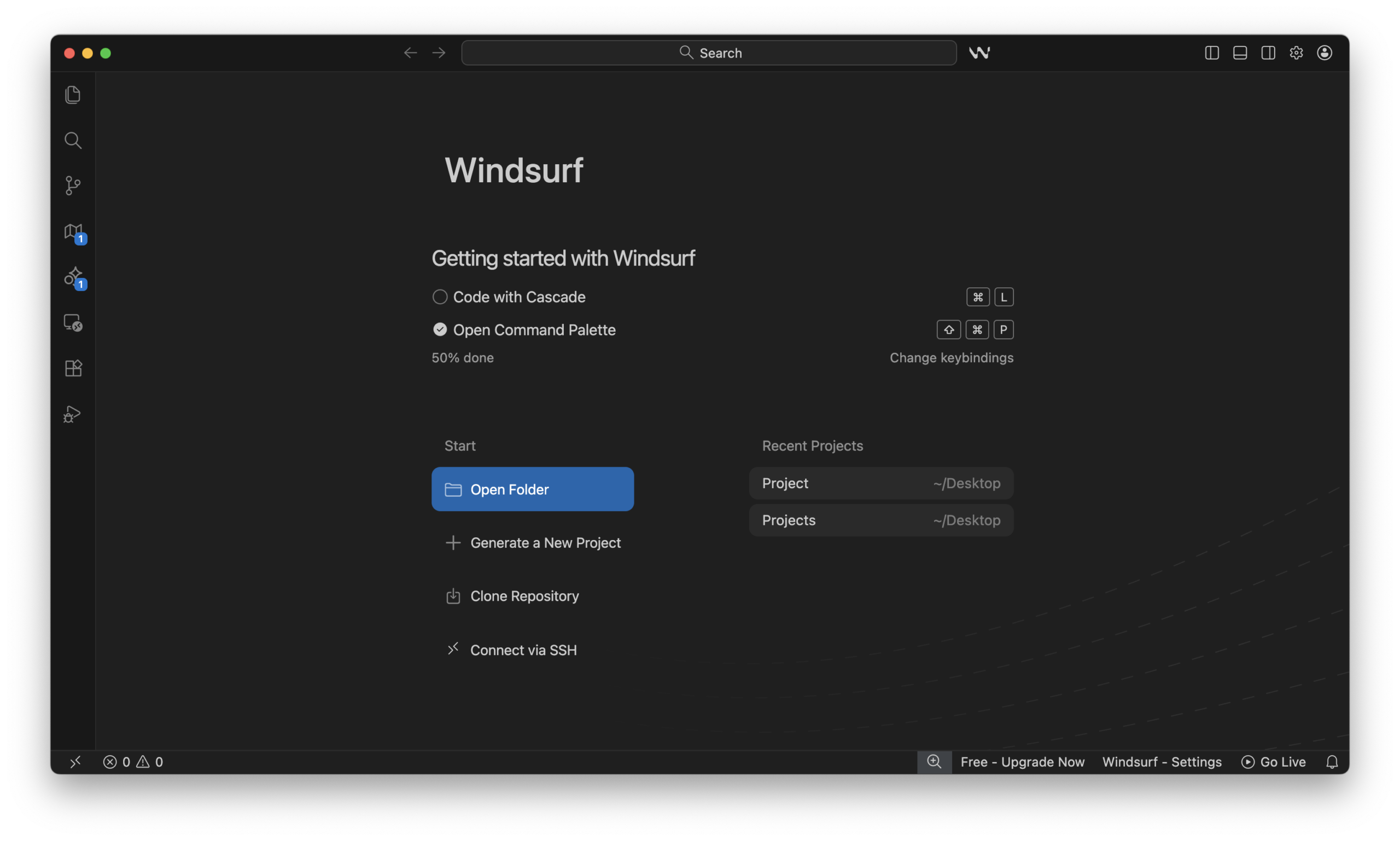
Windsurf is an AI-first IDE created by Windsurf Labs for agent-driven development, allowing AI to not only suggest code but also understand projects, run tools, and handle multi-step workflows. It aims to make complex development tasks faster and smarter.
Why use Playwright MCP with Windsurf?
Playwright MCP allows Windsurf's AI to move beyond static code suggestions by interacting directly with a live browser session, including the DOM, network activity, and runtime state.
This means the AI can see what actually happened during a test run, diagnose failures based on real behavior, and adapt tests immediately, cutting down trial-and-error debugging and making complex, multi-step workflows more reliable.
How to install Playwright MCP on Windsurf
Before you dive into installation, it's important to ensure your environment is properly set up so Playwright MCP can run reliably.
Prerequisites
To successfully install Playright MCP using Windsurf, you need these solid foundations.
-
Upgrade Node.js to 18 or higher: Older versions may cause MCP to fail silently.
-
Verify Playwright Installation: Ensure Playwright is already installed in your environment.
-
Windsurf IDE: Updated to a recent version that supports MCP.
Once your environment is stable, you can proceed with installation. Playwright MCP can be added via Quick Installation from the Marketplace or a Custom Installation for full control.
Let's start the process.
1. Open Windsurf Setting
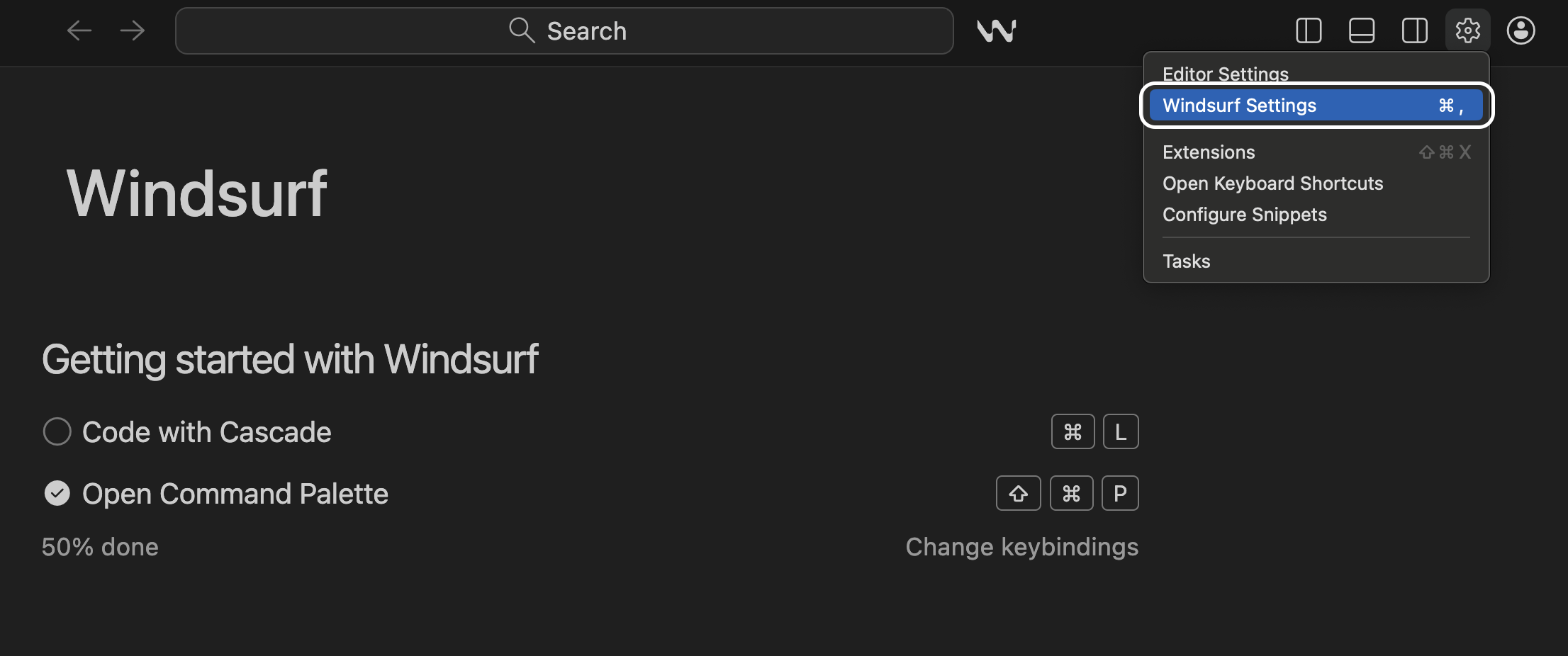
Hit Ctrl +, or Cmd +, to open Windsurf Settings. By Default, it opens the General tab.
Navigate to the Cascade tab, which lists IDE integrations and extensions. Click the MCP Marketplace button to access available MCP integrations.
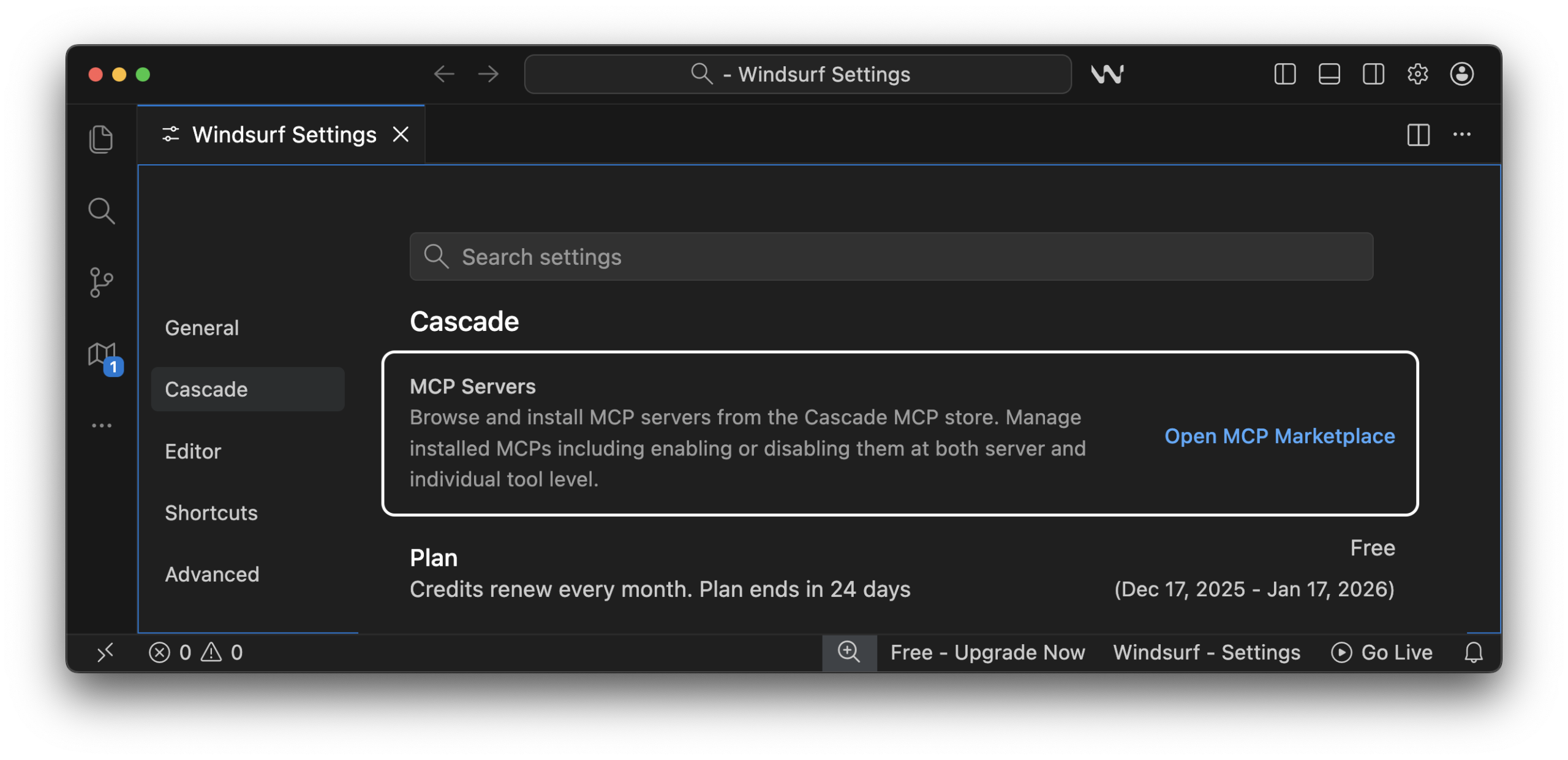
2. Open MCP Marketplace and add Playwright MCP
From here, you can set up Playwright MCP using two methods.
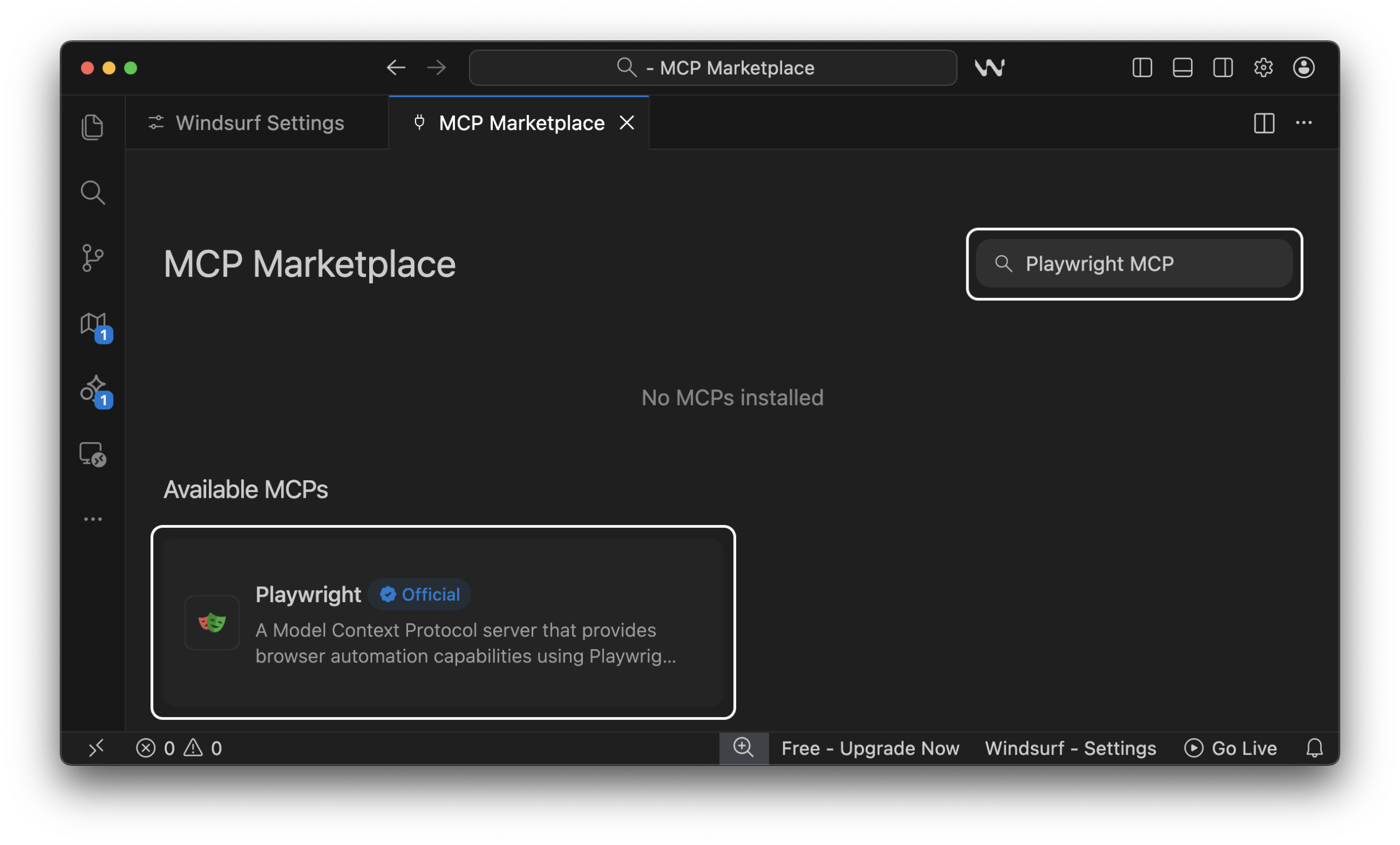
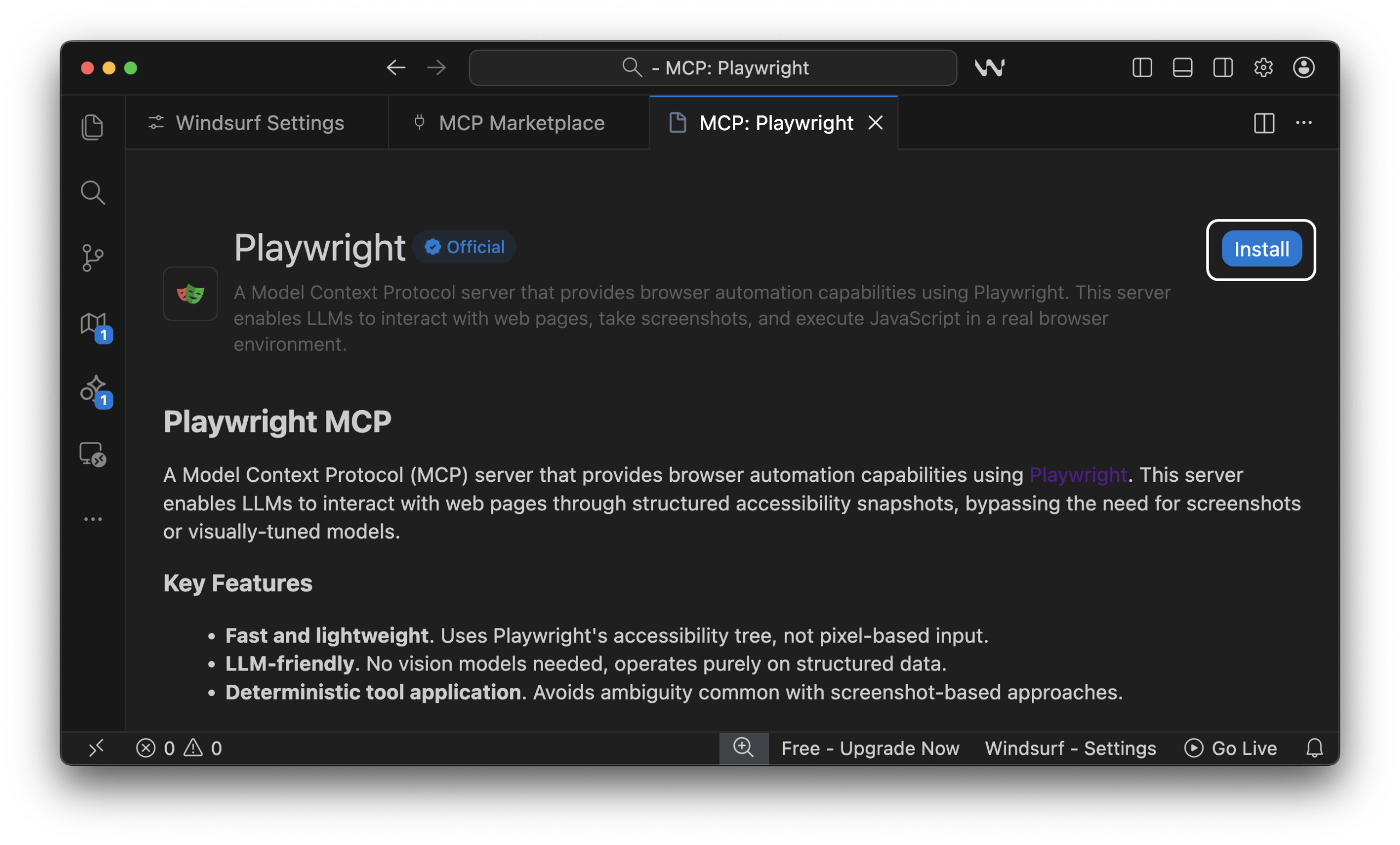
Method A: Search & Install
After opening the MCP Marketplace, search for Playwright MCP in the Search box, and you will MCP listed as shown in the image below.
Method B: Add via MCP Configuration File
First, install it as a dev dependency:
npm install --save-dev @playwright/mcpor with pnpm:
pnpm add -D @playwright/mcpWe have installed Playwright MCP using CLI now enable it. You can open the global MCP configuration file by clicking the settings icon in the MCP marketplace
// Add the following entry to register Playwright MCP
{
  "mcpServers": {
    "playwright": {
      "command": "npx",
      "args": ["@playwright/mcp"],
      "env": {
        "NODE_ENV": "development"
      }
    }
  }
}
Save the file. Windsurf will read it automatically.
3. Verify Playwright MCP Integration
Navigate back to the MCP Marketplace, Playwright MCP should appear in the list.
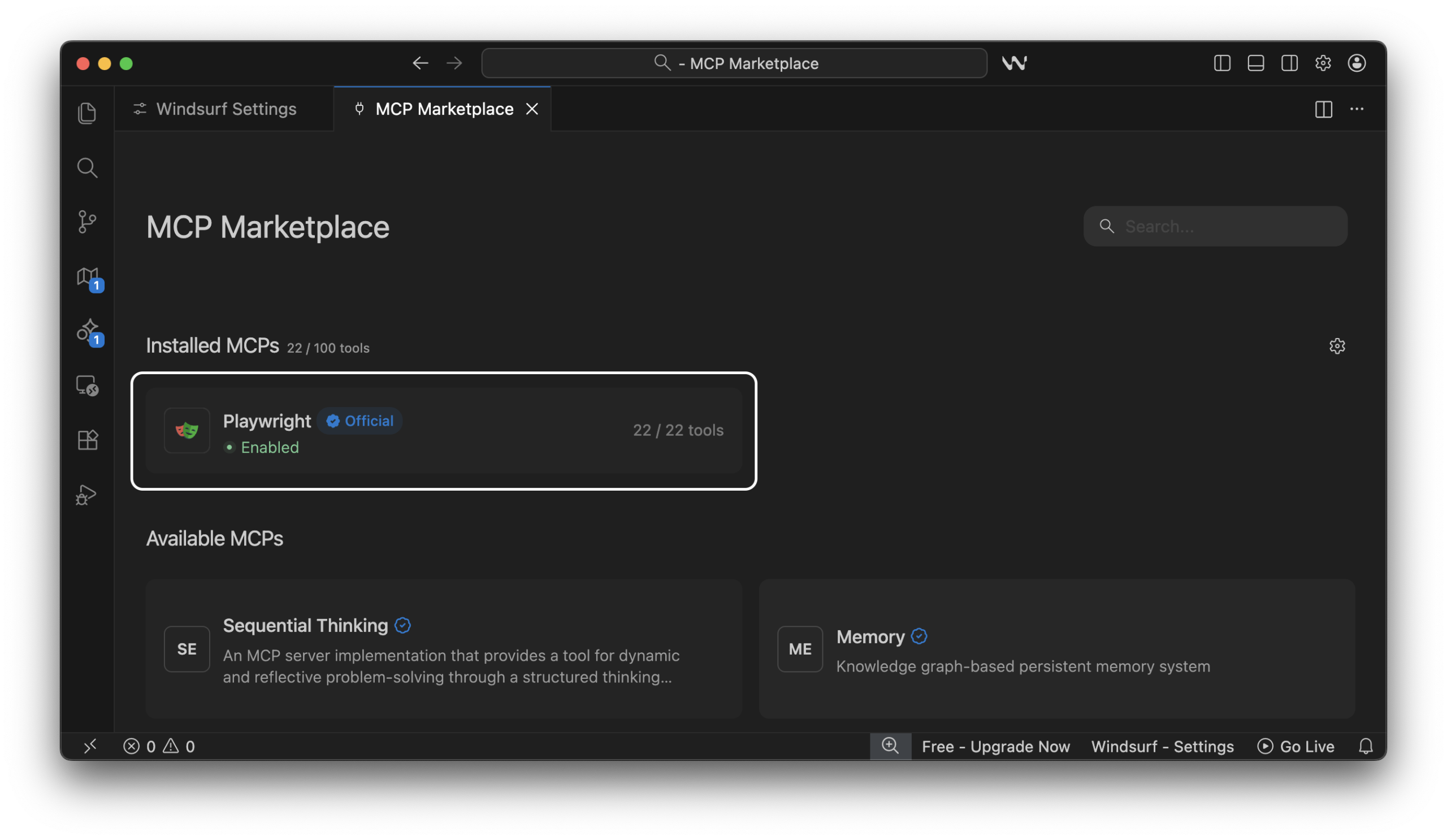
Practical Example
Once Playwright MCP is integrated, the fastest way to validate the setup is to let Windsurf drive a real browser task end-to-end.
Ask Windsurf's AI to perform the following:
Open https://app.cms.testdino.com in a real browser session and log in using [email protected] with the provided test password. Verify the dashboard loads, capture a screenshot, then log out and capture another screenshot. Generate a complete Playwright test that reproduces this login–logout flow exactly as executed.
Expected output
-
Windsurf launches a real browser opens and navigates to https://app.cms.testdino.com
-
Logs in with [email protected] and the test password
-
Dashboard loads successfully
-
Captures a screenshot after login
-
Logs out and captures a screenshot after logout
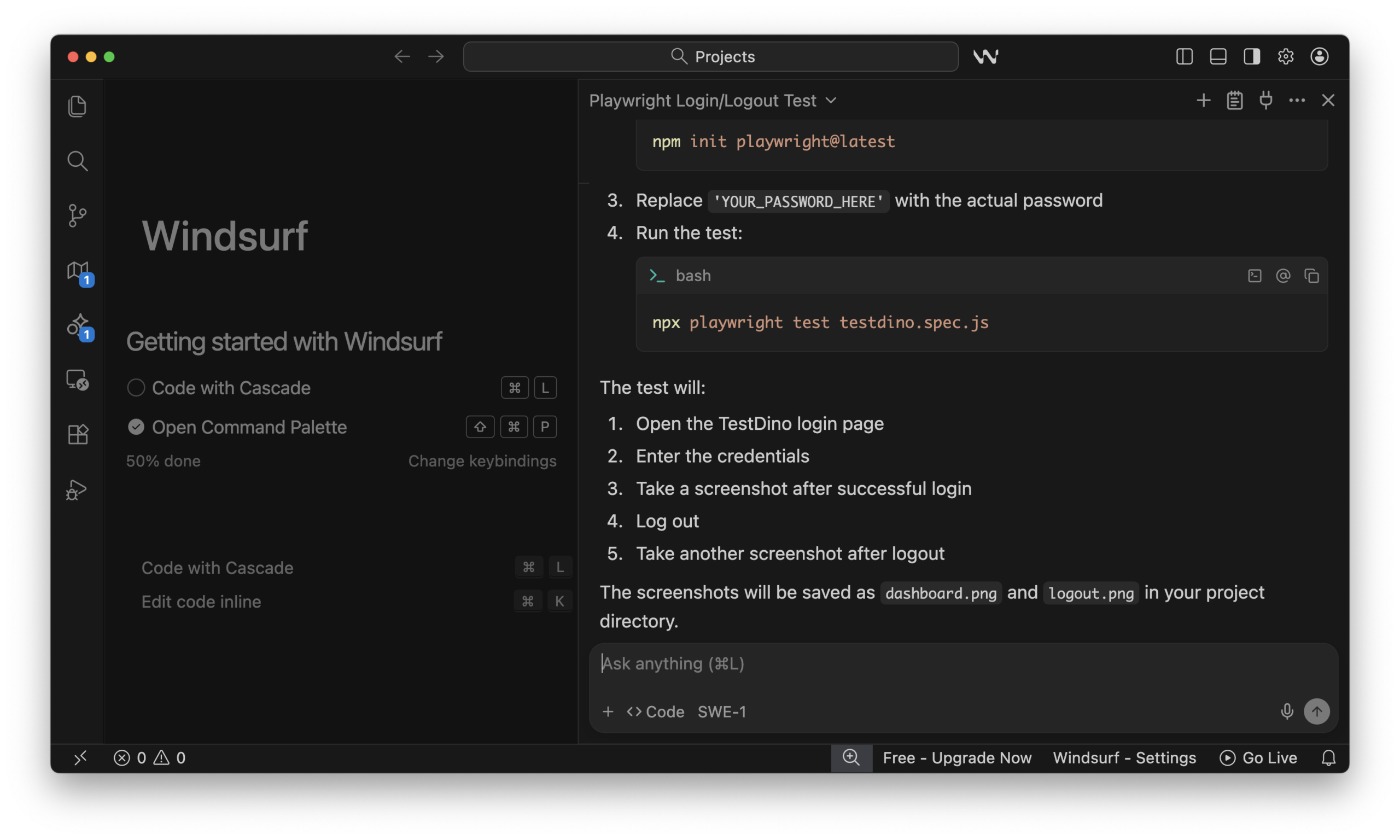
If this example does not behave as expected, the issue is almost always environmental or configuration-related, which is exactly what the next section helps you diagnose.
Troubleshooting
If the setup does not behave as expected, the issues below cover the most common problems teams encounter and how to resolve them quickly.
|
Issue / Symptom |
Likely Cause |
What to Do |
|---|---|---|
|
MCP shows red status, or tools are disabled |
MCP server failed to start due to config or spawn issues |
Restart Windsurf, recheck the MCP config JSON, and verify the command runs correctly in the terminal |
|
Playwright MCP appears installed, but does nothing |
Node version mismatch between the terminal and the IDE |
Ensure Windsurf uses the same Node binary as your terminal (Node 18 or higher) |
|
The browser does not launch or times out |
Playwright browsers are not installed |
Run npx playwright install before retrying |
|
MCP config not picked up |
The MCP config file is in the wrong location or invalid JSON |
Open the MCP config via Marketplace settings and validate the JSON syntax |
|
MCP fails silently on Windows |
npx not resolved correctly in the shell |
Verify npx works in the terminal and avoid global installs |
Once these common issues are addressed, you should have a stable Playwright MCP setup and can confidently move forward with regular automation workflows.
Conclusion
At this point, Playwright MCP should feel like an execution layer, not just another integration.
Windsurf is no longer inferring behavior from code. It is observing real browser runs and reacting with accurate, context-aware actions.
This cuts down debugging time, removes guesswork, and makes AI assistance genuinely useful in daily automation work. Test creation, failure analysis, and workflow automation become more intentional and far less manual.
Once execution is reliable, the next bottleneck is visibility.
If you want clearer insights into runs, failures, and trends over time, a reporting tool like TestDino can help turn raw Playwright output into something teams can actually reason about and act on.
FAQs

Pratik Patel
Co-founder