Playwright script templates: Reusable patterns for reliable test scenarios
Structured Playwright templates reduce flakiness, speed up debugging, and keep tests readable as teams scale. With clear POM design and consistent fixtures, failures become easier to trace and maintain.
Writing tests in Playwright can slip into chaos fast. Different naming styles, random fixtures, and unclear flows lead to flaky checks.
A Playwright script template gives you a clean start and helps build reliable tests.
A good template makes every test readable. Files follow the same structure, setup is simple, and new team members know where things go.
You spend less time guessing and more time running solid test cases.
With the right Playwright script template, the whole project stays organized. Code reviews go smoother, debugging gets easier, and CI surprises drop.
It is a small change that produces cleaner, repeatable testing across your suite.
1. The Foundation: Structure is the Key to Reliability
The structure of your tests is the main factor in how reliable they are over time. Ad-hoc scripts a
npx playwright testre hard to maintain, fail for hidden reasons, and take up too much triage time. A template-driven approach solves this by forcing consistency across your test suite.
The core reason script templates matter in Playwright is to prevent inconsistent locators, unstable waits, and duplicated setup logic. A well-defined test structure leads to high test readability and better team collaboration.
Reliability Template Checklist
| Step | Owner | Input | Output |
|---|---|---|---|
| Define Page Object | SDET/QA Lead | UI workflow for a page (e.g., login, checkout) | LoginPage.ts class with methods |
| Create Custom Fixture | SDET/QA Lead | Shared setup, common user, or pre-authenticated state | auth.fixture.ts file |
| Isolate Test Logic | QA Engineer | User story or requirement | Test file that calls only Page Objects and fixtures |
| Write Basic Test | QA Engineer | Initial setup validation or core functionality | A basic test verifying Playwright setup and core flows |
| Configure for CI | Dev Lead | Test runner options (retries, timeouts) | playwright.config.ts setup |
| Review Visibility | QA Engineer | CI Report artifact | Data ingestible by a Dashboard |
Ideal Folder and Script Structure
A consistent Playwright folder structure separates concerns and makes tests easier to run, debug, and analyze. It is the foundation of a scalable test framework. This structure naturally maps test results back to functional areas, simplifying how tools track outcomes across branches and CI runs.
.
├── tests/
│   ├── helpers/         # Utility functions, custom assertions
│   ├── fixtures/        # Custom fixtures for setup/teardown (e.g., authenticated user)
│   ├── pages/           # Page Object Model classes
│   └── specs/           # Test files (the actual test logic)
└── playwright.config.ts
A consistent folder structure makes your reports easier to analyze in dashboards. Test analytics tools automatically group test outcomes across environments and branches, which helps when reviewing Pull Requests
2. Playwright Scripts and the Page Object Model
When you write tests with Playwright, it helps to use the Page Object Model (POM). This just means keeping your code clean and easy to fix later.
With POM, you keep two things separate:
-
The code that clicks, types, or finds things on the page.
-
The code that checks if everything works.
Playwright uses selectors to find parts of a web page, like buttons or text boxes. It can even find things inside iframes or hidden parts of the page.
In your page files, you can write small actions, like clicking a button, typing text, or moving something on the page. These actions make your test act like a real person using the site.
Each test should check one small thing at a time. This helps make sure every part of your website works the way it should.
The Page Object Class
Every unique application page or major component (like a header or modal) should get its own class in the pages/ directory.
Example: The LoginPage Page Object
This class holds all locators and high-level actions for the login page.
import { type Page } from '@playwright/test';
// Define the shape of the Page Object
export class LoginPage {
  // 1. Private properties for locators
  private readonly emailInput;
  private readonly passwordInput;
  private readonly signInButton;
  // 2. Constructor to get the Page object
  constructor(public readonly page: Page) {
    this.emailInput = page.getByLabel('Email');
    this.passwordInput = page.getByLabel('Password');
    this.signInButton = page.getByRole('button', { name: 'Sign in' });
  }
  // 3. Action methods
  async goto() {
    await this.page.goto('/login');
  }
  async login(email: string, pass: string) {
    await this.emailInput.fill(email);
    await this.passwordInput.fill(pass);
    await this.signInButton.click();
  }
}
The Test Specification Script
The test file (in specs/) should be short. It imports the Page Object and calls its methods to build the test flow. This keeps the Playwright script logic clean and readable.
Example: The Test Specification
This test focuses only on the behavior and state, not the UI mechanics.
import { test, expect } from '@playwright/test';
import { LoginPage } from '../pages/LoginPage'; // Imports the Page Object
test.use({ trace: 'on', screenshot: 'only-on-failure' });
test('valid user login shows dashboard', async ({ page }) => {
  // 1. Arrange: Initialize the Page Object
  const login = new LoginPage(page);
  // 2. Act: Call high-level actions
  await login.goto();
  await login.login('[email protected]', 'secure-password');
  // 3. Assert: Check the final state
  await expect(page).toHaveURL(/dashboard/);
  await expect(page.getByRole('heading', { name: 'Dashboard' })).toBeVisible();
});
This structure reduces confusion across teams and simplifies reporting and analytics.
3. Managing Async Reliability and Fixtures
Flaky tests are intermittent failures that pass on a retry without any code change. They hurt team trust and block releases. Most flakiness comes from poor management of asynchronous operations and test setup.
To improve reliability, it's important to implement a test retry strategy. In Playwright, you can configure test retry strategy to automatically rerun failed tests, capture execution traces, videos, and screenshots, and help identify and eliminate flaky tests.
Playwright's auto-wait feature, often referred to as flaky tests auto-wait, ensures elements are ready before interactions, significantly reducing intermittent failures caused by timing issues.
Additionally, optimizing for test execution time by running tests in parallel and monitoring performance helps teams maintain efficient CI pipelines and faster feedback cycles.
Using Fixtures for Stable Setup
Playwright fixtures are how you manage the test's environment and dependencies. Use them with test.beforeEach() or custom extensions to ensure every test starts from a clean, known state.
Example: Authentication Fixture
A custom fixture that runs once and stores an authenticated state dramatically speeds up runs and prevents flakiness from repeated, slow login steps.
// fixtures/auth.fixture.ts
import { test as base } from '@playwright/test';
import { LoginPage } from '../pages/LoginPage';
// Define a new fixture called 'authenticatedPage'
type MyFixtures = {
  authenticatedPage: LoginPage;
};
// Extend the base test object with the new fixture
export const test = base.extend<MyFixtures>({
  authenticatedPage: async ({ page }, use) => {
    const loginPage = new LoginPage(page);
    // Perform setup: Log in once
    await loginPage.goto();
    // Using environment variables for secrets is a best practice
    await loginPage.login(process.env.USER_EMAIL!, process.env.USER_PASS!);
    // Yield the authenticated page object to the test
    await use(loginPage);
    // Teardown logic (optional) runs after the test finishes
  },
});
// Use it in your test file:
import { test, expect } from '../fixtures/auth.fixture';
test('settings page loads for logged-in user', async ({ authenticatedPage }) => {
  await authenticatedPage.page.goto('/settings');
  await expect(authenticatedPage.page.getByRole('heading', { name: 'User Profile' })).toBeVisible();
});
Test Data and Configuration Strategy
Test stability depends on the state of the data used during the run. Do not hard-code test data directly into your scripts.
Use Environment Variables (.env) for Secrets and URLs: Never commit passwords or API keys. Use a .env file for secrets, then load them into process.env.
Keep Test Data Modular: Store user credentials, common inputs, or test-specific configuration in dedicated data files (e.g., data/users.json or data/user.data.ts).
Prefer Dynamic Data for Parallel Runs: When running tests in parallel, ensure each test uses unique or isolated data (e.g., generated user emails or unique order IDs) to prevent tests from interfering with each other.
Example: Modular Test Data
// example: data/user.data.ts
import * as dotenv from 'dotenv';
dotenv.config();
// Define user roles and pull credentials from the environment
export const users = {
  admin: { email: process.env.ADMIN_EMAIL, password: process.env.ADMIN_PASS },
  guest: { email: '[email protected]', password: 'guest-pass' },
  // Add other user types here
};
// Test script uses the modular data
import { users } from '../data/user.data';
test('admin user can access dashboard', async ({ page }) => {
  const adminEmail = users.admin.email;
  // ... use admin credentials ...
});
Best Practices for Stable Waits
Avoid hard page.waitForTimeout(1000). Use Playwright's auto-waiting features or explicit waiting for a state.
Actionability: Playwright waits for an element to be visible, enabled, and stable before performing an action like click() or fill(). Trust this default.
State Assertion: Use expect(locator).toBeVisible() or expect(locator).toHaveText() which automatically retry checks for a defined period.
Polling: For non-UI states, like waiting for a background API call to complete, use expect.poll().
Flakiness Visibility: With consistent fixtures, debugging gets simpler. Integrated reports trace failures across related tests and classify the cause.
4. Parallelism and CI Efficiency
Test parallelism directly impacts stability and Continuous Integration (CI) run time. A scalable template must account for how tests run simultaneously.
Configure Workers for Max Speed
Use the workers option in playwright.config.ts to control how many tests run at once. A good starting point is half the number of cores on your CI runner.
// playwright.config.ts
import { defineConfig } from '@playwright/test';
export default defineConfig({
  // Run tests in parallel with up to 4 worker processes
  workers: 4,
  // Use projects for different browsers or environments
  projects: [
    { name: 'chromium', use: { browserName: 'chromium' } },
    { name: 'firefox', use: { browserName: 'firefox' } }
  ],
  // Isolate each test environment
  fullyParallel: true,
  retries: 2, // Use minimal retries for minor flakiness
});
Test Isolation and Browser Context
Playwright ensures isolation by default:
Browser Context per Test: Each test gets a clean, isolated browser context. This prevents cookies, local storage, or authenticated states from one test from leaking into another.
fullyParallel: true: This setting ensures all tests run in parallel workers, preventing accidental sequential runs that slow down your pipeline.
The key takeaway is that when you keep your setup modular with fixtures and your data isolated, you can safely scale up the workers count and minimize CI time without introducing flakiness.
5. Debugging and Local Replay Tips
A well-structured script simplifies debugging because you only need to look at the short, high-level test file to understand the flow. You do not have to dig through complex locator logic.
For visual debugging, you can use the Playwright Inspector, which allows you to step through test executions, generate selectors, and analyze failures interactively.
When troubleshooting, it's important to explore execution logs to analyze failures and identify issues during test runs.
Capturing execution logs during test runs helps you review the sequence of actions, investigate problems, and understand what happened at each step.
Local Debugging with PWDEBUG
Playwright provides excellent built-in debugging tools. Use the debugger to pause execution and inspect the page state.
Run with Debug Mode: Stop execution right before a failure to inspect the UI and locators.
npx playwright test --debug
# or set an environment variable
PWDEBUG=1 npx playwright test
Trace Viewing
Configure Playwright to capture a trace for every run or only on failure. The trace is a historical view of the test execution, including screenshots, DOM snapshots, and network logs.
trace: 'on' captures the trace for all runs.
trace: 'retain-on-failure' only saves the trace file when the test fails.
// playwright.config.ts or test.use()
test.use({
  trace: 'retain-on-failure',
  screenshot: 'only-on-failure'
});
Capturing Console and Network Logs
For intermittent failures, the browser's console output can pinpoint a client-side script error or a blocked request.
test('api data loads correctly', async ({ page }) => {
  // Capture console logs during the test
  page.on('console', msg => console.log(`[Browser Console]: ${msg.text()}`));
  // Capture request failures
  page.on('requestfailed', request => {
    console.log(`[Request Failed]: ${request.url()} - ${request.failure()}`);
  });
  await page.goto('/data-page');
  // ... rest of the test
});
This logging helps developers directly troubleshoot issues from flaky runs by seeing both the UI failure and the underlying browser error.
6. Visibility and AI-Based Reporting Insights
A well-structured Playwright script maximizes the value of your reporting. Playwright generates JUnit and HTML reports for local use, and adding the TestDino reporter alongside them streams every run into a centralized dashboard with a deeper, AI-based analysis layer.
Beyond Basic Reports
You need more than just a pass/fail status. You need to know why a test failed, if it is recurring, and who is affected.
Tools like TestDino plug in as a Playwright reporter and receive results live, then apply an AI-based analysis to categorize failures.
Example AI Insight Categories:
Actual Bug: Consistent failure indicating a product defect. Fix these first.
UI Change: Locator failure due to a DOM change. Update locators to restore stability.
Unstable Test: Intermittent behavior that often passes on retry (flakiness). Stabilize or quarantine this noise.
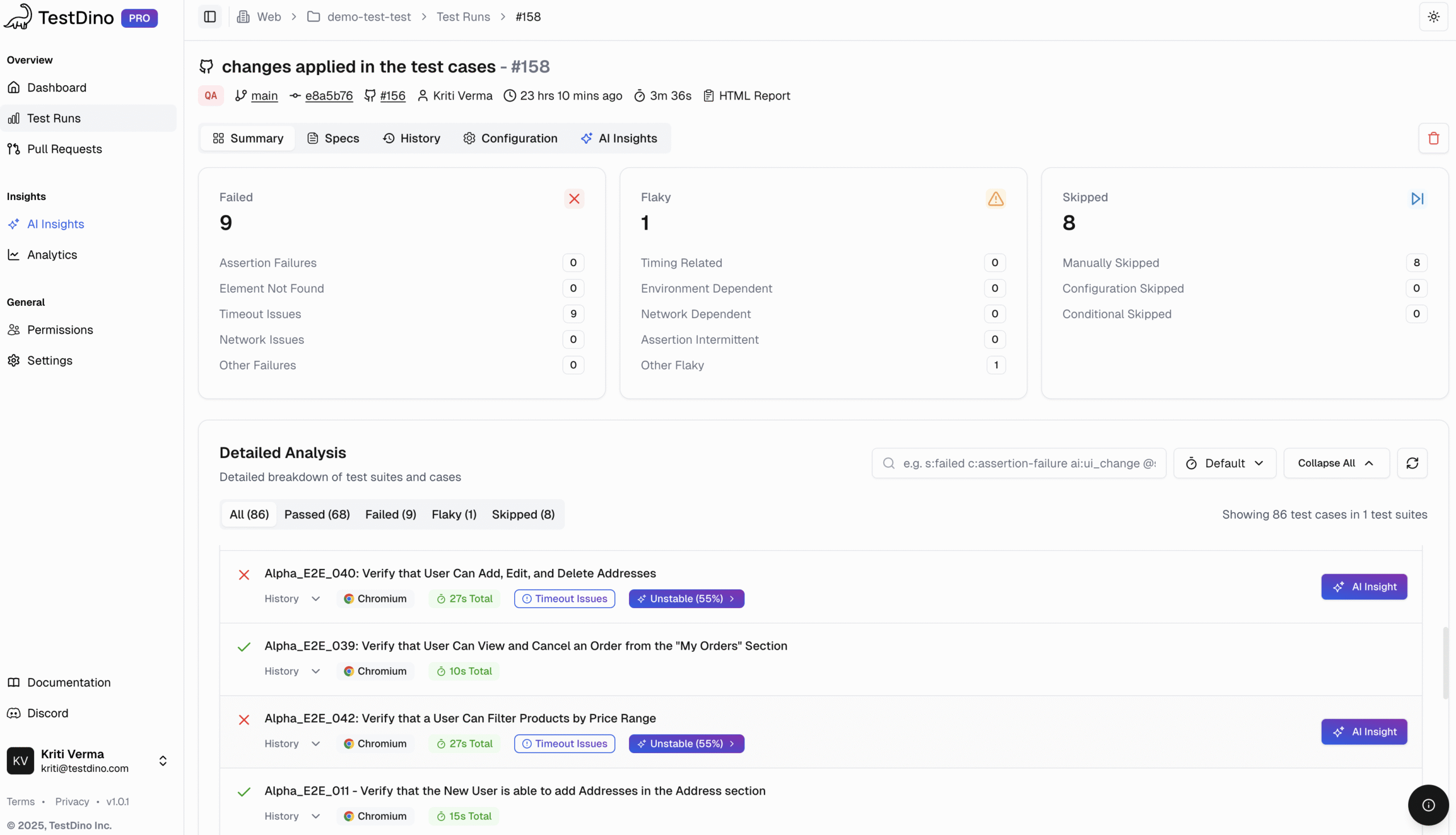
This analysis moves teams from triage to action by prioritizing genuine defects over flaky noise.
Integrating with CI and Dashboards
Your CI pipeline must handle the test execution and artifact upload cleanly.
Minimal GitHub Actions Snippet for Playwright
This snippet runs the tests, generates artifacts, and ensures the results are uploaded to a centralized platform.
name: e2e-playwright
on: [push, pull_request]
jobs:
  run:
    runs-on: ubuntu-latest
    steps:
      - uses: actions/checkout@v4
      - uses: actions/setup-node@v4
        with: { node-version: 20 }
      - run: npm ci
      - run: npx playwright install --with-deps
      - name: Run tests with TestDino
        env:
          TESTDINO_TOKEN: ${{ secrets.TESTDINO_TOKEN }}
        run: npx playwright test
      - uses: actions/upload-artifact@v4
        with:
          name: playwright-artifacts
          path: |
            playwright-report
            test-results
            test-results/*.xml
This ensures the necessary data for tools to analyze test run volume and pass rate trends are available. By mapping branches to environments in your project settings, you get accurate reporting for every pull request.
Conclusion: Reliability Through Structure and Insight
A good Playwright test starts with good structure. When you follow Playwright script templates and keep scripts in small pieces, then they are easier to read, fix, and reuse. Clean scripts break less, and debugging takes less time.
Tools like TestDino help by showing where things fail and why. You get clues instead of guessing, and patterns show up fast. This works best when your tests already follow a readable template.
Put them together and testing stays smoother. Clean templates plus clear insights means reliable tests, fewer errors, faster fixes, and a setup you can trust as your suite grows.
FAQs

Pratik Patel
Co-founder