Running Playwright tests on TeamCity with TestDino
Fix flaky Playwright Tests on TeamCity with a step by step setup, reporting configuration, and advanced analytics using TestDino.

Running Playwright tests on TeamCity works fine locally, but in CI, they become flaky, and the reports are difficult to understand.
Setting up a stable Playwright TeamCity integration doesn't have to be painful, even when dealing with TeamCity test automation and complex Playwright CI/CD integration workflows.
If your Playwright tests pass locally but fail in TeamCity, this guide shows how we configure and stabilize them with Testdino. You'll learn how to set up the build agent, reduce flaky tests, enable detailed Playwright reports, and spot real issues early instead of chasing false failures.
By integrating TestDino with TeamCity Playwright reporting, you gain clearer insights, faster failure analysis, and a CI pipeline that teams can trust.
What Is Playwright on TeamCity and Why Do QA Teams Choose It?
Playwright on TeamCity combines Playwright's powerful cross-browser end-to-end testing with TeamCity CI/CD automation, reporting, and orchestration features to create a reliable test automation framework.
This Playwright TeamCity integration enables QA teams to run automated tests in parallel, get fast feedback, and seamlessly feed Playwright test results into their continuous integration pipelines.
Benefits of Playwright with TeamCity
- Faster and more reliable test runs come from Playwright's parallel execution and shared browser caching, paired with efficient TeamCity build agent test execution, reducing CI runtimes and flaky failures.
- Real-time visibility is achieved as screenshots, traces, logs, and Playwright test reporting tools surface results directly in TeamCity dashboards instead of buried logs.
- Enhanced debugging is possible through Playwright's tracing, video recording, and debugging features, fully integrated into TeamCity test automation workflows.
- Secure and auditable testing is supported through TeamCity's OIDC and IAM role integrations, ensuring secure authentication for Playwright CI/CD integration without stored credentials.
- Comprehensive test coverage is achieved as Playwright supports UI, API, and mobile emulation testing within the same framework, simplifying continuous integration Playwright testing.
- Automatic flaky test detection is handled by TeamCity's historical analysis, using flip-rate detection and same-revision rules to identify Playwright flaky tests without code changes.
How to Configure Playwright Tests in TeamCity: 5 -Step Setup Process
Setting up Playwright CI/CD integration requires proper configuration of both your Playwright project and TeamCity build steps to ensure consistent test execution.
Step 1: Install Playwright and Dependencies
Start by installing Playwright and its required browsers to ensure reliable TeamCity build agent test execution.
Add a Command Line build step in TeamCity with this script:
# Install npm packages with exact versions from lock file
npm ci

# Install Playwright browsers and system dependencies
npx playwright install --with-deps
The npm ci command installs exact dependency versions from your lock file, ensuring consistency across builds. The --with-deps flag installs system libraries required for browsers to run in CI environments.
Step 2: Configure Playwright for CI Environment
Optimize your playwright.config.js for continuous integration Playwright testing by enabling headless mode, retries, and structured reporting:
// playwright.config.js
export default {
  testDir: './tests',
  // Use headless mode for CI
  use: {
    headless: true,
    screenshot: 'only-on-failure',
    video: 'retain-on-failure',
    trace: 'retain-on-failure',
  },
  // Configure retries for CI
  retries: process.env.CI ? 2 : 0,
  // Generate JSON report for TeamCity
  reporter: [
    ['html'],
    ['json', { outputFile: 'playwright-report/results.json' }]
  ],
  // Optimize workers for parallel execution
  workers: process.env.CI? 4: undefined,
};
This configuration enables headless mode for faster execution and captures screenshots, videos, and traces only when tests fail. The retry mechanism runs failed tests twice on CI to filter out transient failures.
Step 3: Add Playwright Test Execution Step
Create a second Command Line build step to run your tests:
# Run Playwright tests
npx playwright test
TeamCity will automatically detect the TEAMCITY_VERSION environment variable, which helps Playwright identify it's running in a CI environment.
Step 4: Configure Test Reporting
TeamCity supports multiple approaches for test reporting. The most effective method for playwright test reporting tools is using a dedicated reporter.
Install the TeamCity reporter package:
npm install --save-dev playwright-teamcity-reporterThen update your Playwright config:
reporter: [
  ['list'],
  ['playwright-teamcity-reporter', {
    testMetadataArtifacts: 'playwright-report',
    logConfig: false
  }]
],
This sends test results directly to the TeamCity UI, displaying failures, durations, and test counts clearly in the Tests tab.
Step 5: Configure Artifact Publishing
Set up artifact paths in your TeamCity build configuration to preserve test results, screenshots, and videos. Navigate to Build Configuration Settings, then General Settings, and add:
playwright-report/** => playwright-report
test-results/** => test-results
This ensures all test artifacts are available for analysis after builds are complete. TeamCity will display these artifacts in the build results, making it easy to investigate failures.
Flaky Test Detection and Reporting Optimization
Flaky tests are automated tests that pass during one execution and fail the next, even when no changes have been made to the codebase, causing unreliable Playwright test automation results.
TeamCity's built-in test intelligence automatically detects and surfaces problematic tests in TeamCity CI/CD pipelines. The platform considers a test flaky if it finishes with an opposite status compared to the previous build run that processed the same revision with no new changes.
How TeamCity Detects Flaky Tests
- TeamCity detects flaky tests by analyzing test execution history, using flip-rate heuristics and same-revision flip rules. A test is marked as flaky if its status changes frequently (pass/fail) without code changes or if it fails inconsistently on the same revision.
- Detected flaky tests are surfaced in the TeamCity UI with badges and links to detailed history, making them easy to identify and investigate during TeamCity test automation runs.
- TeamCity allows muting flaky tests, so they run in the background without failing the main CI/CD build, while still tracking results for QA review.
Improving reports and reliability with TestDino.
Uploading Playwright test reports to TestDino brings significant improvements over local or basic Playwright test reporting tools. Instead of sifting through scattered logs or HTML files, TestDino centralizes all test results into a single visual dashboard that provides actionable insights and improves collaboration.
- Centralized Reporting: All test runs, failures, and evidence such as screenshots, videos, and logs are collected in one accessible dashboard, making it easy for teams to review and track test health.
- AI-Powered Analysis: TestDino uses AI to automatically classify failures as bugs, flaky tests, or UI changes, with confidence scores that reduce manual triage and speed up root cause identification.
- Flaky Test Detection: Flaky tests are automatically detected and tracked over time, helping QA teams focus on real issues and stabilize Playwright CI/CD integration.
- Historical Trends & Metrics: The dashboard shows pass/fail rates, performance trends, and environment comparisons, allowing teams to spot recurring issues and optimize their testing strategy.
- Integration with CI/CD: Reports are automatically uploaded from TeamCity CI/CD pipelines, so every build's results are immediately available for review without manual intervention.
- Faster Debugging: With visual evidence and detailed logs, debugging failed Playwright tests becomes faster and more efficient.
- Collaboration & Visibility: Developers, QA leads, and stakeholders can view trends and metrics in real time, improving transparency and decision-making across teams.
By uploading Playwright reports to TestDino, teams gain faster feedback, deeper insights, and a more reliable, collaborative QA automation workflow.
Integrating TestDino for Advanced Analytics
TestDino integrates with TeamCity through a dedicated plugin or CLI commands that automatically upload Playwright test reports after each CI/CD build.
Installing the TestDino TeamCity Recipe
Navigate to TeamCity Administration, then open the Plugins section. Click Browse Plugins (JetBrains Marketplace), search for "TestDino", click Install, and restart TeamCity if prompted.
The TestDino TeamCity Recipe installs as a build step runner type, making it available across all TeamCity build configurations for seamless Playwright CI/CD integration.
Configuring the Upload Step
Open your TeamCity Build Configuration and navigate to Build Steps. Click Add build step and select "TestDino – Upload Playwright Report" from the Runner Type dropdown.
Configure the following settings for reliable Playwright test reporting:
- Report Directory: Path to your Playwright test reports, typically ./playwright-report
- TestDino API Token: Your project API key from TestDino Settings → API Keys
- Upload Options: Select which Playwright test artifacts to upload:
-
-
JSON Report (always uploaded)
-
HTML Reports for interactive UI
-
Image Attachments for screenshots
-
Video Attachments for recordings
-
Trace Files for debugging
-
Full JSON Bundle for everything
-
The Full JSON Bundle option uploads all test artifacts in a single request, simplifying configuration and ensuring complete Playwright test analytics in TeamCity CI/CD pipelines.
What Gets Uploaded to TestDino
| Artifact Type | What It Includes | Why It Matters |
|---|---|---|
| JSON Report | Test results, pass/fail data, timing | Required for basic analysis |
| HTML Reports | Interactive Playwright report UI | Easy failure investigation |
| Screenshots | Images from test runs | Visual verification of failures |
| Videos | Recordings of test executions | See exactly what happened |
| Trace Files | Playwright trace archives | Deep debugging with timeline |
| File Attachments | Logs, text files, PDFs | Additional context |
After your build completes, the TestDino recipe uploads these artifacts automatically. You'll see a direct link to the test run in your TeamCity build log.
TestDino provides advanced analytics and actionable insights to optimize test reporting and reliability.
Details of Test Cases
- Centralized test case management workspace for organizing both manual and automated tests.
- Detailed test run history, configuration, and evidence (logs, screenshots, stack traces) for each test case.
- Error Categorization for Network issues, Element Not Found, Browser Error, TimeOut Issue. Failure is categorized into UI change, Actual Bug, Unstable, and Miscellaneous for each test failure.
Analytics
- Test-run analytics with branch comparisons and performance data.
- Testcase analytics to find the slowest, most flaky test with branch and environment comparisons.
- Historical trend analysis and environment comparison across branches and commits.
Pull Requests
- Git and pull request integration to connect test runs with specific commits, branches, and PRs.
- Visibility into which changes introduce or fix failures.
- Automated alerts and issue creation in PRs for failed or flaky tests.
Integrations
- Seamless integration with CI/CD tools (GitHub Actions, GitLab, TeamCity, etc.).
- Communication and issue tracking integrations (Slack, Teams, Jira, Asana, Linear).
- MCP to talk with your testruns to get analytics via AI(Claude, Cursor, etc.)
Dashboard
- Role-based dashboards for QA, developers, and managers with focused views on failure trends, flaky hotspots, and release readiness.
- Clean, filterable test runs dashboard for quick status at a glance.
- Customizable branch, environment, and alerting filters.
Best Practices for Faster Playwright CI/CD Execution
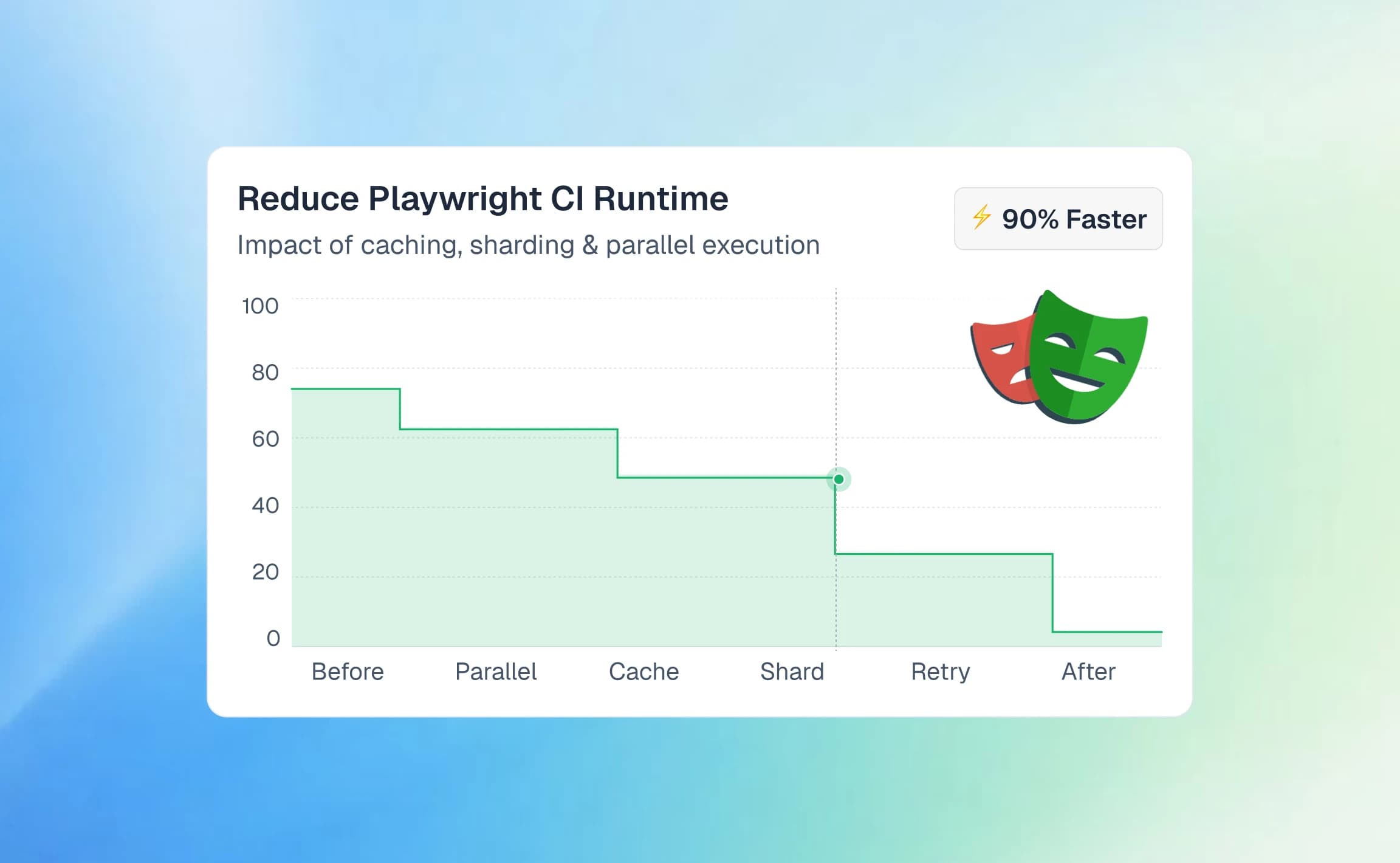
Slow test execution in continuous integration pipelines wastes developer time and delays deployments. By combining TeamCity CI/CD parallelization and caching with an optimized Playwright test configuration, teams can dramatically reduce build times while maintaining reliable Playwright test automation.
Parallelization Strategies
TeamCity's Parallel Tests feature automatically distributes tests across multiple TeamCity build agents to speed up continuous integration Playwright testing. It analyzes test statistics from previous builds to create equally sized batches based on duration, ensuring optimal resource utilization.
To enable:
-
Go to Build Features in your TeamCity build configuration
-
Click Add build feature → Parallel tests
-
Set the number of test batches (determines parallel agents)
This works natively with Maven, Gradle, and .NET. For Playwright with Node.js, combine it with Playwright's built-in parallelization for maximum efficiency.
Playwright workers run tests in parallel processes on each agent:
// playwright.config.js
workers: 4  // Use 4 CPU cores per agent
Maximum speed is achieved by combining TeamCity agents with Playwright workers per agent, enabling both distributed and intra-agent parallel execution.
Caching Dependencies
Skip repeated installs in Playwright CI/CD pipelines by using TeamCity cache directories:
node_modules => package-lock.json
~/.cache/ms-playwright => package-lock.json
Add these paths to Additional Settings in your build configuration. When package-lock.json is unchanged, TeamCity restores the cache instantly, allowing builds to jump straight to Playwright test execution.
Optimized Build Agent Setup
Browser-based end-to-end testing is resource-intensive, so proper TeamCity build agent configuration is critical:
-
Small test suites: 4GB RAM minimum
-
Large or parallel test suites: 8GB+ RAM
-
Monitor usage through TeamCity agent statistics
For consistent Playwright test environments, use Docker-based agents:
FROM mcr.microsoft.com/playwright:v1.40.0-focal
WORKDIR /app
COPY package*.json ./
RUN npm ci
COPY . .
CMD ["npx", "playwright", "test"]
Streamlined Reporting for TestDino
Disable heavy HTML reports when using TestDino:
reporter: [
  ['json', { outputFile: 'results.json' }],
  ['playwright-teamcity-reporter']
]
This keeps TeamCity test automation fast while TestDino handles advanced analytics and reporting.
Smart Timeouts
use: {
  actionTimeout: 10000,    // 10s for clicks/interactions
  navigationTimeout: 30000 // 30s for page loads
},
timeout: 60000,            // 60s per test
maxFailures: process.env.CI ? 10 : undefined  // Stop early on failures
Teams report 50–70% faster Playwright CI runs by combining these best practices. Playwright tests execute reliably across TeamCity build agents, while TestDino provides advanced reporting and flaky test analysis.
Conclusion
Setting up Playwright TeamCity integration creates a reliable foundation for CI Playwright testing. TeamCity's automatic flaky test detection, combined with Playwright's robust browser automation testing, gives teams confidence in their test automation results.
The five-step configuration process helps teams get started quickly, while best practices like parallel test execution, dependency caching, and smart timeout configuration keep TeamCity CI/CD builds fast and stable. TeamCity manages Playwright test execution and basic reporting, providing immediate visibility into test failures.
TestDino extends this setup with AI-powered test analytics that classify failures, detect flaky patterns, and track test stability trends across builds. Instead of manually investigating every failed Playwright test, teams get instant insights into root causes and recurring issues, enabling faster and more reliable releases.

Pratik Patel
Co-founder