Playwright Dashboard by TestDino

Playwright Dashboard and Test Reporting for Modern Teams

A Playwright native dashboard that centralizes test reporting, analytics, and debugging so teams can troubleshoot faster and improve test quality.

Playwright cheatsheet
TestDino Playwright Dashboard & Reporter

We are introducing TestDino 🦕, a Playwright native reporting and analytics platform that elevates your Playwright test reporting without any custom setup or maintenance overhead.

TestDino is a Playwright-native test reporting tool that provides a unified Playwright dashboard for all your runs, reports, artifacts, and debugging data. It works with the built-in Playwright reporter, so teams get clear Playwright reports without config complexity.

It delivers AI-driven failure analysis and brings together all your runs, traces, screenshots, videos, and PR context in one streamlined view so your team can focus on fixing, not hunting.

Playwright gives teams speed, cross-browser execution, and deep debugging through its Trace Viewer, but it still leaves a gap. All that data lives in scattered artifacts, local machines, or CI logs, which slows teams down and hides patterns that matter.

This is exactly where TestDino becomes indispensable. It centralizes every run, every trace, and every artifact so you finally get the visibility Playwright alone cannot provide.

Watch this quick demo to see how TestDino transforms raw Playwright outputs into a single source of truth for quality:

Whether you are experienced with Playwright or just starting out, having the right commands and tools at hand keeps your workflow fast. To support that, we have compiled a complete Playwright cheat sheet with everything you need.

Get the Ultimate Playwright Cheatsheet

View Cheatsheet

A Single Solution for Every Role on Your Team

A slow or unstable test suite is a headache for everyone, but the pain feels different depending on your role.

For QA Engineers

You're the guardian of quality 🥷, but your day is spent chasing ghosts.

You review logs to determine if a failure is a real bug or just another flaky test.

You spend hours trying to gather enough evidence for a reproducible bug report, only to have it sent back as "cannot reproduce."

You see a test failing intermittently, but lack the historical data to prove it's a chronic issue that needs stabilization.

For Developers

You push a commit and then you wait. The CI pipeline takes forever ⏳, and when it finally fails, the error message is unclear.

You can't easily access the screenshots, videos, or traces you need to debug effectively.

Your pull request is blocked by a test failure you don't understand, and the QA team is reporting a bug you can't reproduce on your machine. The slow, unclear feedback loop is killing your productivity.

For Managers

You're responsible for delivery, but you lack true visibility.

Is the team's testing effort actually improving product quality?

Is the pass rate going up because the product is more stable, or because flaky tests are being disabled?

You need a clear, data-driven picture of test suite health to ensure releases are safe to ship, but you're operating in the dark.

👉 This is where you find the solution. TestDino strengthens your Playwright reporting and acts as a central Playwright dashboard that unites your team around a single, clear view of test quality, giving everyone the exact insights they need. Here's how.

Setup in Minutes, Not Hours

Adopting a new testing tool often becomes a heavy project with complex code changes, custom frameworks, and weeks of engineering effort before you see value.

TestDino removes this friction by working with the native Playwright reporter setup, so your team can adopt it without rewriting test utilities or framework code.

It is designed for a fast and minimal setup. You can upload your first report within minutes because it integrates cleanly with your existing Playwright configuration.
Fast and Playwright-Native

TestDino utilizes the default built-in Playwright reporter system, so you can begin collecting structured test data instantly.

You do not need a custom framework or any code refactoring. Adding the standard JSONreporter to your config file is enough, and a simple command in your CI workflow uploads the report directory after each run.

This lightweight setup keeps your Playwright test reporting fast and transparent across all environments without requiring any extra plugins.

Upload your first report, view runs in one place!

Get Started

Are You Tired of the CI Scavenger Hunt?

Your test artifacts, such as logs, screenshots, videos, and traces, get spread across different CI jobs and platforms. Finding the right evidence for a single failure becomes a time-consuming process that disrupts developer focus.

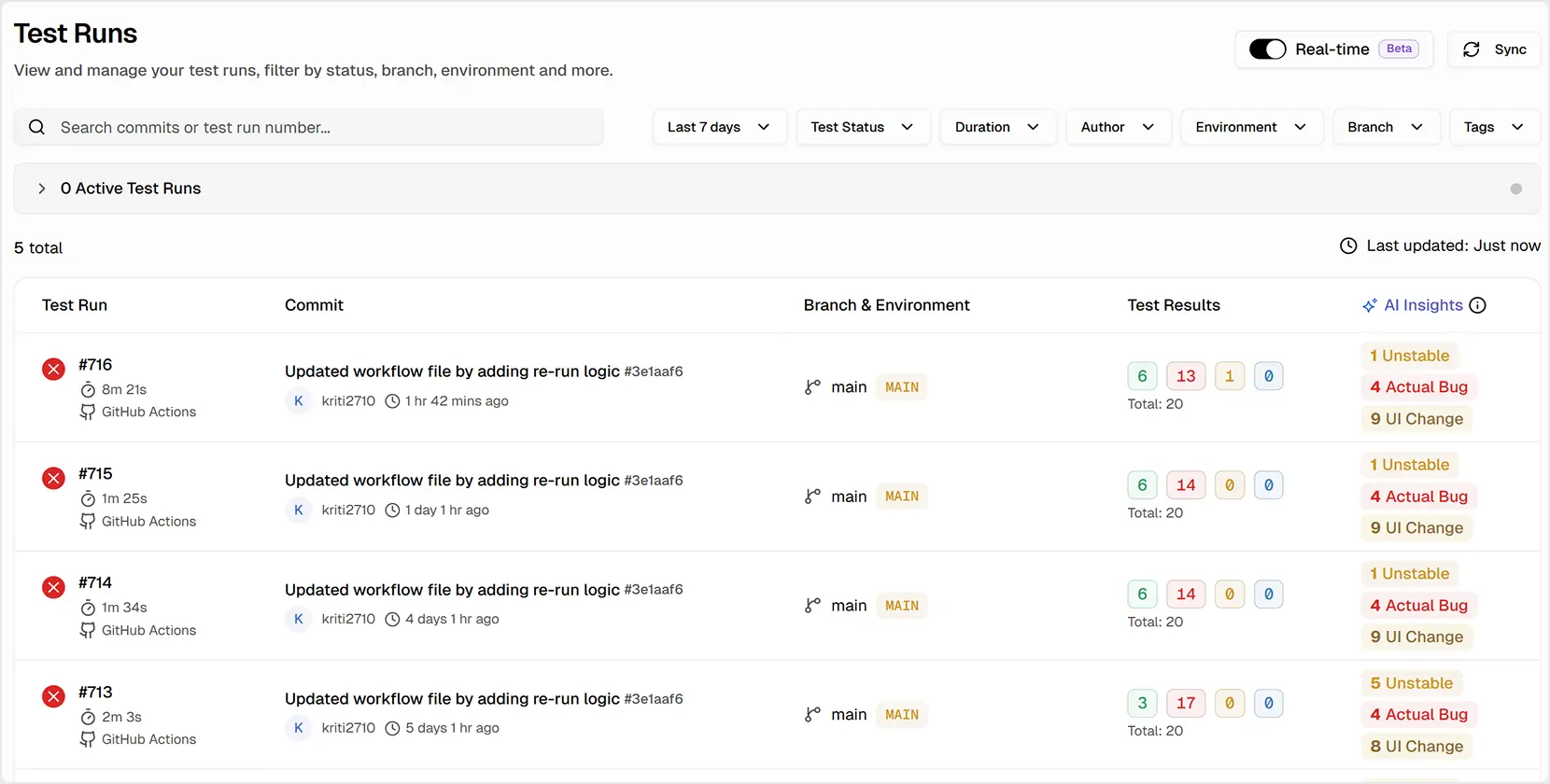
TestDino solves this through the Test Runs view, a single and filterable list of every Playwright execution in your project.

This centralized Playwright Dashboard eliminates context switching by giving all test artifacts one dependable home.

The Test Runs View

This is your new command center. It functions like a focused Playwright Dashboard that consolidates every run in one place.

Whether the runs come from CI or a local machine, you get the most important information at a glance.

You can instantly find what you need by filtering by Status, Committer, Branch, Environment, and more, or sort by Duration to find slow runs.

Playwright Test runs

Test Run Explorer

This view functions as your Playwright test results dashboard by collecting all runs, artifacts, and Playwright reports in one place.

Detailed Analysis at a Glance

Within each run's Summary tab, the Detailed Analysis table elevates your Playwright test reporting by giving you a fast and unified table view of every test case.

It also enhances your reporting workflow by offering instant clarity on retries, failure types, and performance trends.

This layout is built for quick triage and allows you to work through issues with confidence.

It shows status, duration, retries, and AI category in one place, along with a history preview of the last 10 executions to instantly confirm if an issue is new or recurring.

This improves your Playwright test reporting by turning raw Playwright reporter output into clear insights.

Test Run Insights: All Your Evidence in One Place

Why do you need it?

To diagnose issues effectively, you need all the evidence for a run in one place. Moving between your CI provider for logs, artifact storage for screenshots, and your local machine for traces is inefficient and delays progress.

With these insights, your team gains consistent Playwright test analytics that make troubleshooting more predictable and easier to manage.

How does TestDino help?

TestDino organizes all test case artifacts and metadata for a single test run into a clean, tabbed interface. This ensures you have everything you need to quickly identify the root cause without ever leaving the platform.

The 5 Tabs of a Test Run

Each test run provides five dedicated views to help you investigate from different angles:

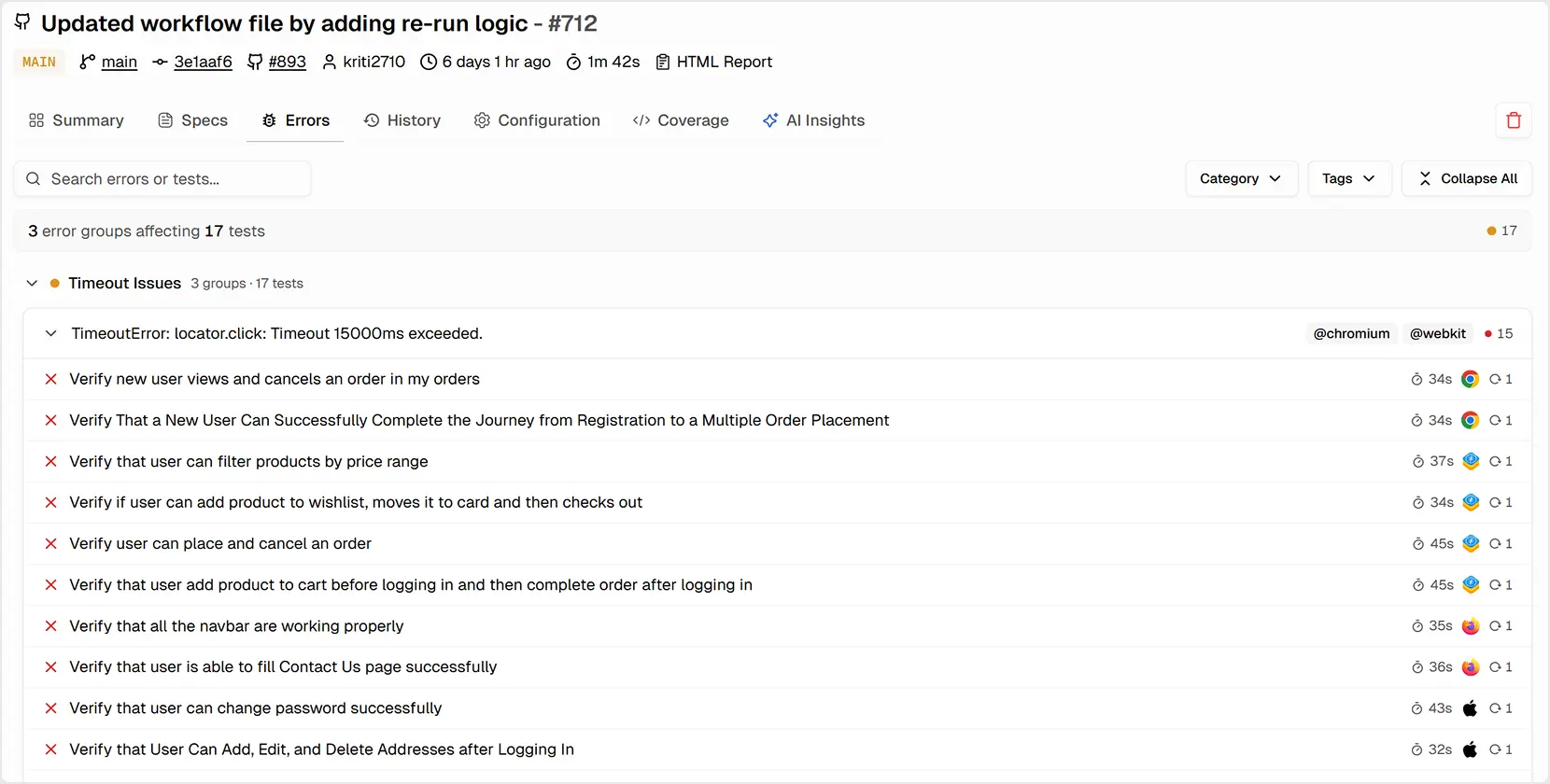
  • Summary: For quick triage of failures grouped by their technical cause (e.g., Assertion Failure, Timeout).
  • Specs: A file-centric view to see pass/fail and runtime by spec file to spot risky areas (e.g., cart.spec.js).
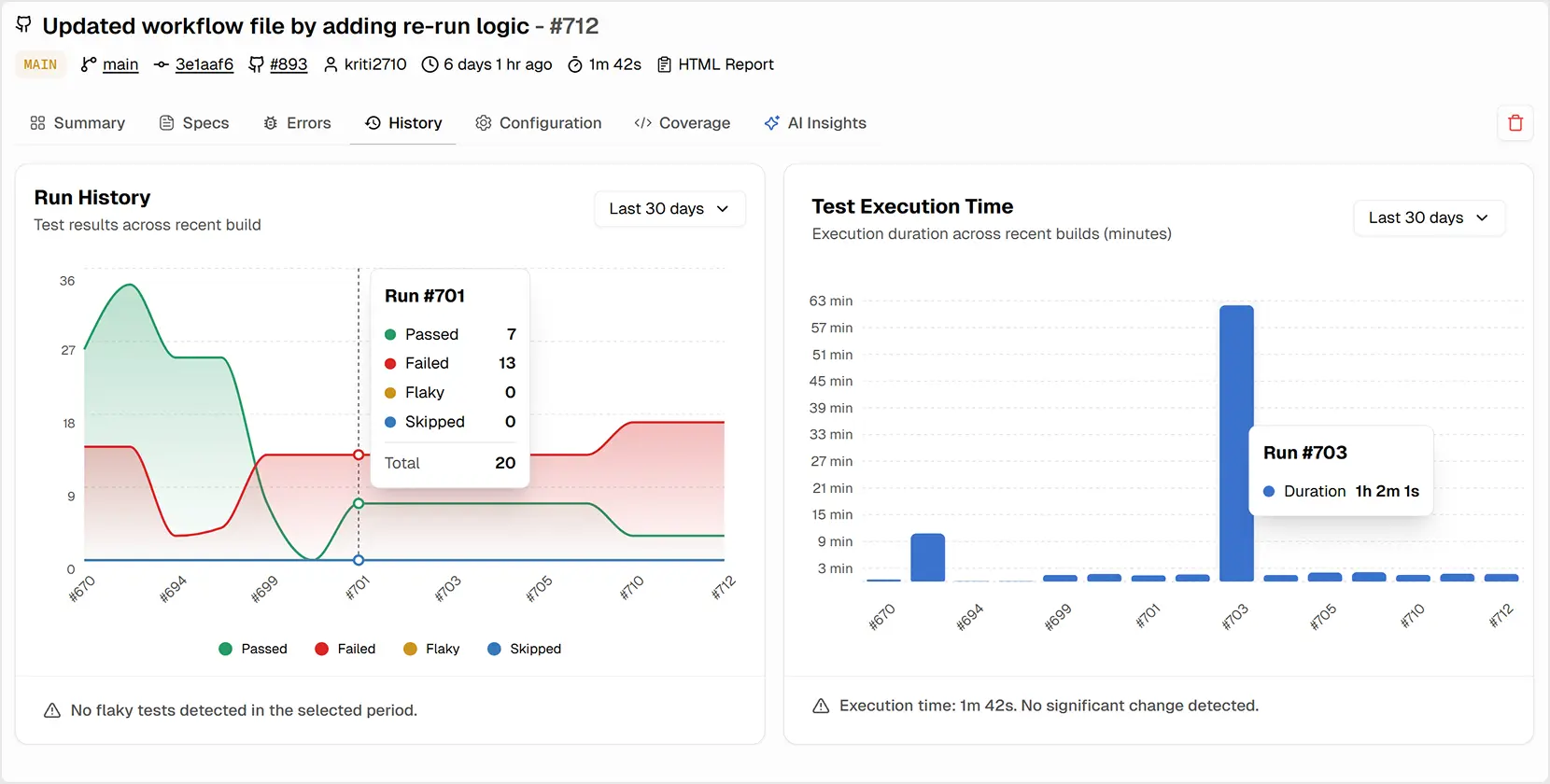
  • History: Trend charts to spot regressions and performance drift over recent runs on the same branch.
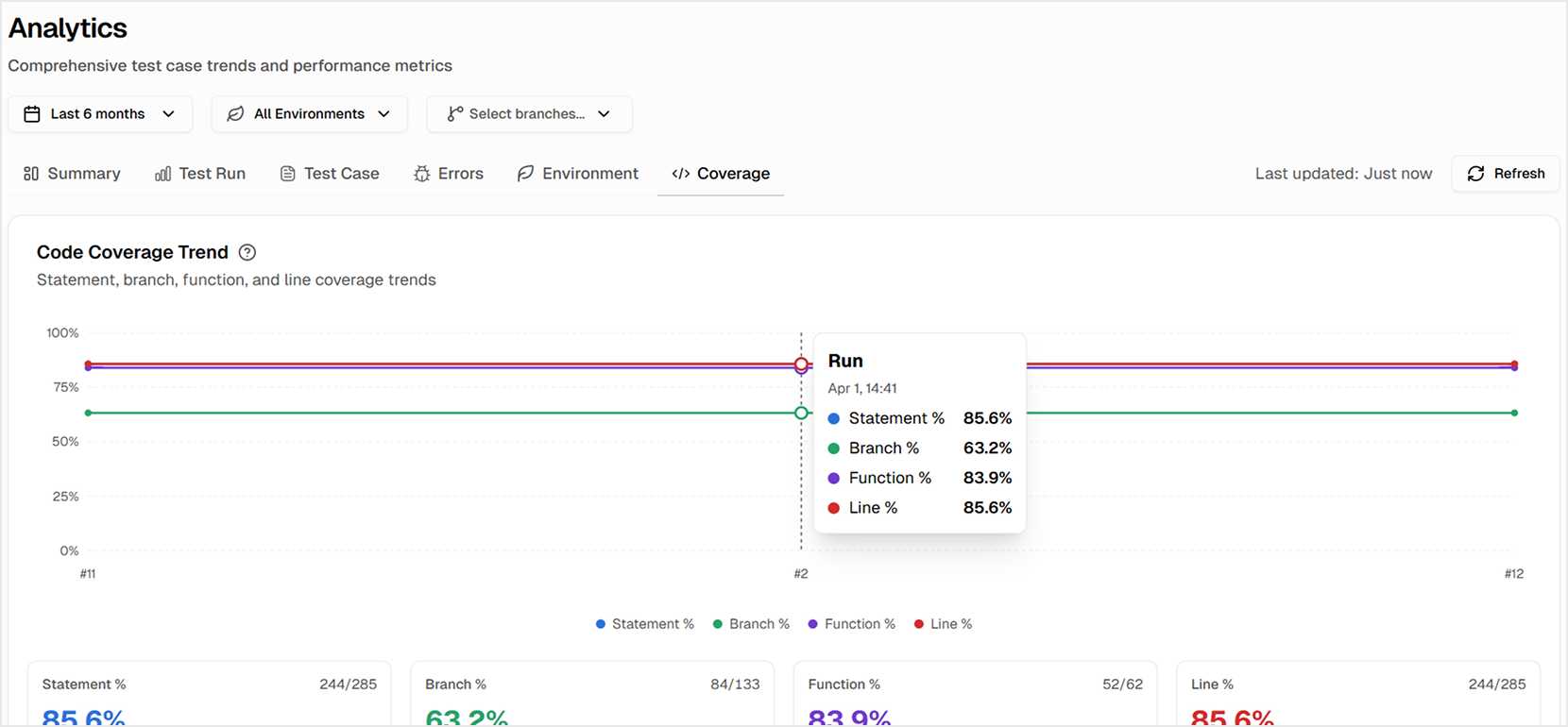
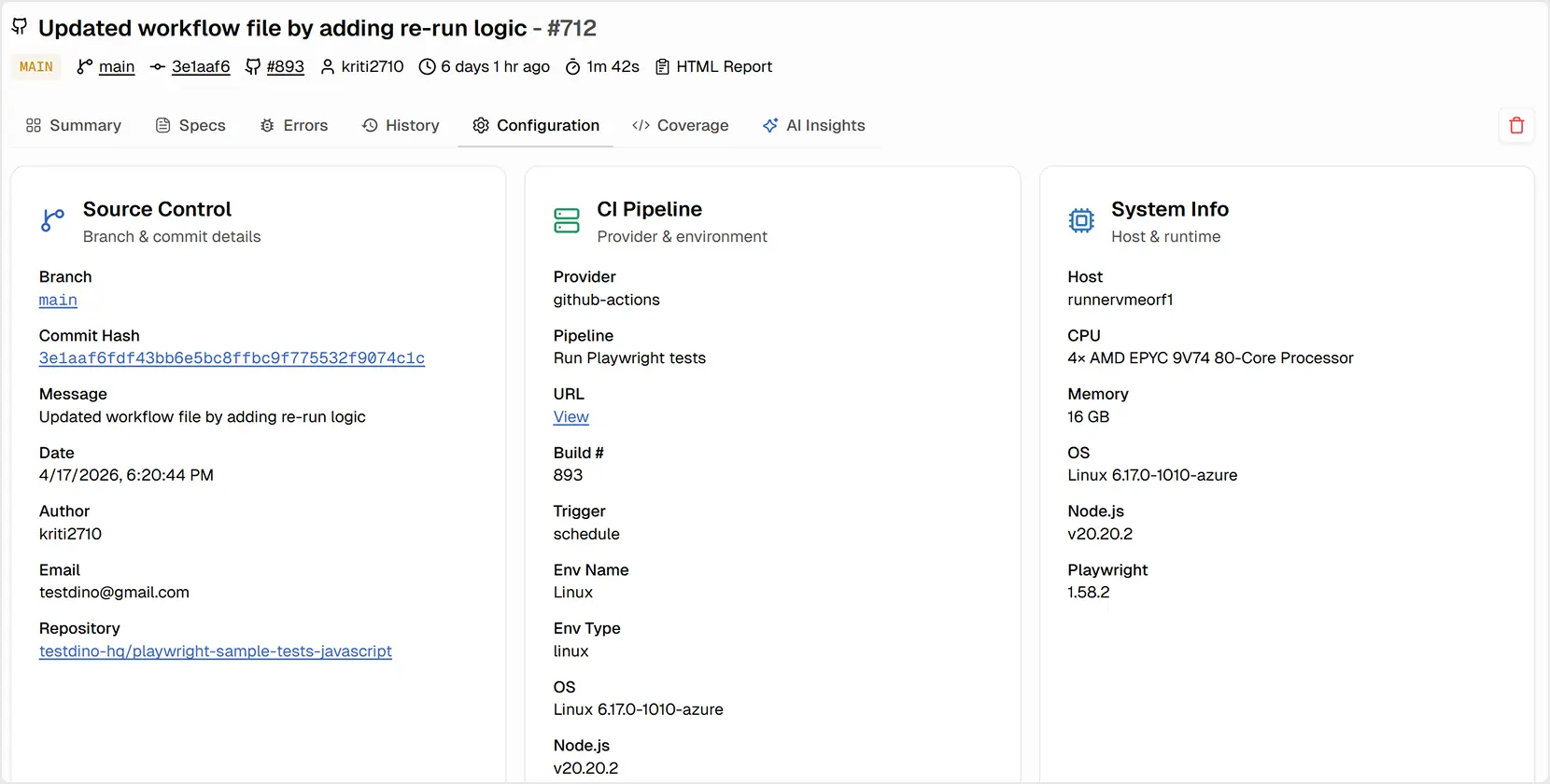
  • Configuration: A complete snapshot of the run environment (OS, Playwright version, CI settings) to detect configuration drift.
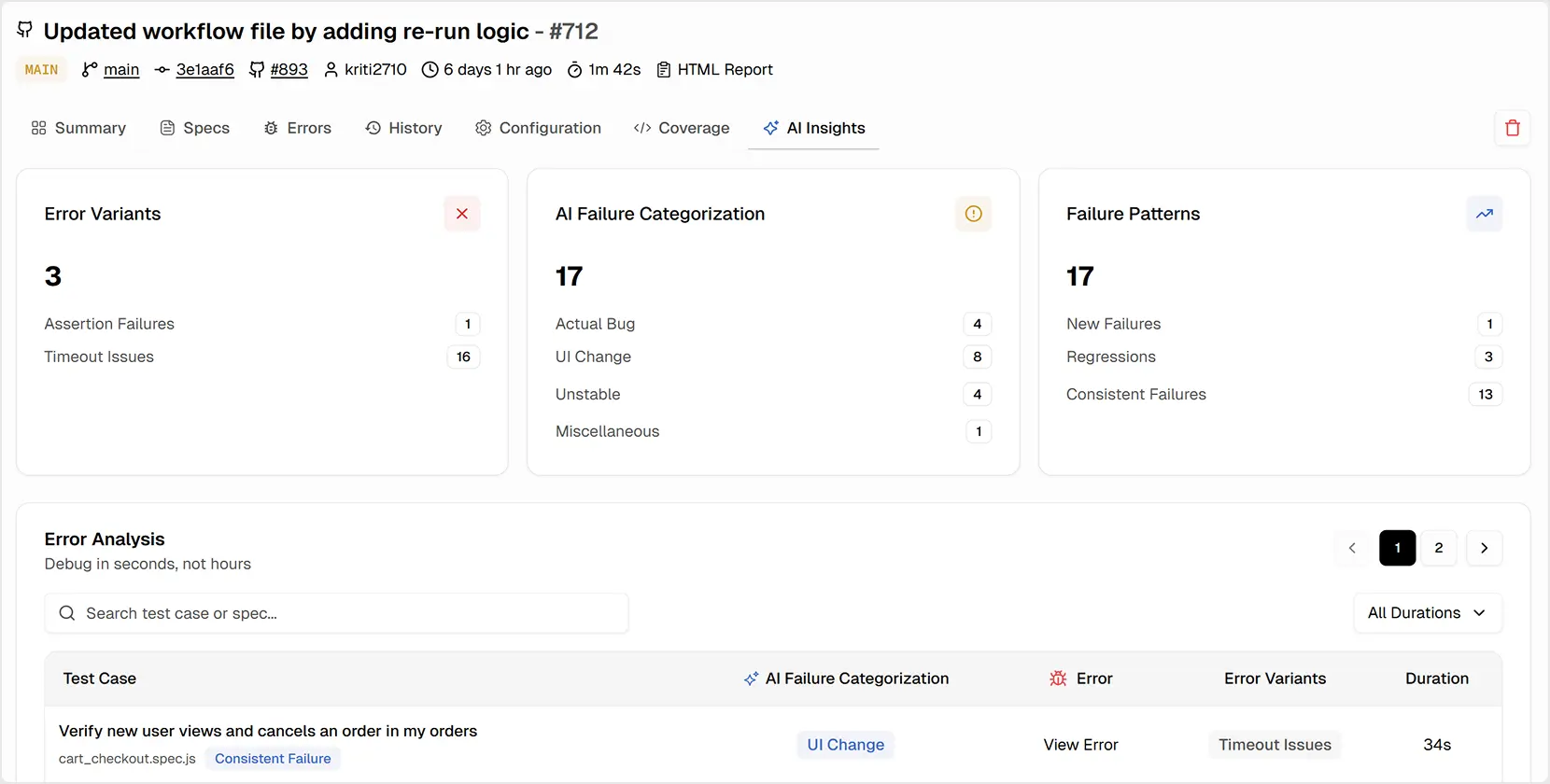
  • AI Insights (Run-specific): An AI-powered breakdown of error variants and failure patterns for that single run.

Together, these tabs form a complete Playwright Dashboard experience that covers both technical debugging and historical analysis.
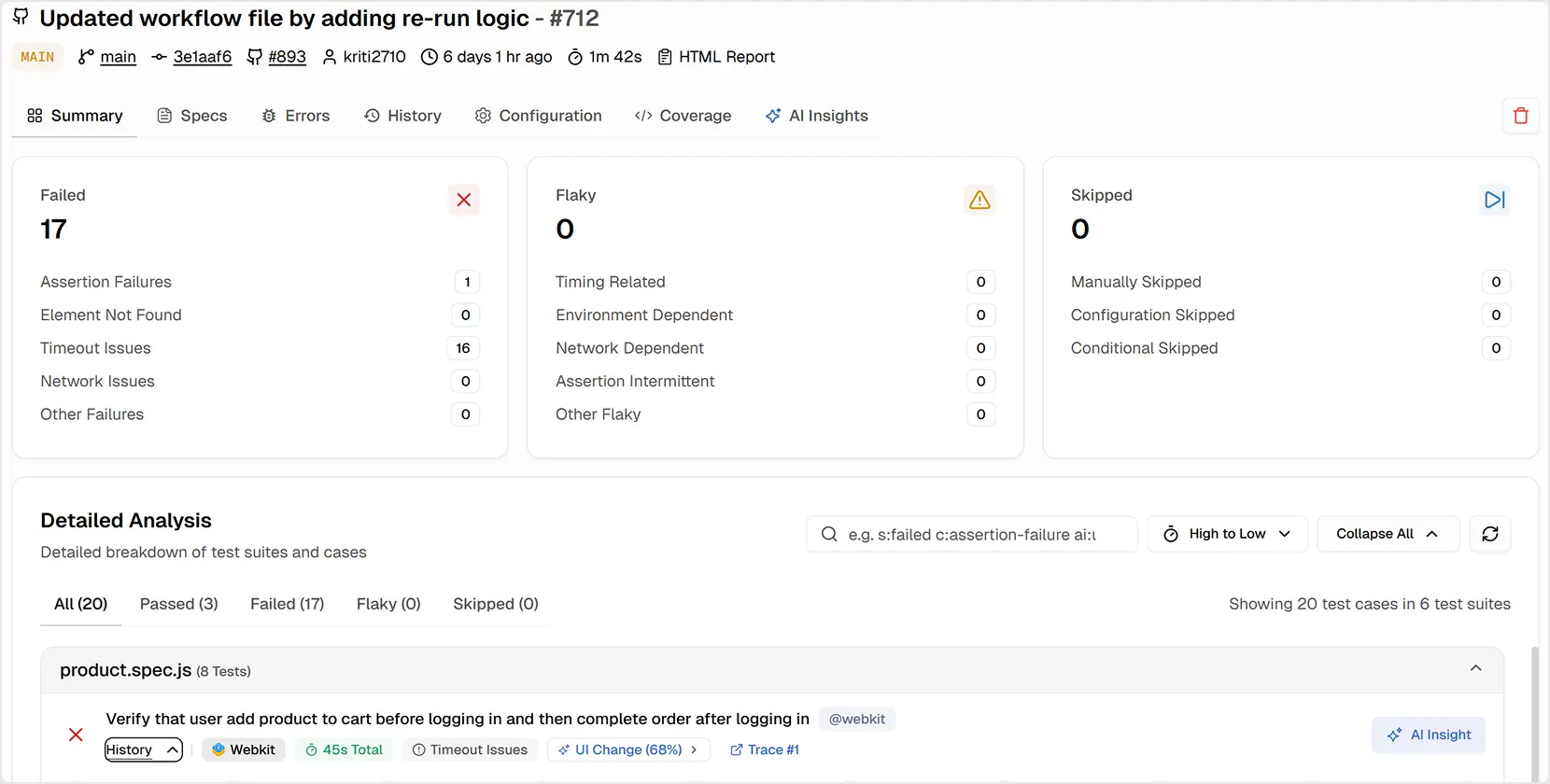
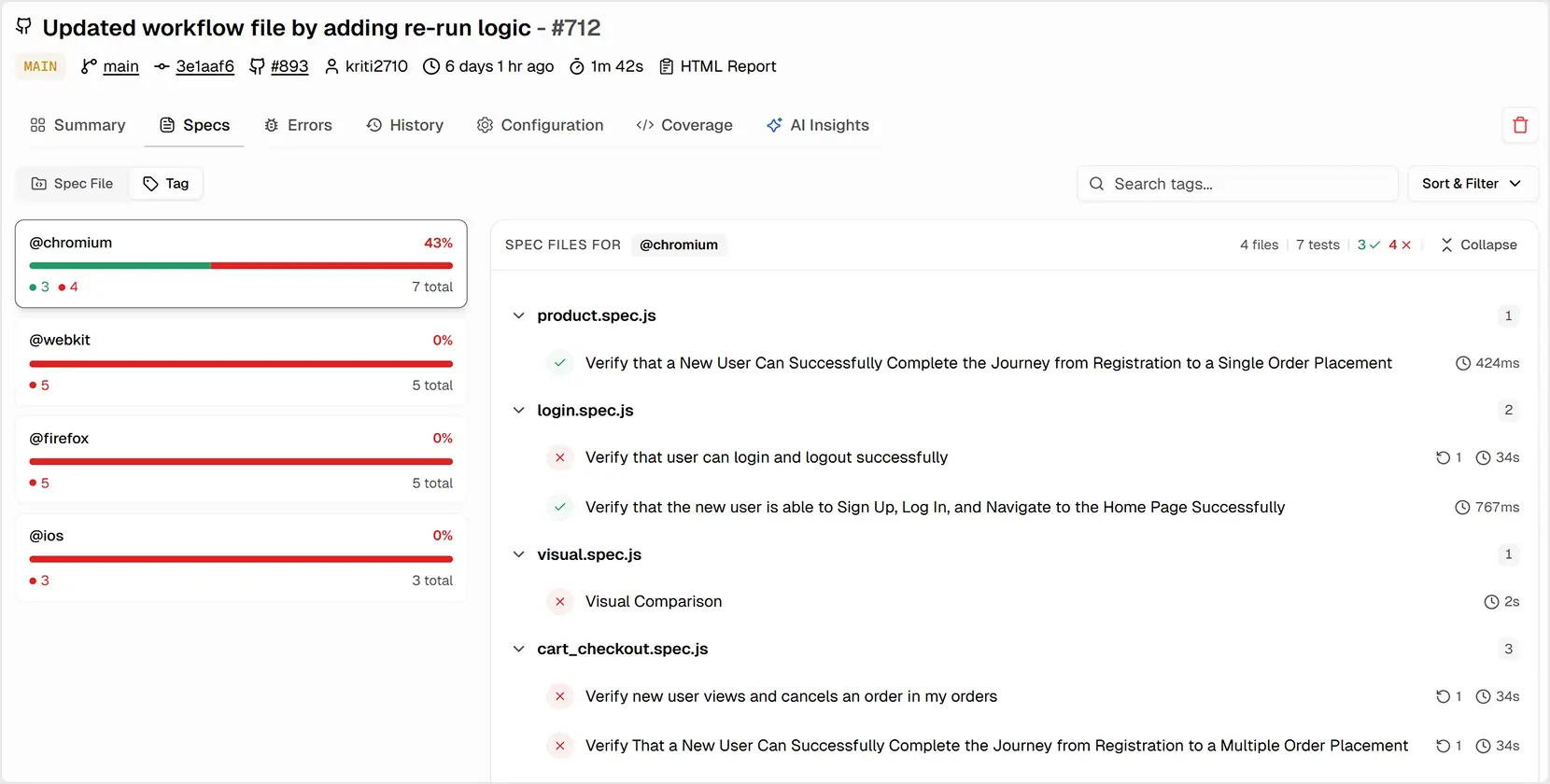
Playwright Test Runs View Summary

TestDino : Summary

Test Case Insights

When you need to understand the exact point of failure in a single test, especially when retries are involved, a high-level view isn't enough. You need to see the state of the application at the precise moment of failure for each attempt.

The Test Cases view is a dedicated deep-dive environment for a single test execution. It provides a comprehensive, side-by-side view of every attempt, equipped with AI analysis and interactive evidence.

This deeper view strengthens your Playwright test reporting process by bringing every attempt and artifact into a single interface.

Playwright results History Tab

History Tab

AI-Powered Failure Categorization

Our AI/ML model analyzes each failure and automatically categorizes it for you. This powerful feature helps you instantly distinguish between 👇

  • Actual Bug: A consistent, repeatable product defect.
  • UI Change: A failure caused by a change to selectors or text that requires a test update.
  • Unstable Test: An intermittent, flaky issue that needs to be stabilized.
TestDino Ai insight tab

AI Insight Tab

These insights elevate your Playwright reporting workflow and make your Playwright reports easier to interpret.

KPI Tiles for Instant Context

Get your bearings instantly with high-level Key Performance Indicators for the test:

  • Status: The outcome (e.g., Failed, Flaky) and the primary technical cause.
  • Why Failing: The AI's classification with a confidence score.
  • Total Runtime: The total execution time for the test in this run.
  • Attempts: The number of retries executed, immediately signaling potential instability.

The Evidence Panel

This is where the real debugging happens. Get hands-on with your evidence without ever leaving your browser.

Playwright Test Case Details Evidence Panel

Test Case Details: Evidence Panel

Trace Viewer

TestDino puts Playwright's special "time-travel debugger" right inside your test results, so you don't have to search for trace files anymore. Simply enable tracing in your Playwright settings (for example, trace: 'on-first-retry').

A “Trace #” link will then appear for any failed test in the Detailed Analysis table. You can go back and forth through each step of your test, examine the webpage's code, and view console messages to identify what went wrong quickly.

Because TestDino works directly with the metadata captured by the Playwright reporter, traces become easier to locate and interpret.

You can also download the trace file directly from the Attachments section in the Test Case view.

Visual Comparison Feature

TestDino makes reviewing snapshot test failures simple by putting Playwright's visual comparison tools right where you need them.

Use Diff mode to see pixel-level changes highlighted, or use the Slider to interactively compare the "before" and "after" images. This helps you quickly approve intentional UI changes or catch unexpected visual bugs in seconds.

This visual layer integrates cleanly into your overall Playwright Dashboard experience for UI driven teams.

Pull Request Views: Bring Test Proof to Reviews

A check on a PR doesn't tell the whole story. It doesn't indicate whether tests passed only after three retries or if new flaky tests were introduced. Code reviews are a critical quality gate, but they often lack the necessary test context.

TestDino bridges this gap by bringing rich test run context directly to your Pull Requests view. This view lists each PR from your repository and annotates it with the results of its latest test run.

This makes Playwright test reporting accessible directly during code review, improving collaboration between QA and developers.

PR List with Latest Test Run Summary

For each PR, you see the counts of passed, failed, flaky, and skipped tests from the most recent run. This allows reviewers to spot risky PRs in seconds and decide whether to review the code, ask for fixes, or approve the merge.

TestDino Playwright PR tab layout

PR Tab Layout

Full History for Deeper Insights

You can expand any PR to see the complete history of test runs associated with it. This is invaluable for confirming that fixes are effective and for identifying tests that remain unstable across multiple commits. This helps your team make better, more informed merge decisions.

Check PR view, see risk before you review.

Get Started

AI Insights: See Patterns, Not Noise

When a large test suite has dozens of failures, it's easy to feel overwhelmed. The key is to find the underlying patterns, not just individual errors.

These insights act as a powerful layer of Playwright test analytics that highlight what really needs attention.

Are 20 different test failures all caused by the same broken API endpoint?

Did a single UI change break a dozen tests?

TestDino's cross-run AI Insights is designed to answer these questions. It analyzes failures across a selected time period and environment to transform raw failures into a handful of actionable signals, indicating where to focus first.

Playwright Test Case Key Metrics

Uncover Persistent vs. Emerging Failure Patterns

The AI Insights Overview tab immediately shows you which problems are the most urgent.

It surfaces Persistent Failures (tests that fail repeatedly across multiple runs) and Emerging Failures (tests that have recently started failing). This helps you prioritize fixing high-impact, recurring issues while also catching regressions early.

Playwright Test Run Persistent failures

Persistent failures

Drill into Error Categories and Their Impact

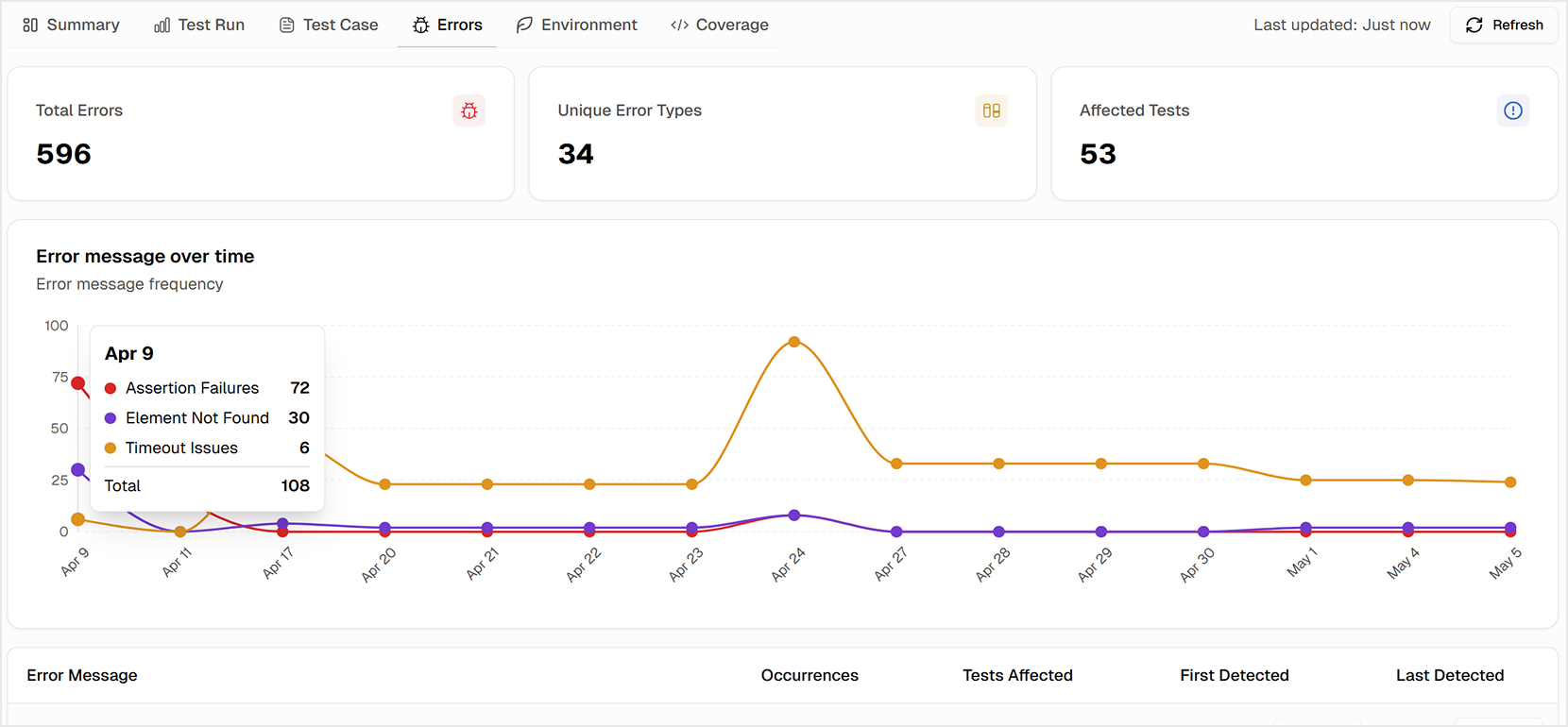
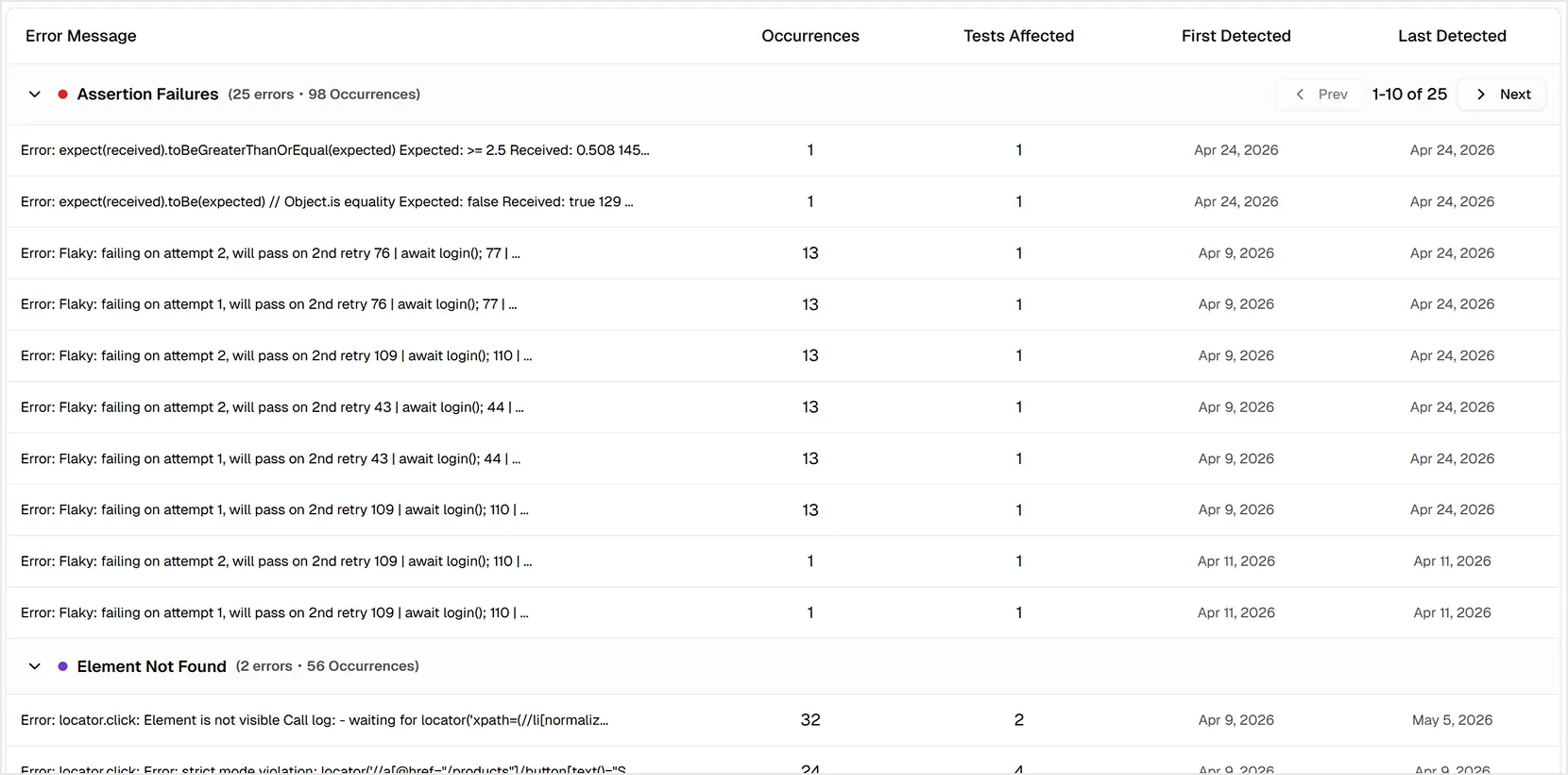
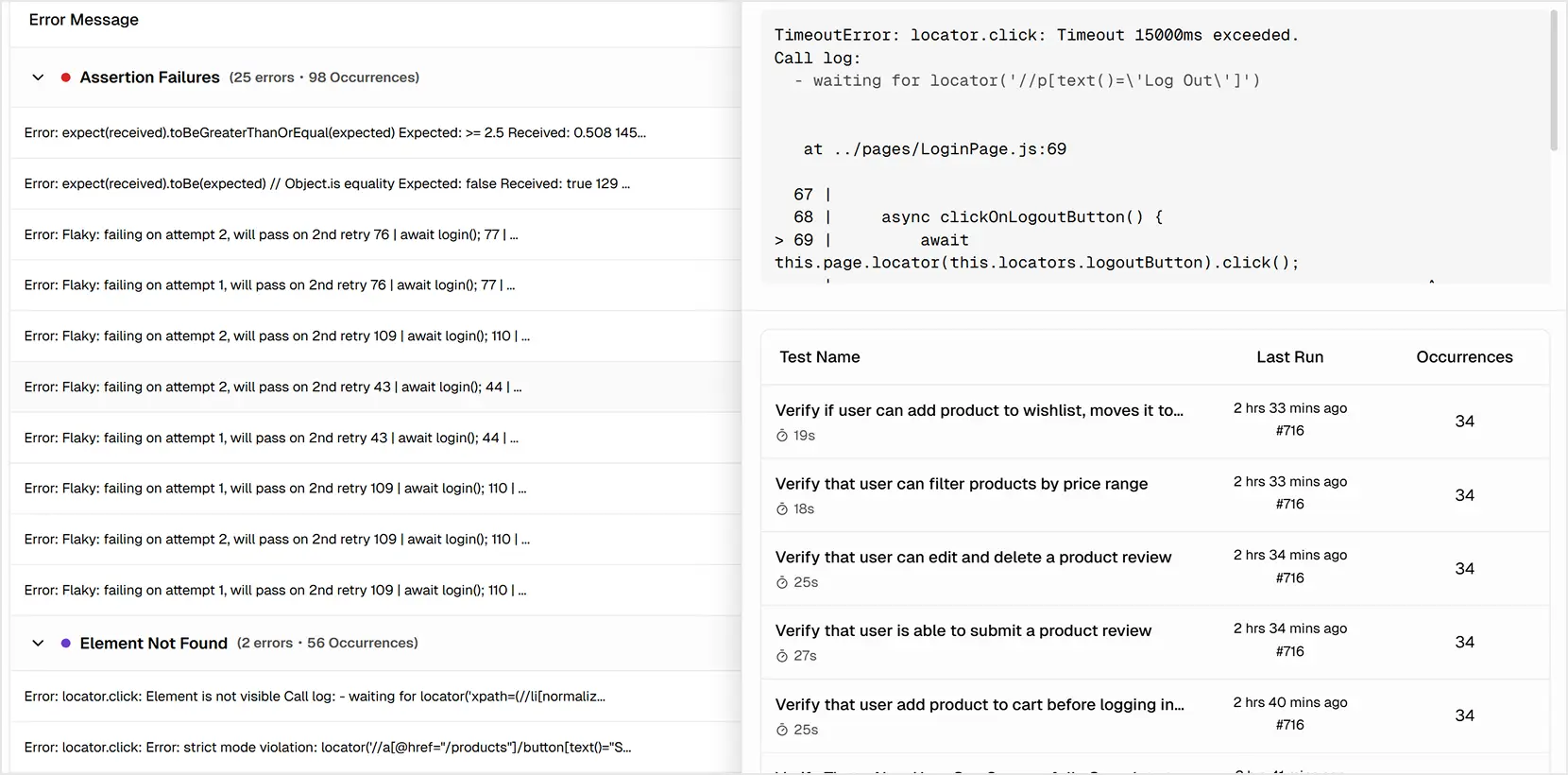
The Analysis Insights tab lets you explore failure data interactively. You can see a timeline of different error types to correlate spikes with deployments and view a table of the most common Error Variants, prioritized by their impact on your test suite.

Playwright Test Run Error Message Trend

Error Message Trend

Flaky Tests: How to Identify, Track, and Resolve Them

Flaky tests are a plague on engineering teams.

  • They make it hard to trust your test suite.
  • Slow down development by blocking PRs.
  • And make it impossible to know if a failure is real or just noise.

We provide specific tools to help you systematically identify, track, and resolve flakiness, turning your unreliable tests into a solid foundation for quality.

Identify and Prioritize with AI

TestDino automatically flags tests that pass on a retry and uses AI to label other unstable behavior, so you know which flaky tests are causing the most noise. The Most Flaky Tests panel on the QA Dashboard provides a prioritized list to help you start your stabilization work.

Playwright Most Flaky Tests

Track Your Flakiness Rate

You can't improve what you can't measure. The Analytics dashboard provides a clear chart to monitor your overall Flakiness Rate over time. This is crucial for quantifying instability and demonstrating the effectiveness of your stabilization efforts.

Consistent Playwright test analytics help teams separate rare flakiness from chronic issues that block delivery.

Playwright Test Flakiness & Test Issues

Flakiness & Test Issues

Speed Up Your CI with Smart Re-runs

Playwright’s built-in --last-failed command is excellent for local development, but its cache doesn't work across different CI runners. TestDino extends this capability to your entire CI/CD pipeline, allowing you to reduce CI time and cost by re-running only the tests that failed on the previous run.

Our solution uses two simple commands:

  • npx tdpw cache: After your full test suite runs, this command reads Playwright's report and stores the pass/fail metadata in TestDino. This cache is branch, commit, and shard-aware. It uses metadata collected from the Playwright reporter to ensure only the right tests are re-run.
  • npx tdpw last-failed: Before a re-run, this command returns the exact list of tests that failed in the last cached run. You then pass this list directly to Playwright to run only those specific tests.

This approach provides a persistent, shared cache for your failed tests that survives new CI runners and works across different jobs, giving you a fast and reliable way to get feedback without re-running your entire suite.

Analytics to Measure and Improve Your Test Quality

If you have a high-quality product, you must transition from making intuitive decisions to making data-driven decisions.

Teams need analytics to understand where failures are concentrated, if stability is improving, and where performance bottlenecks are slowing them down.

TestDino’s Analytics dashboard strengthens your Playwright test analytics by turning raw test data into clear trends and actionable insights.

It shows you what is failing, what is flaky, and where time is being spent, helping you prioritize the right fixes. This gives teams the Playwright test analytics needed to measure progress accurately.

Summary KPIs: Your High-Level Health View

Get a quick pulse on your test suite's health with key metrics:

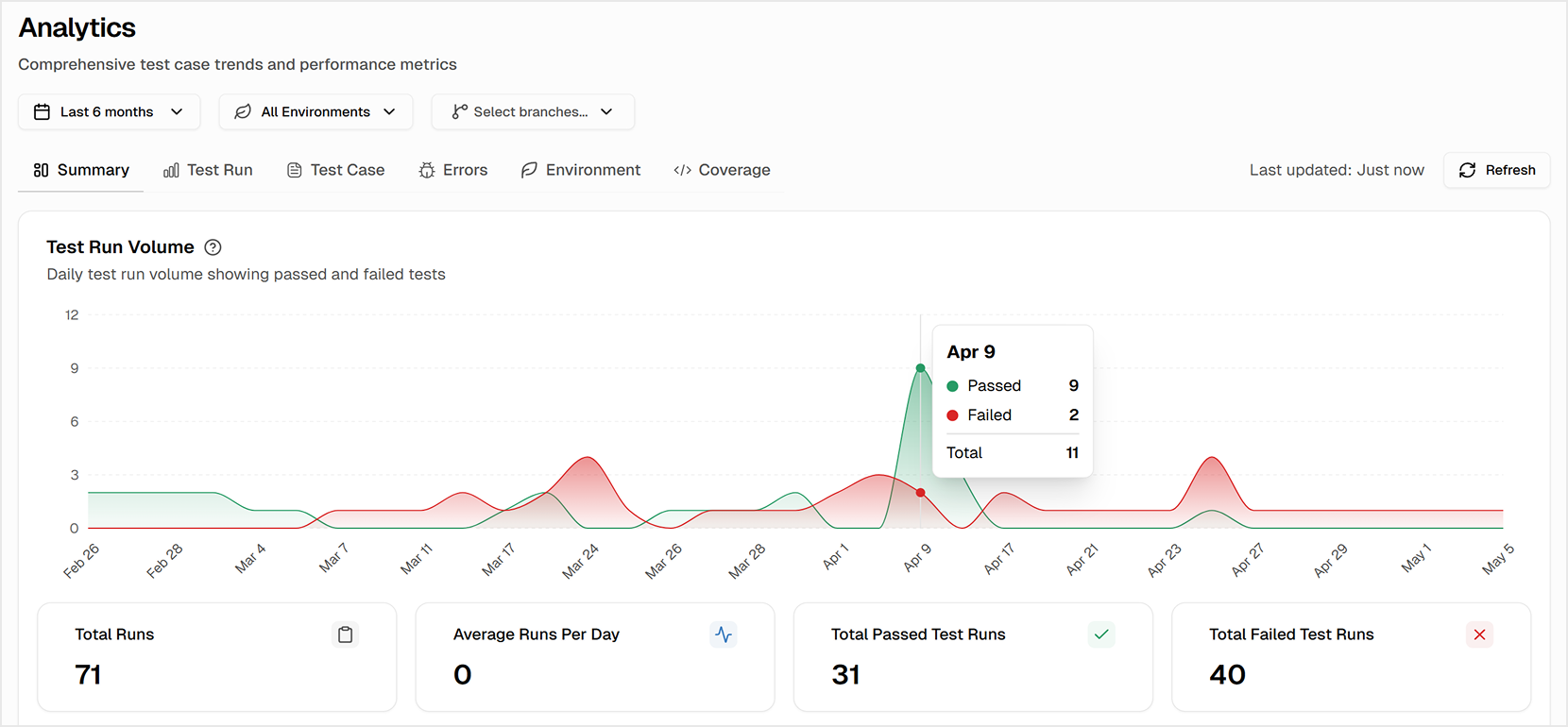
Test Run Volume: See how many tests you run and how often you run them.

New Failures: This metric tracks the rate of tests that are failing for the first time. It compares current results against previous runs to help you detect new regressions early.

Test Retry Trends: Quantify hidden instability by examining how often retries conceal flaky behavior.

These KPIs become even more useful when viewed through a structured Playwright Dashboard.

Playwright test run volume

Test Run Volume

Test Run Performance Metrics

Track and improve your CI pipeline efficiency with detailed performance data:

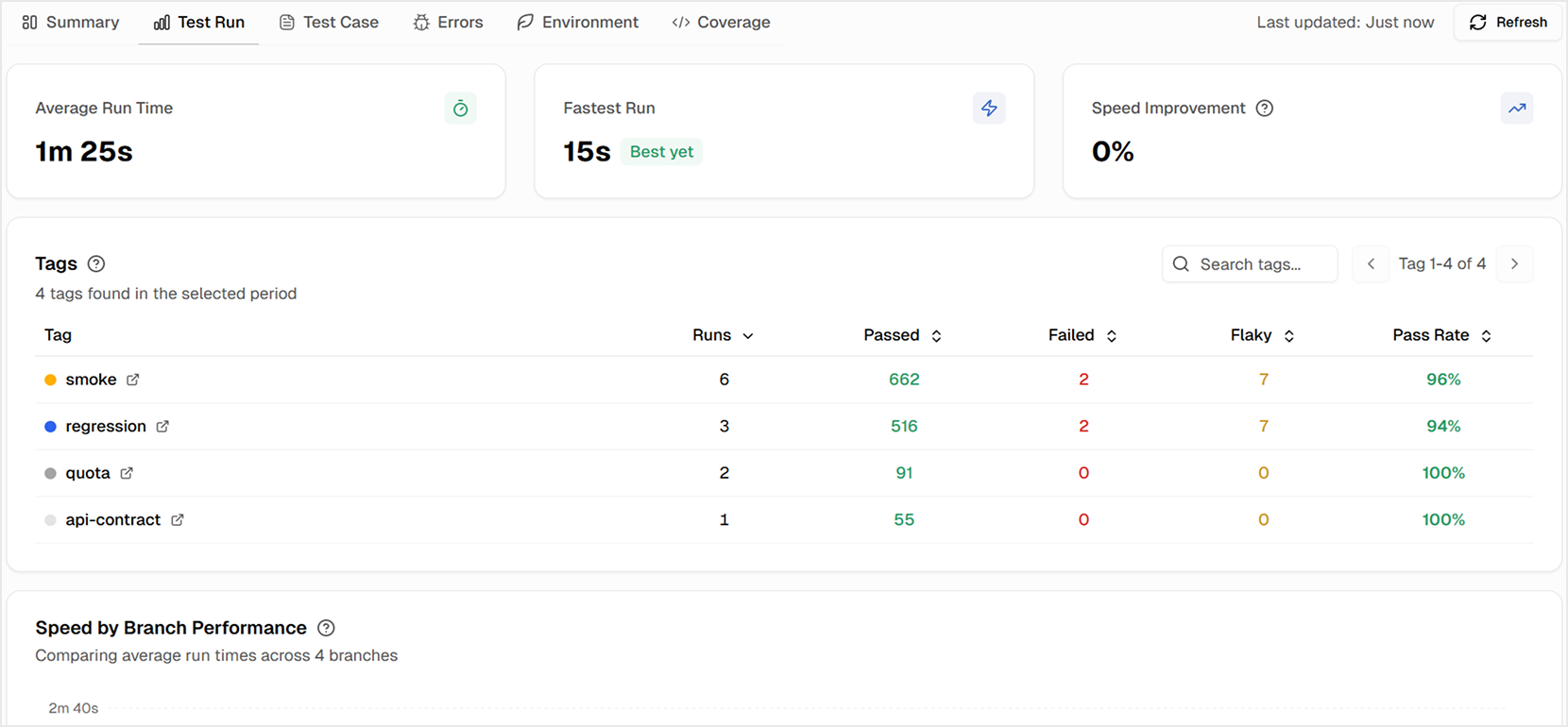
Average Run Time & Speed Improvement: Measure your pipeline speed and track gains from optimizations over time.

Speed by Branch Performance: It helps you instantly spot if a specific feature branch is running significantly slower than your main branch, which could indicate a performance regression.

Test Execution Efficiency Trends: Use this to monitor gradual slowdowns over time or to assess the immediate impact of performance improvements following an optimization.

Test Run Speed Distribution: See if slow runs are isolated incidents or a common problem on a given day.

Playwright Test Run KPIs

Test Run KPIs

Test Case Level Insights

Drill down to the individual test level to find high-impact opportunities:

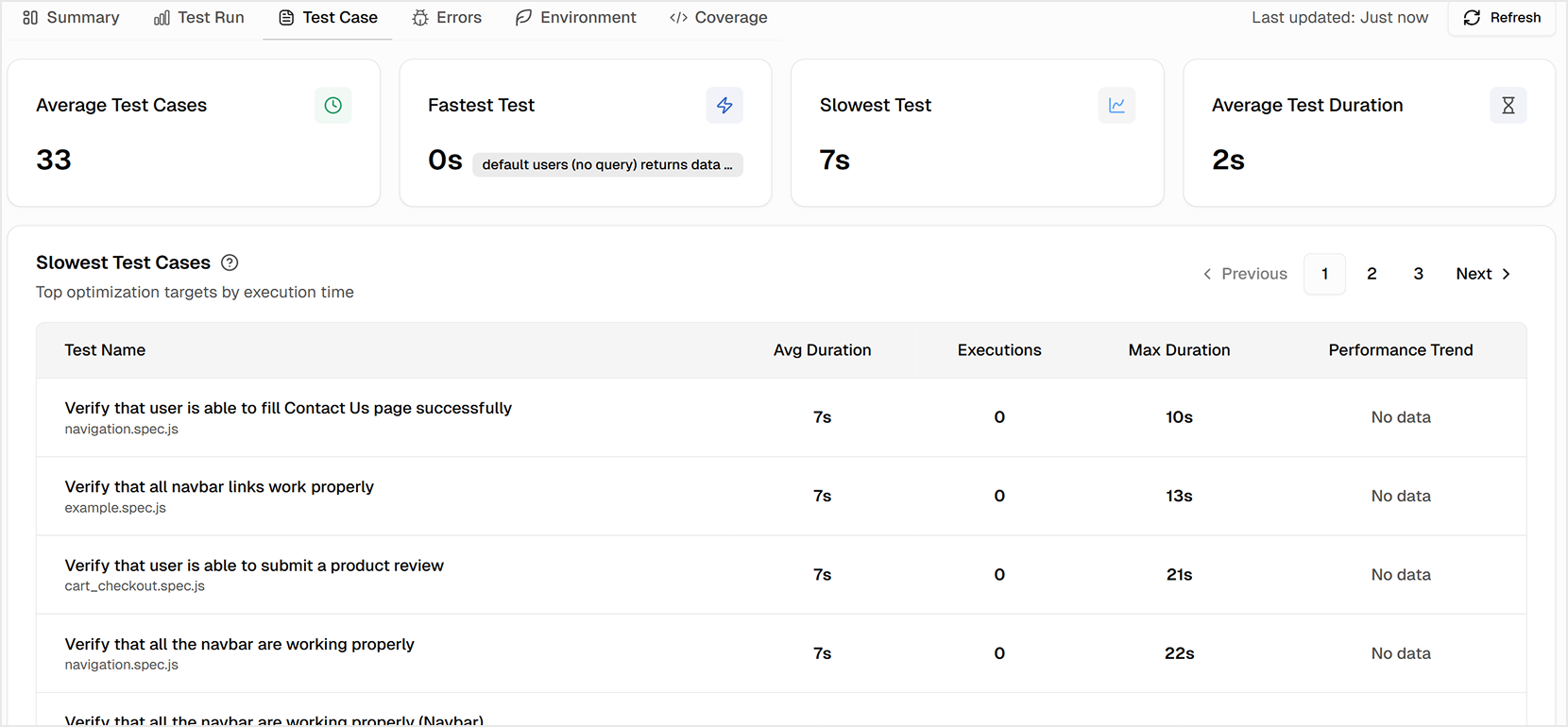
Slowest Test Cases: Obtain a prioritized list of your most significant performance bottlenecks to identify prime candidates for optimization.

TestDino Analytics | Test Cases

Test Case

Test Execution Performance: This chart categorizes all your test cases into performance bands ranging from "Excellent" to "Critical" based on their execution time.

It provides a quick visual summary of your test suite's overall speed and helps you identify if you have too many slow-running tests.

Playwright Test Execution Performance

Test Execution Performance

New Test Cases: View your new test cases added every day with the current-period average to track the growth of your test suite, and provide a clear baseline for your team's test creation velocity.

New Playwright Test Cases

New Test Cases

Test Cases Pass/Fail History: Our unique comparison chart enables you to plot the pass/fail history of up to 10 tests side by side, allowing you to correlate changes, confirm fixes, and identify regressions.

This level of detail elevates your Playwright test reporting and makes debugging significantly faster.

Environment and Platform Health

Isolate infrastructure issues from code issues with environment-specific data:

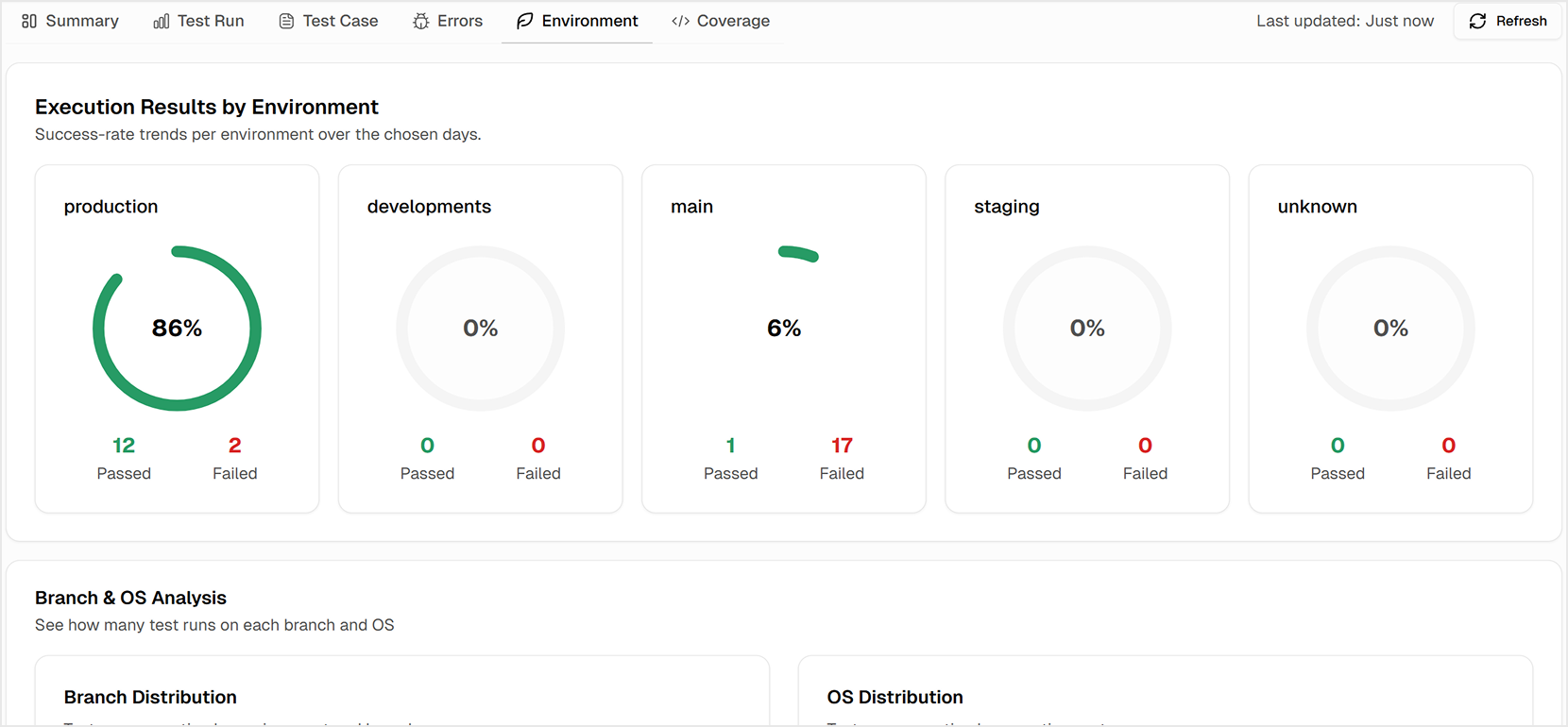
Execution Results by Environment: Compare stability across your different environments (e.g., staging vs. production).

OS Distribution: Quickly check your platform coverage and identify any OS-specific issues.

Pass Rate Trends: By comparing the colored lines, you can easily spot when an environment's stability drops, often correlating it with a recent deployment or infrastructure change.

Test Run Volume: It helps you understand your testing activity levels and provides context for pass rate changes: a drop in pass rate is more significant when the test volume is high.

Teams can rely on these trends as part of their broader Playwright test analytics strategy.

Role-based Dashboards

Different roles on your team need different views of the same data to be effective. A QA engineer has different daily priorities than a developer.

These views operate as role focused extensions of your Playwright Dashboard so each team member sees only what matters.

We provide dedicated, role-based dashboards that give every team member the exact insights they need without the noise.

The QA Dashboard

This is the command center for triage and stability, highlighting:

  • Most Flaky Tests: A prioritized list for stabilization work.
  • Test Failure Categories: An AI-driven breakdown of failures into Actual Bug, UI Change, and Unstable Tests.

Cross-Environment Performance: A comparison of pass rates and execution times across all your environments.

Playwright QA_Dashboard (1)

QA Dashboard

The Developer Dashboard

This view is focused on the developer's immediate workflow, showing:

Active blockers: See all pull requests that are stuck, why they are blocked, and what needs attention first.

Ready to ship: See pull requests that have passed checks and are safe to merge so you can ship with confidence.

Flaky Tests Alert: A warning about any unstable tests impacting your current work.

Branch Health Spotlight: A focused view of the pass rate for your specific branches.

Playwright Branch Health Spotlight

Branch Health Spotlight

Integrations that Streamline Your Workflow

To keep your team moving fast, you need to eliminate manual, error-prone tasks such as copying & pasting bug reports. Your testing tool should work smoothly with your existing workflow.

We offer one-click integrations with the tools you already use, creating a frictionless path from test failure to resolution.

For CI/CD - integration with GitHub for automated PR comments and status checks. You can also upload reports from any CI platform, including GitLab, CircleCI, Azure DevOps, and Jenkins.

These integrations remove friction from your Playwright test reporting workflow and ensure issues move quickly across the team.

Ready to Take Control of Your Playwright Tests?

Stop guessing and start knowing. TestDino gives your entire team the clarity and confidence ✨ to ship better software, faster.

With a clear Playwright Dashboard and reliable Playwright test reporting in one place, teams can ship confidently every day.

Watch our short playlist for a quick tour of all features.

Sign up & contact us to get a trial today and connect your own Playwright projects 🚀

Stop wasting time on
flaky tests broken builds re-run roulette false failures

Start for Free