Playwright Mistakes to Avoid: Fix Common Testing Errors
This guide explains the most common Playwright mistakes teams make in real projects and shows exactly how to fix them. You’ll see wrong-vs-right code examples, recommended configuration settings, and practical strategies used by teams running Playwright at scale.

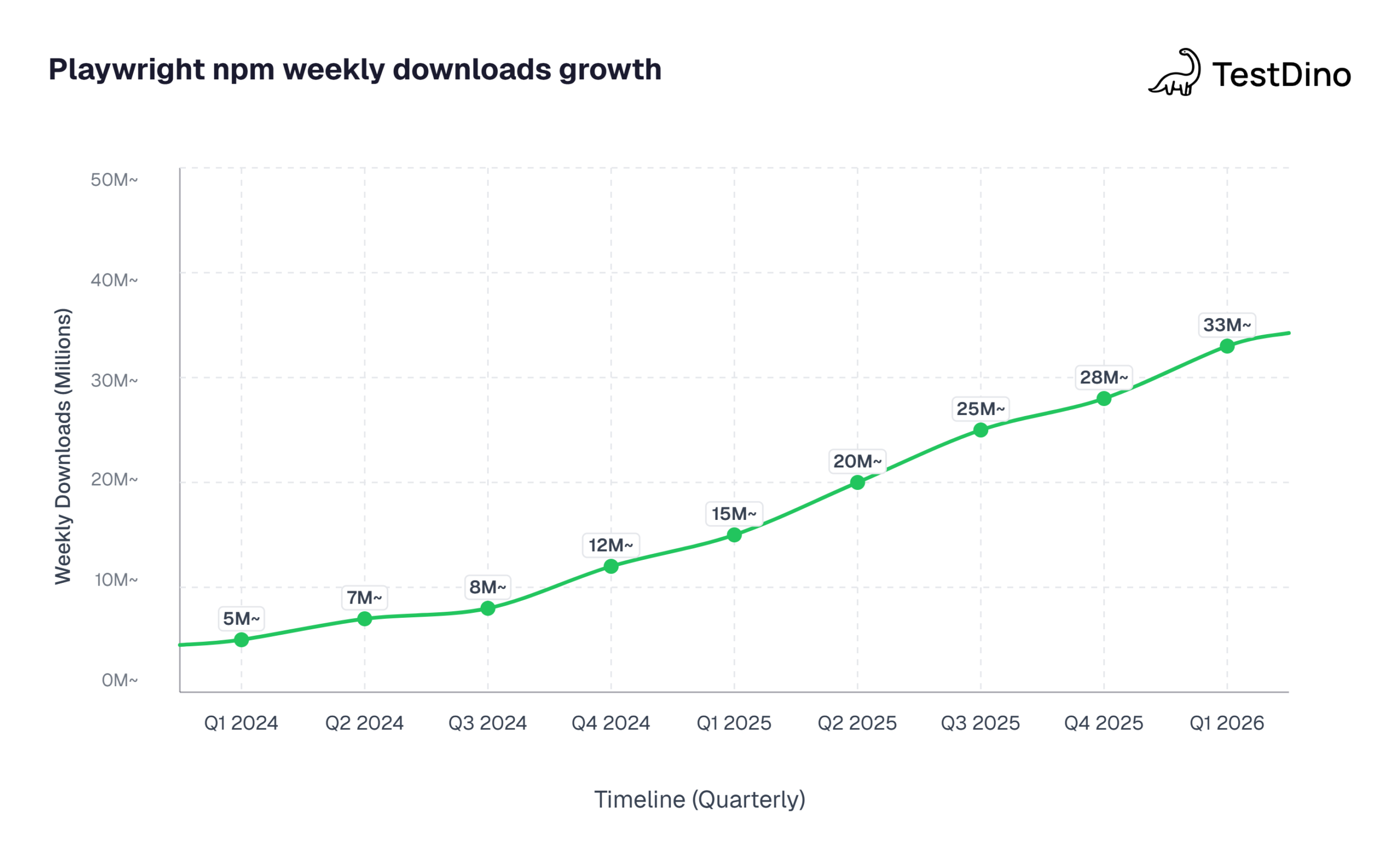
Playwright now drives over 33 million weekly npm downloads. Teams pick it up because it handles Chromium, Firefox, and WebKit from a single API, and the auto-waiting system means fewer timing headaches out of the box.
But writing a test that works once on your laptop is very different from writing one that passes 500 times across three browsers in a CI pipeline. Most teams hit the same walls: tests flickering between pass and fail, selectors breaking after a design tweak, and CI runs failing for reasons nobody can reproduce locally.
This guide covers eight specific Playwright mistakes, from hardcoded waits and fragile selectors to CI/CD misconfigurations, with wrong-vs-right code examples, production-ready config snippets, and a GitHub Actions workflow you can copy directly. Every fix is based on patterns from teams running Playwright at scale across hundreds of tests.
All examples in this guide target Playwright v1.40+ and follow the official Playwright best practices.
What are the most common Playwright mistakes developers make?
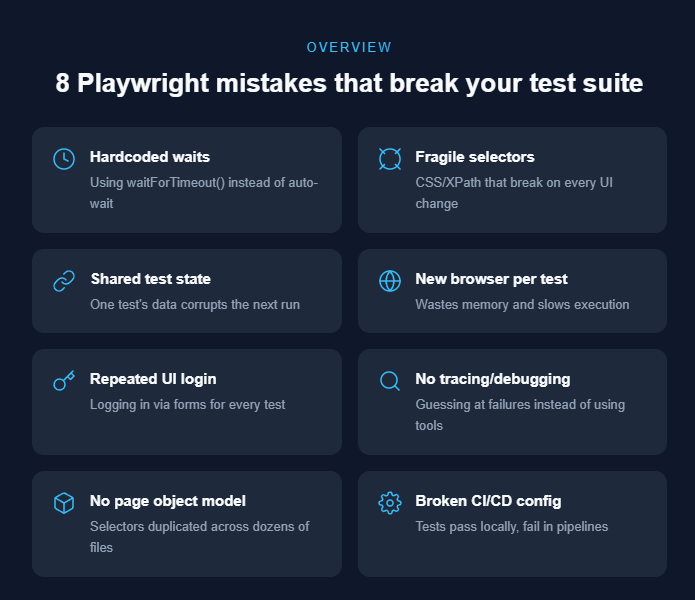
Before diving into each mistake individually, here is a quick overview of the patterns that trip up most teams. These are not edge cases. According to research-backed data on Playwright test failure root causes, the majority of broken test suites trace back to a handful of repeated anti-patterns.
The most frequent Playwright mistakes include:
-
Hardcoded waits (page.waitForTimeout()) instead of letting Playwright's auto-waiting handle timing
-
Fragile CSS or XPath selectors that snap the moment a developer changes a class name
-
Shared state between tests where one test's leftover data corrupts the next run
-
Spinning up a brand-new browser for every single test, burning through memory and time
-
Logging in through the UI before each test instead of reusing saved authentication
-
Skipping the trace viewer and debugging failures by guessing
-
No page object model, leading to duplicated selectors scattered across dozens of files
-
Broken CI/CD configurations that work locally but collapse in headless environments
A Playwright mistake is any recurring pattern in test code that causes unreliable results, slow execution, or difficult debugging, even when the application being tested is functioning correctly.
A Playwright mistake is any recurring pattern in test code that causes unreliable results, slow execution, or difficult debugging, even when the application being tested is functioning correctly.
Each of these is covered in detail below, with the wrong approach, why it breaks, and the exact fix.
Mistake 1: hardcoded waits instead of auto-waiting
This is the single most common Playwright mistake, and it is almost always the first one beginners make. Teams migrating from Selenium or Cypress bring their old sleep and wait habits along, and page.waitForTimeout() feels like a familiar safety net.
The temptation is clear. A test clicks a button, and the next element takes a moment to render. So you drop in a page.waitForTimeout(3000) and move on. The test passes on your machine.
Why it breaks:
-
If the element loads in 500ms, you wasted 2.5 seconds for nothing
-
If the server is slow (especially in CI), 3 seconds is not enough and the test fails
-
Multiply this across 200 tests and your suite takes 10 extra minutes of pure waiting
The fix: use Playwright's built-in auto-waiting
Playwright already waits for elements to be visible, stable, and actionable before interacting with them. You don't need to manage timing yourself.
// Wrong: hardcoded timeout
await page.waitForTimeout(3000);
await page.click('#submit-button');
// Right: let Playwright auto-wait
await page.getByRole('button', { name: 'Submit' }).click();
For situations where you need to confirm an element's state, use Playwright assertions with built-in retry logic:
// Web-first assertion with auto-retry
await expect(page.getByText('Order confirmed')).toBeVisible();
This same principle applies to async/await patterns. A common Playwright async await mistake is wrapping locator actions in manual try/catch blocks with arbitrary retries. Playwright's auto-waiting already retries internally, so layering your own retry logic on top just hides the real failure.

Tip: Resist the urge to carry over old wait patterns from Selenium or Cypress. Playwright's auto-waiting architecture handles timing internally. Let it do its job.
Mistake 2: fragile selectors that break on every UI change
After hardcoded waits, bad selectors are the second biggest source of Playwright testing errors. In large codebases, we have seen a single class-name refactor break 40+ tests overnight because every test file was pinned to the same fragile CSS chain.
A selector like div.container > ul > li:nth-child(3) > span.price is pinned to the exact DOM structure. A designer moves one wrapper div, and the selector returns nothing.
XPath has the same problem. Long XPath chains are brittle, hard to read, and painful to maintain.
What to use instead:
Playwright provides user-facing locators that care about what the element does, not where it sits in the DOM tree.
// Fragile: CSS chain tied to DOM structure
await page.locator('div.header > nav > ul > li:nth-child(2) > a').click();
// Fragile: XPath that breaks on DOM changes
await page.locator('//div[@class="header"]/nav/ul/li[2]/a').click();
// Stable: role-based locator
await page.getByRole('link', { name: 'Pricing' }).click();
// Stable: test ID locator
await page.getByTestId('pricing-link').click();
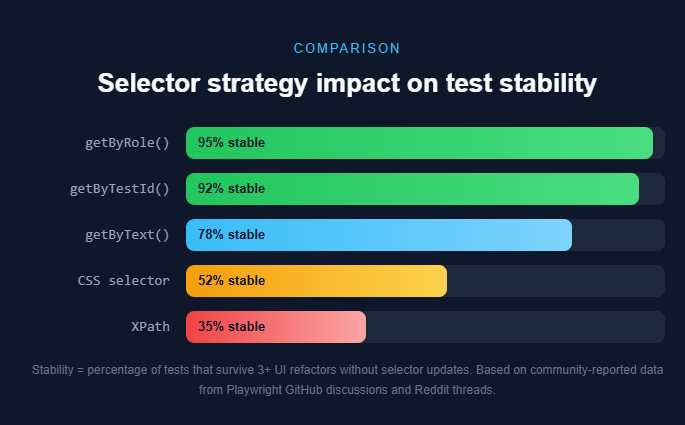
The priority order for choosing selectors (from Playwright's official docs) is:
-
getByRole() - matches ARIA roles (button, link, heading)
-
getByLabel() - form fields by their label text
-
getByText() - elements by visible text content
-
getByTestId() - explicit data-testid attributes
Note: Playwright's strict mode throws an error if a locator matches more than one element. This catches ambiguous selectors early, before they cause random failures in production CI runs.
Mistake 3: skipping test isolation and sharing state
When tests share cookies, local storage, or database state, they create invisible dependencies. Test A creates a user. Test B assumes that user exists. Run them in a different order or in parallel, and everything breaks. This is one of the hardest Playwright testing errors to debug because the failure only appears under specific execution orders.
This is one of the top reasons Playwright tests fail in CI/CD but pass locally. On your machine, tests run sequentially. In CI, they often run in parallel across workers.
The fix: isolate every test completely
// Each test gets a fresh browser context
test('add item to cart', async ({ page }) => {
  // This page comes from a brand-new context
  // No cookies, no storage, no session leaks
  await page.goto('/shop');
  await page.getByRole('button', { name: 'Add to cart' }).click();
  await expect(page.getByTestId('cart-count')).toHaveText('1');
});
If tests need specific data, create that data in the test setup. Do not rely on side effects from other tests.
test.beforeEach(async ({ page }) => {
  // Reset state explicitly before each test
  await page.request.post('/api/reset-test-data');
  await page.goto('/dashboard');
});Mistake 4: creating a new browser instance for every test
Launching a full browser process (Chromium, Firefox, or WebKit) is expensive. It eats CPU, allocates memory, and adds 1 to 3 seconds of startup overhead per test.
If your suite has 200 tests, that is up to 10 minutes of just waiting for browsers to boot.
The fix: reuse browser instances, reset contexts
Playwright already handles this well by default. Each test gets a new BrowserContext (which is lightweight), while the underlying browser instance stays alive.
// playwright.config.ts - default behavior is correct
export default defineConfig({
  use: {
    // Playwright reuses the browser process across tests
    // Each test gets an isolated BrowserContext automatically
  },
  workers: 4, // parallel workers share browser processes
});
The key insight: you do not need a new browser for isolation. A new BrowserContext gives you clean cookies, storage, and session state without the overhead of a full browser launch.
Tip: When running in parallel, Playwright distributes tests across workers. Each worker launches one browser and creates a new context per test. Tuning the workers count in your config to match your machine's CPU cores gives the best throughput.
Mistake 5: repeating login through the UI in every single test
If your app requires authentication, the naive approach is to fill in the username and password at the start of each test. That works, but it is painfully slow.
A login flow with a network round trip, session creation, and page redirect can take 2 to 5 seconds. Do that across 200 tests and you have added 7 to 16 minutes of pure login overhead.
The fix: use storageState to save and reuse authentication
Playwright lets you perform login once, export the session (cookies and local storage), and load it into every subsequent test.
// global-setup.ts - run login once before all tests
import { chromium } from '@playwright/test';
async function globalSetup() {
  const browser = await chromium.launch();
  const context = await browser.newContext();
  const page = await context.newPage();
  await page.goto('/login');
  await page.getByLabel('Email').fill('[email protected]');
  await page.getByLabel('Password').fill('securepassword');
  await page.getByRole('button', { name: 'Sign in' }).click();
  // Save signed-in state
  await context.storageState({ path: './auth/user.json' });
  await browser.close();
}
export default globalSetup;// playwright.config.ts - reuse the saved session
export default defineConfig({
globalSetup: './global-setup.ts',
use: {
storageState: './auth/user.json',
},
});Now every test starts authenticated instantly. No login form, no network delay.
Note: Add auth/ to your .gitignore file. The storageState JSON contains session cookies and tokens that should never be committed to version control.
How do you fix flaky tests and selector failures in Playwright?
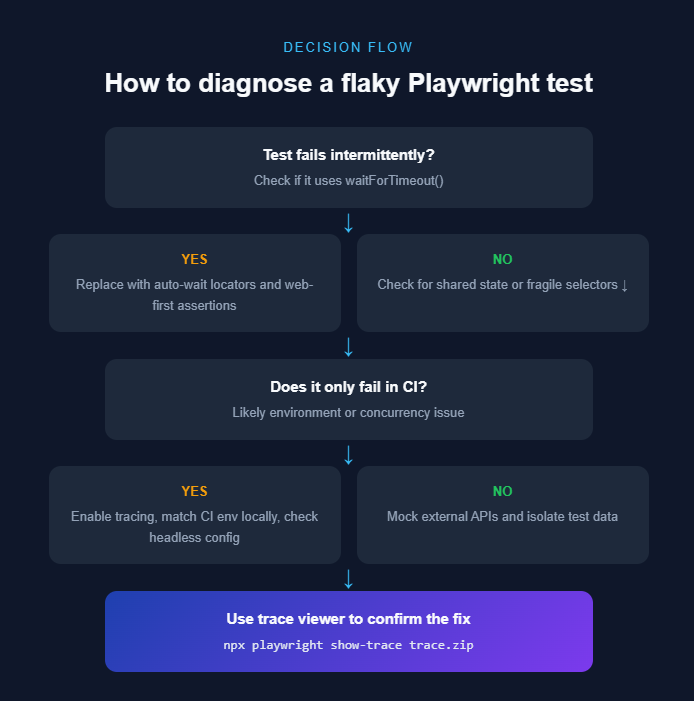
Flaky tests are tests that sometimes pass and sometimes fail without any code change. According to the Flaky Test Benchmark Report 2026, the average flaky test rate across engineering teams is around 2 to 5%, but even a small percentage can erode trust in the entire test suite.
The most effective strategies to fix Playwright flaky tests are:
-
Replace every waitForTimeout with auto-waiting locators and web-first assertions
-
Switch to role-based or test-id selectors to survive DOM changes
-
Isolate test state so parallel execution does not cause cross-contamination
-
Mock external API calls using Playwright's network interception to remove third-party variability
-
Enable tracing on first retry so failed tests produce actionable diagnostics
// recommended flaky test settings
export default defineConfig({
  retries: process.env.CI ? 2 : 0,
  use: {
    trace: 'on-first-retry',
    screenshot: 'only-on-failure',
    video: 'on-first-retry',
  },
});
A flaky test is a test that produces different results (pass/fail) across multiple runs on the same codebase and environment, without any intentional changes. Flakiness is usually caused by timing issues, shared state, or environmental differences.
A flaky test is a test that produces different results (pass/fail) across multiple runs on the same codebase and environment, without any intentional changes. Flakiness is usually caused by timing issues, shared state, or environmental differences.
Mistake 6: ignoring Playwright's debugging and tracing tools
When a test fails, many developers do this: stare at the error message, add a console.log, re-run, and repeat. That loop can eat hours.
Playwright ships with a powerful set of debugging tools that most teams underuse. The trace viewer alone can save you significant time by showing exactly what happened during a failed test: DOM snapshots, network calls, console logs, and a visual timeline of every action.
Tools you should be using:
-
Trace viewer → Full replay of the test with screenshots at every step
-
UI mode → Interactive test runner with live browser preview
-
Playwright Inspector → Step through tests and inspect selectors in real time
# Open the trace viewer for a failed test
npx playwright show-trace test-results/my-test/trace.zip
# Run tests in UI mode for interactive debugging
npx playwright test --ui
# Debug a specific test with the inspector
npx playwright test mytest.spec.ts --debug
Note: Set trace: 'on-first-retry' in your config. This avoids recording traces for passing tests (which saves storage) while still capturing diagnostics for any test that needed a retry.
Mistake 7: not structuring tests with the page object model
When a project starts small, it is tempting to write all selectors and actions directly inside test files. Five tests later, you have the same page.getByRole('button', { name: 'Add to cart' }) duplicated in three places.
Then someone renames the button text from "Add to cart" to "Add item." Now you are hunting through every test file to update the selector.
The fix: use the page object model (POM)
The POM pattern wraps each page's elements and actions into a reusable class. Tests call descriptive methods instead of raw selectors.
// pages/CartPage.ts
export class CartPage {
  constructor(private page: Page) {}
  async addItem(itemName: string) {
    await this.page.getByRole('button', { name: itemName }).click();
  }
  async getCartCount() {
    return this.page.getByTestId('cart-count');
  }
}// tests/cart.spec.ts
import { CartPage } from '../pages/CartPage';
test('user can add item to cart', async ({ page }) => {
  const cart = new CartPage(page);
  await page.goto('/shop');
  await cart.addItem('Wireless Mouse');
  await expect(await cart.getCartCount()).toHaveText('1');
});
If the button text ever changes, you update one line in CartPage.ts instead of every test. Combine POMs with Playwright annotations to tag tests by feature area, making it even easier to trace which page objects are covered by which tests.
Tip: Use Playwright fixtures to inject page objects automatically. This removes boilerplate new CartPage(page) calls and keeps test files clean. The Playwright E2E testing guide walks through this pattern step by step.
Mistake 8: misconfiguring Playwright for CI/CD pipelines
The classic symptom: tests pass on every developer's laptop but fail the moment they hit CI. This is one of the most frustrating Playwright CI/CD errors because the failure message rarely tells you the real cause.
Common CI/CD misconfigurations:
-
Missing headless flag - CI environments usually do not have a display. If your config defaults to headless: false, tests will crash.
-
Insufficient timeouts - CI servers are often slower than local machines. Default timeouts may be too tight.
-
Missing system dependencies - Playwright browsers need specific OS libraries. In Docker or fresh CI images, these are often missing.
-
No artifact collection - When a test fails in CI, you need traces, screenshots, and videos to debug remotely. Without them, you are flying blind.
Recommended CI/CD configuration:
// playwright.config.ts
export default defineConfig({
  retries: process.env.CI ? 2 : 0,
  workers: process.env.CI ? 2 : undefined,
  use: {
    headless: true,
    trace: 'on-first-retry',
    screenshot: 'only-on-failure',
    video: 'on-first-retry',
  },
});# GitHub Actions workflow example
- name: Install Playwright Browsers
run: npx playwright install --with-deps
- name: Run Playwright Tests
  run: npx playwright test
- name: Upload test artifacts
  uses: actions/upload-artifact@v4
  if: always()
  with:
    name: playwright-report
    path: playwright-report/
Note: Always run npx playwright install --with-deps in your CI pipeline. The --with-deps flag installs both the browser binaries and the underlying OS libraries they need. Without it, you will see cryptic "browser failed to launch" errors.
TestDino integrates with CI pipelines to surface test failure trends across runs. When combined with Playwright's trace artifacts, it gives your team a single dashboard to track which tests are failing, how often, and why, without digging through raw CI logs.
Quick-reference: Playwright mistakes vs. fixes
| # | Mistake | Impact | Fix |
|---|---|---|---|
| 1 | Hardcoded waits | Slow, flaky | Use auto-waiting + web-first assertions |
| 2 | Fragile selectors | Tests break after UI changes | Use getByRole(), getByTestId() |
| 3 | Shared test state | Parallel failures | Isolate with fresh BrowserContext per test |
| 4 | New browser per test | Slow, resource-heavy | Reuse browser, new context per test |
| 5 | UI login every test | Adds minutes to suite | Use storageState for auth reuse |
| 6 | No tracing/debugging | Hours of guesswork | Enable trace viewer, UI mode |
| 7 | No page object model | Duplicated, unmaintainable selectors | Wrap pages in POM classes |
| 8 | Broken CI/CD config | Tests pass locally, fail in CI | Headless mode, --with-deps, artifact upload |
Conclusion
Most Playwright mistakes come down to the same root cause: fighting the framework instead of working with it. Playwright already handles timing, isolation, and browser management. The job is to stop overriding those defaults with manual workarounds.
The eight Playwright mistakes covered here mainly responsible for the majority of flaky and broken test suites. Fix them, and your tests become faster, more stable, and significantly easier to maintain.
If you want to keep your test suite healthy over time, pair these Playwright best practices with a reporting tool like TestDino that surfaces failure trends, flags flaky tests automatically, and gives your team visibility into what is actually breaking across every run, every branch, and every browser.
FAQs

Dhruv Rai
Product & Growth Engineer