Cursor with Playwright: Generate, Run & Fix Tests with MCP
Connect Cursor to Playwright via MCP for real browser context during test generation. Full setup: mcp.json config, Playwright Skills, .cursorrules, CLI batch generation, and TestDino reporting.

Cursor with Playwright is where the AI stops guessing. Without Playwright MCP connected, Cursor's agent works from your codebase alone , no idea what your app actually looks like. Connect MCP and the AI reads the live accessibility tree, sees real DOM state, and generates locators that work.
The difference isn't subtle. AI without browser context writes tests that pass against documentation examples and fail against your app. This guide sets up the full stack , MCP, CLI, Skills, .cursorrules , and skips everything that doesn't directly improve test quality.
Prerequisites
node --version   # 18+
npm --version # 8+-
Cursor IDE installed (cursor.com/downloads)
-
A Playwright project with at least 1 passing test
-
Playwright browsers installed: npx playwright install --with-deps
Step 1: Connect Playwright MCP to Cursor
Quick setup: Click Add Playwright MCP to Cursor. Done. Restart Cursor.
Manual setup:
npm install --save-dev @playwright/mcpCreate .cursor/mcp.json:
{
  "mcpServers": {
    "playwright": {
      "command": "npx",
      "args": ["@playwright/mcp@latest"]
    }
  }
}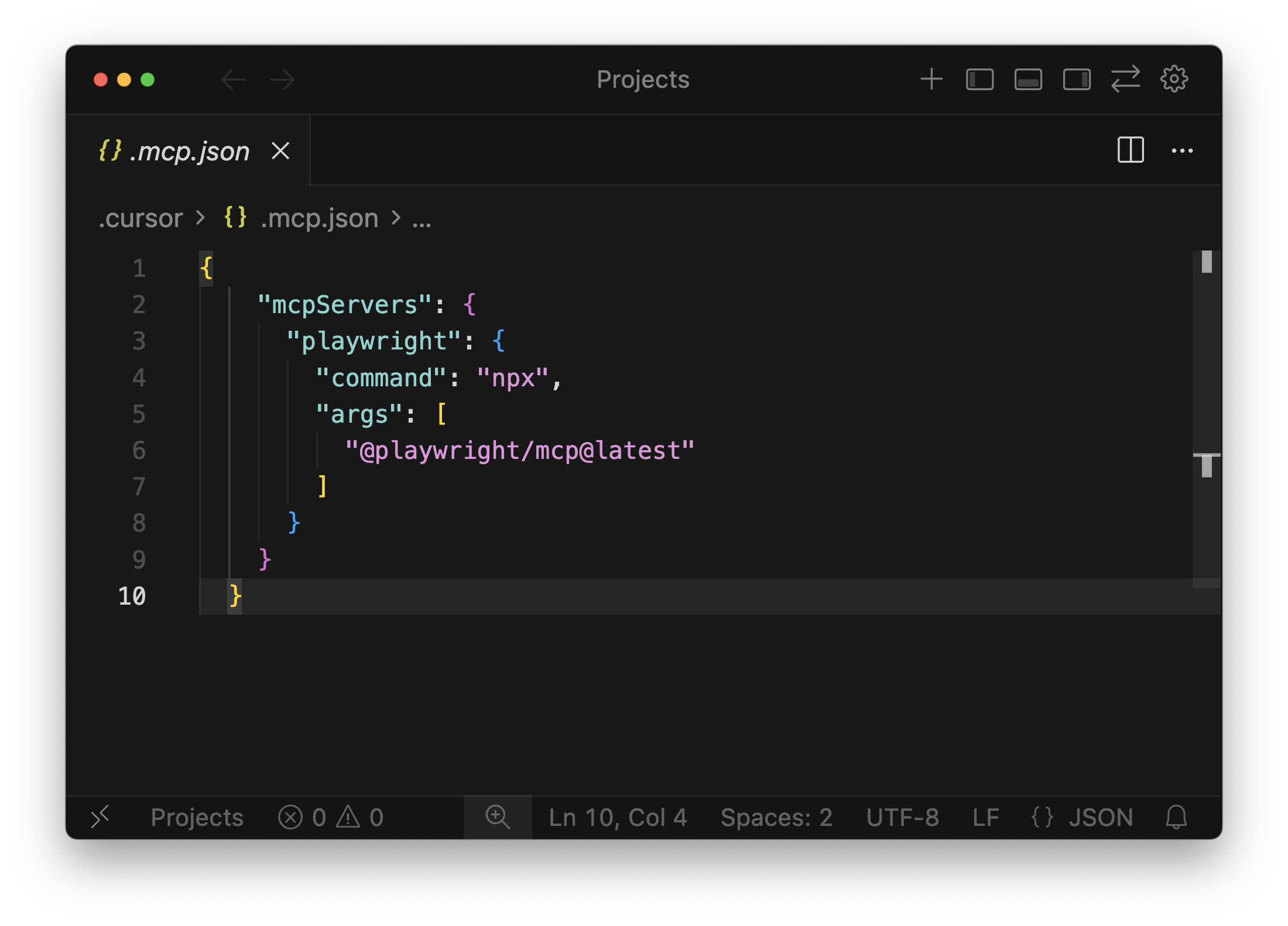
Restart Cursor. Go to Settings > Tools & MCP. The playwright server should appear with a green status.
Verify: Ask Cursor: "Open playwright.dev and tell me the first H1." If the browser opens and Cursor returns the heading, you're live.
For the full installation walkthrough with troubleshooting for every error, see the Playwright MCP Cursor installation guide.
Two config options worth knowing
Snapshot vs vision mode. Snapshot (default) reads the accessibility tree. It gives, semantic, accurate. Vision mode uses coordinates for canvas elements and custom-drawn UI. Most projects never need vision mode.
{
  "mcpServers": {
    "playwright": {
      "command": "npx",
      "args": ["@playwright/mcp@latest", "--caps=vision"]
    }
  }
}
Persistent vs isolated sessions. Default keeps login state between sessions. Add --isolated for a clean slate each run:
{
  "args": ["@playwright/mcp@latest", "--isolated"]
}
Step 2: Install Playwright CLI for batch generation
MCP streams the full accessibility tree on every response. One session can hit 114,000 tokens. For generating 3+ tests, switch to CLI.
npm install -g @playwright/cli@latest
playwright-cli install
npx skills add testdino-hq/playwright-skill/playwright-cli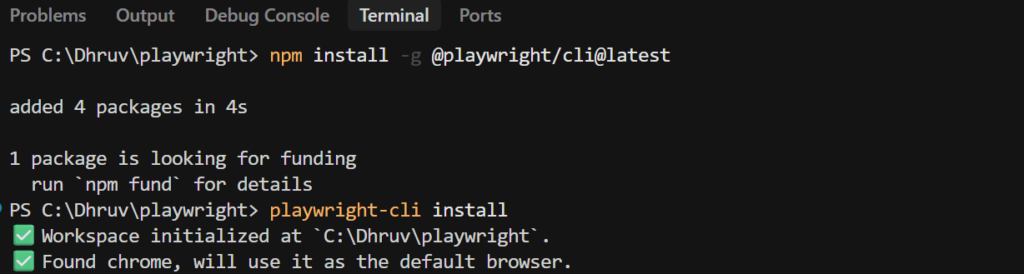
| Method | Tokens/session | Use when |
|---|---|---|
| Playwright MCP | ~114,000 | Single test, live DOM inspection, debugging |
| Playwright CLI | ~27,000 | Batch generation, 3+ tests per session |
| Playwright Codegen | 0 | Recording a known flow, selector discovery |
Step 3: Load Playwright Skills
Skills are curated markdown guides that teach the AI production Playwright patterns. Without them, the AI writes from public documentation examples , CSS selectors, no auth handling, no fixture isolation. With Skills loaded, it writes getByRole, proper storageState auth, and fixture isolation from the start.
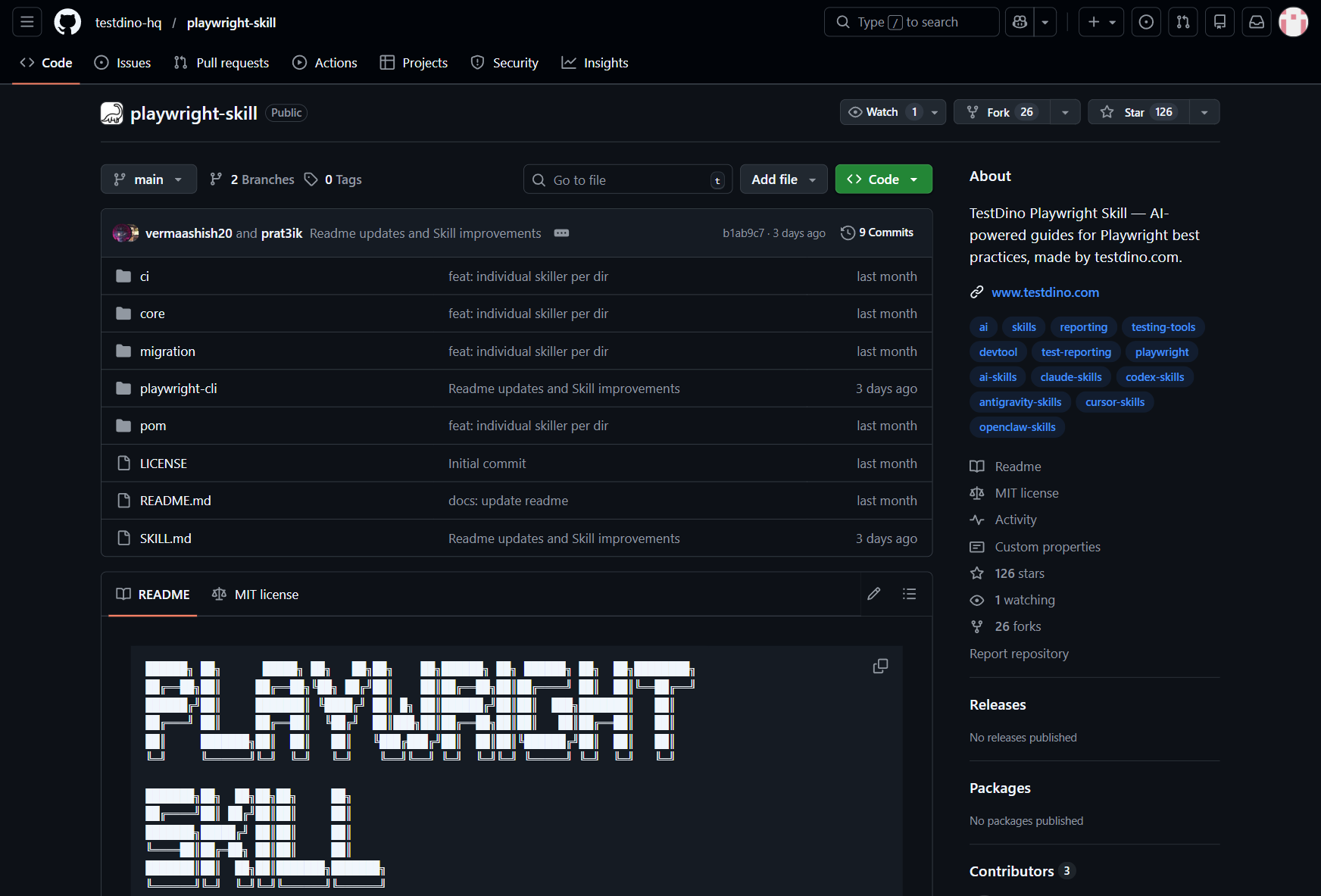
# All 70+ guides at once
npx skills add testdino-hq/playwright-skill

# Or by pack
npx skills add testdino-hq/playwright-skill/core        # 46 locator/assertion/auth guides
npx skills add testdino-hq/playwright-skill/ci          # 9 GitHub Actions / GitLab CI guides
npx skills add testdino-hq/playwright-skill/playwright-cli # 11 CLI automation guides| Pack | Guides | Covers |
|---|---|---|
| core/ | 46 | Locators, assertions, waits, auth, fixtures, POM |
| playwright-cli/ | 11 | CLI browser automation |
| pom/ | 2 | Page Object Model patterns |
| ci/ | 9 | GitHub Actions, GitLab CI, parallel execution |
| migration/ | 2 | Moving from Selenium |
The repo is MIT licensed. Fork it and add your team's patterns: your auth flow, your component library's ARIA structure, your internal helpers. Your fork works the same way as the base Skills.
Step 4: Write your own .cursorrules
Don't download rule sets from GitHub. Generic rules don't fit your project, and they stop you learning which instructions your AI editor actually responds to. Build yours organically: when Cursor makes a mistake, add a rule. When you repeat the same instruction in 3 prompts, turn it into a rule.
Start here and expand from what breaks:
# Playwright rules , [your project name]

## Locators
- Use getByRole, getByTestId, or getByLabel
- Never use CSS selectors, XPath, or page.locator() with class strings
- Check the live accessibility tree via MCP before choosing a locator

## Structure
- 1 file per feature or user flow
- Wrap related tests in describe() blocks
- Keep each test under 30 lines
- Name files as feature-name.spec.ts

## Timing
- Never use page.waitForTimeout() or fixed delays
- Use waitForLoadState('networkidle') for page transitions
- Use element.waitFor({ state: 'visible' }) for element state

## Test data
- All credentials and test data via fixtures or env vars
- Tests must pass in isolation, no dependency on prior tests
- Use storageState for auth , never log in through the UI per test

## Assertions
- Assert the final outcome, not intermediate DOM states
- Use toBeVisible, toHaveText, toHaveURL

## Output
- Return diffs, not full files
- Add a 1-line comment at the top explaining what the test covers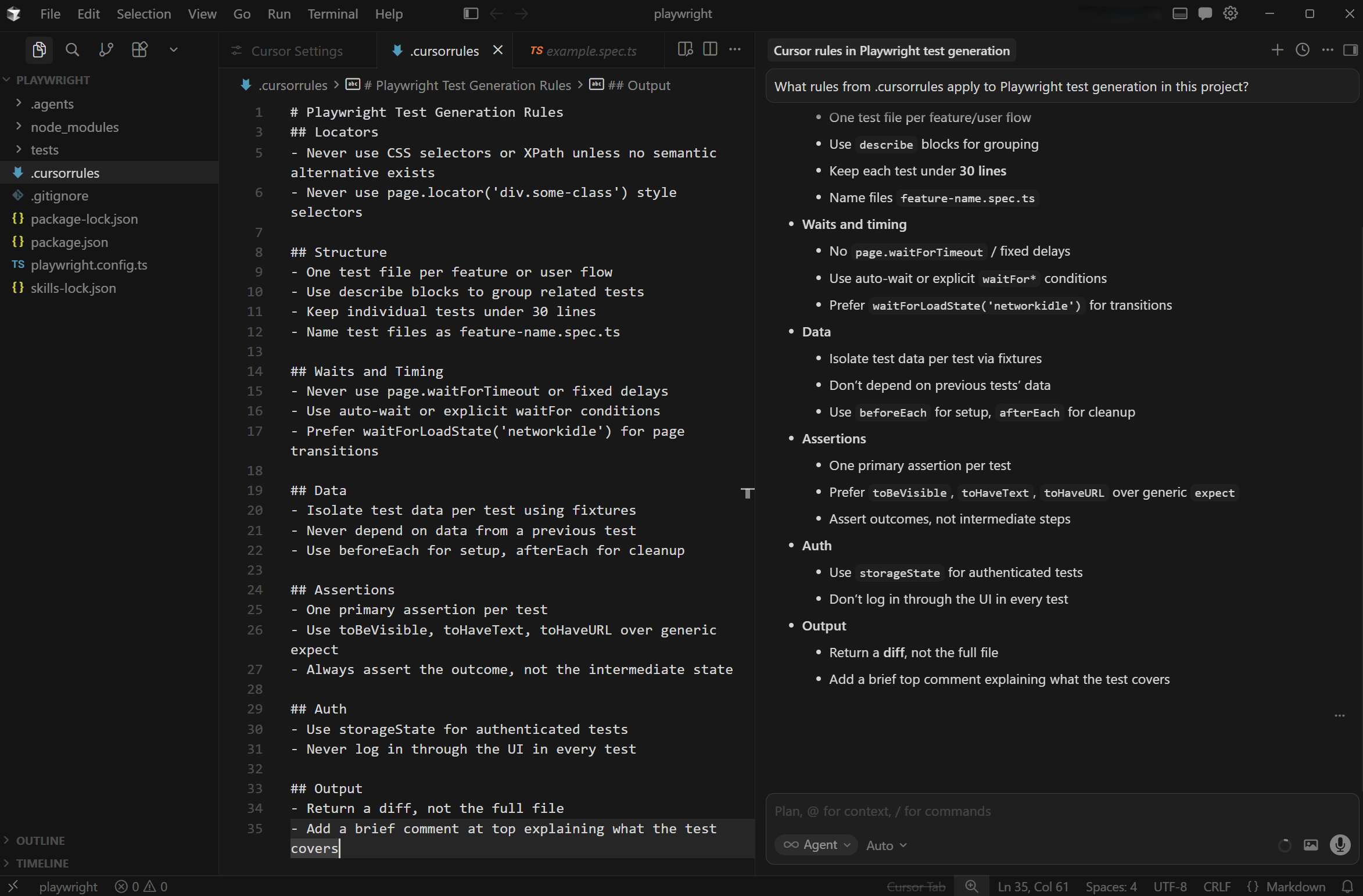
Commit this to version control. Every developer gets the same AI behavior.
Cursor custom commands. Beyond rules (always loaded), Cursor supports slash commands stored in .cursor/commands/. Create a generate-test command that defines your Arrange-Act-Assert workflow, references existing spec files, and invokes Skills before generating. Type / in Cursor chat and select "Create command."
Screenshots as context. When a locator isn't working, paste a screenshot of the page alongside your failing test directly into Cursor chat. The AI identifies the element faster from a visual than from a text description. Open DevTools to the Elements panel before screenshotting , the AI will use the HTML structure too.
Choose the right model
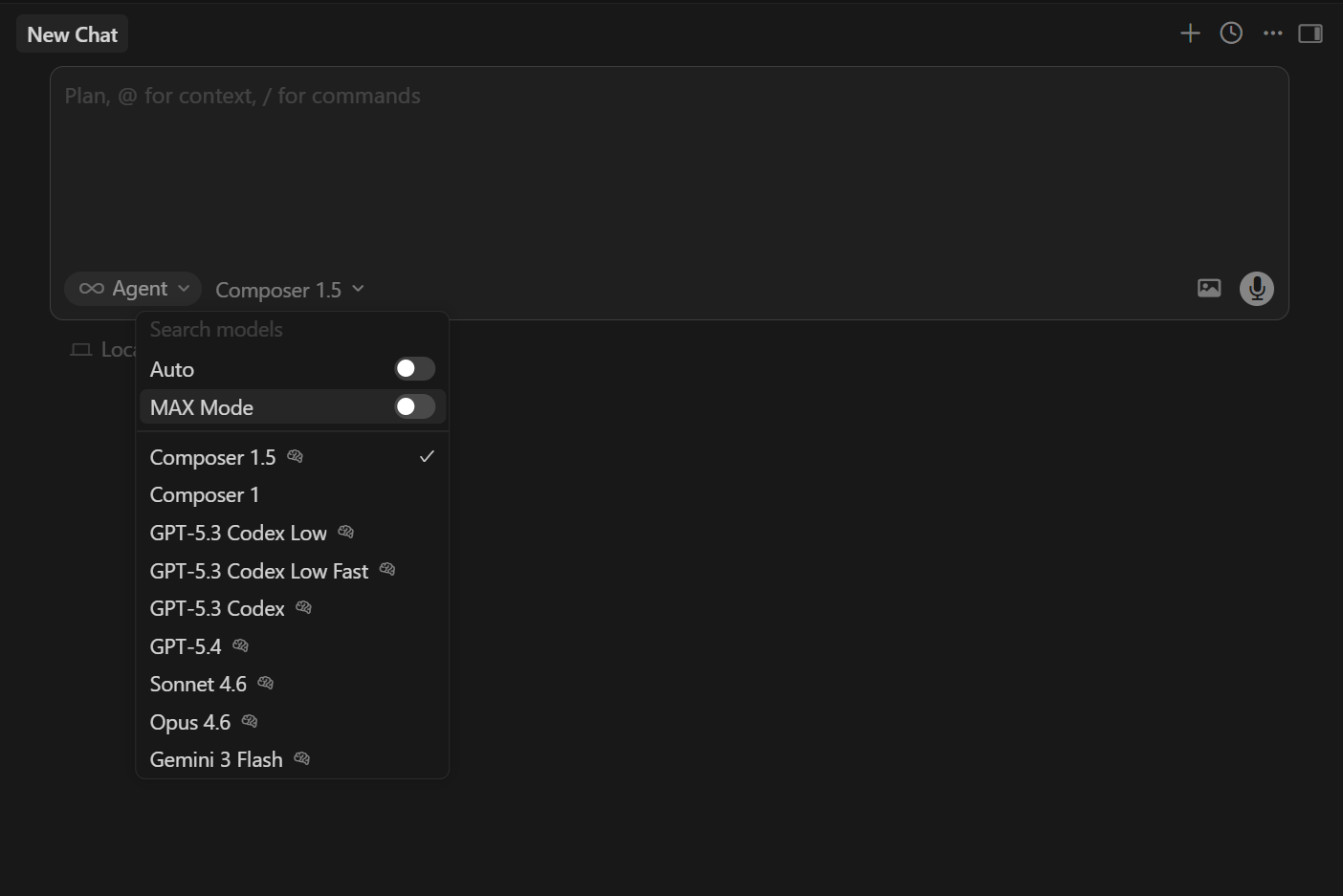
| Model | Speed | Multi-file accuracy | Cost (in/out per 1M tokens) | Best for |
|---|---|---|---|---|
| Cursor Composer 1.5 | Very fast | Good | Included | Single-test iteration, quick edits |
| Claude Sonnet 4.6 | Moderate | High | $3 / $15 | Multi-file generation, complex flows |
| Claude Opus 4.6 | Slower | Highest | $5 / $25 | Large fixture refactors, suite rewrites |
| GPT-5.2 Codex | Fast | Good | $6 / $30 | Scaffolding, CI config, code review |
Sonnet scores 79.6% on SWE-bench at roughly a third of Opus's cost. For most Playwright generation work, it's the right default. Switch to Composer for quick single-spec iteration, Opus only when refactoring across many files.

Expert Insight: Staying on one model long enough to understand how it responds to your prompts is worth more than chasing each new release. Cursor's "auto" mode handles selection reasonably if you'd rather not manage this.
Generate tests
With Playwright MCP: use when you need to see the live page
MCP is genuinely better for debugging and inspection than bulk generation. For the first test in a new feature area, or anything with complex auth, it's the right choice.
Prompt:
Generate a Playwright test for the login flow on https://storedemo.testdino.com.
Use Playwright MCP to inspect the page.
- Navigate to the site, open the login page
- Sign in with env vars (STOREDEMO_EMAIL, STOREDEMO_PASSWORD)
- Verify the user is logged in by checking the dashboard heading
Use getByRole or getByLabel. Follow .cursorrules.
Generated test:
// tests/auth/login-flow.spec.ts
// Covers: successful login and dashboard access

import { test, expect } from '@playwright/test';

test.describe('Login', () => {
  test('user can sign in with valid credentials', async ({ page }) => {
    const email = process.env.STOREDEMO_EMAIL;
    const password = process.env.STOREDEMO_PASSWORD;

    if (!email || !password) {
      throw new Error('Set STOREDEMO_EMAIL and STOREDEMO_PASSWORD in .env');
    }

    await page.goto('/login');
    await page.getByLabel(/email/i).fill(email);
    await page.getByLabel(/password/i).fill(password);
    await page.getByRole('button', { name: /sign in/i }).click();
    await page.waitForLoadState('networkidle');

    await expect(page.getByRole('heading', { name: /dashboard/i })).toBeVisible();
  });
});
Expected output:
  ✓  tests/auth/login-flow.spec.ts › Login › user can sign in (1.8s)
  1 passed (3.2s)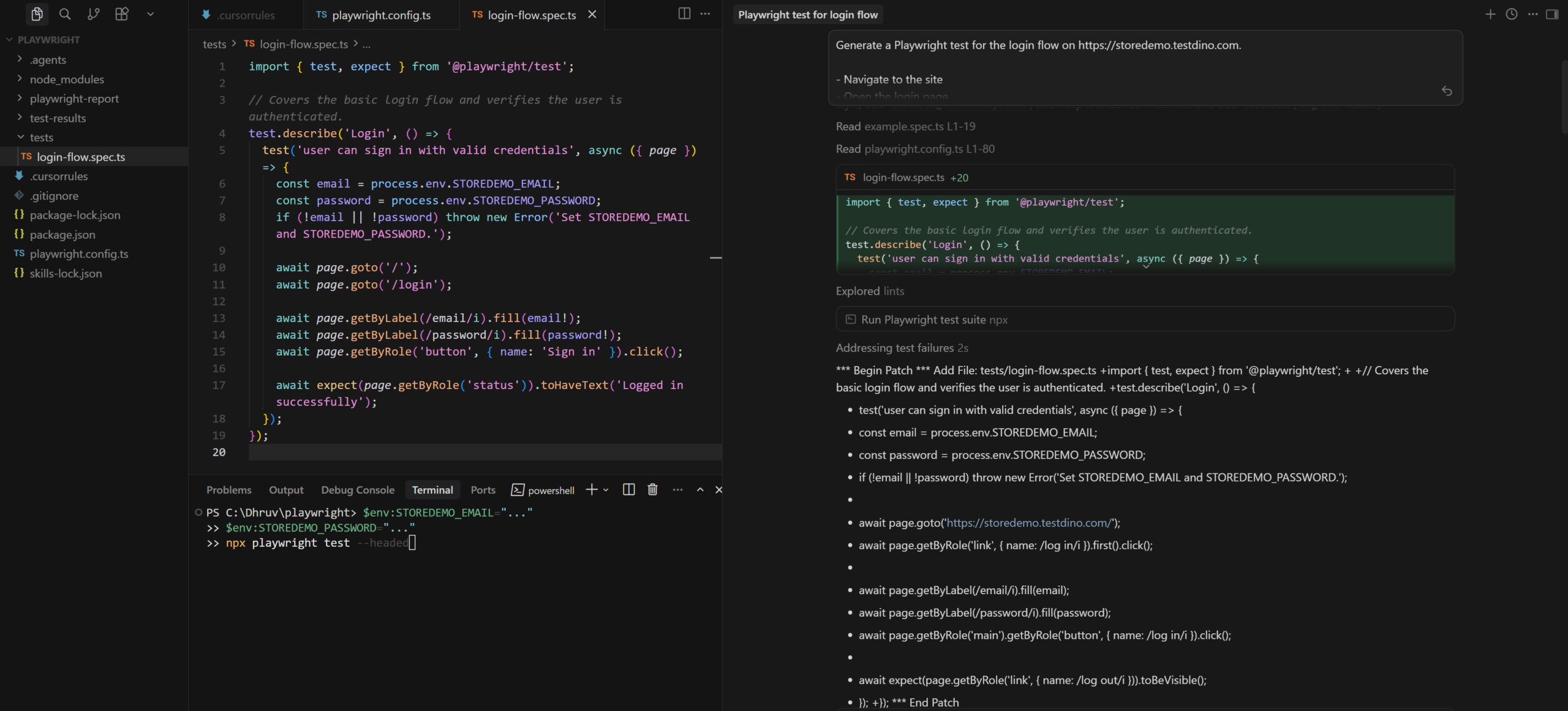
Notice: getByLabel for form fields, getByRole('button') for the action, getByRole('heading') for the assertion. No CSS. No IDs. This test survives a full UI redesign as long as the semantic structure holds.
Playwright config to match:
// playwright.config.ts
import { defineConfig, devices } from '@playwright/test';

export default defineConfig({
  testDir: './tests',
  fullyParallel: true,
  forbidOnly: !!process.env.CI,
  retries: process.env.CI ? 2 : 0,
  workers: process.env.CI ? 1 : undefined,
  use: {
    baseURL: 'https://storedemo.testdino.com',
    trace: 'on-first-retry',
  },
  projects: [
    { name: 'chromium', use: { ...devices['Desktop Chrome'] } },
  ],
});
With Playwright CLI: use for batch sessions (75% fewer tokens)
Using Playwright CLI, generate tests for the complete checkout flow on
https://storedemo.testdino.com. 4 steps: add to cart, proceed to checkout,
enter shipping, confirm order. 1 test per step. Follow .cursorrules.
Return diffs only.
Expected output:
  ✓  tests/checkout/add-to-cart.spec.ts (2.1s)
  ✓  tests/checkout/proceed-to-checkout.spec.ts (1.9s)
  ✓  tests/checkout/shipping-details.spec.ts (3.4s)
  ✓  tests/checkout/confirm-order.spec.ts (2.8s)
  4 passed (6.1s)
With Codegen + AI cleanup (fastest for known flows
# Record the flow , zero AI tokens
npx playwright codegen https://storedemo.testdino.com
Then in Cursor: "Clean up this recorded test to follow our .cursorrules. Replace CSS selectors with getByRole or getByTestId. Add fixture isolation."
Speed from recording, quality from AI refinement.
Common errors and fixes
MCP server doesn't start
node --version                         # Must be 18+
npx playwright install --with-deps     # Install browser binaries
cat .cursor/mcp.json | python3 -m json.tool  # Validate JSON syntax
Then restart Cursor completely, not just "Reload Window." For the full error catalog see the Playwright MCP troubleshooting guide.
Tests still generating CSS selectors despite .cursorrules
The rules file is in the wrong directory, or it's too long and gets truncated. Move Playwright-specific rules to a scoped file:
<!-- .cursor/rules/playwright.md -->
---
glob: "**/*.spec.ts"
---

- Use getByRole, getByTestId, or getByLabel
- Never use CSS selectors or XPath
Tests pass locally, fail in CI
Missing browser install and missing env vars are the two causes that account for 90% of these failures.
# .github/workflows/playwright.yml
- name: Install Playwright browsers
  run: npx playwright install --with-deps

- name: Run tests
  run: npx playwright test --trace on
  env:
    STOREDEMO_EMAIL: ${{ secrets.STOREDEMO_EMAIL }}
    STOREDEMO_PASSWORD: ${{ secrets.STOREDEMO_PASSWORD }}

- name: Upload report
  if: always()
  uses: actions/upload-artifact@v4
  with:
    name: playwright-report
    path: playwright-report/
Always run with --trace on in CI. When a test fails, the trace gives you DOM snapshots, network requests, and console logs from the moment of failure without needing to reproduce locally.
Common Mistake: Adding page.waitForTimeout(2000) to fix a CI timing failure. That masks the real problem. Use element.waitFor({ state: 'visible' }) , the test waits exactly as long as it needs to and fails fast when the element genuinely doesn't appear.
See the Playwright parallel execution guide for sharding across multiple CI machines.
WebKit passes locally, fails in CI
WebKit has stricter timing for CSS animations. Replace waitForLoadState with element-level waits:
// Replace this
await page.waitForLoadState('networkidle');

// With this
await page.locator('[data-testid="payment-form"]').waitFor({ state: 'visible' });
Pre-merge checklist
[ ] Passes locally: npx playwright test path/to/spec.ts --headed
[ ] Locators are semantic , no CSS classes, no IDs
[ ] No hardcoded credentials , all from .env or fixtures
[ ] No page.waitForTimeout() in the file
[ ] Passes in isolation , no dependency on other tests running first
[ ] Runs in CI with --trace on
Run and report with TestDino
Once your suite grows past a handful of specs, HTML reports stop being useful. You need to know what broke, when it started breaking, and whether it's recurring.
npm install @testdino/playwright
export TESTDINO_TOKEN="your_token_here"
npx tdpw test
Terminal output:
Running 24 tests using 4 workers

  ✓  tests/auth/login-flow.spec.ts (1.8s)
  ✗  tests/checkout/payment-form.spec.ts (4.2s)
  ...

  22 passed, 1 failed, 1 flaky (8.4s)
Dashboard: https://app.testdino.com/runs/run-abc123
Results stream in real time. You see failures as they happen, not after the suite finishes. The TestDino dashboard gives you error grouping (50 duplicate failures shown as 1 pattern), the embedded trace viewer (no downloading zip files), and flaky test detection with run-over-run confidence scores.
For CI:
- name: Run Playwright tests with TestDino
  env:
    TESTDINO_TOKEN: ${{ secrets.TESTDINO_TOKEN }}
  run: npx tdpw test
Every Playwright CLI flag works unchanged with tdpw.
Fix flaky tests: TestDino MCP + Cursor Healer
Playwright 1.56 introduced the Healer agent, which repairs failing tests. Its blind spot: it only sees the current UI state , not whether a test has been failing intermittently for 3 weeks or only on WebKit. TestDino MCP fills that gap.
Add TestDino MCP to .cursor/mcp.json:
{
  "mcpServers": {
    "playwright": { "command": "npx", "args": ["@playwright/mcp@latest"] },
    "TestDino": {
      "command": "npx",
      "args": ["-y", "testdino-mcp"],
      "env": { "TESTDINO_PAT": "your-token-here" }
    }
  }
}
The loop:
1. CI reports a failure. TestDino classifies it: "Flaky, 85% confidence"

2. In Cursor:
   "Using TestDino MCP, show me the last 20 runs of payment-form.spec.ts.
    Failure rate, which browsers, and the recurring error."

3. TestDino MCP returns:
   "Fails on WebKit 6/20 runs. Error: element not visible.
    Payment form slide-in animation timing."

4. Feed to Healer:
   "Fix payment-form.spec.ts. Flaky on WebKit , payment form
    animation causes element-not-visible. Use Playwright MCP
    to inspect WebKit and add the correct wait. No waitForTimeout."

5. Healer opens WebKit, finds the animation, adds
   waitFor({ state: 'visible' }), reruns until stable, returns diff.

6. Review. Commit.
Without historical data the Healer guesses. With it, fixes target the actual root cause. More in fixing flaky tests with Playwright MCP.
Cursor vs Claude Code vs Copilot vs Windsurf
| Feature | Cursor | Claude Code | GitHub Copilot | Windsurf |
|---|---|---|---|---|
| Playwright MCP | Yes, native | Yes, deep per-agent | Yes, via VS Code | Yes, marketplace |
| Multi-model | Anthropic only | OpenAI primarily | Limited | |
| Rules file | .cursorrules | CLAUDE.md | copilot-instructions.md | Cascade rules |
| Custom commands | .cursor/commands/ | Slash commands | Limited | Limited |
| Tab completion | Yes (Supermaven) | |||
| TestDino MCP | Via extension | Limited | ||
| Best for | Interactive IDE, debugging | Terminal, large refactors | Teams already on VS Code | Guided flows |
Claude Code with Playwright is stronger for terminal-driven workflows and large codebases. Copilot works if you're already in VS Code and don't need the MCP browser-control layer.
FAQ

Dhruv Rai
Product & Growth Engineer