Write Playwright Tests with Goose AI Agent (Setup, Generate, Fix)
Struggling to write reliable Playwright tests quickly? This step-by-step guide walks you through setting up Goose for AI-powered Playwright test generation, from MCP configuration to CI reporting with TestDino and fixing flaky tests with Playwright agents.

Goose is Block's open-source AI coding agent. It runs locally, works with any LLM provider (OpenAI, Anthropic, local models), and connects to MCP servers natively.
That makes it one of the few agents where you can wire up Playwright MCP without being locked into a specific IDE or vendor.
This guide covers Goose installation, Playwright MCP configuration, generating tests with live browser context, and connecting TestDino for centralized reporting across your CI runs.
Why Goose for Playwright tests?
Goose can excels at generating Playwright tests that match your project's structure and run flawlessly. Most AI coding tools produce tutorial-level Playwright code with shallow, fragile CSS selectors. Goose can skips this by using three key flows to capture your project's fixtures and patterns.
- MCP support, connects directly to Playwright MCP server so the AI runs a real browser.
- Playwright skills, structured markdown guides that teach the live agent your preferred Playwright patterns.
- Biz rules, project-level rules that enforce locator strategy, test structure, and team conventions automatically.
Goose generates Playwright tests that mirror your codebase from first try, enforcing rules without manual fixes. Switch between models from OpenAI, Anthropic, Google according to your requirements.
Connect Playwright MCP to Goose
Step 1: connect Playwright MCP to Goose
Modern AI agents like Goose (from Block) unlock powerful browser automation when paired with Playwright MCP. This lets you navigate sites, inspect elements, and generate tests via natural language, no manual scripting needed. Here's the exact process matching your screenshots
Install Playwright MCP globally:
npm install -g @playwright/mcpConfigure it in Goose:
- Open Goose Extensions panel: In Goose Desktop, click the Extensions tab (sidebar). Hit "Add custom extension" or browse Community for "Playwright (Browser automation)" and click Install.
Custom extension Configuration:
Configure the extension (if manual):
- Name: playwright
- Type: STDIO/Command-line
- Command: npx
- Args: -y @playwright/mcp@latest
- Timeout: 300 seconds
- Save, it adds a green indicator next to "playwright".
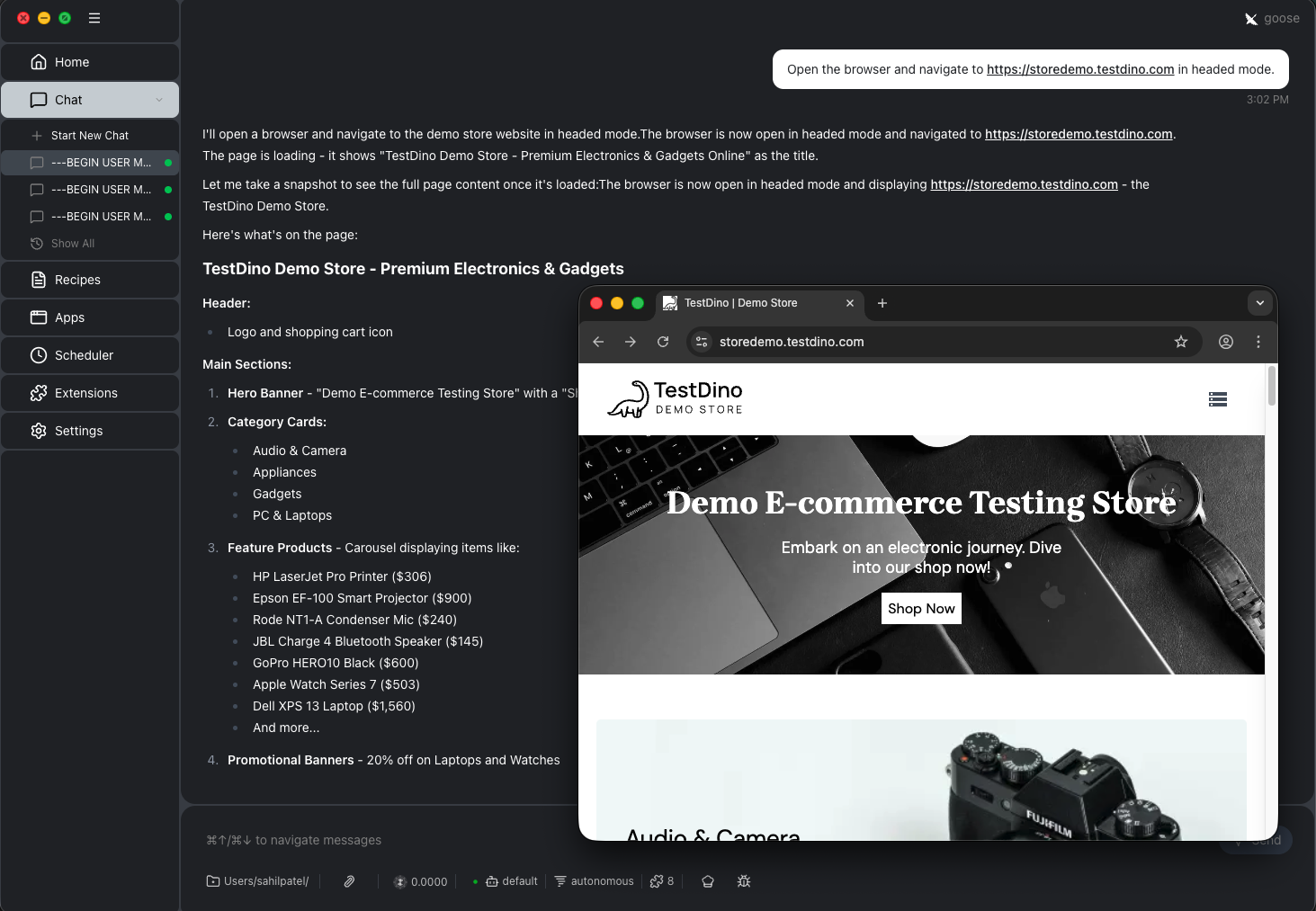
Tip: You can verify the MCP connection by asking the agent: "Open the browser and navigate to storedemo.testdino.com ". If the agent launches a browser and returns a snapshot, the MCP is working correctly.
Note: One thing to keep in mind: Playwright MCP is designed for interactive development and debugging. If you are running large regression suites or performance-sensitive test runs, MCP adds unnecessary overhead. Its strength is in test creation and debugging, not bulk execution.
Use Playwright CLI for batch test generation
Playwright MCP works well for interactive sessions, but it sends the full accessibility tree and console output on every response. That burns through tokens fast. For longer sessions where you are generating multiple tests, the Playwright CLI is more token-efficient.
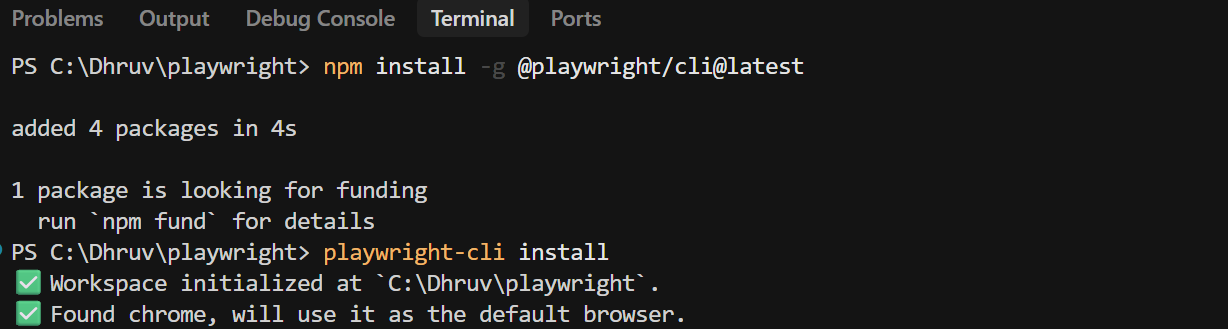
- Install CLI using npm install -g @playwright/cli@latest
- Install it for your project using playwright-cli install
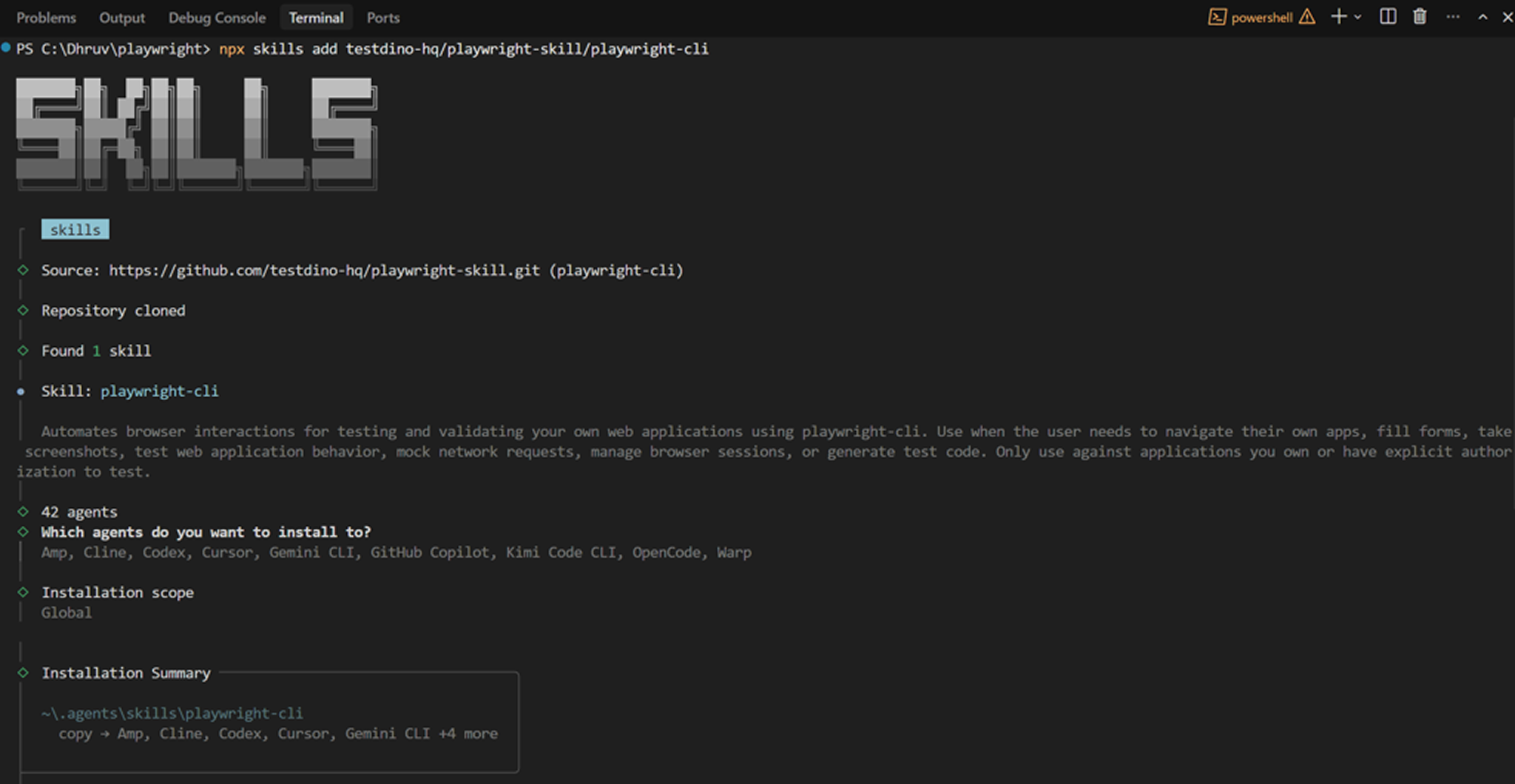
- Install playwright skills: npx skills add testdino-hq/playwright-skill/playwright-cli
Load Playwright Skills for structure
AI agents write decent Playwright tests out of the box, but they fall apart on real-world sites. Wrong selectors, broken auth, flaky CI runs. The root cause is that agents do not have context about your codebase or about Playwright best practices beyond their training data.
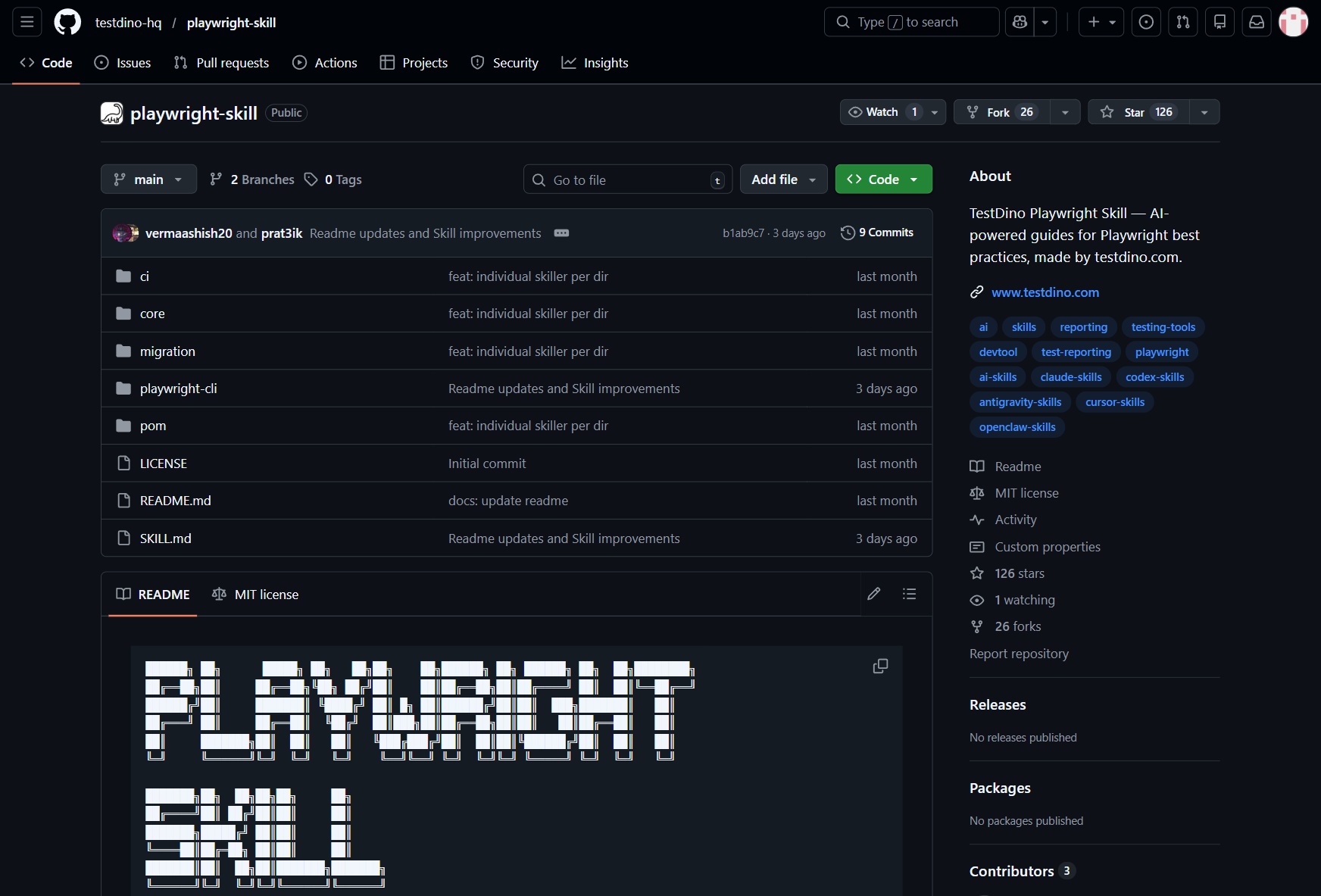
Playwright Skills fix this. A Skill is a curated collection of markdown guides that teach AI coding agents how to write production-grade Playwright tests. The Playwright Skill repository maintained by TestDino contains 70+ guides organized into five packs:
- core/ -- 46 guides covering locators, assertions, waits, auth, fixtures, and more
- playwright-cli/ -- 11 guides for CLI browser automation
- pom/ -- 2 guides for Page Object Model patterns
- ci/ -- 9 guides covering GitHub Actions, GitLab CI, and parallel execution
- migration/ -- 2 guides for moving from Cypress or Selenium
Install them with a single command:
# Install all 70+ guides
npx skills add testdino-hq/playwright-skill

# Or install individual packs
npx skills add testdino-hq/playwright-skill/core
npx skills add testdino-hq/playwright-skill/ci
npx skills add testdino-hq/playwright-skill/playwright-cli
The difference is noticeable. Without the Skill loaded, an AI agent generates tutorial-quality code with brittle CSS selectors. With the Skill, it uses getByRole() locators, proper wait strategies, and structured test patterns that actually pass against real sites.
Tip: The repo is MIT licensed. Fork it and add your team's naming conventions, remove guides for frameworks you do not use, or add new guides for your internal tools. The structure stays the same, and your AI agent keeps working.
Goosehints for Playwright: Give Your AI Agent General Playwright Knowledge
Skills give the agent general Playwright knowledge. .goosehints give it your team's specific conventions. Without rules, Goose will invent its own structure, and every generated test will look different.
Add goosehints by following the provided guide. Since goosehints depends on the developer extension, make sure to install and enable the extension from the Extensions tab first. Here is a practical starting point for Playwright projects:
# Playwright Test Generation Rules

## Locators
- Always prefer getByRole, getByTestId, and getByLabel
- Never use CSS selectors or XPath unless no semantic alternative exists
- Never use page.locator('div.some-class') style selectors

## Structure
- One test file per feature or user flow
- Use describe blocks to group related tests
- Name test files as feature-name.spec.ts

## Waits and Timing
- Never use page.waitForTimeout or fixed delays
- Use auto-wait or explicit waitFor conditions
- Prefer waitForLoadState('networkidle') for page transitions

## Data
- Isolate test data per test using fixtures
- Never depend on data from a previous test
- Use beforeEach for setup, afterEach for cleanup

## Assertions
- One primary assertion per test
- Use toBeVisible, toHaveText, toHaveURL over generic expect
- Always assert the outcome, not the intermediate state

## Auth
- Use storageState for authenticated tests
- Never log in through the UI in every test

## Output
- Return a diff, not the full file
- Add a brief comment at top explaining what the test covers
This file is loaded automatically by Goose for every AI interaction in the project. When you ask Goose to generate a test, it follows these rules without you repeating them in every prompt.
Share this file across your team through version control. Everyone gets the same AI behavior, which means consistent test output across developers.
Generate your first test
With MCP connected, CLI also setup, skills loaded, rules in place, and a model selected, you are ready to generate a test.
Start with a simple prompt so Goose focuses on the flow and uses your project context.
There are primarily 2 ways you can create test cases:
- Using MCP
- Using CLI
Example-1: Generate test using Playwright MCP
Here is a prompt that works well with the setup from the previous steps:
Generate a Playwright test for the login flow on https://storedemo.testdino.com.
- Navigate to the site
- Open the login page
- Sign in with valid credentials
- Verify the user is logged in
Use getByRole or getByTestId locators.
Use Playwright MCP
This works because the flow is clear and Goose applies your .goosehints, Skills, and existing project structure automatically.
What Goose generates
With the setup done correctly, you get a clean test that follows Playwright best practices.
import { test, expect } from '@playwright/test';
import dotenv from 'dotenv';
dotenv.config();
// Covers the basic login flow and verifies the user is authenticated.
test.describe('Login', () => {
  test('user can sign in with valid credentials', async ({ page }) => {
    const email = process.env.STOREDEMO_EMAIL;
    const password = process.env.STOREDEMO_PASSWORD;
    if (!email || !password) throw new Error('Set STOREDEMO_EMAIL and STOREDEMO_PASSWORD.');

    await page.goto('/login');

    await expect(page.getByRole('heading', { name: 'Sign In' })).toBeVisible();
    await page.getByTestId('login-email-input').fill(email);
    await page.getByTestId('login-password-input').fill(password || '');
    await page.getByTestId('login-submit-button').click();
    await expect(page.getByRole('status')).toContainText('Logged in successfully');
  });
});
Notice how it uses semantic locators like getByRole, avoids fixed waits, and keeps the test focused on the final outcome.
Playwright config
import { defineConfig, devices } from '@playwright/test';
export default defineConfig({
  testDir: './tests',
  fullyParallel: true,
  forbidOnly: !!process.env.CI,
  retries: process.env.CI ? 2 : 0,
  workers: process.env.CI ? 1 : undefined,
  reporter: 'html',
  use: {
    baseURL: 'https://storedemo.testdino.com',
    trace: 'on-first-retry',
  },
  projects: [
    {
      name: 'chromium',
      use: { ...devices['Desktop Chrome'] },
    },
  ],
});
This sets the base URL, enables traces on retry, and loads environment variables.
Set test credentials
Your test uses environment variables for login. You can set them in two ways.
STOREDEMO_EMAIL=your-email
STOREDEMO_PASSWORD=your-password
This keeps credentials consistent across runs and works well in CI.
Example-2: Generate tests using Playwright CLI (token efficient way to generate tests)
Pre-requisite: Ensure you have installed CLI in your current directory using the steps from Playwright CLI for batch test generation section
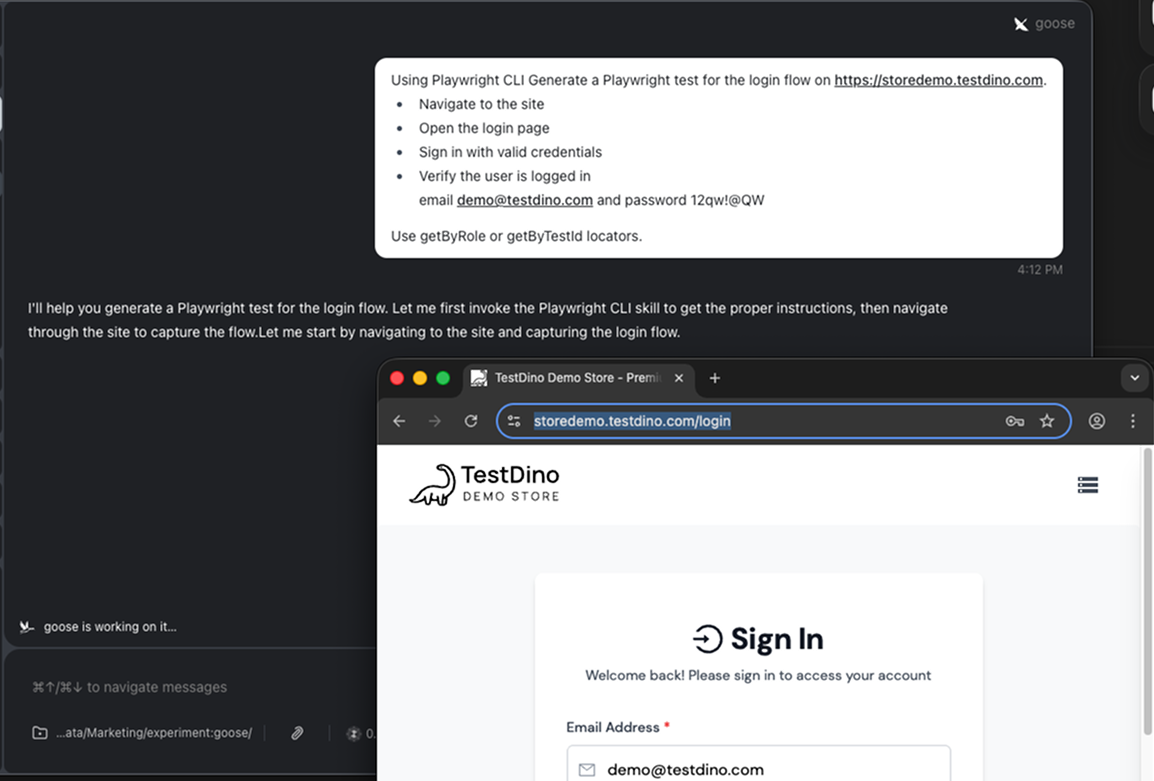
Using Playwright CLI Generate a Playwright test for the login flow on https://storedemo.testdino.com.
- Navigate to the site
- Open the login page
- Sign in with valid credentials
- Verify the user is logged in
Use the playwright skills available
This works because the flow is clear and Goose applies your .goosehints, Skills, and existing project structure automatically.
What to check before committing
Before merging AI-generated tests, run through this quick checklist:
- Run the test locally with npx playwright test tests/auth/login-flow.spec.ts --headed to verify it passes
- Check locators -- are they semantic (getByRole, getByTestId) or fragile (CSS class names)?
- Check for hardcoded data -- test data should come from fixtures, not inline strings
- Check assertions -- does the test assert the actual outcome, or just that "something loaded"?
- Check independence -- can this test run in isolation without depending on other tests?
- Run in CI with trace enabled so failures come with evidence: npx playwright test --trace on
Treat AI-generated tests as a strong first draft. Review them the same way you would review code from a junior developer who writes fast but sometimes misses edge cases.
Store tests and run CI reports with TestDino
Generating tests is only half the workflow. Once your suite grows past a handful of specs, you need centralized reporting, failure tracking, and visibility into what broke and why. This is where TestDino fits in.
TestDino is a Playwright-focused test intelligence platform which provides reporting and analytics capability that consumes standard Playwright test output. It provides centralized dashboards, flaky test tracking, manual test case managment, and GitHub PR integration. No custom framework or code refactoring required.
Step 1: Add Manual test cases to TestDino test management
TestDino's Test Case Management tab is a standalone workspace where teams create, organize, and maintain all their manual and automated test cases within a project. As you generate tests with Goose, you can track them inside TestDino to keep your coverage organized.
You can now simply use this prompt to store your test on TestDino
Great, now you have generated this test case, can you to store this test
case with steps(english language) in TestDino test management.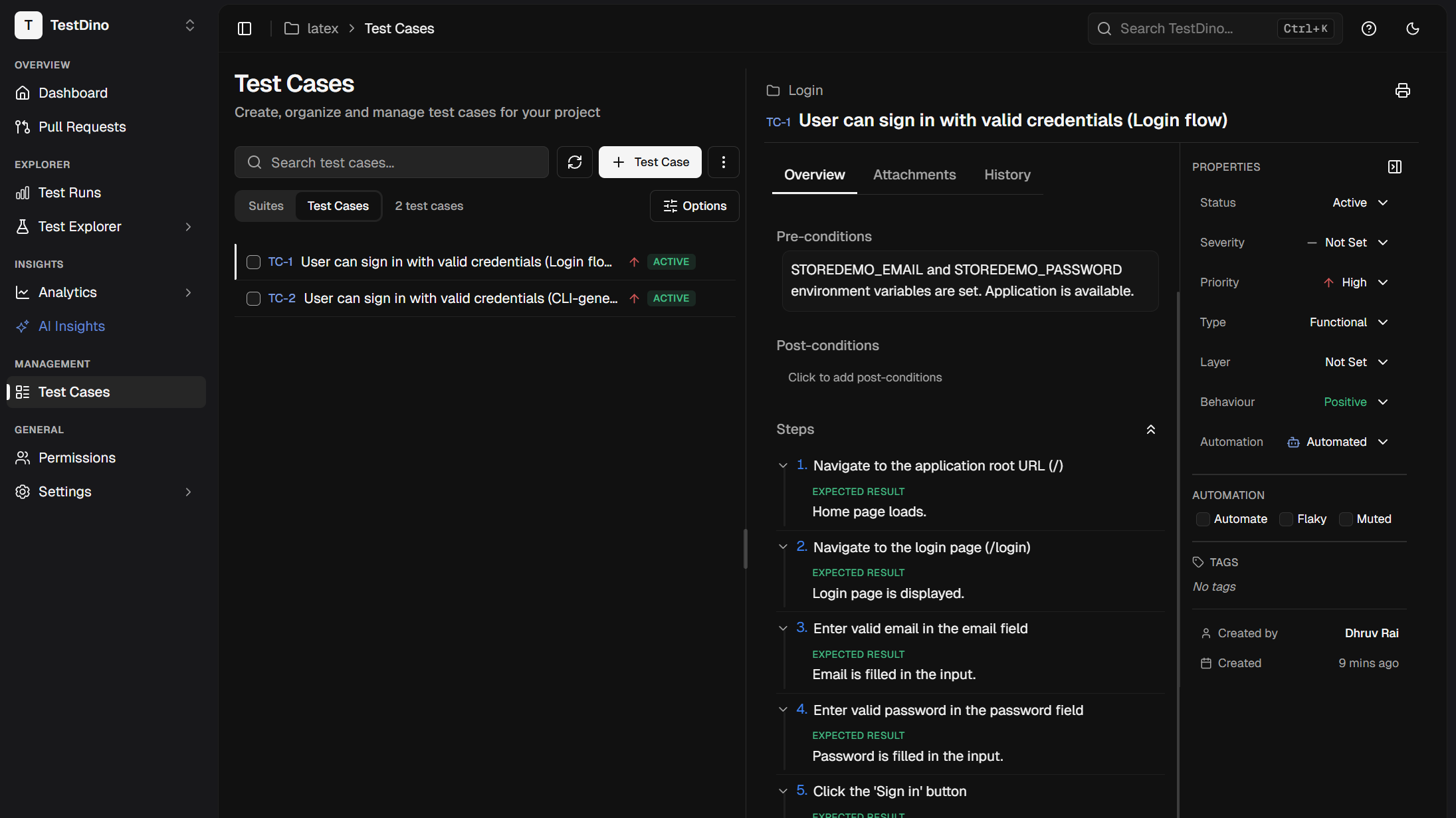
Step 2: Run with npx tdpw test
The fastest way to get results into TestDino is the tdpw CLI. Install it once:
npm i @testdino/playwrightThen run using this command;
npx tdpw test --token "your_token_here"If you don't want to pass the token again and again store it in your environment.
Add token to your .env file:
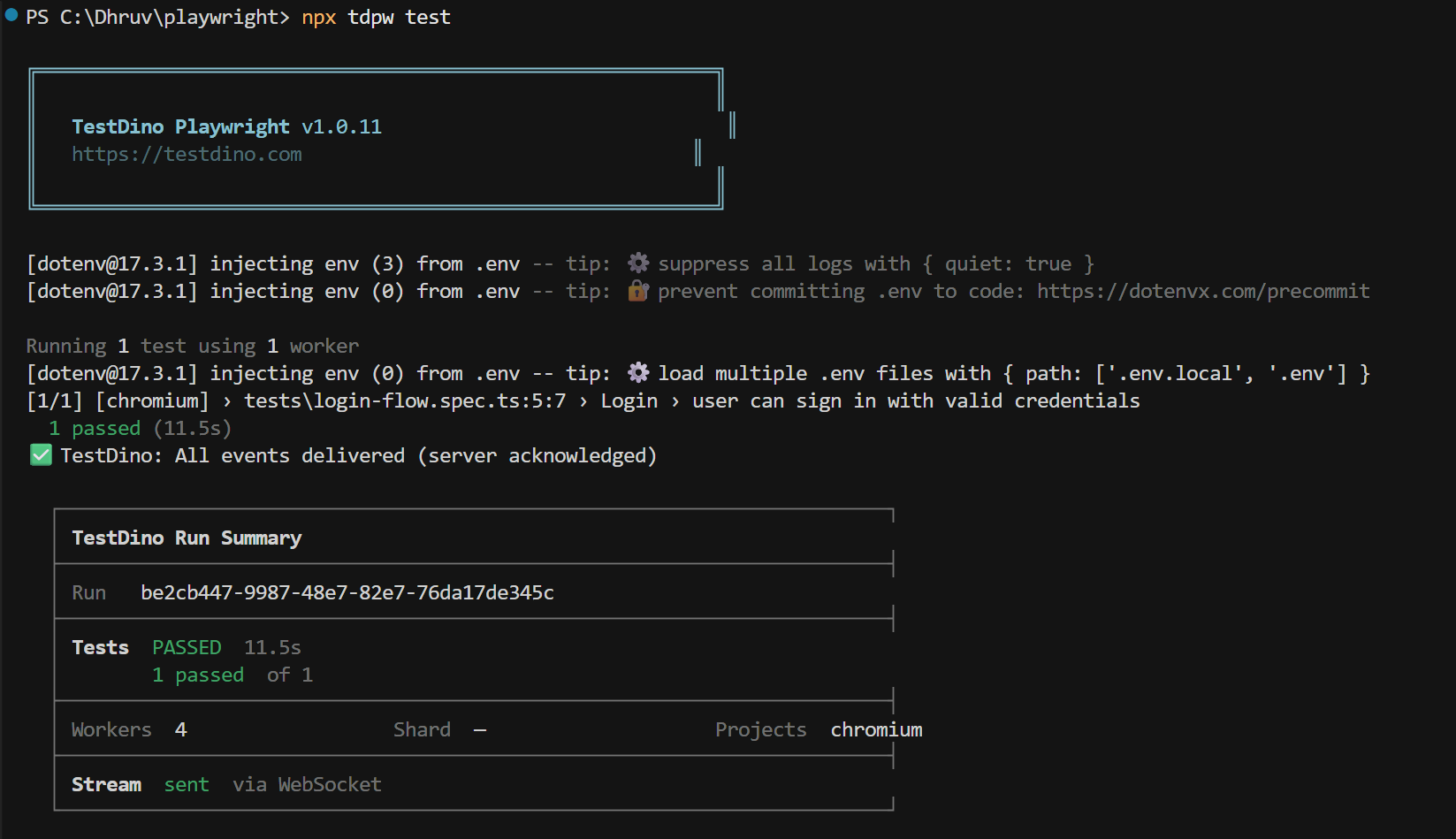
TESTDINO_TOKEN="your_token_here"Now when you run npx tdpw test, you get reports in 2 parts:
1. Terminal report (instant feedback): You see pass or fail status, execution time, and run summary directly in your terminal.
2. TestDino dashboard (full analysis): Results are sent to the TestDino web app with detailed insights, history, and failure classification.
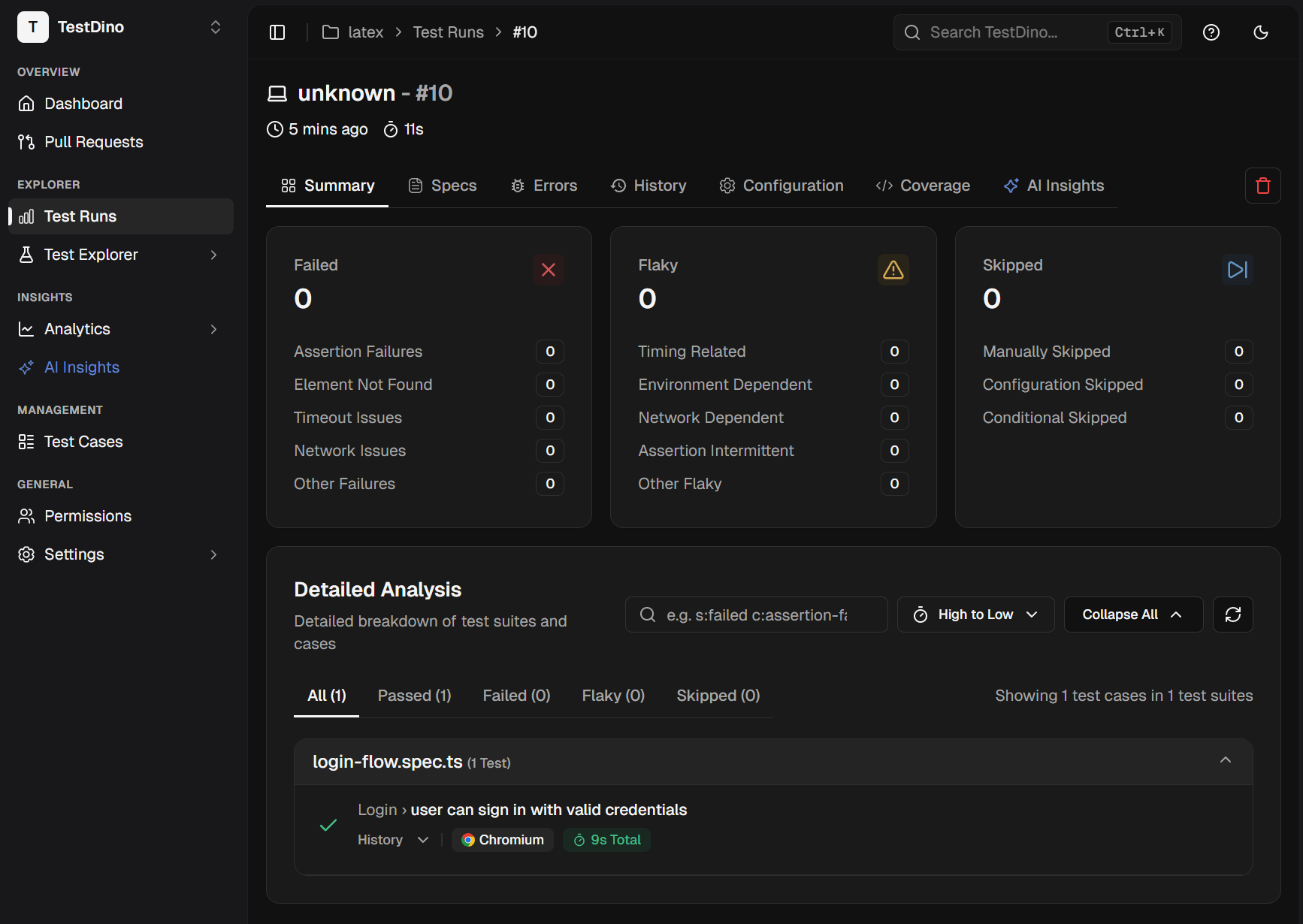
Every Playwright CLI flag works the same: --project, --grep, --workers, --shard, --headed. Nothing changes except results now stream to the TestDino dashboard in real time via WebSocket.
For CI environments, expose your token as a secret and run the same command:
- name: Run Playwright tests with TestDino
  env:
    TESTDINO_TOKEN: ${{ secrets.TESTDINO_TOKEN }}
  run: npx tdpw test
Real-time streaming, evidence panel, suite history
Results appear as tests finish, not after the entire suite completes. AI categorizes every failure as Bug, Flaky, or UI Change with confidence scores. Screenshots, traces, and videos are all accessible from the same dashboard.
Your team sees exactly what broke, when it started breaking, and whether it is a one-time failure or a recurring pattern. That context is what turns raw test output into actionable information.
Fix flaky tests with TestDino MCP and Goose
This is where the full workflow comes together. Flaky tests are the number one productivity killer in test automation. A test that passes sometimes and fails other times wastes hours of debugging time because the failure is not consistent enough to reproduce easily.
Playwright 1.56 introduced test agents, including the Healer agent that automatically repairs failing tests. But the Healer has a blind spot: it only sees the current UI state. It cannot tell if a test has been flaky for two weeks or if this is a brand-new regression. That is where TestDino MCP fills the gap.
1. Install TestDino MCP in Goose
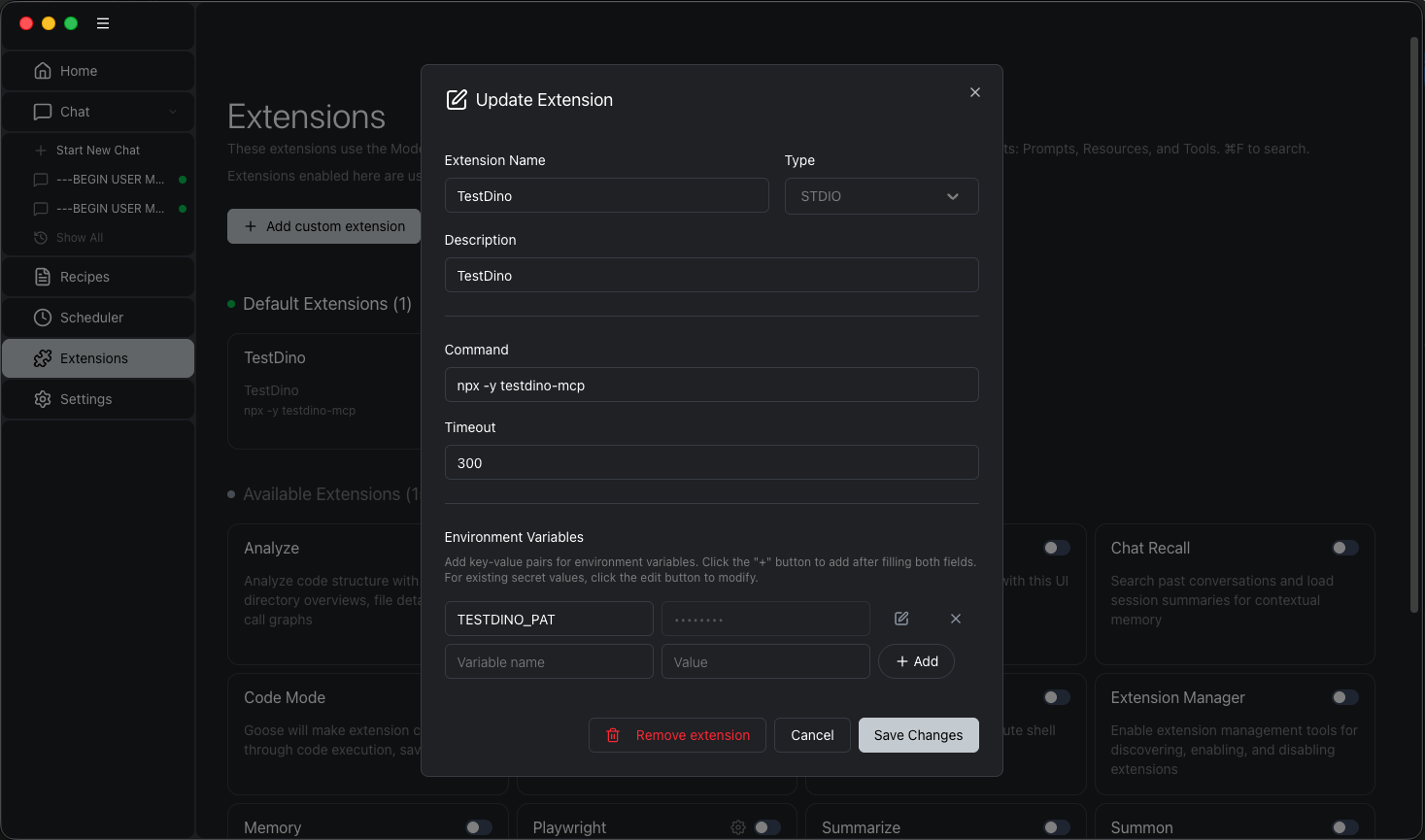
To connect TestDino with Goose, open Goose, go to the Extensions tab, click "Add custom extension," and enter the TestDino MCP details as shown in the screenshot or documentation
Open Goose, go to the Extensions tab, click "Add custom extension," and fill in these fields:
- Name: TestDino
- Description: TestDino MCP for test data and automation
- Type: stdio (or sse if remote server)
- Command: npx -y testdino-mcp
- Environment Variables: TESTDINO_PAT: your-token-here
- Timeout: 300
Click Save Changes to activate. Goose will load TestDino tools for querying tests, results, and more.
2. Ask Goose to find and fix the flaky tests from TestDino
TestDino MCP exposes multiple tools that let you query your test data using natural language directly inside Goose. You can ask things like:
- "What are the failure patterns for the checkout flow test?"
- "Is this test flaky? Show me the last 10 runs."
- "Debug 'Verify User Can Complete Checkout' from testdino reports"
Real workflow: flaky test detected, ask TestDino MCP, feed patterns to Healer, Healer fixes and reruns, test passes
Here is how the full loop works in practice:
- CI reports a failing test. TestDino classifies it as "Flaky" with 85% confidence.
- In Goose, ask TestDino MCP: "Why is the checkout-flow test failing? Show me the failure patterns from the last 20 runs."
- TestDino MCP returns: "Fails on webkit 6 out of 20 runs. Error: element not visible. Timing issue on the payment form animation."
- Feed this context to the Healer agent: "Fix the checkout-flow test. It is flaky on webkit due to a timing issue with the payment form animation. Use Playwright MCP tools to inspect the page and fix the wait strategy."
- The Healer runs the test in debug mode, identifies the animation causing the issue, adds a proper wait condition, and re-runs until the test passes.
- Review the diff. Commit.
Why this matters
Without TestDino's historical failure data, the Healer only sees the current UI. It can patch a selector or add a wait, but it cannot tell if the test has been intermittently failing for weeks. It does not know if the failure is browser-specific. It does not have access to the stack traces from previous runs.
TestDino MCP gives the Healer the "memory" it needs to make informed decisions instead of applying blind patches. The result is fixes that actually stick, not band-aids that pass once and break again tomorrow.
Goose vs other AI agents (2026)
Goose isn't the only AI agent for Playwright testing in 2026. Here's how it compares to top alternatives like Cursor, Claude Code, GitHub Copilot, and Windsurf.
Feature Comparison
| Feature | Goose | Cursor | Claude Code |
|---|---|---|---|
| MCP support | Native Extension | Plugin system | Deep integration |
| Multi-model | Yes (OpenAI, Anthropic, Gemini, local) | Yes (broad support) | Anthropic primary |
| Rules files | .goosehints | .cursorrules | CLAUDE.md |
| Tab completion | |||
| Playwright Skills | Supported | Supported | Supported |
| Visual diffs | Inline in editor | Inline | Terminal-based |
FAQs

Ayush Mania
Forward Development Engineer