How to Write and Automate Playwright Tests with AI: 5 Methods that Work
AI can write Playwright tests in seconds, but speed doesn’t guarantee quality. This guide covers 5 methods that give AI the right context so tests pass on the first run.
AI can write Playwright tests in seconds, but most of them fail on the first run. Wrong selectors, missing auth, hardcoded waits. The model writes valid syntax. It just can't see your actual page.
The quality of AI-generated tests depends almost entirely on context: does the model have live browser state, access to your codebase, or just a text description?
Each method gives the AI a different level of visibility, and the output quality scales accordingly.
This guide covers 5 methods for writing Playwright tests with AI, from Playwright MCP and Playwright CLI to test agents and curated Playwright Skills, ranked by how much context each one gives the model.
Playwright MCP - give your AI agent live browser context
Playwright MCP connects your AI coding assistant to a real browser session using the Model Context Protocol. The AI gets structured page snapshots from a real browser, can click through flows, inspect console and network activity, and write tests based on what it observes, not what it imagines.
MCP is a standard that lets AI tools communicate with external services. Playwright's MCP server exposes browser actions as tools your AI assistant can call. When connected, the AI can:
-
Navigate to any URL in a real browser
-
Read structured accessibility snapshots and element refs
-
Interact with elements (click, fill, hover, select)
-
Capture screenshots plus console and network logs
-
Write assertions based on actual page state, not guessed selectors
So when you ask Claude Code or Cursor to "write a test for the checkout flow," the AI actually opens your app, clicks through it, and writes assertions based on real page state. Without MCP, the AI guesses at selectors from training data. With it, the AI knows the current page structure and accessible element names.
For a full walkthrough, see the Playwright MCP setup guide.
Setup Playwright MCP in Claude Code
Setup Playwright MCP in Claude Code by first adding the Playwright MCP server to your Claude environment, then using it in a prompt-driven workflow. Once connected, Claude can spin up a real browser, navigate to your app, and stream structured snapshots back into the chat.
Install Playwright MCP:
claude mcp add playwright npx @playwright/mcp@latest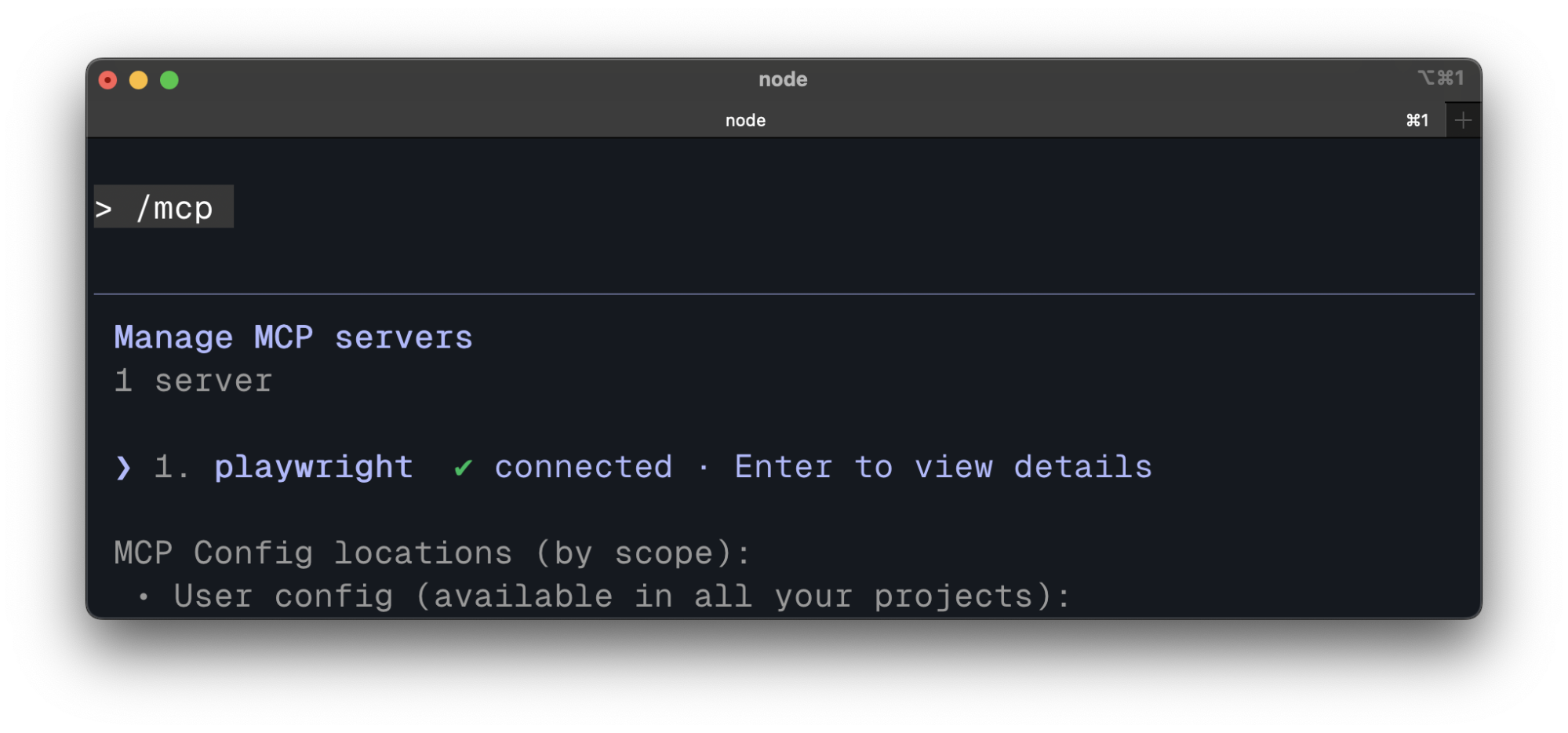
Run a prompt like "Write a test for the login page at localhost:3000/login" and the AI opens the browser, reads the page, and writes the test.
For Claude Code specifically, check the step-by-step installation guide. Want to run in Docker? There's a Playwright MCP Docker setup guide too.
When to use MCP
MCP is the right choice when you're working interactively - exploring your app, debugging a specific test failure, or generating a single test while you can see what the AI is doing. It's the fastest way to go from "I need a test for this page" to working code because the AI has live access to the current page state.
The best use cases:
-
Writing a test for a specific page or flow - ask the AI, it opens the browser, clicks through, writes the test
-
Debugging a failing test - the AI can navigate to the failing page and see exactly what changed
-
Exploring an unfamiliar app - the AI crawls through pages and reports what it finds, useful when you're new to a codebase
-
Editor-based chat workflows - MCP is a good fit when your AI client can host MCP servers and you want browser actions without driving everything through shell commands
Once you generate tests with MCP, TestDino shows which ones actually pass in CI. It classifies failures by root cause, so you're not debugging blind when a freshly generated test fails on its first pipeline run.
Playwright CLI - the token-efficient way to write Playwright tests with AI agents
Here's what CLI does differently from MCP:
-
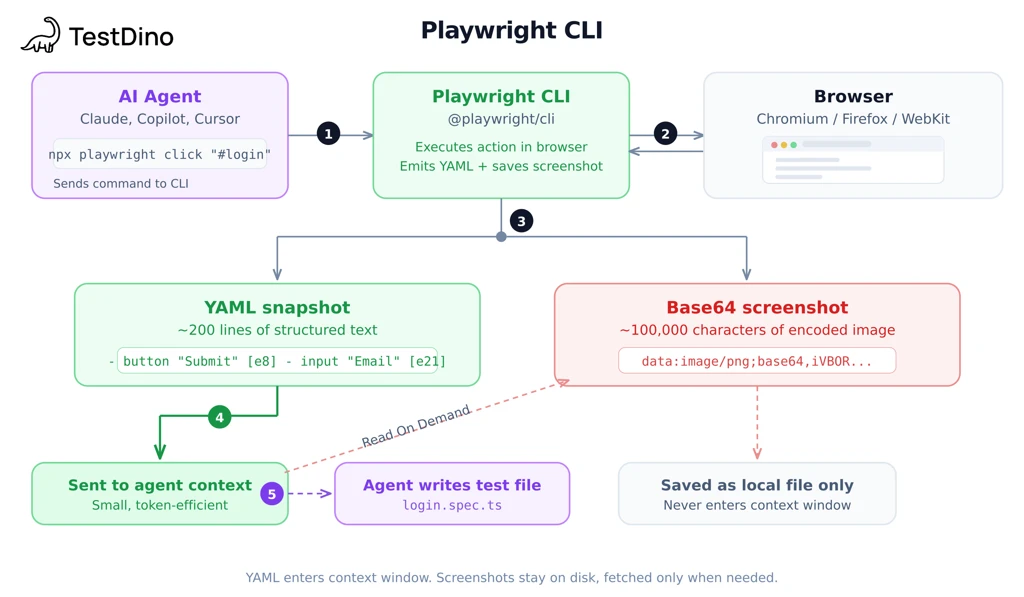
Page snapshots - after each command, CLI can provide the current page state as YAML. The agent can inspect that snapshot instead of stuffing the whole structure into the conversation.
-
Screenshots - CLI saves images as files and returns the file path. No image data in the conversation.
-
Less context accumulation - snapshots, logs, and screenshots can live outside the main chat context, so the conversation stays leaner across long sessions.
Why that matters: imagine an e-commerce page with 40 products, each with an image, title, price, and rating. With CLI, that page state can live in YAML outside the conversation, so the agent can pull what it needs and move on. That keeps long multi-page sessions more manageable.
In practice, CLI uses roughly 4x fewer tokens than MCP on multi-page workflows. Snapshots, screenshots, and logs stay on disk instead of filling the conversation context. The savings compound as sessions get longer because MCP accumulates state from every previous page while CLI doesn't. For the full numbers, see the CLI vs MCP token comparison.
For the full breakdown, check out the deep dive into Playwright CLI.
CLI commands that matter for test generation
6 commands cover most workflows:
| Command | What it does | Example |
|---|---|---|
| playwright-cli open [url] | Opens a browser to the URL | playwright-cli open https://app.example.com |
| playwright-cli snapshot | Saves current page state as YAML | Returns element refs like e8, e21 |
| playwright-cli click [ref] | Clicks an element by reference | playwright-cli click e12 |
| playwright-cli fill [ref] [value] | Fills an input field | playwright-cli fill e15 "test@email.com" |
| playwright-cli screenshot | Saves screenshot as a local file | Returns file path, not base64 image data |
| playwright-cli close | Closes the browser session | Cleanup after test generation |
A typical workflow: open -> snapshot -> click -> fill -> snapshot -> close. The AI reads the YAML snapshots between commands to understand page state, then writes test code based on what it found.

Tip: The snapshot command returns element references like e8, e21, e35. These refs are how the AI identifies which element to click or fill without keeping the whole page structure in the conversation. That's where most of the token savings come from.
When to use CLI
The best use cases:
-
Batch test generation (10+ tests): generate an entire test suite in one session without the conversation getting overloaded
-
CI pipeline integration: run test generation as part of your build process. Combine with Playwright sharding for parallel execution
-
Complex, data-heavy pages: product listings, dashboards, admin panels with lots of elements that would bloat a context window
-
Long agent sessions: the AI can navigate through dozens of pages without accumulating data from previous steps
For the full CLI vs MCP comparison, there's a detailed breakdown.
Real-world test case walkthrough: writing a login test with Playwright CLI
Here's what happens when you give Claude Code (with Playwright CLI connected) a single prompt:
"Write a Playwright test that attempts to sign in with invalid credentials on storedemo.cms.testdino.com and asserts on the error message."
What Claude did behind the scenes:
-
Ran playwright-cli open https://storedemo.cms.testdino.com and read the YAML snapshot
-
Found the user icon in the snapshot, ran playwright-cli click e61 - navigated to /login
-
Read the login page snapshot, identified the email field (e2756), password field (e2761), and sign-in button (e2768)
-
Ran playwright-cli fill e2756 "wrong@email.com" and playwright-cli fill e2761 "wrongpassword123"
-
Ran playwright-cli click e2768 to submit
-
Took a final snapshot, found Invalid credentials in a status element
-
Ran playwright-cli close
The result:
import { test, expect } from'@playwright/test';

test('shows error for invalid login credentials', async ({ page }) => {
await page.goto('https://storedemo.cms.testdino.com/login');
await page.getByTestId('login-email-input').fill('wrong@email.com');
await page.getByTestId('login-password-input').fill('wrongpassword123');
await page.getByTestId('login-submit-button').click();
await expect(page.getByText('Invalid credentials')).toBeVisible();
});
One prompt, 7 CLI commands, a test that passes on the first run. Every selector (getByTestId('login-email-input'), getByTestId('login-submit-button')) came from the YAML snapshots Claude read during the session, not from training data.
Playwright Test Agents - automated planning, generation, and self-healing
What are Playwright Test Agents?
Since v1.56, Playwright ships 3 built-in agents: Planner (explores your app, writes a markdown test plan), Generator (converts the plan into .spec.ts files), and Healer (runs tests and automatically patches failures). They use MCP under the hood to control the browser.
Initialize with:
npx playwright init-agents loop=claudeFor VS Code, swap claude for vscode. For Open Code, use opencode. This generates Playwright's agent definitions plus a specs/ folder for test plans and a tests/ folder for generated tests.
The workflow:
-
Ask your AI assistant to "run the Planner agent against your-staging-app.com.
-
Planner opens the browser, explores pages, writes a test plan in specs/
-
Ask the AI to "run the Generator agent", it reads the plan and produces .spec.ts files
-
Run npx playwright test to verify. Failures? Ask the AI to "run the Healer"
Tip: Run the Planner against a staging environment, not production. It clicks through your app to discover flows, and you don't want that traffic mixed into production analytics.
The Healer agent - self-fixing tests after UI changes
Someone redesigns a page, renames a button, or moves a form field. Tests break. The Healer fixes this automatically, it runs the failing test, opens the browser, finds the correct replacement selector, patches the test file, and re-runs to confirm.
Before (broken):
await page.locator('#old-submit-btn').click();After (Healer-patched):
await page.getByRole('button', { name: 'Submit order' }).click();The Healer doesn't just find a new selector. The official docs describe it as replaying the failing steps, inspecting the current UI, suggesting a patch such as a locator update, wait adjustment, or data fix, and then re-running until it passes or guardrails stop the loop.
It won't fix everything. Removed features, changed business logic, or new fields that didn't exist before still need a human.
There's a full Playwright Test Agents guide if you want the deep dive.
Note: The Healer fixes individual failures. TestDino shows the pattern: which tests break most often, whether failures cluster on specific pages, and whether the root cause is infrastructure, code, or flakiness. One fixes the test. The other tells you where your test suite is weakest.
Playwright Skills - teach AI agents production-ready test patterns
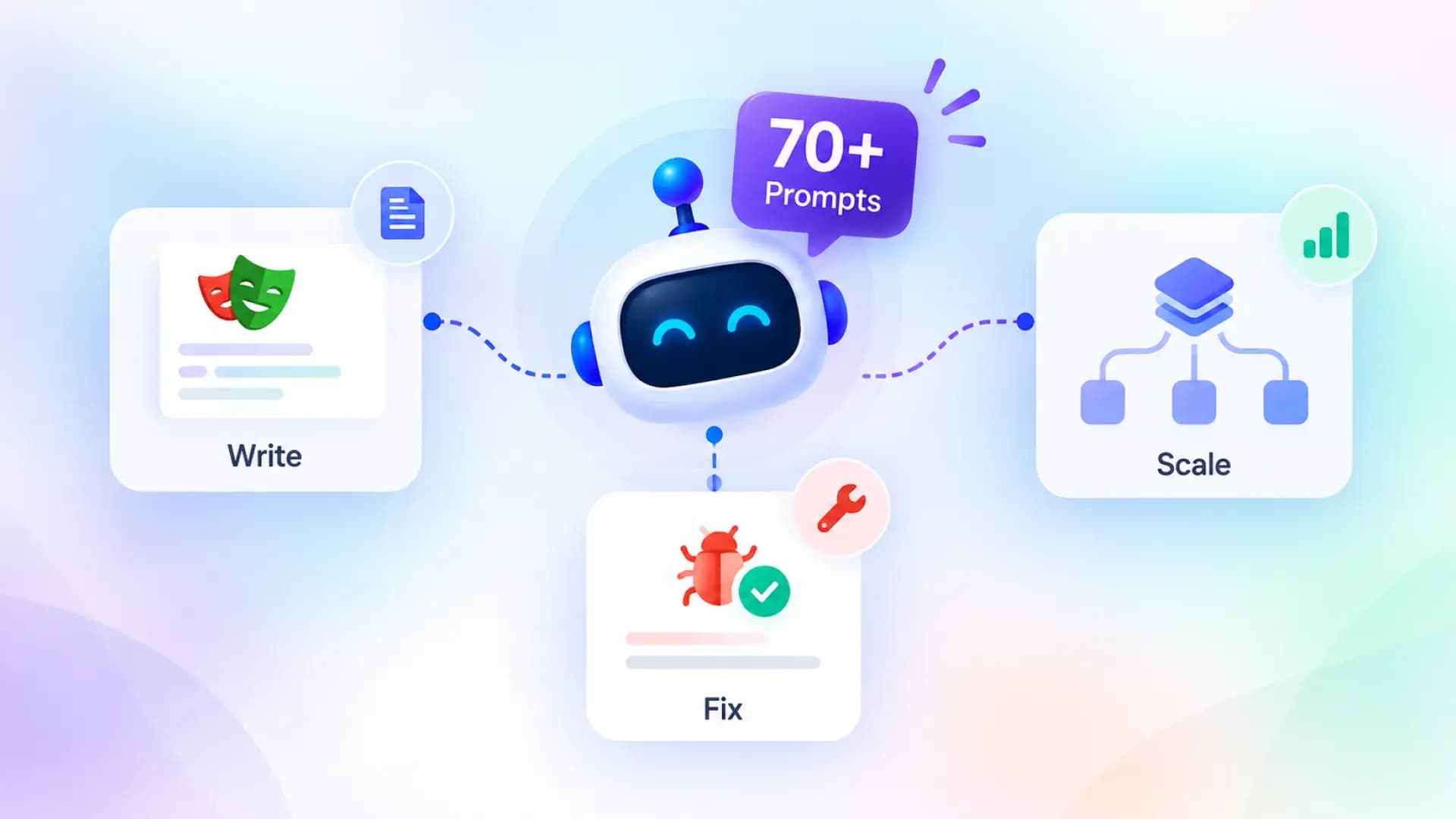
Curated markdown guides, open-sourced by TestDino, that load into AI coding agents as structured context. Instead of the AI guessing patterns from training data, it reads 70 battle-tested guides covering locators, fixtures, Page Object Model, auth flows, network mocking, and CI/CD setup.
Skills work on their own. If you're in a restricted environment without MCP or CLI access, or you're just asking an AI to write tests from a description without live browser context, Skills still make a real difference. The AI generates better code because it has patterns to follow instead of guessing from training data. You can also pair Skills with MCP or CLI for even better results, the AI gets both real page state and production-ready patterns.
Without Skills, AI-generated Playwright tests tend to repeat the same mistakes:
-
Fragile selectors: page.locator('.css-1a2b3c') or page.locator('div > div > button') that break on any layout change
-
Login in every test: repeating the full authentication flow instead of using storageState fixtures
-
Hardcoded waits: await page.waitForTimeout(3000) instead of relying on Playwright's built-in auto-waiting
-
No reuse: 50 test files with duplicated setup code, no Page Object Model, no shared helpers
-
Wrong assertion patterns: checking await page.locator('.modal').count() > 0 instead of await expect(page.locator('.modal')).toBeVisible()
These aren't edge cases. They show up in almost every AI-generated test suite that doesn't have structured context. Skills fix all 5 by loading the right patterns before the AI writes a single line.
Install with:
npx skills add testdino-hq/playwright-skillFor the full walkthrough, see the Playwright Skills guide or grab the source from Playwright Skills on GitHub.
How Skills work - structured context, not magic
When you ask a skill-aware agent such as Claude Code or Cursor to write a Playwright test, the relevant guides can be loaded into the AI's context before code generation.
The flow:
-
You send a prompt ("write E2E tests for the login page")
-
The agent loads the relevant guides into context (authentication.md, locators.md, assertions-and-waiting.md)
-
The AI reads those guides
-
AI generates code using patterns from those guides
What changes in the generated output with Skills loaded:
-
Locators: page.getByTestId() and page.getByRole() instead of fragile CSS selectors
-
Auth handling: proper storageState fixtures instead of logging in before every test
-
Waits: built-in auto-waiting patterns instead of hardcoded page.waitForTimeout()
-
Structure: Page Object Model imports instead of flat, unreusable test files
-
Assertions: expect(locator).toBeVisible() instead of checking .count() > 0
The 5 skill packs (70 guides total)
playwright-skill/
├── core/                # Locators, assertions, fixtures, waits, auth, API testing
├── playwright-cli/      # CLI commands, YAML snapshots, agent workflows
├── pom/                 # Page Object Model structure, scaling patterns
├── ci/                  # GitHub Actions, sharding, parallelism, reporting
├── migration/            # Cypress-to-Playwright, Selenium-to-Playwright
You can also install individual packs if you don't need everything:
npx skills add testdino-hq/playwright-skill/core
npx skills add testdino-hq/playwright-skill/ci
Tip: Start with the Core pack. It covers 90% of what most teams need. Add CLI and CI/CD packs when you start generating tests in agent workflows or setting up pipeline reporting.
Without Skills - AI guesses at patterns:
import { test, expect } from'@playwright/test';

test('login test', async ({ page }) => {
await page.goto('http://localhost:3000/login');
await page.waitForTimeout(2000);
await page.locator('.email-input').fill('user@example.com');
await page.locator('.password-input').fill('password123');
await page.locator('.btn-primary').click();
await page.waitForTimeout(3000);
const count = awaitpage.locator('.dashboard-header').count();
expect(count).toBeGreaterThan(0);
});
With Skills - AI follows production patterns:
import { test, expect } from'@playwright/test';
import { LoginPage } from'../pages/login-page';

test.use({ storageState: { cookies: [], origins: [] } });

test('login redirects to dashboard', async ({ page }) => {
const loginPage = newLoginPage(page);
await loginPage.goto();
await loginPage.login('user@example.com', 'password123');
await expect(page.getByRole('heading', { name: 'Dashboard' })).toBeVisible();
await expect(page).toHaveURL(/\/dashboard/);
});
Open-source AI tools for Playwright
A handful of community tools fill gaps the official Playwright AI features don't cover yet. These are the ones worth knowing about.
-
Stagehand (~21.5k GitHub stars as of March 2026) : Browser automation framework that mixes natural language and code. Its README highlights auto-caching and self-healing for repeatable workflows.
-
AgentQL (~1.3k GitHub stars): Query language and SDK with Playwright integrations. The project emphasizes natural-language selectors, structured output, and resilience to UI changes.
import { wrap, configure } from'agentql';
import { chromium } from'playwright';

configure({ apiKey: process.env.AGENTQL_API_KEY });
const page = awaitwrap(await (awaitchromium.launch()).newPage());
await page.goto('https://formsmarts.com/html-form-example');

const form = awaitpage.queryElements(`{ first_name, last_name, email, subject_of_inquiry, submit_btn }`);
await form.first_name.type('John');
await form.last_name.type('Doe');
await form.email.type('john.doe@example.com');
await form.subject_of_inquiry.selectOption({ label: 'Sales Inquiry' });
await form.submit_btn.click();- Magnitude (~4k GitHub stars) - Open-source, vision-first browser agent with a built-in test runner and visual assertions. The repo describes deterministic caching as in progress, so it's better framed as an emerging option than a fully mature testing stack.
Note: These are all community projects, not official Playwright features. Stagehand and AgentQL have the most traction. For a broader look at the AI testing tool space, there's a full comparison of AI test generation tools for Playwright.
Debugging AI-generated tests - what happens after generation
Generating a test is half the job. The other half is figuring out why it fails. AI-generated tests break for different reasons than hand-written ones - selectors guessed from training data, auth flows the AI didn't know about, race conditions it couldn't anticipate. You need a debugging workflow that handles these failures fast.
Playwright Trace Viewer - step-by-step failure replays
Playwright's Trace Viewer records every action, network request, and DOM snapshot during a test run. When a generated test fails, the trace shows exactly what the browser saw at each step.
Enable traces in your Playwright config:
export default defineConfig({
use: { trace: 'on-first-retry', // captures trace only on failures },
});
After a failed run, open the trace:
npx playwright show-trace test-results/my-test/trace.zipThe Trace Viewer gives you a timeline of every action the AI-generated test took, with screenshots at each step. You can see exactly where the test diverged from what it expected - maybe the AI clicked a button that hadn't loaded yet, or the selector matched a different element than intended.
Tip: Pay attention to the network tab in Trace Viewer. Many AI-generated test failures come from API calls the AI didn't account for - a form submission that returns a 422, a redirect the test didn't wait for, or a loading spinner the AI's selector matched instead of the actual content.
Playwright also has a "Copy as Prompt" button in both UI Mode and Trace Viewer. It copies the failure context (error, DOM snapshot, test code) as a formatted prompt you can paste into ChatGPT, Claude, or any AI assistant. The AI reads the failure context and suggests a fix. In newer versions, there's also an "AI Fix" button that does this in one click.
Failure classification at scale with TestDino
Trace Viewer works for debugging a single test. But when you generate 20 tests with CLI and 8 of them fail on the first CI run, you need a faster way to triage.
TestDino connects to your CI pipeline and classifies every failure by root cause:
-
Actual Bug - consistent failure across environments.
-
UI Change - a selector or layout changed after a DOM update. Update the locators.
-
Flaky Test - intermittent failure due to timing or environment. Apply timing fixes or quarantine.
-
Miscellaneous - setup issues, data problems, or CI configuration errors.
This matters because AI-generated tests fail more often on first runs than hand-written tests. Without classification, you're opening Trace Viewer for every single failure, including the ones caused by a slow CI runner or a known flaky endpoint. TestDino filters the noise so you only debug the tests that actually need fixing.
It also tracks test execution history across runs, so you can see whether a failure is new (likely a test bug from generation) or recurring (likely flakiness or an infrastructure issue). For a deeper look at how TestDino classifies Playwright failures, check the reporting guide.
Which method should you use? The decision matrix
Now that you've seen all 5 methods, here's how to choose between them. The best AI tool for Playwright tests depends on where you are today. Walk through these questions:
Do you have an existing Playwright test suite?
If yes:
- Are tests breaking after UI changes? Start with the Healer agent. It auto-patches broken selectors without manual intervention.
- Are tests passing but poorly written? Add Playwright Skills to improve AI-generated test quality going forward.
- Do you need failure visibility across runs? Add TestDino for root cause classification and flaky test detection.
If no:
-
Do you need to generate 10+ tests in batch? Use Playwright CLI + Skills. CLI keeps tokens low. Skills keep quality high.
-
Do you need to explore the app and generate 1-2 tests? Use Playwright MCP. The token cost is higher, but for one-off tasks that doesn't matter.
-
Coming from Cypress or Selenium? Check the Playwright vs Selenium comparison, install the Migration skill pack, then use CLI for batch generation.
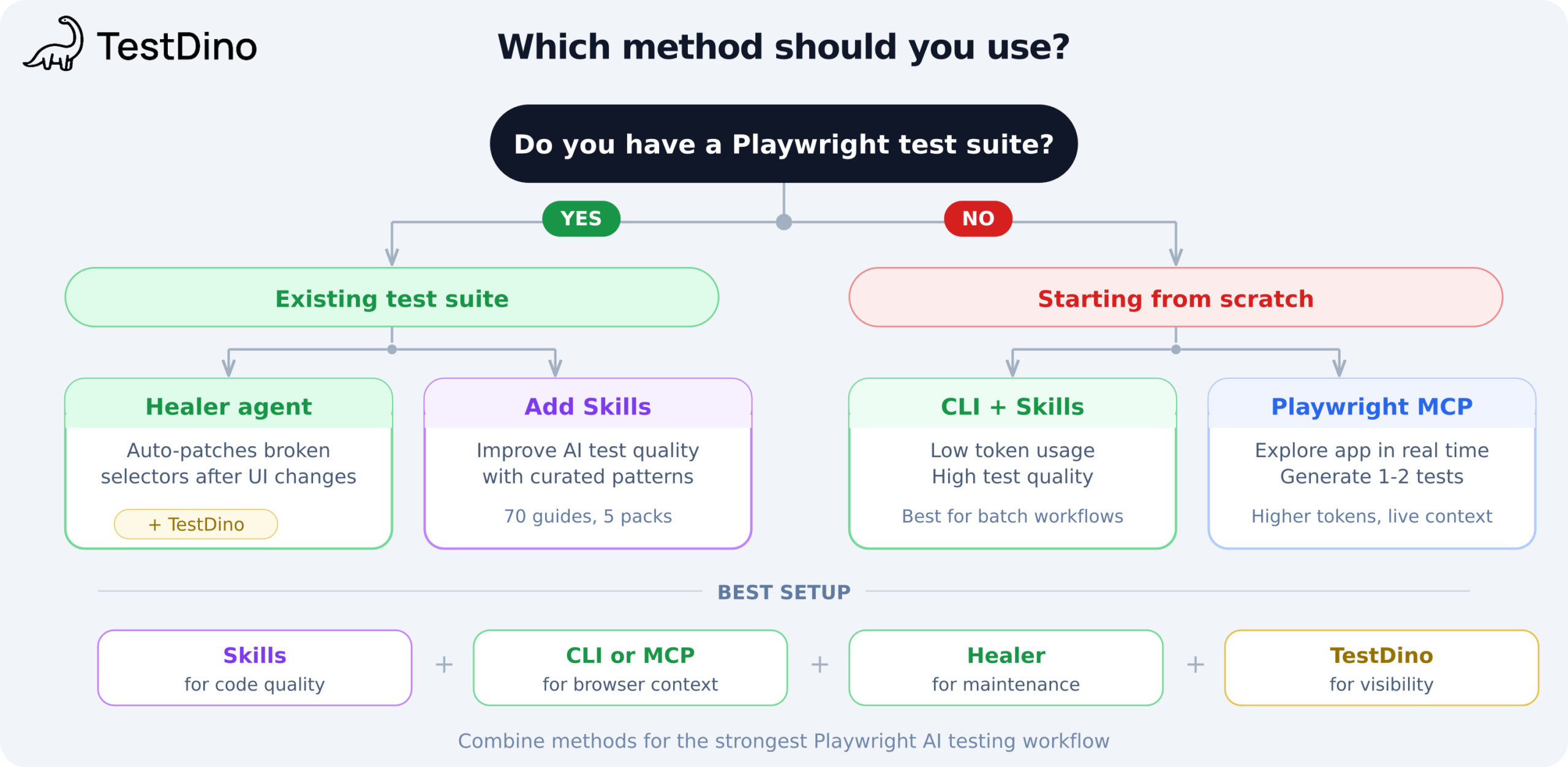
The strongest setup combines multiple methods:
-
Skills for code quality (teaches the AI your team's patterns)
-
CLI or MCP for browser context (gives the AI real page state)
-
Healer for maintenance (auto-fixes regressions after UI changes)
-
TestDino for failure classification (tells you what broke and why)
Tip: These methods aren't mutually exclusive. Skills + CLI is the best starting point for most teams. Add the Healer once UI changes start causing regular breakage.
TestDino plugs into your CI and classifies failures by root cause: actual bug, UI change, unstable test, or miscellaneous. It also tracks test execution history across runs, so you can spot trends over time.
FAQs
Playwright has native AI integrations (MCP, CLI, Test Agents) that Selenium lacks. Selenium can work with AI through third-party tools, but there's no built-in MCP server, no CLI for agent workflows, and no Healer equivalent. If you're moving from Selenium, install the Migration skill pack and check the Playwright vs Selenium comparison.

Vishwas Tiwari
Software Engineer