Playwright Headless vs Headed: When to Use Each
Understand Playwright headless vs headed mode, when to use each, performance differences, and how to configure them for debugging and CI.
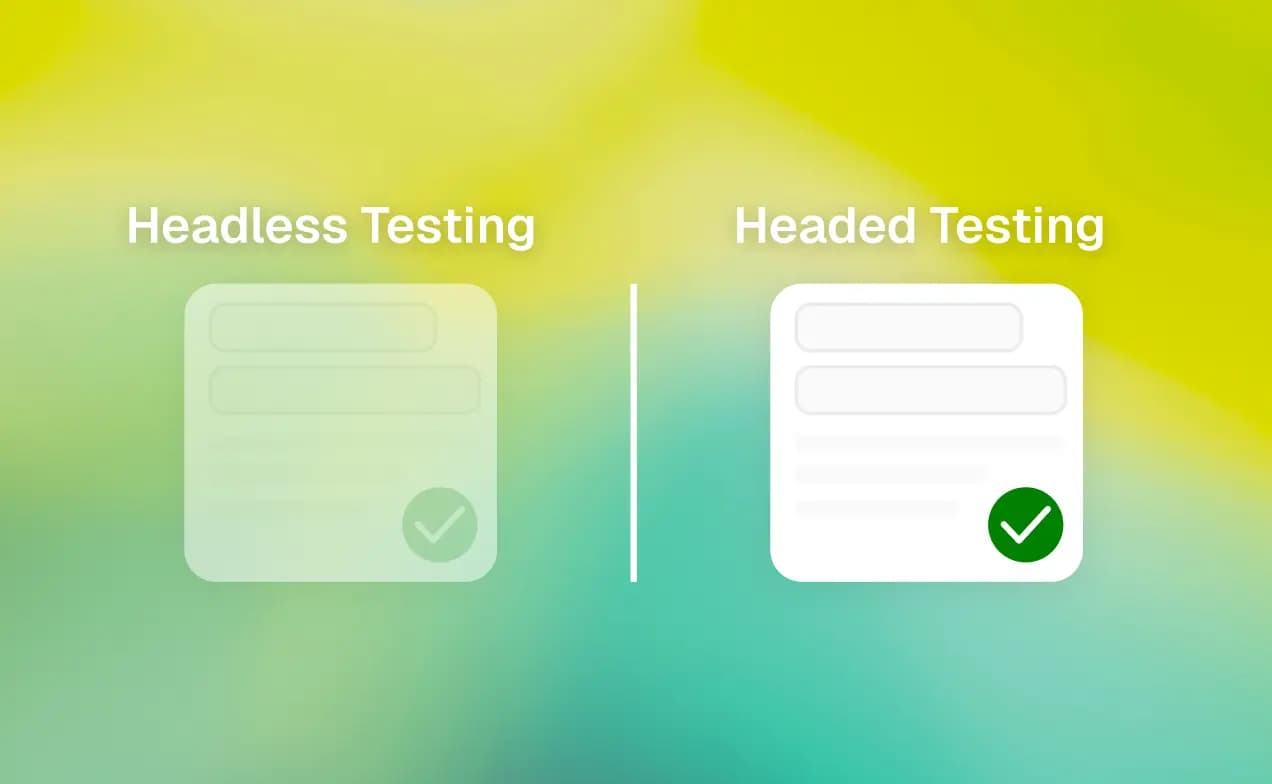
Most teams configure headless vs headed mode in Playwright once and never think about it again, until a test starts failing in CI that works perfectly on their machine.
The confusion comes down to one thing: teams pick a mode without understanding what each one actually does under the hood, and they pay for it with debugging sessions that take twice as long as they should.
This guide breaks down:
-
How headless and headed mode work in Playwright?
-
When to use each?
-
How to configure them in playwright.config.ts and the CLI?
-
The real performance differences you'll see in your pipeline.
What is the difference between headless and headed mode in Playwright?
Most teams set headless vs headed mode once and never touch it again, until a test fails in CI that passes on their machine.
The cause is almost always the same. A mode gets picked without knowing what it actually does, and the bill arrives later as a debugging session that runs twice as long as it should.
Headless mode runs the browser without opening a visible window. Headed mode opens a full browser window you can see and interact with. That single difference drives speed, resource usage, and how easily you can debug.
In headless mode, the browser engine still loads pages, runs JavaScript, and builds the DOM. It just skips painting pixels to a display. In headed mode, a native window opens and every frame renders on screen.
Here is the side-by-side before we go deeper.
| Aspect | Headless mode | Headed mode |
|---|---|---|
| Browser window | Not visible | Visible on screen |
| Default in Playwright | (opt out with headless: false) | |
| Speed | Faster | Slower |
| CPU / memory usage | Lower | Higher |
| Visual debugging | Not real-time (use Trace Viewer) | Full real-time visibility |
| Default Chromium binary | chrome-headless-shell | chrome (full browser) |
| Best for | CI/CD, regression suites, parallel runs | Debugging, test development, visual checks |
| Needs a display server | (or xvfb on Linux) |
Playwright defaults to headless because most automated runs do not need a live window. When you need to watch a test interact with the page, switch to headed.
The chrome-headless-shell gotcha: two browser binaries since 1.57
Here is the part most guides skip, and it is the root cause behind "passes headed, fails headless."
Since Playwright 1.57, Playwright runs on Chrome for Testing builds, and the two modes use different binaries by default. Headed mode launches chrome. Headless mode launches chrome-headless-shell, a separate, lighter binary built for automation.
That means headless and headed are not the same browser with one feature toggled off. By default they are two different executables with different rendering paths. Fonts can rasterize differently. GPU and canvas handling can differ. Most of the time it does not matter. When you compare pixel-level screenshots, it does.
The mental model that fixes this: headless vs headed is not a display switch, it is a binary switch. Once you see it that way, "works on my machine" stops being a mystery and becomes a binary-mismatch you can fix in one config line.
One exception worth knowing: on Arm64 Linux, Playwright still uses Chromium rather than Chrome for Testing. (For everything else that shipped recently, see the Playwright 1.60 release guide.)
The fix, when you need the modes to match exactly, is the new headless mode covered below.
How headless and headed mode actually work under the hood
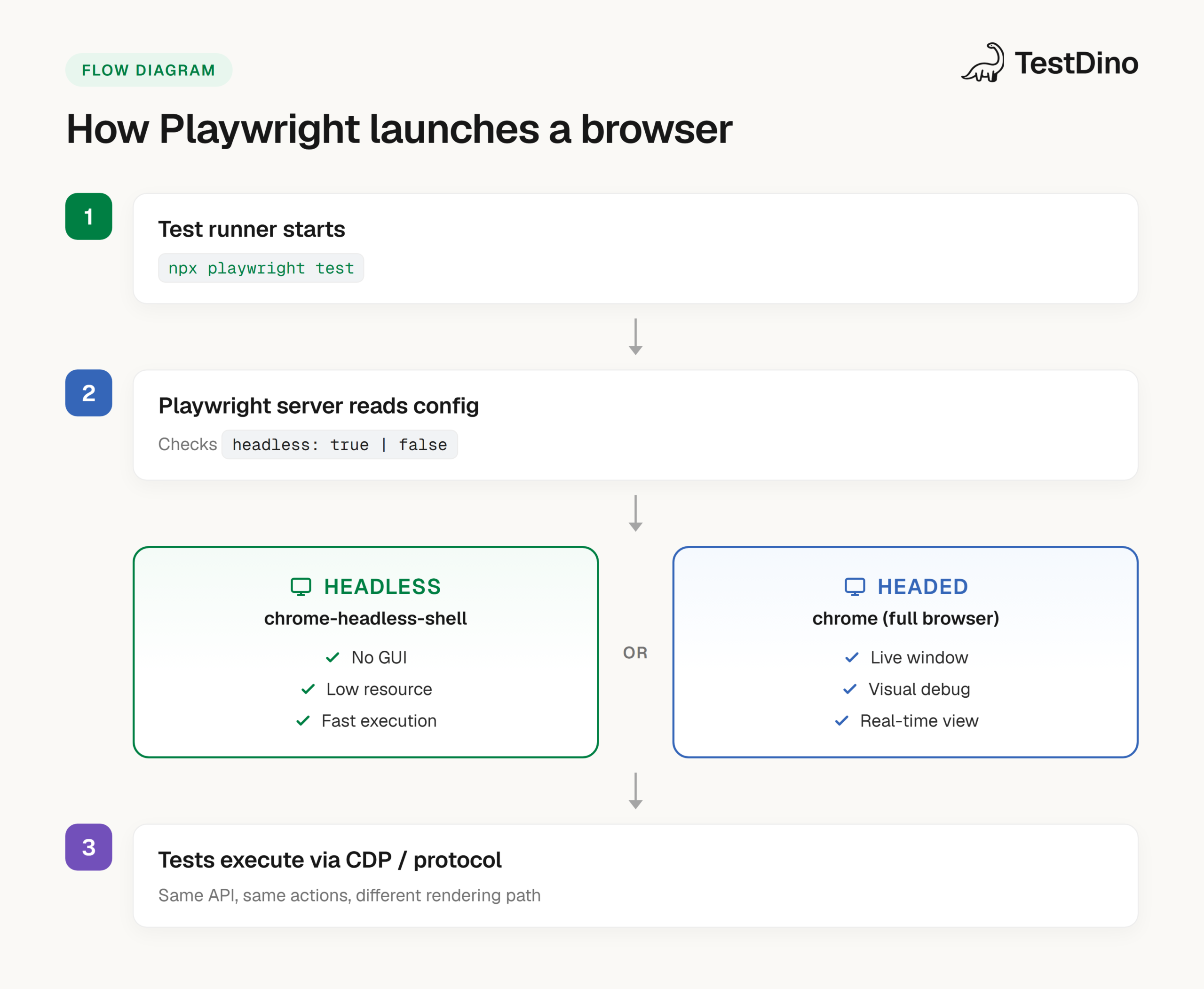
The difference is not which engine runs. It is the rendering path that engine takes.
Playwright talks to browser engines through protocols: the Chrome DevTools Protocol (CDP) for Chromium, and patched internal APIs for Firefox and WebKit. Both modes use the same protocol layer. For a deeper look at that communication layer, our Playwright architecture breakdown traces it layer by layer.
In headless mode:
-
The browser starts without compositing pixels to a window.
-
Layout, JavaScript, network, and DOM all execute normally.
-
Screenshots, videos, and traces are still captured through internal APIs.
In headed mode:
-
A native window opens, and every frame paints to the display.
-
The GPU pipeline handles compositing, animations, and visual effects.
-
That rendering loop is why headed mode consumes more resources.
The takeaway: headless is not a "lite" browser. It is the same engine without a visible output surface, running on a binary tuned for that job.
When should you use headless vs headed mode in Playwright?
Use headless for speed and efficiency. Use headed for visibility and debugging. The right call depends on what you are doing at that moment.
Use headless mode when:
-
Running tests in CI/CD. Runners on GitHub Actions, Jenkins, or GitLab CI have no display server. Headless works out of the box.
-
Executing large regression suites. Fewer resources per test means more parallel workers, which cuts total time.
-
Web scraping or data extraction. No visible window needed.
-
Smoke tests and health checks. Quick validations where visual feedback adds nothing.
Use headed mode when:
-
Debugging a failing test. Watching each action reveals timing issues, wrong selectors, and layout shifts that logs cannot show. --ui mode layers a visual inspector on top, and the Trace Viewer replays a CI failure step by step.
-
Developing new test scripts. Seeing the browser react to your locators in real time speeds up authoring.
-
Visual verification. Animations, hover states, and CSS transitions need a visible window. For structured checks, Playwright visual testing covers the snapshot workflow.
-
Demos and walkthroughs. A live window makes the value obvious to stakeholders.
The workflow that works: develop and debug locally in headed mode, then run headless in CI. Best of both, no compromise.
How to configure headless and headed mode in Playwright
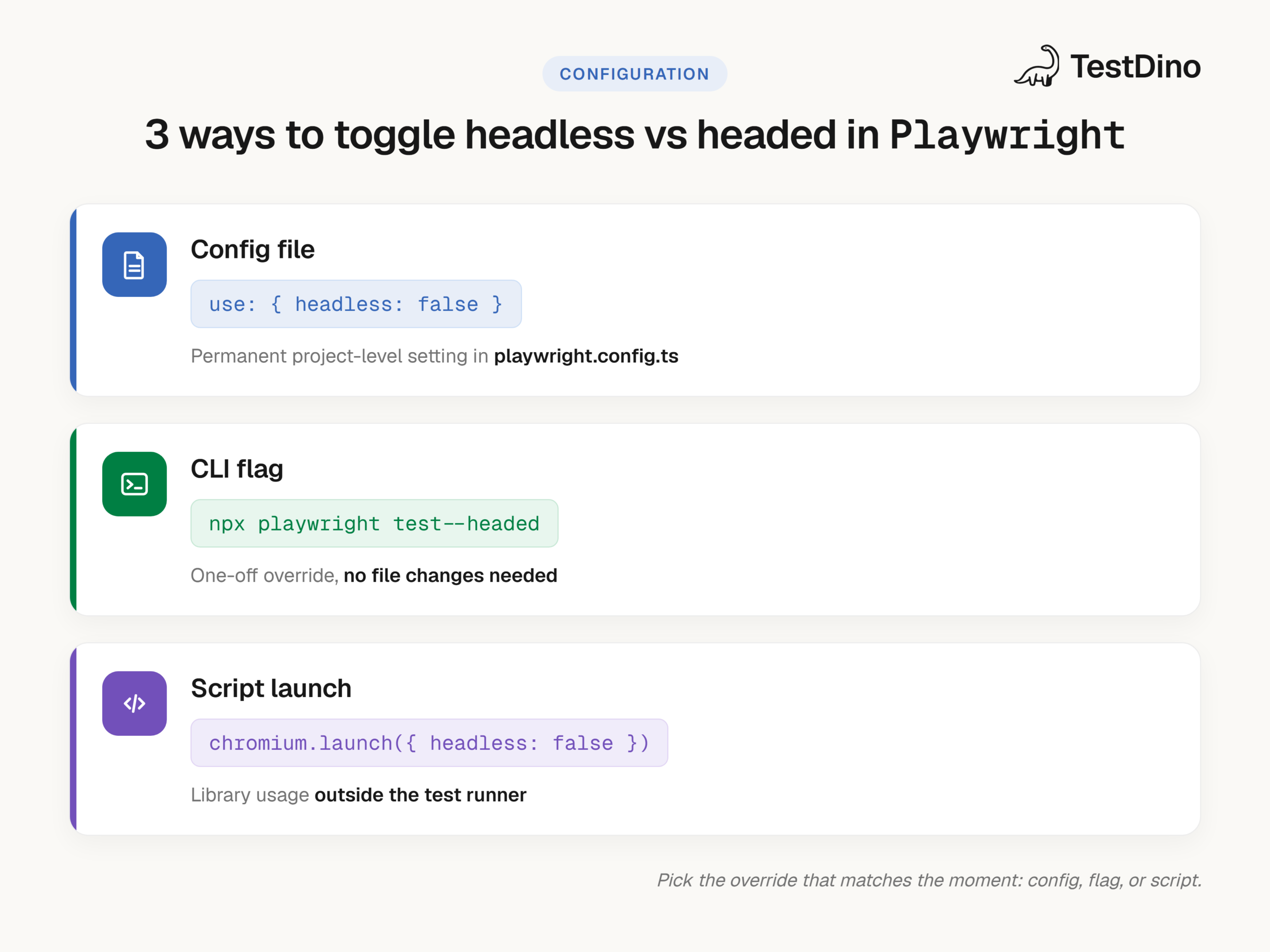
Playwright gives you three ways to switch modes: the config file, a CLI flag, or a direct option to browser.launch().
1. Using playwright.config.ts
The most common approach. Set headless inside the use block.
import { defineConfig } from '@playwright/test';
export default defineConfig({
  use: {
    headless: false, // launches a visible browser window
  },
});
Set headless: true (or remove the line, since true is the default) to go back to headless.
2. Using the CLI flag
Override the config for a one-off run without editing files.
# Run all tests in headed mode
npx playwright test --headed
# Run a specific test file in headed mode
npx playwright test tests/login.spec.ts --headed
# Open Playwright UI mode (headed + visual inspector)
npx playwright test --ui
The --headed flag temporarily overrides whatever is in playwright.config.ts.
3. Using browser.launch() in a script
When using Playwright as a library (outside the test runner), pass the option directly.
import { chromium } from 'playwright';
const browser = await chromium.launch({
  headless: false, // or true
});
Per-project configuration
You can set different modes per project in the same config. Useful when running across Chromium, Firefox, and WebKit.
import { defineConfig, devices } from '@playwright/test';
export default defineConfig({
  projects: [
    {
      name: 'chromium-headless',
      use: { ...devices['Desktop Chrome'], headless: true },
    },
    {
      name: 'chromium-headed',
      use: { ...devices['Desktop Chrome'], headless: false },
    },
  ],
});
The new headless mode (Chromium)
If you want headless runs to use the exact same full browser as headed, set the channel to 'chromium'. This is the cleanest fix for the two-binary gotcha above.
import { defineConfig, devices } from '@playwright/test';
export default defineConfig({
  projects: [
    {
      name: 'chromium',
      use: {
        ...devices['Desktop Chrome'],
        channel: 'chromium', // full browser even in headless
      },
    },
  ],
});
What this buys you: The new headless mode removes the rendering differences between headless and headed for Chromium, because both now run the same binary. It is the real Chrome browser, so it is more authentic and supports more features (including browser extensions). That matters most when your tests touch GPU-dependent rendering, font smoothing, or canvas operations. The underlying capability shipped in Chrome 112.
The trade-off: The full browser is heavier than chrome-headless-shell. If your CI only ever runs headless and you do not need cross-mode parity, the default shell is lighter. You can even skip downloading the full browser with npx playwright install --with-deps --only-shell, or skip the shell with --no-shell when you commit to the new headless mode.
Performance: Headless vs headed in Playwright
The short answer: headless is faster and lighter.
Why headless is faster? It skips the rendering pipeline that paints content to your screen:
-
No GPU compositing.
-
No window management overhead.
-
No paint frames sent to a display.
For a single test the gap feels small. Across 500 tests in parallel it compounds. Teams with large suites often see a 30% to 50% reduction in total pipeline time just by confirming headless is on.
Resource comparison
| Metric | Headless mode | Headed mode |
|---|---|---|
| Avg. memory per browser context | ~80–120 MB | ~150–250 MB |
| CPU during execution | Lower (no paint thread) | Higher (UI compositing active) |
| Parallel workers on 4-core CI | 4–6 comfortably | 2–3 before slowdown |
| Canvas-heavy operations | Up to 10x faster (per Chromium-team benchmarks) | Baseline |
| Screenshot capture | Via internal API (fast) | Via internal API (fast) |
Reproducible benchmark script
Save this as benchmark.js and run node benchmark.js. It measures launch, navigate, and close 10 times in each mode.
const { chromium } = require('playwright');
async function runBenchmark(headless) {
  const start = performance.now();
  for (let i = 0; i < 10; i++) {
    const browser = await chromium.launch({ headless });
    const page = await browser.newPage();
    await page.goto('https://playwright.dev');
    await browser.close();
  }
  const end = performance.now();
  console.log(`${headless ? 'Headless' : 'Headed'} took: ${((end - start) / 1000).toFixed(2)}s`);
}
(async () => {
  console.log('Running benchmark...');
  await runBenchmark(true);  // Headless
  await runBenchmark(false); // Headed
})();
Tip: If memory is the bottleneck in CI, switching from headed to headless and raising the worker count is one of the fastest wins available. You remove display overhead and reinvest it in parallelism. For tuning that worker count, see how to optimize Playwright workers.
Headless vs headed mode in CI/CD pipelines
CI is where the choice matters most, and the vast majority of production pipelines run headless.
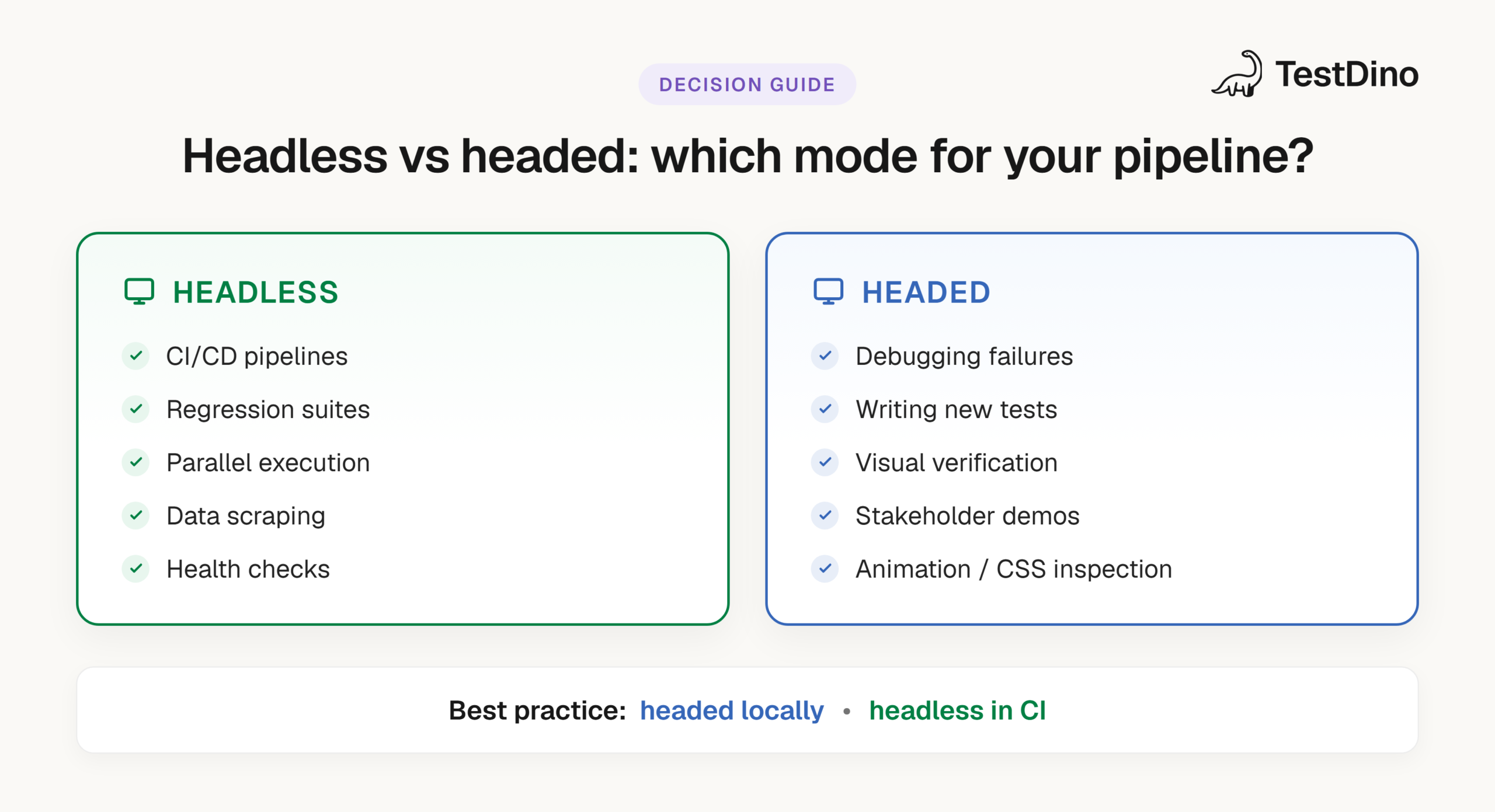
Why headless dominates CI. Most runners (GitHub Actions, Jenkins agents, GitLab CI) operate with no display server. Running headed there means installing a virtual display like Xvfb on Linux, which adds setup and overhead. Headless works natively. If you are wiring up CI for the first time, the Playwright CI/CD integrations guide walks through GitHub Actions, Jenkins, and GitLab CI.
A minimal CI config for headless execution
name: Playwright Tests
on: [push, pull_request]
jobs:
  test:
    runs-on: ubuntu-latest
    steps:
      - uses: actions/checkout@v4
      - uses: actions/setup-node@v4
        with:
          node-version: 20
      - run: npm ci
      - run: npx playwright install --with-deps --only-shell
      - run: npx playwright test
The --only-shell flag skips downloading the full Chromium browser since CI only needs the headless shell. That cuts install time and disk usage. Drop --only-shell (or use --no-shell to skip the shell) when you move CI to the new headless mode.
When headed mode is justified in CI
A few edge cases:
-
Visual regression where pixel parity is critical. Though Playwright's screenshot API works headless too.
-
Record-and-replay debugging. Recording a video in headed mode can expose layout flashing or race conditions that a headless trace may not.
For most teams, headless is the default and the correct one.
Common Pitfalls when switching between headless and headed mode
Knowing when to use each mode is half the job. The other half is avoiding the traps that make tests behave differently across modes. Use this matrix as a quick symptom → cause → fix reference.
| Symptom | Root cause | Fix |
|---|---|---|
| Passes headed, fails headless | Different binaries (chrome vs chrome-headless-shell) rasterize fonts and handle GPU differently | Set channel: 'chromium' so both modes share one binary, or pin viewport explicitly |
| Screenshot diffs only in headless | Headless shell uses a different font rasterizer than full chrome | Capture baselines and run in the same mode, or move both to the new headless mode |
| Flaky only in headless | Headless runs faster and exposes race conditions the human eye tolerated in headed | Use auto-wait and web-first assertions; remove hardcoded timeouts |
| Canvas / WebGL renders wrong | Default shell handles GPU differently from the full browser | Switch to channel: 'chromium' |
| Viewport size differs between modes | Headed may inherit OS display settings; headless uses the config viewport | Always set viewport in playwright.config.ts |
| headless: false errors on CI | No display server on the runner | Keep headless: true in CI and use --headed only locally, or wrap with xvfb-run |
Two of the fixes above are worth a code line.
Pin the viewport so neither mode inherits a surprise:
use: {
  viewport: { width: 1280, height: 720 },
}
Force a display on CI only if you genuinely need headed there:
xvfb-run npx playwright testA flaky test passes and fails intermittently with no code change. When it appears after a mode switch, the mode is rarely the real cause. Timing and environment usually are, which our flaky test benchmark found behind more than half of all flaky tests.
Tip: If you are experiencing mode-related flakiness and need real-time insight into failures across your CI runs, TestDino's Playwright observability platform groups recurring Playwright failures, classifies root causes, and tracks whether a failure is new or an old flake across both headless and headed runs, tied back to the PR that triggered it.
Conclusion
Headless vs headed is not about a "better" mode. They solve different problems at different stages.
Headless wins in CI: fewer resources, faster runs, no display required. Headed wins when you need to see what is happening, for debugging, authoring, and visual checks. The one detail that trips teams up is that, since 1.57, the two modes run different binaries by default. When that bites, the new headless mode (channel: 'chromium') puts both on the same browser.
Run headless in your pipelines, headed when something breaks. In Playwright, switching is a single config line or CLI flag away.
FAQs

Pratik Patel
Co-founder