How to Optimize Playwright Workers for Faster Tests
Running a big Playwright test suite and watching it crawl through CI? This guide shows you exactly how to configure Playwright workers, when to use fullyParallel mode and how to pick the right worker count for local and CI environments
Playwright defaults to half your CPU cores as workers.
-
On your 8-core laptop, that's 4 parallel processes.
-
On a 2-vCPU CI runner, that's 1.
Most teams never adjust this, and end up either overloading the machine or leaving cores idle on every CI run.
The right Playwright worker count depends on: your hardware, your test isolation, and whether you're running locally or in CI. Get it wrong and your suite either crawls or starts flaking under resource pressure.
This guide covers how to set worker count in playwright.config.ts, when fullyParallel mode actually helps, how to pick the right number for CI runners, and when to stop scaling workers and start sharding instead.
What is a Playwright worker and how does it work?
A Playwright worker is an independent operating system process that the test runner spawns to execute tests in parallel. Each worker starts its own browser instance and runs in complete isolation from every other worker.
When you run npx playwright test, the runner does not execute every test file one after the other. It launches multiple worker processes and hands each one a test file. Each worker:
-
Starts a fresh browser instance (Chromium, Firefox, or WebKit)
-
Gets its own local storage, session storage, and cookies
-
Cannot share global variables or in-memory state with any other worker
This isolation is what makes parallel test execution safe. Two tests modifying the same form on different pages will never step on each other because they live in completely separate OS processes.
The runner reuses a worker after it finishes a test file, handing it the next file in the queue. But if a test inside that worker fails, the worker shuts down and a new one takes its place. This guarantees a clean environment for the next batch.
You can access the current worker's identity inside any test through two properties:
-
testInfo.workerIndex: a unique, ever-incrementing ID
-
testInfo.parallelIndex: a value between 0 and workers - 1 that stays stable across worker restarts
These are useful when you need to isolate external resources (like database users or API tokens) per worker. If you want a deeper look at how these processes fit into the full component chain, the Playwright architecture overview explains how the runner, browser server, and browser contexts connect.
Note: All behavior described in this guide applies to Playwright Test (the @playwright/test package) from version 1.10 onward, when the built-in test runner was introduced. Earlier versions relied on third-party runners and had different parallelism models.
How to configure Playwright workers in playwright.config.ts
The workers option in your config file controls the maximum number of parallel worker processes. There are three main ways to set it.
Fixed number
import { defineConfig } from '@playwright/test';
export default defineConfig({
  workers: 4,
});
This is the simplest approach. The runner will spawn up to 4 workers regardless of the machine.
Percentage of CPU cores
workers: '50%',This tells Playwright to use half of the available logical CPU cores. On an 8-core laptop, that gives you 4 workers. On a 2-vCPU CI runner, that gives you 1.
Environment-aware configuration
workers: process.env.CI ? 2 : undefined,When set to undefined, Playwright falls back to its default: half the logical CPU cores. Setting an explicit value for CI lets you pick the safest count for that runner's resources.

Tip: You can override the config from the command line with npx playwright test --workers 4. The CLI flag takes precedence over the config value, which is handy for quick local experiments without editing the file.
You can also set workers at the project level. This is useful when different browsers have different resource needs:
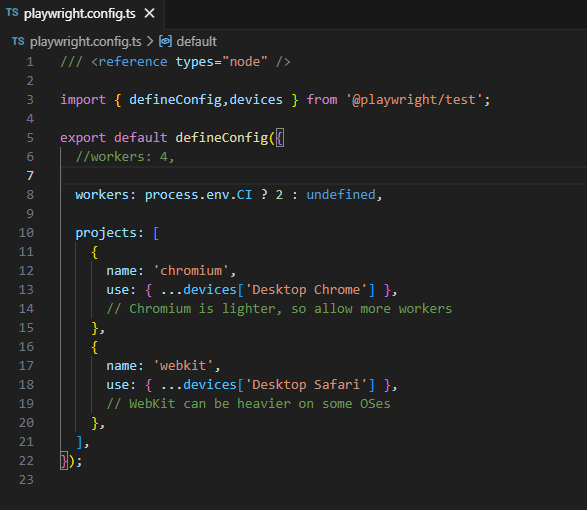
import { defineConfig, devices } from '@playwright/test';
export default defineConfig({
  projects: [
    {
      name: 'chromium',
      use: { ...devices['Desktop Chrome'] },
      // Chromium is lighter, so allow more workers
    },
    {
      name: 'webkit',
      use: { ...devices['Desktop Safari'] },
      // WebKit can be heavier on some OSes
    },
  ],
  workers: process.env.CI ? 2 : undefined,
});fullyParallel mode: running tests inside a file in parallel
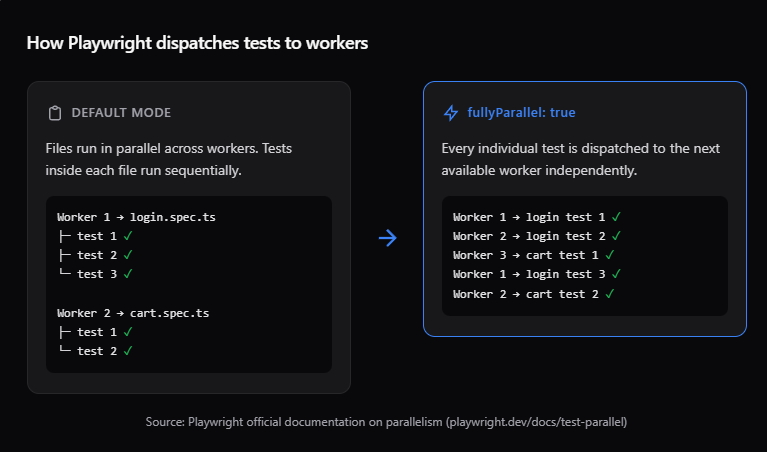
By default, Playwright workers run test files in parallel, but tests inside a single file run one after another. That means if you have 20 tests in a single file, one worker handles all 20 sequentially, even if other workers are sitting idle.
Enabling fullyParallel changes this. It tells the runner to treat every individual test as a separate unit, dispatching each one to the next available worker.
Enabling it globally
import { defineConfig } from '@playwright/test';
export default defineConfig({
  fullyParallel: true,
});
Enabling it per project
// playwright.config.ts
projects: [
  {
    name: 'chromium',
    use: { ...devices['Desktop Chrome'] },
    fullyParallel: true,
  },
],
Enabling it per describe block
import { test } from '@playwright/test';
test.describe.configure({ mode: 'parallel' });
test('test one', async ({ page }) => { /* ... */ });
test('test two', async ({ page }) => { /* ... */ });
Note: When fullyParallel is on, each test gets its own worker. That means beforeAll and afterAll hooks run once per worker, not once per file. If your beforeAll does expensive setup (like seeding a database), the repeated execution can actually make your suite slower. Teams commonly discover this when they enable fullyParallel and see execution time go up instead of down.
When not to use fullyParallel
-
Tests in the file depend on each other (shared login state, sequential flows)
-
Your beforeAll hooks are expensive and would repeat across workers
-
You are running on a resource-limited CI machine where extra workers cause contention
For tests that genuinely depend on order, you can opt out even with fullyParallel: true set globally:
test.describe('checkout flow', () => {
  test.describe.configure({ mode: 'default' });
  test('add to cart', async ({ page }) => { /* ... */ });
  test('complete payment', async ({ page }) => { /* ... */ });
});
How many Playwright workers should you use in CI?
This is the question most teams get wrong. The answer depends on the CI runner's resources, not on the size of your test suite.
What the official docs recommend
The Playwright CI documentation explicitly recommends setting workers to 1 in CI to prioritize stability and reproducibility. Running tests sequentially ensures each test gets the full system resources, avoiding contention.
workers: process.env.CI ? 1 : undefined,That said, this is a conservative default. If you run a powerful self-hosted runner or pay for larger GitHub Actions machines, you can safely increase the count.
A practical decision framework
The table below maps common CI runner specs to recommended Playwright worker counts. The recommendations follow the "half the vCPU count" rule, which aligns with how Playwright's own default works (half of logical CPU cores). The GitHub Actions specs come from GitHub's documentation on runner resources.
| CI runner spec | Recommended workers | Why |
|---|---|---|
| 2 vCPU (GitHub Actions default) | 1 | 2 Playwright workers already saturate a 2-vCPU box; 1 keeps things stable |
| 4 vCPU runner | 2 | Leaves headroom for browser overhead and OS-level processes |
| 8 vCPU self-hosted | 4 | Half the cores is the sweet spot; browser processes are memory-heavy |
| 16+ vCPU self-hosted | 6 to 8 | Diminishing returns past 8; memory becomes the bottleneck before CPU does |
Tip: A practical rule: start at half the vCPU count, then benchmark. If total execution time drops by less than 10% when you add another worker, you have hit the ceiling for that machine.
The percentage shortcut
Instead of hardcoding a number, you can pass a percentage:
workers: process.env.CI ? '50%' : undefined,This adapts automatically when you switch runner sizes. It works across GitHub Actions, GitLab CI, and Azure Pipelines without per-environment overrides.
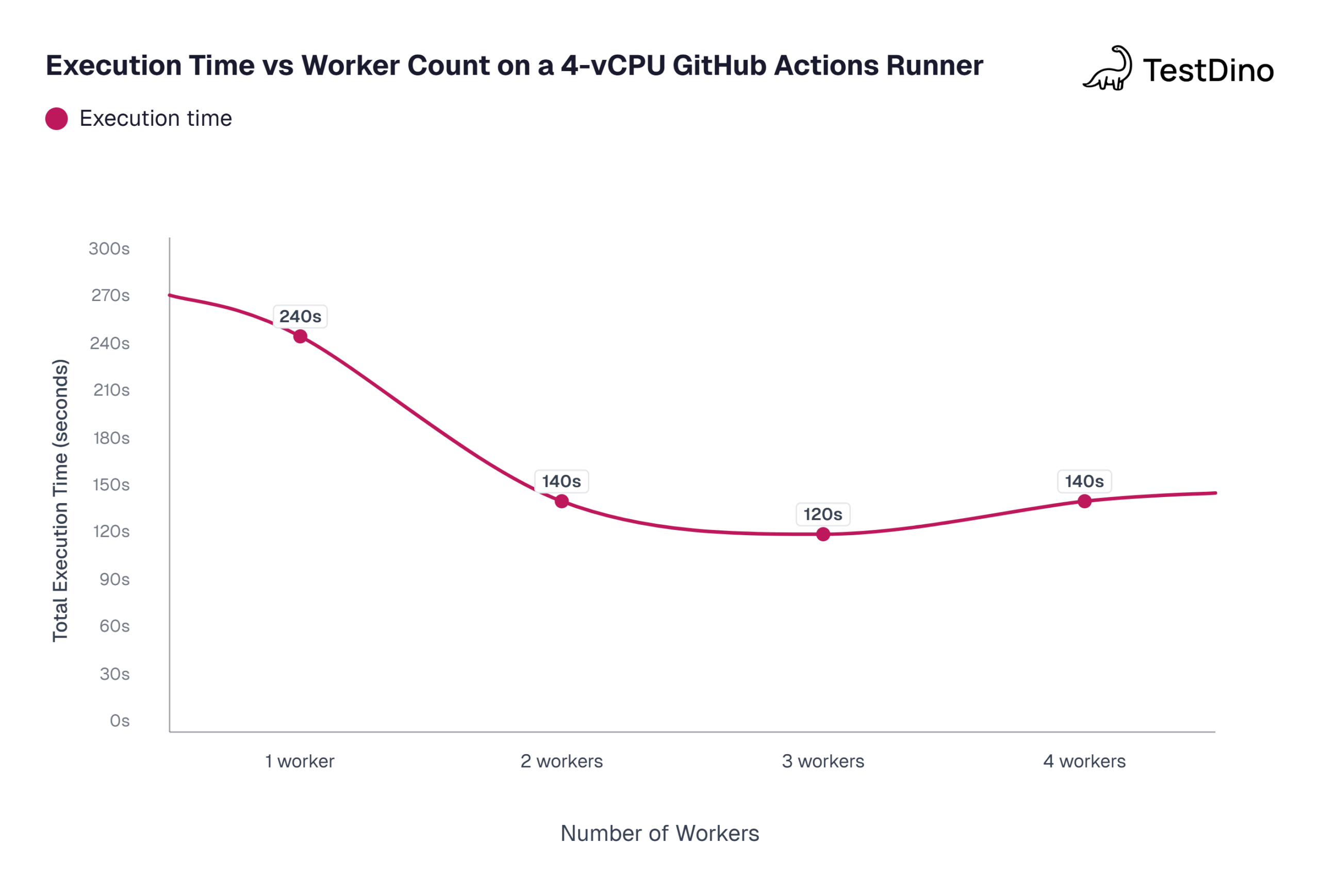
Source: Values based on community benchmarks from GitHub Issues
Playwright workers vs sharding: when to use which
Workers and sharding both improve Playwright test execution speed, but they solve different problems at different scales.
Workers run multiple parallel processes on a single machine. Sharding splits the test suite across multiple machines (or CI jobs). Workers scale vertically. Sharding scales horizontally.
Comparison table
| Dimension | Workers | Sharding |
|---|---|---|
| Scope | Single machine, multiple processes | Multiple machines, each running a subset |
| Scaling type | Vertical (more CPU cores) | Horizontal (more CI jobs) |
| Configuration | workers: N in config or --workers N | --shard=X/Y flag + CI matrix |
| Setup effort | One line in config | CI pipeline changes, matrix builds, report merging |
| Best for | Suites under ~500 tests, local development | Large suites (500+ tests), teams needing sub-5-min CI |
| Resource limit | Bound by single machine CPU + memory | Effectively unlimited (add more CI jobs) |
When to add sharding on top of workers
You can (and should) use both together. Each shard runs on its own machine and uses multiple Playwright workers within that machine. Here is when to make that jump:
-
Your suite takes over 10 minutes even with the optimal worker count
-
Adding more workers does not reduce time any further
-
Your CI provider supports matrix jobs (GitHub Actions, GitLab CI, Azure Pipelines)
A typical GitHub Actions setup looks like this:
# GitHub Actions matrix for 4 shards
jobs:
  test:
    strategy:
      matrix:
        shard: [1/4, 2/4, 3/4, 4/4]
    steps:
      - run: npx playwright test --shard=${{ matrix.shard }} --workers=2
For a complete walkthrough on setting up shards, merging reports, and balancing shard sizes, check the Playwright sharding guide.
Why your Playwright workers are not speeding up tests (and how to fix it)
You bumped the Playwright worker count to 8, but the suite still takes the same amount of time. Or worse, it got flakier. Here are the five most common reasons.
1. Tests inside files are still running serially
This is the number one cause. Tests within a single file run sequentially in one worker by default. If most of your tests live in a few large files, adding workers does not help because the bottleneck is a single file, not the number of files.
Fix: Enable fullyParallel: true or split large test files into smaller, focused ones.
2. Machine resources are maxed out
Each Playwright worker spawns a browser process. According to Chromium's own documentation, a single Chrome instance can use 200 to 500 MB of RAM depending on page complexity. Four workers means up to 2 GB just for browsers, before counting your app server, Node.js, and the OS.
On a 2-vCPU GitHub Actions runner (which comes with 7 GB RAM per GitHub's docs), running 4 workers each using Chromium will likely cause memory pressure and slower execution.
Fix: Match workers to resources. Use workers: '50%' as a starting point and monitor actual CPU and memory usage during runs.
3. Shared state between tests
If tests write to the same database rows, modify the same files, or rely on a shared login session, running them in parallel causes flaky tests. This is a test design issue, not a worker configuration issue.
Fix: Isolate test data per worker using testInfo.workerIndex. Create unique test users, separate database records, or use worker-scoped fixtures.
4. Heavy beforeAll hooks in fullyParallel mode
When fullyParallel is enabled, beforeAll hooks run once per worker, not once per file. If your beforeAll seeds a database, starts a server, or does anything slow, that setup repeats multiple times in parallel. Teams commonly discover this when a suite that ran in 30 seconds with one worker suddenly takes 90 seconds with four.
Fix: Move expensive setup to globalSetup (runs once before all workers) or restructure the beforeAll to be lightweight.
5. Network or API bottlenecks
If your tests hit an external API, a staging server, or a shared service, adding workers just increases concurrent load on that backend. The backend becomes the bottleneck, not your test runner.
Fix: Use Playwright's route mocking to stub external dependencies. For integration tests that need a real backend, consider running a dedicated backend instance per worker or per shard.
Best practices for optimizing Playwright worker performance
Here is a checklist you can apply to any Playwright test suite to get the most out of Playwright workers.
Isolate test data per worker
Use testInfo.workerIndex or testInfo.parallelIndex to create unique resources:
import { test as baseTest } from '@playwright/test';
export const test = baseTest.extend<{}, { dbUser: string }>({
  dbUser: [async ({}, use) => {
    const username = `test-user-${test.info().workerIndex}`;
    await createUser(username);
    await use(username);
    await deleteUser(username);
  }, { scope: 'worker' }],
});
This pattern comes directly from the official Playwright documentation on test fixtures.
Benchmark before committing to a number
Run your suite with different worker counts and compare total time:
npx playwright test --workers=1
npx playwright test --workers=2
npx playwright test --workers=4
Pick the count where the time stops decreasing. Document the chosen value in your config with a comment explaining why you picked it.
Use percentage-based workers for portability
workers: process.env.CI ? '50%' : undefined,This adapts when you move between different CI runners (2 vCPU to 8 vCPU) without a config change.
Set maxFailures to save CI time
maxFailures: process.env.CI ? 10 : undefined,When tests are broken, continuing to run hundreds more wastes time and money. Setting maxFailures stops the run early and frees up CI resources.
Tag tests with Playwright annotations for smarter filtering
Instead of running your full suite on every PR, use tags like @smoke or @critical to run subsets:
npx playwright test --grep @smoke --workers=2This reduces total test count, which means fewer workers needed and faster CI feedback.
Track test health across CI runs
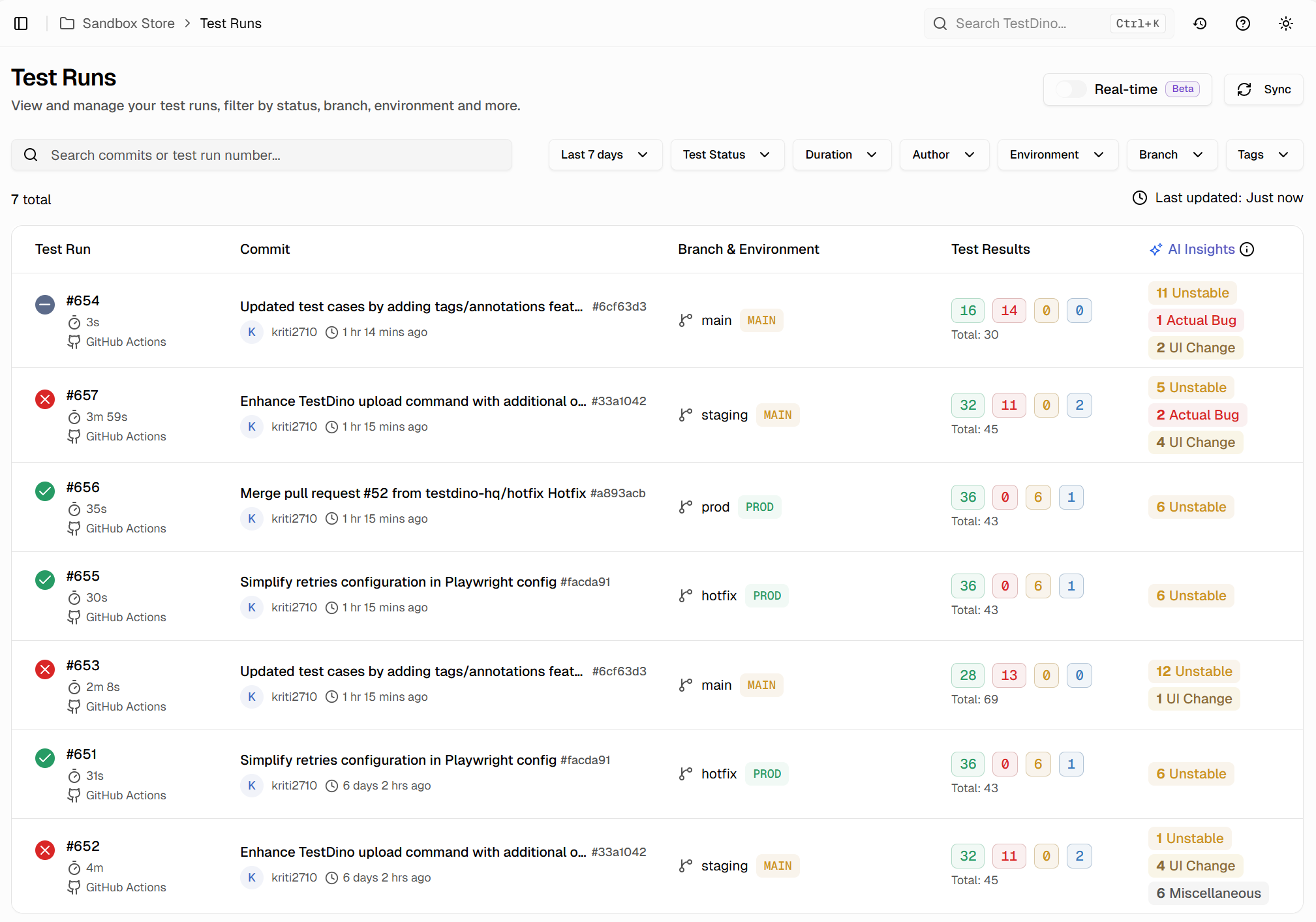
Once you have tuned your Playwright worker count and deployed it to CI, the next challenge is making sure things stay fast. Test suites degrade over time as new tests get added, flaky tests pile up, and worker utilization shifts.
Platforms like TestDino give you a single dashboard that surfaces flaky tests, failure categories, and run-over-run trends so you can catch slowdowns before they compound.
Conclusion
Playwright workers are the primary lever for speeding up test execution on a single machine. But the default settings are not always optimal, and throwing more workers at the problem without understanding the machine's constraints makes things worse.
The approach that works is simple: use half the vCPU count as your starting worker number, enable fullyParallel only when your tests are truly independent, and benchmark before committing to a final configuration.
When workers alone are not enough, Playwright sharding across multiple CI machines is the next step. The two strategies work best together, with each shard running a tuned number of workers for its machine's capacity.
For teams running Playwright in CI at scale, tracking test performance across runs is what separates a fast pipeline from one that slowly degrades. Platforms like TestDino provide test reporting dashboards that surface which tests are slowing down, which workers are underutilized, and where CI minutes are being spent.
FAQs

Ayush Mania
Forward Development Engineer