Playwright Browser Testing: A Comprehensive Guide for Chromium, Firefox, and WebKit
Your Playwright tests pass in Chromium. Cool. You merge and move on. Then someone messages you that checkout is broken in Safari. Another report comes in from Firefox, and the spacing is completely off. You check your tests again. Still green. Of course they are. You only ran them in one browser. That is the […]


Your Playwright tests pass in Chromium. Cool. You merge and move on.
Then someone messages you that checkout is broken in Safari. Another report comes in from Firefox, and the spacing is completely off. You check your tests again. Still green. Of course they are. You only ran them in one browser.
That is the problem with single-browser testing.
Different engines behave differently. Sometimes it is a layout. Sometimes it is focus handling, scrolling, date inputs, or just some weird browser behavior. If you are only testing in one browser, assume that other browsers will also behave the same way. But sadly, they do not.
That's where Playwright comes in. The nice thing about Playwright is that you don't need three separate setups to fix this issue. You just write the test once and run it on all browsers, Chromium, Firefox, and WebKit, etc.
-
Same test file
-
Same API
-
No browser-specific hacks
-
Just multiple projects in config
In this guide, we will look at how Playwright runs tests across all three engines, how to configure it properly, what usually breaks between them, and how to wire it into CI so browser bugs get caught before your users find them.
How does Playwright browser testing work across three engines?
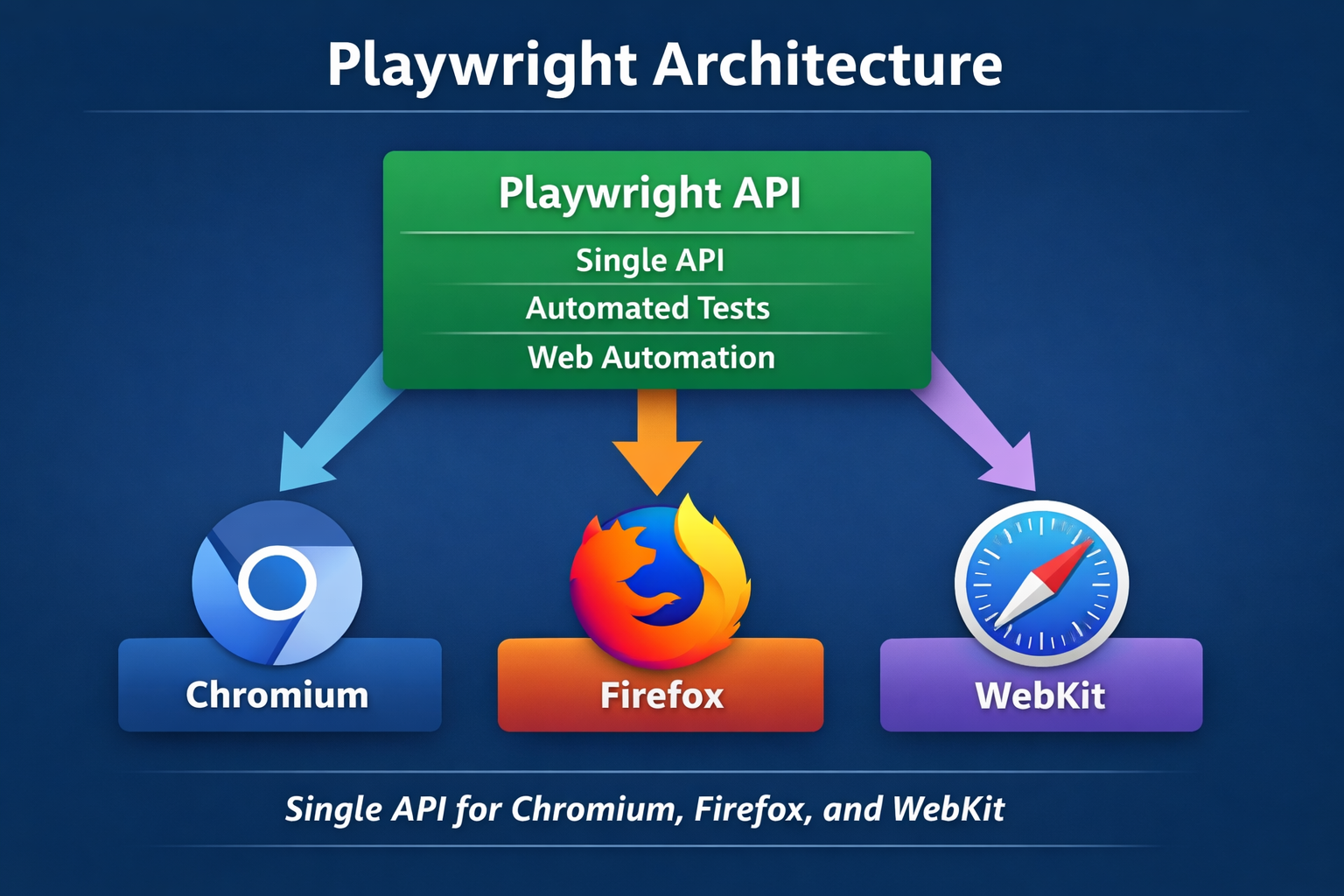
Playwright runs tests across Chromium, Firefox, and WebKit using a single, unified API. You write one test, and Playwright executes it against all three rendering engines without requiring separate test scripts or driver configurations.
Here's what makes this possible. Playwright doesn't use your installed Chrome, Firefox, or Safari. Instead, it downloads its own patched versions of each browser engine during installation. This ensures consistent behavior across every machine, whether it's your laptop or a CI runner.
The three engines Playwright supports cover the vast majority of real-world browsers:
-
Chromium powers Chrome, Edge, Opera, Brave, and most Android browsers
-
Firefox (Gecko) powers Mozilla Firefox on all platforms
-
WebKit powers Safari on macOS and iOS
When you install Playwright, it downloads all three engines by default:
npm init playwright@latest
# Downloads Chromium, Firefox, and WebKit automatically
This single command gives you everything you need. No Selenium grid. No WebDriver binaries. No version mismatches.
The API stays identical regardless of which browser runs the test. A page.click() call works the same in Chromium, Firefox, and WebKit. If your test breaks in one browser but passes in others, you've found a real browser compatibility issue, not a test framework bug.
How to configure Playwright projects for multi-browser testing?
Playwright uses a "projects" system in its configuration file to run tests across multiple browsers. Each project targets a specific browser or device, and they all run from the same test files.
The default playwright.config.ts already includes all three browsers:
// playwright.config.ts
import { defineConfig, devices } from '@playwright/test';
export default defineConfig({
  projects: [
    {
      name: 'chromium',
      use: { ...devices['Desktop Chrome'] },
    },
    {
      name: 'firefox',
      use: { ...devices['Desktop Firefox'] },
    },
    {
      name: 'webkit',
      use: { ...devices['Desktop Safari'] },
    },
  ],
});
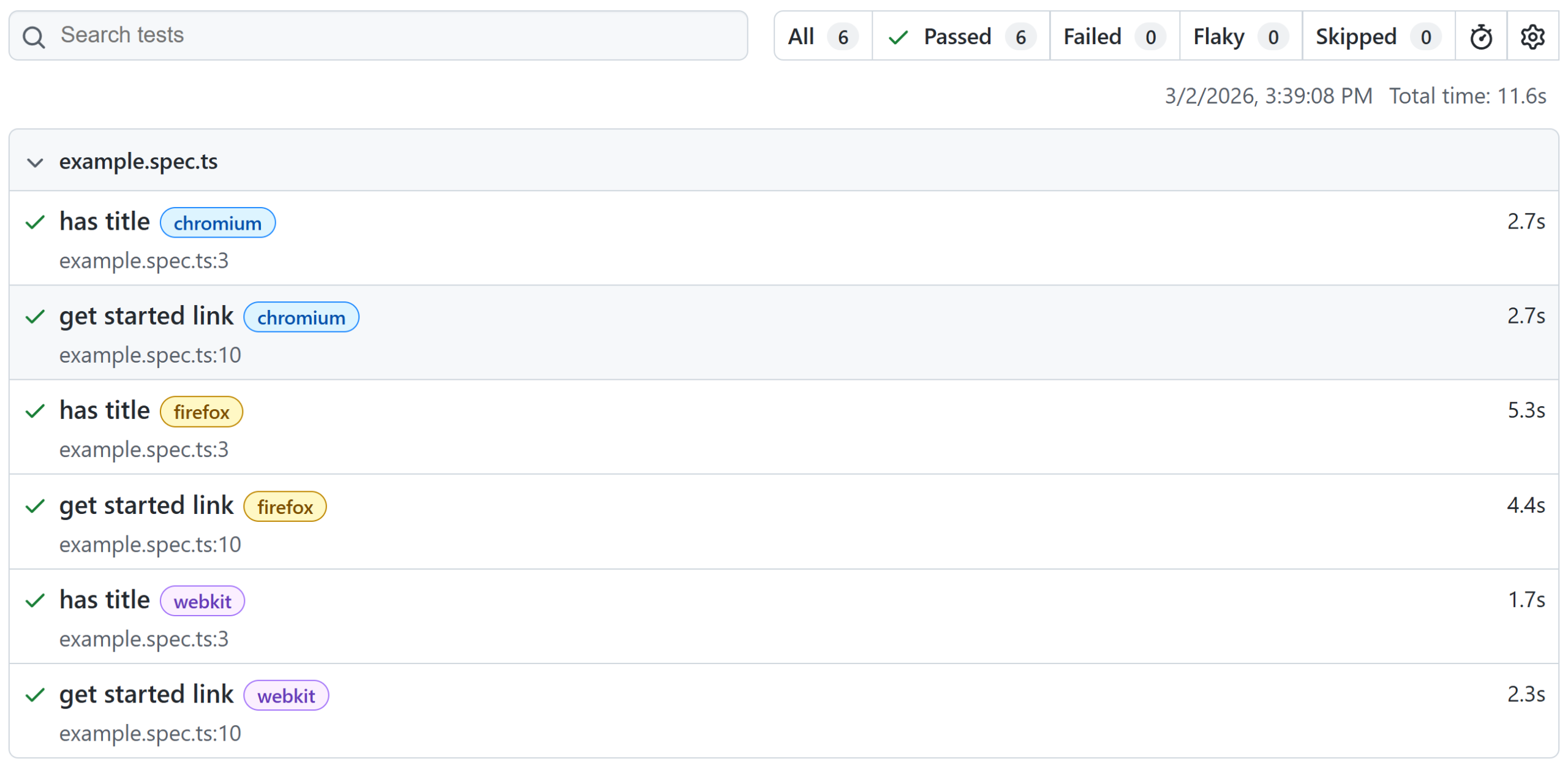
Running npx playwright test executes your entire test suite against all three browsers in parallel. The output clearly labels which browser each result belongs to:
Running 9 tests using 3 workers
  ✓ [chromium] › login.spec.ts:5:1 › should log in (1.2s)
  ✓ [firefox]  › login.spec.ts:5:1 › should log in (1.4s)
  ✓ [webkit]   › login.spec.ts:5:1 › should log in (1.3s)
You can also target a single browser when debugging:
# Run only in Firefox
npx playwright test --project=firefox
# Run only in WebKit
npx playwright test --project=webkit

Tip: During local development, run tests against Chromium only for speed. Save full cross-browser runs for your CI pipeline where all three engines matter.
You can extend projects to include mobile emulation as well. Playwright ships with a library of preconfigured devices:
projects: [
  // Desktop browsers
  { name: 'chromium', use: { ...devices['Desktop Chrome'] } },
  { name: 'firefox', use: { ...devices['Desktop Firefox'] } },
  { name: 'webkit', use: { ...devices['Desktop Safari'] } },
  // Mobile devices
  { name: 'Mobile Chrome', use: { ...devices['Pixel 5'] } },
  { name: 'Mobile Safari', use: { ...devices['iPhone 12'] } },
  // Branded browsers
  { name: 'Google Chrome', use: { ...devices['Desktop Chrome'], channel: 'chrome' } },
  { name: 'Microsoft Edge', use: { ...devices['Desktop Edge'], channel: 'msedge' } },
],
This configuration gives you desktop coverage, mobile coverage, and branded browser coverage from a single config file. No additional tools needed.
Chromium, Firefox, and WebKit: What each engine covers
Not all browsers are created equal. Understanding what each Playwright engine covers helps you decide where to focus your testing effort.
1. Chromium: The majority of your users
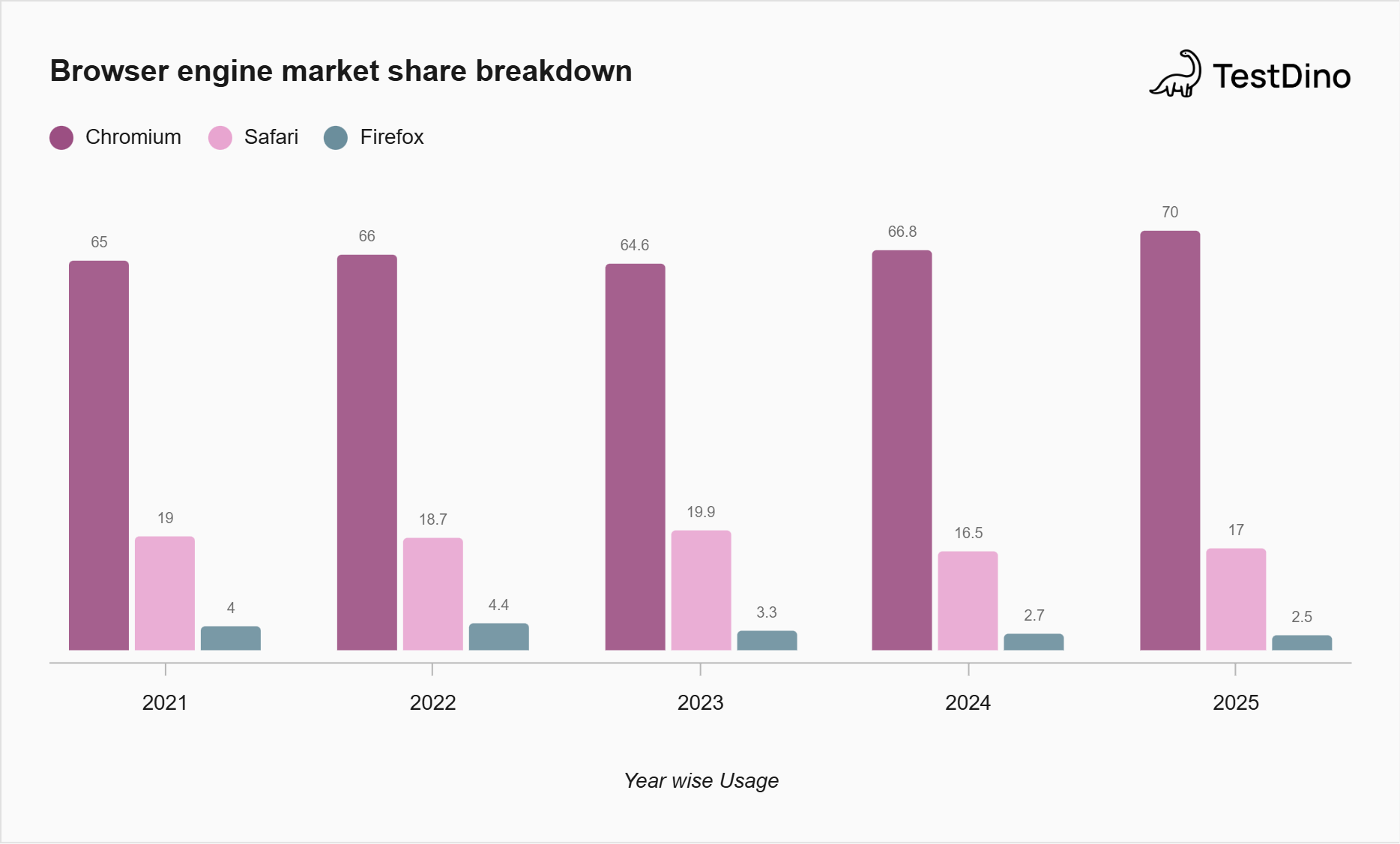
Chromium is the open-source engine behind Chrome, Edge, Opera, Brave, and most Android browsers. As of early 2026, Chrome alone holds over 65% of the global desktop browser market share.
When you include Edge (around 13% desktop share) and other Chromium-based browsers, you're covering roughly 80% of desktop users with one engine.
Playwright stays ahead of Chrome releases. When Chrome is on version N, Playwright already supports Chromium N+1. This means you're testing against features your users will see in a few weeks, not features from months ago.
A few things to know about Chromium in Playwright:
-
Playwright uses open-source Chromium builds by default, not branded Chrome
-
Enterprise policies (proxies, mandatory extensions) can interfere with branded Chrome, so Chromium is safer for local testing
-
You can opt into branded Chrome using the channel: 'chrome' option if needed
-
Headless mode uses chrome-headless-shell for lighter resource usage in CI
2. Firefox: The privacy-focused segment
Playwright's Firefox version matches the recent Firefox Stable build. Unlike Chromium, Playwright uses a patched version of Firefox's Gecko engine because it needs deeper integration than Firefox's public APIs allow.
Firefox holds around 5-7% of the desktop market share, depending on the source. That sounds small, but it's still hundreds of millions of users. And Firefox users tend to be more technical, which means they're often power users of your product.
Common issues that only show up in Firefox include differences in form validation behavior, CSS grid rendering, and how fetch handles certain CORS scenarios.
Note: Playwright doesn't work with the branded version of Firefox you have installed. It downloads its own patched build. This means Firefox extension testing isn't supported through Playwright.
3. WebKit: Your Safari coverage
WebKit is the engine behind Safari on macOS and all browsers on iOS (yes, even Chrome on iOS uses WebKit under the hood). Safari holds roughly 18 to 20% of the global browser market, and it's the dominant mobile browser in the US.
Playwright's WebKit build is derived from the latest WebKit main branch sources. This often includes changes that haven't shipped in Safari yet, giving you early access to upcoming behavior.
There are platform-specific differences to keep in mind:
-
Media codecs vary between Linux, macOS, and Windows
-
Video playback testing is most accurate on macOS
-
Linux CI is the cheapest option for WebKit testing, but some media features may behave differently from real Safari
For the closest-to-Safari experience, run WebKit tests on macOS. For general layout and JavaScript testing, Linux works fine and saves CI costs.
| Engine | Browsers Covered | Desktop Share | Key Differences |
|---|---|---|---|
| Chromium | Chrome, Edge, Opera, Brave | ~80% combined | Fastest Playwright engine, ahead of stable Chrome |
| Firefox (Gecko) | Firefox | ~5-7% | Patched build, different CSS/form behavior |
| WebKit | Safari, all iOS browsers | ~18-20% | Media codec differences by OS, closest to Safari on macOS |
Sources: StatCounter (2025-2026), Backlinko Browser Market Share Report
Setting up cross-browser tests (step-by-step)
Getting Playwright browser testing running across all three engines takes about 5 minutes. Here's the setup from scratch.
Step 1 - Install Playwright and all browsers
npm init playwright@latest
This command does three things. It installs the @playwright/test package, downloads Chromium, Firefox, and WebKit binaries, and creates a starter config file.
If you only want specific browsers to save disk space:
# Install only Chromium and WebKit
npx playwright install chromium webkit
Step 2 - Write a browser-agnostic test
Your test file doesn't need to know which browser it runs on. Playwright handles that through the config:
import { test, expect } from '@playwright/test';
test('has title', async ({ page }) => {
  await page.goto('https://playwright.dev/');
  // Expect a title "to contain" a substring.
  await expect(page).toHaveTitle(/Playwright/);
});
test('get started link', async ({ page }) => {
  await page.goto('https://playwright.dev/');
  // Click the get started link.
  await page.getByRole('link', { name: 'Get started' }).click();
  // Expects page to have a heading with the name of Installation.
  await expect(page.getByRole('heading', { name: 'Installation' })).toBeVisible();
});
This test runs identically in Chromium, Firefox, and WebKit. No browser-specific code needed.
Step 3 - Configure projects in playwright.config.ts
The default config works for most teams. Customize timeouts and retries based on your app:
import { defineConfig, devices } from '@playwright/test';
export default defineConfig({
  testDir: './tests',
  timeout: 30_000,
  retries: 1,
  reporter: 'html',
  use: {
    trace: 'on-first-retry',
    screenshot: 'only-on-failure',
  },
  projects: [
    { name: 'chromium', use: { ...devices['Desktop Chrome'] } },
    { name: 'firefox', use: { ...devices['Desktop Firefox'] } },
    { name: 'webkit', use: { ...devices['Desktop Safari'] } },
  ],
});
Step 4 - Run tests across all browsers
# Run against all configured browsers
npx playwright test
# Run with visible browser windows for debugging
npx playwright test --headed
# Run and open the HTML report
npx playwright test --reporter=html
Step 5 - Add to CI with GitHub Actions
# .github/workflows/playwright.yml
name: Playwright Tests
on: [push, pull_request]
jobs:
  test:
    runs-on: ubuntu-latest
    steps:
      - uses: actions/checkout@v4
      - uses: actions/setup-node@v4
        with:
          node-version: 20
      - run: npm ci
      - run: npx playwright install --with-deps
      - run: npx playwright test
      - uses: actions/upload-artifact@v4
        if: ${{ !cancelled() }}
        with:
          name: playwright-report
          path: playwright-report/
The --with-deps flag installs system-level dependencies that Firefox and WebKit need on Linux. Without it, you'll see cryptic errors in CI.
Tip: Use retries: 2 in CI and retries: 0 locally. CI environments are more prone to timing issues, and retries catch genuine flakes without hiding real bugs during development.
Common cross-browser issues and how to fix them
Writing one test for three engines sounds ideal until a test passes in Chromium but fails in WebKit. These are the most common browser-specific issues teams run into with Playwright, and how to handle them.
CSS rendering differences
Each engine interprets CSS slightly differently. Flexbox gaps, grid alignment, and font rendering are the usual suspects.
For example, gap in flexbox containers have been supported in Chromium since 2020, but were inconsistent in older WebKit versions. If your layout breaks in WebKit but looks fine in Chrome, CSS feature support is the first place to check.
Fix: Use the Can I Use database to verify feature support. Write CSS that degrades gracefully, and use Playwright's screenshot comparison to catch visual regressions.
Form and input behavior
Firefox handles form validation differently from Chromium. Date pickers, autofill behavior, and input masking can all produce different results.
Fix: Use getByRole and getByLabel locators instead of CSS selectors. These are based on accessibility attributes that behave consistently across browsers:
// More reliable across browsers
await page.getByLabel('Email').fill('[email protected]');
await page.getByRole('button', { name: 'Submit' }).click();
Timing and animation differences
WebKit and Firefox may render animations at different speeds than Chromium. Tests that rely on animation completion can fail intermittently.
Fix: Playwright's auto-wait handles most timing issues. For animations, wait for the final state rather than a fixed timeout:
// Bad: fixed timeout
await page.waitForTimeout(2000);
// Good: wait for the actual state
await expect(page.getByText('Success')).toBeVisible();
Network and CORS handling
Firefox enforces stricter CORS policies in some scenarios. API calls that work in Chromium might fail in Firefox due to preflight request differences.
Fix: Test your API endpoints separately using Playwright's request fixture, and ensure your server sends proper CORS headers for all methods.
Note: If a test fails in only one browser, don't add a browser-specific skip. Instead, investigate whether the failure is a real bug in your app that only surfaces in that engine. These are often the most valuable bugs to catch.
Best practices for Playwright browser testing
After setting up cross-browser tests, these practices keep your suite fast, reliable, and useful as it grows.
Use semantic locators everywhere. Locators like getByRole, getByText, and getByLabel work consistently across browsers because they're based on the accessibility tree, not the DOM structure. This makes tests more stable and more meaningful.
// Reliable across all browsers
page.getByRole('button', { name: 'Add to cart' });
// Fragile - may break with CSS changes
page.locator('.btn-primary.add-cart-btn');
Run Chromium locally, all browsers in CI. Full cross-browser runs triple your test time. During development, test against Chromium for fast feedback. Let CI run the full matrix overnight or on pull requests.
Set up browser-specific traces. When a test fails in WebKit but passes in Chromium, Playwright's trace viewer shows you exactly what happened. Enable traces on first retry so you get debugging data without slowing down passing tests:
use: {
  trace: 'on-first-retry',
}
Don't skip tests per browser without documenting why. It's tempting to add test.skip(browserName === 'webkit') when something fails. Instead, file an issue, add a comment with the reason, and revisit it. Skipped tests accumulate quickly and become blind spots.
Keep browser versions updated. Run npx playwright install regularly. Playwright ships updates that include new browser versions, bug fixes, and performance improvements. Falling behind means your tests run on engines that don't match what your users have.
For teams running large Playwright test suites across multiple browsers, keeping track of browser-specific failures manually gets overwhelming fast. Tools like TestDino show which browsers have the most failures and track patterns across runs, so you can prioritize fixes based on actual data instead of gut feeling.

Conclusion
Playwright browser testing gives you real cross-browser coverage without the complexity that older tools required. One API, three engines, and a config file that takes minutes to set up.
The key takeaway is straightforward: Chromium covers the majority of your users, Firefox catches standards compliance issues, and WebKit protects your Safari audience. Running all three in CI, with Chromium as your local default, gives you the right balance between speed and coverage.
For teams scaling their Playwright suites, TestDino adds AI-powered failure classification across browser projects, so you can quickly spot whether a failure is browser-specific, flaky, or a real regression without digging through logs manually.
FAQs

Table of content
Flaky tests killing your velocity?
TestDino auto-detects flakiness, categorizes root causes, tracks patterns over time.
Follow Us