Playwright Java BDD Tutorial: Cucumber Framework Guide
Build a complete Playwright Java BDD framework with Cucumber. Step-by-step setup covering Maven, Gherkin, step definitions, page objects, and JUnit 5.
Teams building web applications in Java are increasingly pairing their test automation efforts with plain-language scenarios that anyone on the project can read. The shift toward behavior-driven development is not new, but what is new is the browser engine powering those scenarios.
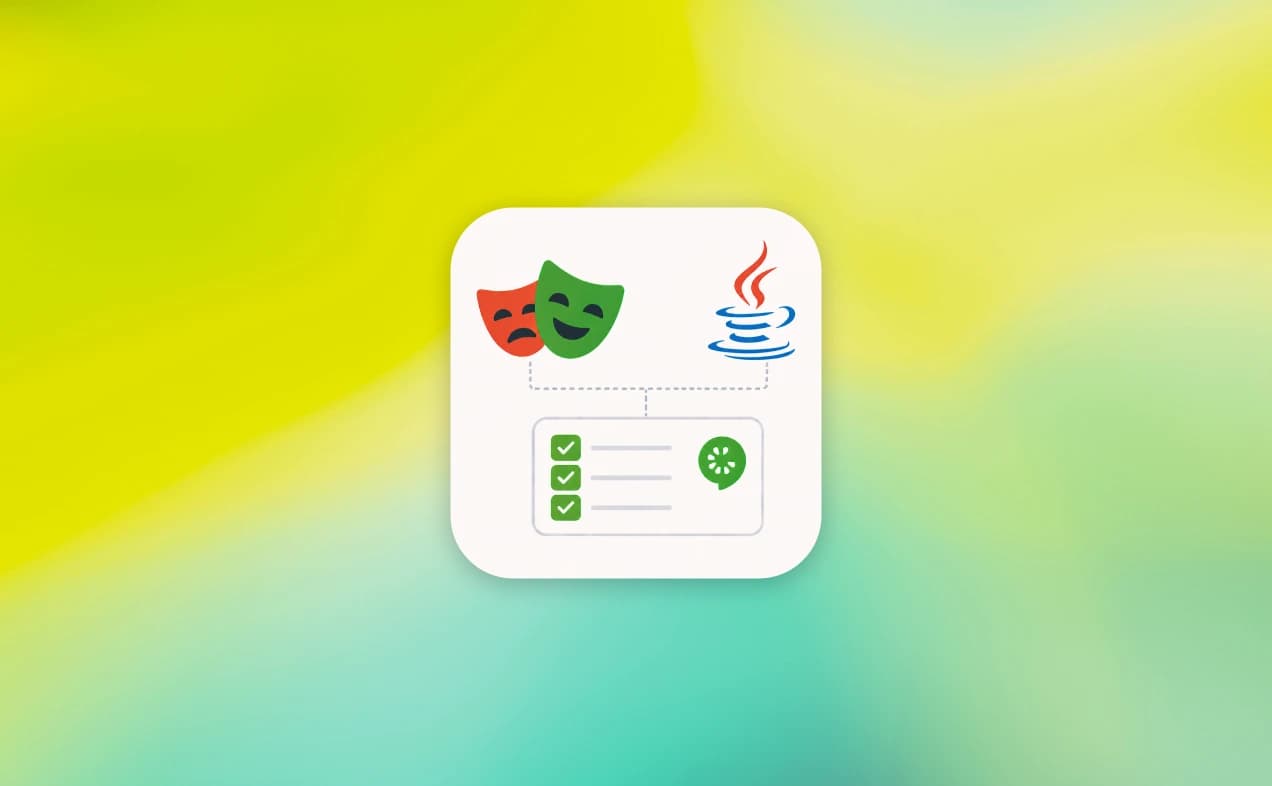
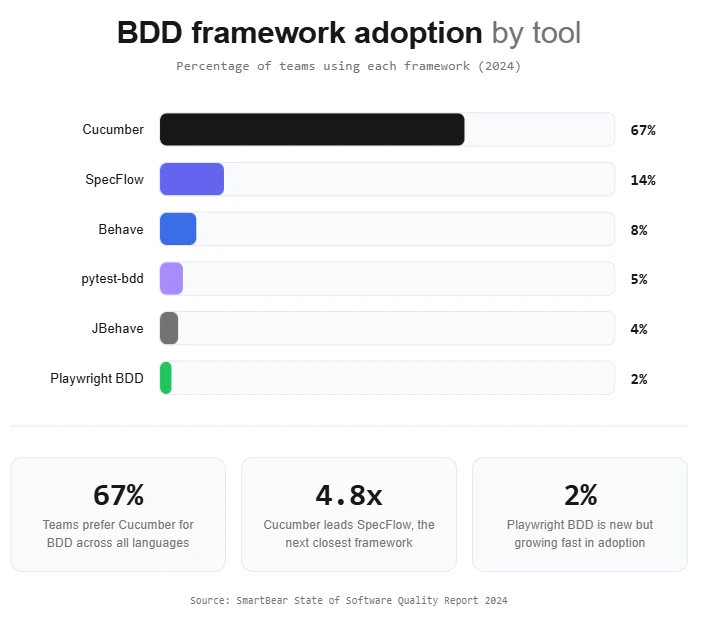
Playwright Java BDD is the practice of writing Gherkin-based test scenarios that execute through Playwright's browser automation engine instead of Selenium WebDriver. It combines Cucumber's readable feature files with Playwright's auto-waiting, built-in browser management, and WebSocket-based architecture to deliver faster, more stable BDD test suites for Java teams.
The pain point is familiar: Selenium-based BDD suites are slow, require driver management, and flaky waits turn simple scenarios into maintenance headaches. Having migrated multiple enterprise test suites from Selenium to Playwright, the difference is immediately noticeable - setup time drops from hours to minutes, and flaky test rates fall dramatically.
This guide walks you through building a complete playwright java bdd framework with Cucumber, from zero to running tests. You will set up Maven, write Gherkin feature files, map step definitions, and generate reports through JUnit 5.
What is BDD and why does it matter for Java teams?
BDD (Behavior-Driven Development) is a collaboration method where developers, testers, and business stakeholders describe expected software behavior using structured natural language before writing any code.
The idea is straightforward: write what the system should do in plain English, then automate those descriptions as executable tests.
The language used is called Gherkin. It follows a Given-When-Then structure:
- Given sets up the precondition
- When describes the action
- Then states the expected outcome
Here is a quick example:
Feature: User Login
  Scenario: Successful login with valid credentials
    Given the user is on the login page
    When they enter username "standard_user" and password "secret_sauce"
    And they click the login button
    Then the products page should be displayed
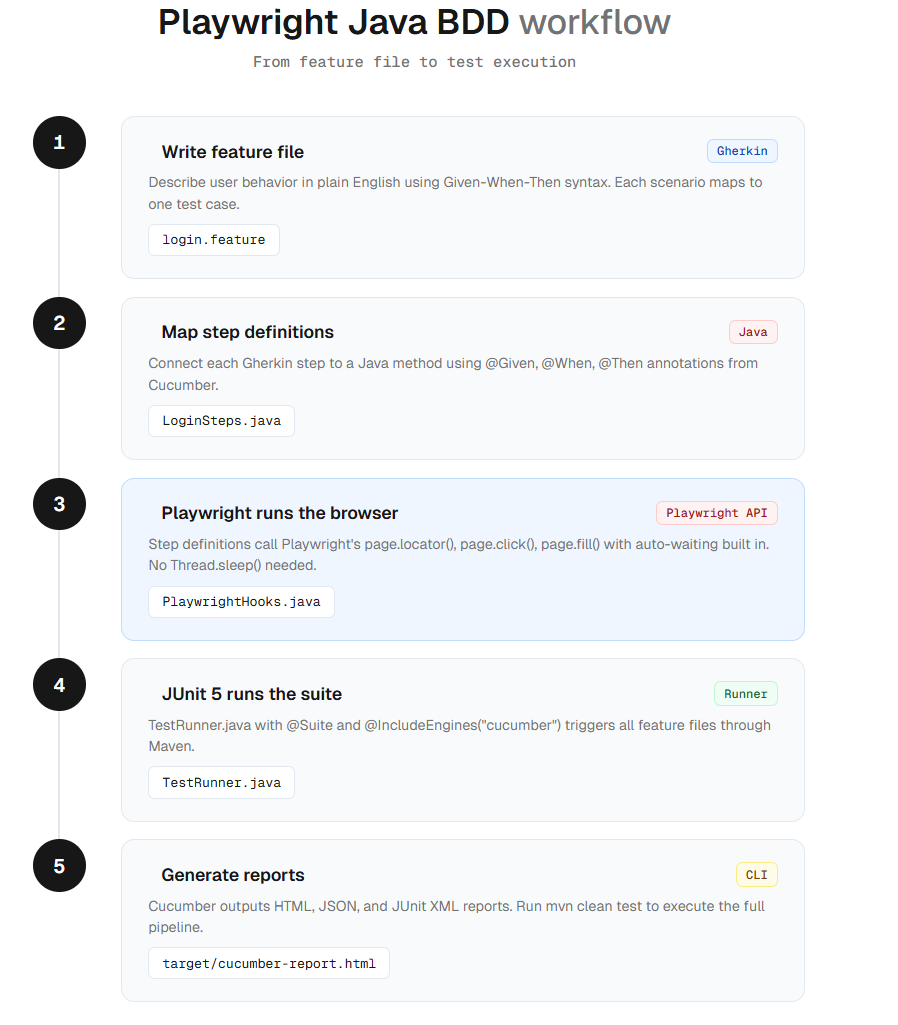
The cucumber framework parses these .feature files and maps each step to a Java method. This bridge between human-readable scenarios and executable code is what makes BDD powerful for cross-functional teams.
Note: Cucumber is the most widely used BDD framework for Java. It reads Gherkin syntax and connects each step to a Java method via annotations like @Given, @When, and @Then.
According to a Salesforce workplace study, 76% of managers and employees say poor collaboration directly contributes to project failure. BDD addresses this by making test scenarios the single source of truth that everyone, from product owners to QA engineers, can read and validate.
For Java teams specifically, the combination of Maven for dependency management, JUnit for test execution, and Cucumber for BDD creates a java bdd framework stack that fits naturally into existing enterprise workflows and CI/CD pipelines. The official Cucumber documentation provides the full Gherkin reference, but the practical setup is what this guide focuses on.
Why pair Playwright with Cucumber in Java?
Before Playwright entered the picture, most Java BDD projects used Selenium WebDriver as the browser automation layer beneath Cucumber. That worked, but it came with baggage.
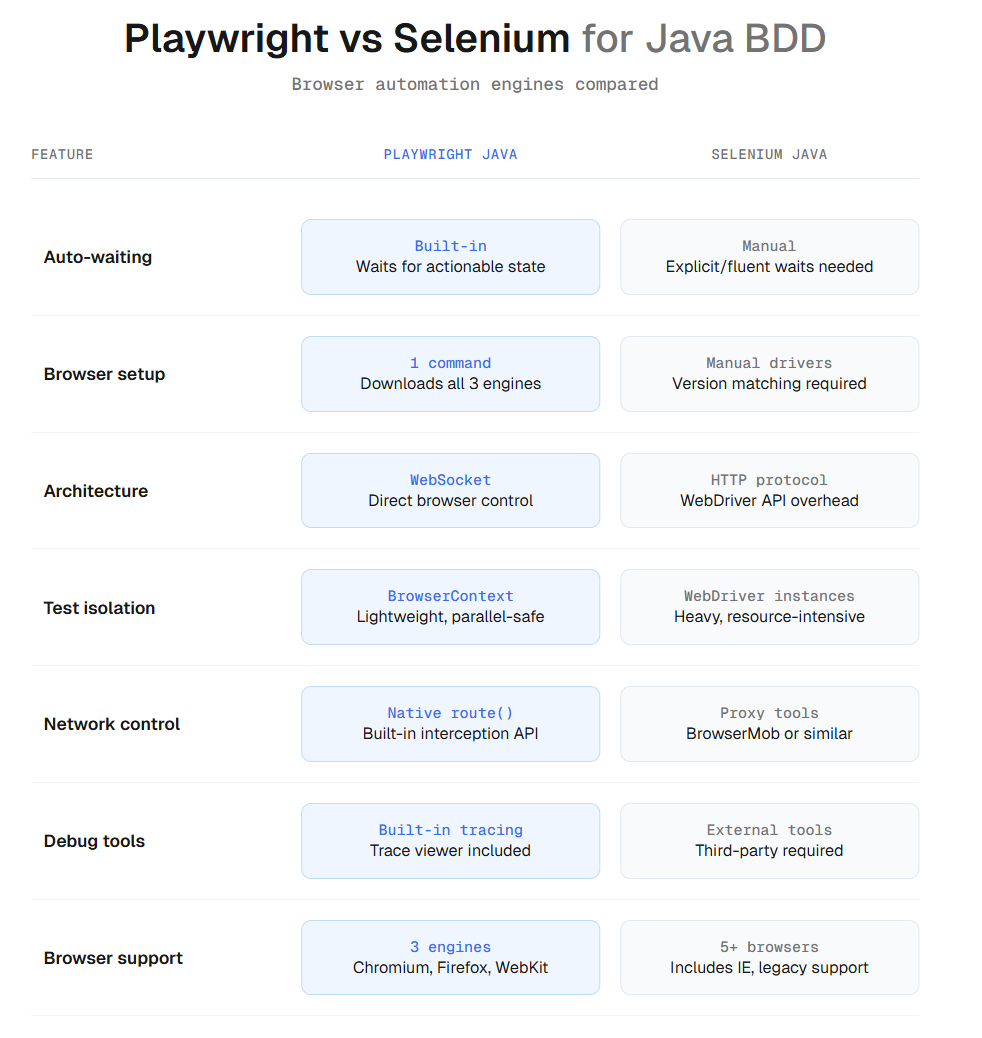
Here is how the two compare when used as the automation engine inside a cucumber framework:
| Feature | Playwright Java | Selenium Java |
|---|---|---|
| Architecture | WebSocket (direct browser control) | HTTP-based WebDriver protocol |
| Auto-waiting | Built-in, waits for elements to be actionable | Requires manual explicit/fluent waits |
| Browser bundling | Downloads browsers automatically | Requires separate driver management |
| Browser support | Chromium, Firefox, WebKit | Chrome, Firefox, Safari, Edge, IE |
| Parallel isolation | Browser contexts (lightweight) | Separate WebDriver instances (heavy) |
| Setup complexity | Single Maven dependency + install command | Driver binaries + version matching |
| Network interception | Native route() API | Requires proxy tools like BrowserMob |
| Trace and debug | Built-in tracing with viewer | External tools needed |
The biggest win for playwright java bdd projects is auto-waiting. When Playwright executes page.click(), it automatically waits for the element to be visible, stable, and receiving events. Misconfigured explicit waits in Selenium are the number one cause of flaky tests.
Playwright also ships its browsers as part of the install process. Run one command and all three browser engines are ready, no more matching ChromeDriver versions to Chrome updates.
That said, Selenium still makes sense if you need IE support or your organization has years of Selenium infrastructure in place. For new projects, especially modern SPAs built with React, Angular, or Vue, Playwright's architecture gives you faster, more stable BDD test execution.
Prerequisites and environment setup
Before writing any code, make sure these tools are installed on your machine.
Required software:
- JDK 17 or higher (Playwright Java requires JDK 17+)
- Apache Maven 3.9.3+ (build and dependency management)
- Node.js (Playwright uses Node.js internally for browser management)
- IDE: IntelliJ IDEA (recommended) or VS Code with the Java Extension Pack

Tip: Use JDK 17 as the minimum version. Playwright's Java client requires it. If you are on JDK 11, the build will fail at compile time with an unsupported class version error.
Verify your installations by running these commands:
java -version
mvn -v
node -v
You should see version numbers for all three. If any command fails, install the missing tool from its official site: Java, Maven, Node.js.
For VS Code users, install the Microsoft Extension Pack for Java. This gives you syntax highlighting, Maven integration, and debugging support inside the editor. IntelliJ IDEA comes with all of this built in.
Step-by-step: building your playwright java bdd framework
This section walks through every file and configuration you need. By the end, you will have a working cucumber framework that runs Playwright-powered BDD tests.
Step 1: create the Maven project
Open your terminal and run this command to scaffold a new Maven project:
mvn archetype:generate \
  -DgroupId=com.example.bdd \
  -DartifactId=playwright-bdd-framework \
  -DarchetypeArtifactId=maven-archetype-quickstart \
  -DinteractiveMode=false
Here is what each flag does:
- -DgroupId: your base package name (like a namespace)
- -DartifactId: the project folder name
- -DarchetypeArtifactId: uses Maven's quickstart template
- -DinteractiveMode=false: skips all prompts, creates the project immediately
Navigate into the project directory:
cd playwright-bdd-frameworkStep 2: configure dependencies in pom.xml
Replace the contents of your pom.xml with the following. This adds Playwright, Cucumber, and JUnit 5 as dependencies:
<?xml version="1.0" encoding="UTF-8"?>
<project xmlns="http://maven.apache.org/POM/4.0.0"
         xmlns:xsi="http://www.w3.org/2001/XMLSchema-instance"
         xsi:schemaLocation="http://maven.apache.org/POM/4.0.0
         http://maven.apache.org/xsd/maven-4.0.0.xsd">
    <modelVersion>4.0.0</modelVersion>
    <groupId>com.example.bdd</groupId>
    <artifactId>playwright-bdd-framework</artifactId>
    <version>1.0-SNAPSHOT</version>
    <properties>
        <maven.compiler.source>17</maven.compiler.source>
        <maven.compiler.target>17</maven.compiler.target>
        <project.build.sourceEncoding>UTF-8</project.build.sourceEncoding>
        <playwright.version>1.52.0</playwright.version>
        <cucumber.version>7.23.0</cucumber.version>
    </properties>
    <dependencies>
        <!-- Playwright for browser automation -->
        <dependency>
            <groupId>com.microsoft.playwright</groupId>
            <artifactId>playwright</artifactId>
            <version>${playwright.version}</version>
        </dependency>
        <!-- Cucumber Java for BDD step definitions -->
        <dependency>
            <groupId>io.cucumber</groupId>
            <artifactId>cucumber-java</artifactId>
            <version>${cucumber.version}</version>
            <scope>test</scope>
        </dependency>
        <!-- Cucumber JUnit Platform Engine -->
        <dependency>
            <groupId>io.cucumber</groupId>
            <artifactId>cucumber-junit-platform-engine</artifactId>
            <version>${cucumber.version}</version>
            <scope>test</scope>
        </dependency>
        <!-- JUnit 5 Platform Suite -->
        <dependency>
            <groupId>org.junit.platform</groupId>
            <artifactId>junit-platform-suite</artifactId>
            <version>1.11.4</version>
            <scope>test</scope>
        </dependency>
        <!-- JUnit Jupiter API -->
        <dependency>
            <groupId>org.junit.jupiter</groupId>
            <artifactId>junit-jupiter</artifactId>
            <version>5.11.4</version>
            <scope>test</scope>
        </dependency>
    </dependencies>
    <build>
        <plugins>
            <plugin>
                <groupId>org.apache.maven.plugins</groupId>
                <artifactId>maven-surefire-plugin</artifactId>
                <version>3.5.2</version>
            </plugin>
        </plugins>
    </build>
</project>
Note: Version numbers above reflect the latest stable releases as of early 2026. Check Playwright Java docs and Cucumber docs for the newest versions before starting.
After saving, install Playwright's browser binaries:
mvn exec:java -e -Dexec.mainClass=com.microsoft.playwright.CLI -Dexec.args="install"This downloads Chromium, Firefox, and WebKit. No manual driver management needed.
Then compile the project:
mvn clean installStep 3: set up the project structure
Organize your project following this folder layout. It keeps feature files, step definitions, page objects, and the test runner in clearly separated directories:
playwright-bdd-framework/
├── pom.xml
└── src/
    └── test/
        ├── java/
        │   └── com/example/bdd/
        │       ├── runner/
        │       │   └── TestRunner.java
        │       ├── steps/
        │       │   └── LoginSteps.java
        │       ├── pages/
        │       │   └── LoginPage.java
        │       └── hooks/
        │           └── PlaywrightHooks.java
        └── resources/
            ├── features/
            │   └── login.feature
            └── junit-platform.properties
Create the junit-platform.properties file in src/test/resources/:
cucumber.glue=com.example.bdd.steps,com.example.bdd.hooks
cucumber.features=src/test/resources/features
cucumber.plugin=pretty, html:target/cucumber-report.html, json:target/cucumber-report.json
This configuration file tells Cucumber where to find your step definitions (glue), feature files (features), and what report formats to generate (plugin).
Step 4: write the feature file
Create the file src/test/resources/features/login.feature:
Feature: SauceDemo Login
  Scenario: Successful login with valid credentials
    Given the user opens the SauceDemo login page
    When the user enters username "standard_user" and password "secret_sauce"
    And the user clicks the login button
    Then the inventory page should be visible
  Scenario: Failed login with invalid credentials
    Given the user opens the SauceDemo login page
    When the user enters username "locked_out_user" and password "secret_sauce"
    And the user clicks the login button
    Then an error message should be displayed
Each scenario describes a complete user journey in business language. The cucumber framework will map every Given, When, and Then line to a Java method through annotations. This is where playwright cucumber java projects diverge from plain unit tests, the scenarios serve as living documentation that stakeholders can read and approve.
Step 5: create Playwright hooks for browser lifecycle
The hooks class manages browser startup and teardown. Create src/test/java/com/example/bdd/hooks/PlaywrightHooks.java:
package com.example.bdd.hooks;
import com.microsoft.playwright.*;
import io.cucumber.java.After;
import io.cucumber.java.Before;
public class PlaywrightHooks {
    private static Playwright playwright;
    private static Browser browser;
    private BrowserContext context;
    private Page page;
    @Before
    public void setUp() {
        playwright = Playwright.create();
        browser = playwright.chromium().launch(
            new BrowserType.LaunchOptions().setHeadless(false)
        );
        context = browser.newContext();
        page = context.newPage();
    }
    @After
    public void tearDown() {
        if (page != null) page.close();
        if (context != null) context.close();
        if (browser != null) browser.close();
        if (playwright != null) playwright.close();
    }
    public Page getPage() {
        return page;
    }
}
Definition: A BrowserContext in Playwright is a lightweight isolated session. Each context has its own cookies, localStorage, and cache. Creating a new context per scenario is the equivalent of opening a fresh incognito window.
Key points about this hooks class:
- @Before runs before each Cucumber scenario, creating a fresh browser context
- @After cleans up everything after each scenario finishes
- Each scenario gets its own BrowserContext, which means complete isolation (separate cookies, storage, and sessions)
- setHeadless(false) runs in headed mode so you can watch the browser during development. Switch to true for CI/CD environments
Step 6: implement step definitions
Create src/test/java/com/example/bdd/steps/LoginSteps.java:
package com.example.bdd.steps;
import com.example.bdd.hooks.PlaywrightHooks;
import com.microsoft.playwright.Page;
import io.cucumber.java.en.*;
import static org.junit.jupiter.api.Assertions.*;
public class LoginSteps {
    private final PlaywrightHooks hooks;
    private Page page;
    public LoginSteps(PlaywrightHooks hooks) {
        this.hooks = hooks;
    }
    @Given("the user opens the SauceDemo login page")
    public void openLoginPage() {
        page = hooks.getPage();
        page.navigate("https://www.saucedemo.com/");
    }
    @When("the user enters username {string} and password {string}")
    public void enterCredentials(String username, String password) {
        page.locator("#user-name").fill(username);
        page.locator("#password").fill(password);
    }
    @When("the user clicks the login button")
    public void clickLogin() {
        page.locator("#login-button").click();
    }
    @Then("the inventory page should be visible")
    public void verifyInventoryPage() {
        assertTrue(page.locator(".inventory_list").isVisible(),
            "Inventory list should be visible after login");
    }
    @Then("an error message should be displayed")
    public void verifyErrorMessage() {
        assertTrue(page.locator("[data-test='error']").isVisible(),
            "Error message should appear for invalid credentials");
    }
}
Notice how the step definitions use Playwright's locator API directly. The {string} placeholder in the annotation captures the quoted values from the Gherkin file and passes them as method parameters.
Tip: Playwright's auto-waiting means you never need Thread.sleep() in step definitions. When page.locator("#login-button").click() runs, Playwright waits for the element to be visible, stable, and clickable before performing the click.
Step 7: create the test runner
Create src/test/java/com/example/bdd/runner/TestRunner.java:
package com.example.bdd.runner;
import org.junit.platform.suite.api.ConfigurationParameter;
import org.junit.platform.suite.api.IncludeEngines;
import org.junit.platform.suite.api.SelectClasspathResource;
import org.junit.platform.suite.api.Suite;
import static io.cucumber.junit.platform.engine.Constants.GLUE_PROPERTY_NAME;
@Suite
@IncludeEngines("cucumber")
@SelectClasspathResource("features")
@ConfigurationParameter(key = GLUE_PROPERTY_NAME,
    value = "com.example.bdd.steps,com.example.bdd.hooks")
public class TestRunner {
}
This class is intentionally empty. The annotations do all the work:
- @Suite marks it as a JUnit 5 test suite
- @IncludeEngines("cucumber") tells JUnit to use the Cucumber engine
- @SelectClasspathResource("features") points to your feature files
- @ConfigurationParameter links to your step definitions and hooks packages
Step 8: run the tests
Execute your BDD test suite with this single command:
mvn clean testIf everything is configured correctly, Maven will:
- Compile all Java files
- Launch a Chromium browser (headed mode)
- Execute both scenarios from login.feature
- Print results to the terminal
- Generate an HTML report at target/cucumber-report.html
You should see both scenarios execute sequentially. The terminal output prints each Gherkin step with a pass or fail indicator. Green checkmarks confirm that both the valid and invalid login flows work as expected.
Implementing the page object model
The step definitions in the previous section work, but they mix test logic with page interaction code. As your playwright java bdd project grows to dozens of scenarios, this becomes hard to maintain. The Page Object Model (POM) pattern solves this by encapsulating all interactions with a specific page into its own Java class.
Create src/test/java/com/example/bdd/pages/LoginPage.java:
package com.example.bdd.pages;
import com.microsoft.playwright.Locator;
import com.microsoft.playwright.Page;
public class LoginPage {
    private final Page page;
    // Locators
    private final Locator usernameField;
    private final Locator passwordField;
    private final Locator loginButton;
    private final Locator errorMessage;
    private final Locator inventoryList;
    public LoginPage(Page page) {
        this.page = page;
        this.usernameField = page.locator("#user-name");
        this.passwordField = page.locator("#password");
        this.loginButton = page.locator("#login-button");
        this.errorMessage = page.locator("[data-test='error']");
        this.inventoryList = page.locator(".inventory_list");
    }
    public void navigate() {
        page.navigate("https://www.saucedemo.com/");
    }
    public void enterCredentials(String username, String password) {
        usernameField.fill(username);
        passwordField.fill(password);
    }
    public void clickLoginButton() {
        loginButton.click();
    }
    public void login(String username, String password) {
        enterCredentials(username, password);
        clickLoginButton();
    }
    public boolean isInventoryVisible() {
        return inventoryList.isVisible();
    }
    public boolean isErrorVisible() {
        return errorMessage.isVisible();
    }
    public String getErrorText() {
        return errorMessage.textContent();
    }
}
Now refactor LoginSteps.java to use the page object:
package com.example.bdd.steps;
import com.example.bdd.hooks.PlaywrightHooks;
import com.example.bdd.pages.LoginPage;
import io.cucumber.java.en.*;
import static org.junit.jupiter.api.Assertions.*;
public class LoginSteps {
    private final PlaywrightHooks hooks;
    private LoginPage loginPage;
    public LoginSteps(PlaywrightHooks hooks) {
        this.hooks = hooks;
    }
    @Given("the user opens the SauceDemo login page")
    public void openLoginPage() {
        loginPage = new LoginPage(hooks.getPage());
        loginPage.navigate();
    }
    @When("the user enters username {string} and password {string}")
    public void enterCredentials(String username, String password) {
        loginPage.enterCredentials(username, password);
    }
    @When("the user clicks the login button")
    public void clickLogin() {
        loginPage.clickLoginButton();
    }
    @Then("the inventory page should be visible")
    public void verifyInventoryPage() {
        assertTrue(loginPage.isInventoryVisible());
    }
    @Then("an error message should be displayed")
    public void verifyErrorMessage() {
        assertTrue(loginPage.isErrorVisible());
    }
}
Tip: If SauceDemo changes its login page layout, you only update LoginPage.java instead of editing every step definition. Multiple feature files can reuse the same page object, eliminating code duplication across your test suite.
This separation gives you two advantages. Your page objects become the single source of truth for how each page works, and your step definitions stay focused purely on test logic. As the project grows, this pays off in reduced test maintenance.
When your framework grows, you will add more page objects: ProductsPage.java, CartPage.java, CheckoutPage.java. Each follows the same pattern: accept a Page in the constructor, define locators as fields, and expose actions as methods.
Running tests and generating reports
Basic execution
The simplest way to run your cucumber framework is through Maven:
mvn clean testThis executes all feature files matched by the runner configuration. You will see Cucumber's "pretty" output in the terminal, with each step printed alongside its pass/fail status.
Running specific scenarios with tags
Cucumber supports tags for selective execution. Add tags to your feature file:
Feature: SauceDemo Login
  @smoke
  Scenario: Successful login with valid credentials
    Given the user opens the SauceDemo login page
    When the user enters username "standard_user" and password "secret_sauce"
    And the user clicks the login button
    Then the inventory page should be visible
  @negative
  Scenario: Failed login with invalid credentials
    Given the user opens the SauceDemo login page
    When the user enters username "locked_out_user" and password "secret_sauce"
    And the user clicks the login button
    Then an error message should be displayed
Run only smoke tests:
mvn test -Dcucumber.filter.tags="@smoke"This tag-based execution is essential for building layered test strategies where smoke tests run on every commit while full regression runs nightly.
Understanding the Cucumber HTML report
After running mvn clean test, open target/cucumber-report.html in your browser. The default Cucumber HTML report shows:
- Feature and scenario breakdown
- Pass/fail status per step
- Execution time for each scenario
- Error messages and stack traces for failures
This report is functional but basic. It shows you what passed and what failed, but lacks trend analysis, flakiness detection, and cross-run comparisons.
Scaling reports for team visibility
As your BDD suite grows, the default Cucumber report becomes limiting. You cannot compare results across runs, track flaky scenarios, or share dashboards with stakeholders.
Teams often integrate with test reporting platforms that aggregate results from every CI run. Most CI pipelines (like GitHub Actions or Jenkins) natively accept JUnit XML reports to render test trends and track execution history.
To export JUnit XML results (which most CI dashboards accept), add the maven-surefire-plugin configuration that is already in the pom.xml above. Surefire generates XML files in target/surefire-reports/ by default.
Running across multiple browsers
One of Playwright's strengths is cross-browser testing. Modify your hooks to accept a browser parameter:
@Before
public void setUp() {
    playwright = Playwright.create();
    String browserName = System.getProperty("browser", "chromium");
    switch (browserName.toLowerCase()) {
        case "firefox":
            browser = playwright.firefox().launch(
                new BrowserType.LaunchOptions().setHeadless(true));
            break;
        case "webkit":
            browser = playwright.webkit().launch(
                new BrowserType.LaunchOptions().setHeadless(true));
            break;
        default:
            browser = playwright.chromium().launch(
                new BrowserType.LaunchOptions().setHeadless(true));
    }
    context = browser.newContext();
    page = context.newPage();
}
Then run tests on Firefox:
mvn test -Dbrowser=firefoxOr on WebKit (Safari's engine):
mvn test -Dbrowser=webkitThis is where Playwright shines compared to Selenium. You do not need to download separate drivers. All three browser engines are already installed from the playwright install command you ran during setup. Read more about Playwright browser testing patterns for production-grade configurations.
Running playwright java bdd tests in GitHub Actions
Most teams need their cucumber framework running in CI from day one. Here is a GitHub Actions workflow that installs browsers, runs the BDD suite, and uploads the Cucumber HTML report as an artifact:
name: Playwright Java BDD Tests
on:
  push:
    branches: [main, develop]
  pull_request:
    branches: [main]
jobs:
  bdd-tests:
    runs-on: ubuntu-latest
    steps:
      - uses: actions/checkout@v4
      - name: Set up JDK 17
        uses: actions/setup-java@v4
        with:
          java-version: '17'
          distribution: 'temurin'
      - name: Cache Maven dependencies
        uses: actions/cache@v4
        with:
          path: ~/.m2/repository
          key: ${{ runner.os }}-maven-${{ hashFiles('pom.xml') }}
      - name: Install Playwright browsers
        run: mvn exec:java -e -Dexec.mainClass=com.microsoft.playwright.CLI -Dexec.args="install --with-deps"
      - name: Run BDD tests
        run: mvn clean test -Dbrowser=chromium
      - name: Upload Cucumber report
        if: always()
        uses: actions/upload-artifact@v4
        with:
          name: cucumber-report
          path: target/cucumber-report.html
The --with-deps flag in the install command automatically installs system-level dependencies that Playwright needs on Linux. Without it, you will see missing library errors on Ubuntu runners.
Tip: Set if: always() on the report upload step. This ensures the Cucumber HTML report is available even when tests fail, which is exactly when you need it most.
Best practices and common pitfalls
BDD best practices for Playwright Java projects
- Keep scenarios focused on behavior. Write "the user should see the products page" instead of "the div with class inventory_list should be visible." Scenarios describe what the system does, not how it is built.
- Use Background for shared preconditions. If every scenario in a feature file starts with the same Given steps, use Cucumber's Background keyword to avoid repetition:
Feature: SauceDemo Post-Login Actions
  Background:
    Given the user opens the SauceDemo login page
    When the user enters username "standard_user" and password "secret_sauce"
    And the user clicks the login button
  Scenario: Add item to cart
    When the user adds "Sauce Labs Backpack" to the cart
Then the cart badge should show "1"- Use Scenario Outline for data-driven tests. When you need to test the same flow with multiple data sets:
  Scenario Outline: Login attempts with various credentials
    Given the user opens the SauceDemo login page
    When the user enters username "<username>" and password "<password>"
    And the user clicks the login button
    Then the result should be "<result>"
    Examples:
      | username        | password     | result   |
      | standard_user   | secret_sauce | success  |
      | locked_out_user | secret_sauce | error    |
| problem_user | secret_sauce | success |- Isolate tests with browser contexts. Each scenario should get its own BrowserContext to avoid state leakage between tests. The hooks class above already does this.
- Run headless in CI. Headed mode is useful during development, but your CI/CD pipeline should run headless for speed and reliability.
Common mistakes in Cucumber Playwright setups
- Do not use Thread.sleep(). Playwright's auto-waiting handles timing. If you find yourself adding sleeps, you are working against the framework. Use page.waitForSelector() or page.waitForURL() for specific wait conditions.
- Do not share browser instances across scenarios. This causes one failing test to cascade failures into subsequent scenarios. Always create fresh contexts in your @Before hook.
- Do not write implementation details in Gherkin. "When the user clicks the button with CSS selector #login-button" is bad. "When the user clicks the login button" is good. Keep technical details in step definitions and page objects.
- Do not skip the page object model. It feels like overhead on small projects, but any framework beyond 10 scenarios will become painful to maintain without POM. Avoid common Playwright mistakes by structuring your code properly from the start.
- Do not ignore test failure analysis. When a BDD scenario fails, investigate whether the failure is a real bug, a flaky test, or an environment issue. Tracking this over time reveals patterns.
Troubleshooting common issues
Every playwright java bdd project runs into a handful of predictable errors during setup. Here are the ones that come up most often and how to fix them.
Playwright.create() throws RuntimeException
This usually means the browser binaries were not installed. Run the install command again:
mvn exec:java -e -Dexec.mainClass=com.microsoft.playwright.CLI -Dexec.args="install"If you are behind a corporate proxy, set HTTPS_PROXY before running the install.
UnsupportedClassVersionError on compile
Playwright Java requires JDK 17 or higher. Check your active Java version with java -version and update your JAVA_HOME environment variable if needed. Maven must also point to the correct JDK in its toolchains.xml.
Cucumber cannot find step definitions
Verify that the cucumber.glue property in junit-platform.properties matches the exact package path of your step definitions and hooks. A common mistake is putting steps in com.example.bdd.stepdefs but configuring glue as com.example.bdd.steps.
Tests pass locally but fail in CI
The most common cause is running in headed mode in CI. Set setHeadless(true) in your hooks for CI environments. Also ensure the CI image has the required system dependencies for Playwright. The Playwright Docker documentation lists the exact packages needed.
TimeoutError on page.navigate()
Playwright's default navigation timeout is 30 seconds. If your target application is slow to load in certain environments, increase it with page.setDefaultNavigationTimeout(60000) in your @Before hook.
Conclusion
Building a playwright java bdd framework with Cucumber is not complicated once you understand how the pieces connect. Maven manages your dependencies. Cucumber parses Gherkin feature files into executable steps. Playwright handles the browser automation with auto-waiting and built-in browser management. JUnit 5 ties it all together as the test runner.
The step-by-step setup in this guide gives you a working foundation. From here, you can expand by adding more page objects, introducing Scenario Outlines for data-driven testing, configuring parallel execution with Maven Surefire, and integrating with CI pipelines.
The key takeaway: Playwright eliminates the biggest pain points of Selenium-based BDD projects. No driver management, no manual waits, and native support for all three major browser engines. If your team is starting a new Java BDD project or considering a migration from Selenium, this cucumber framework setup puts you on solid ground.
Frequently asked questions

Ayush Mania
Forward Development Engineer