Provar to Playwright Migration
Discover why teams are switching from Provar to Playwright and learn the exact steps to migrate your Salesforce tests.
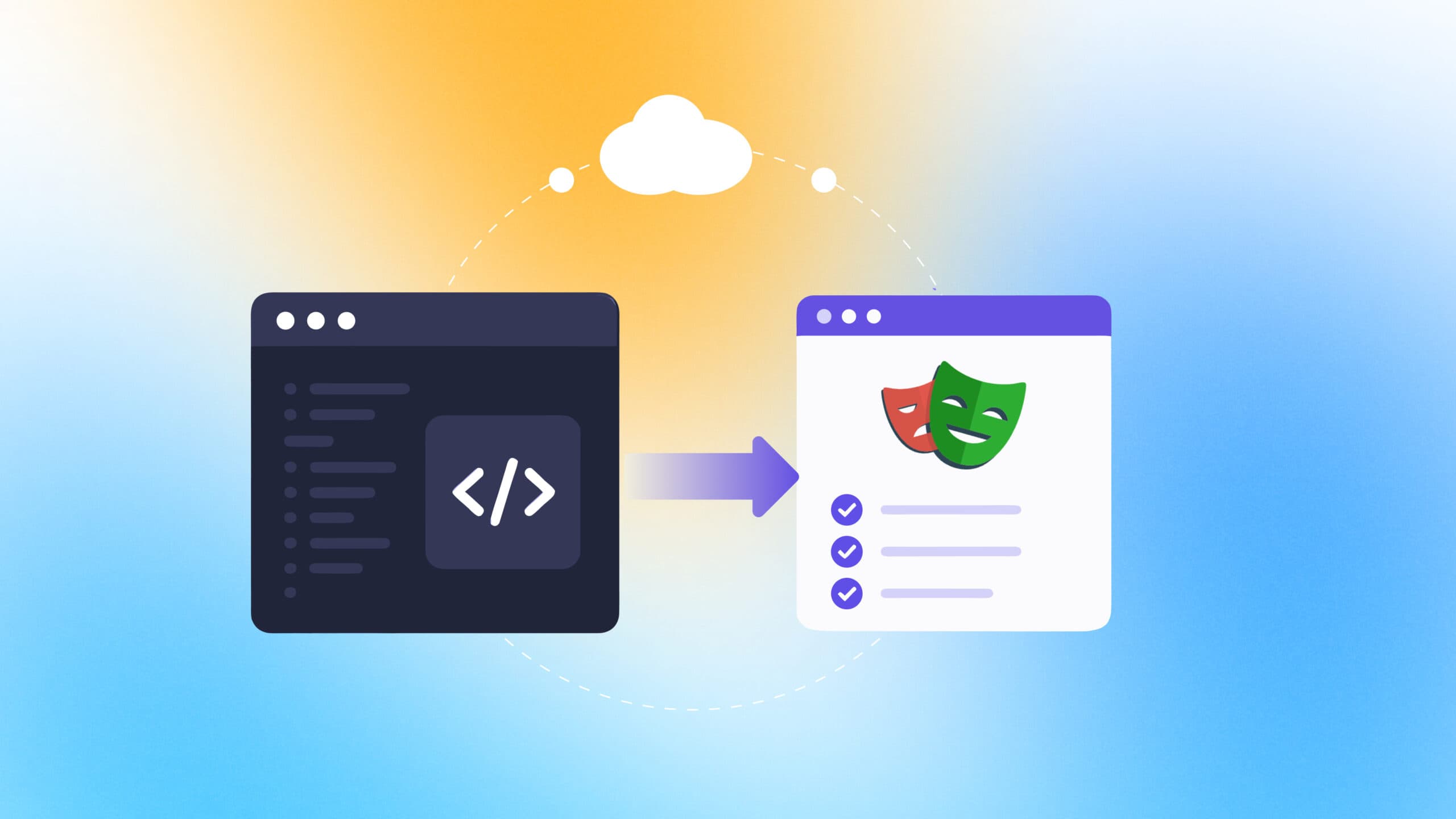
Salesforce teams that once relied on licensed, point-and-click test tools are now rebuilding their suites in open-source frameworks, and the shift is accelerating. Provar served its purpose when the only realistic way to automate Salesforce Lightning was through a metadata-aware desktop IDE, but the ecosystem has grown past that constraint.
The pain is familiar: per-seat licenses that eat into the QA budget every renewal cycle, XML test files that turn merge conflicts into full-day firefights, and a tool that locks you into one platform while the rest of your stack keeps expanding. When execution is slow and CI integration feels like an afterthought, the pressure to switch becomes hard to ignore.
This guide covers the entire Provar to Playwright migration, from evaluating what you already have, to writing your first Playwright test against a Salesforce org, to running everything in CI. Every section is built around real migration decisions, not theory.
Why teams are leaving Provar for Playwright
For years, Provar has been the default choice for Salesforce testing because of its metadata-driven approach. But modern engineering teams are outgrowing it. The pain is familiar: per-seat licenses that eat into the QA budget every renewal cycle, XML test files that turn merge conflicts into full-day firefights, and a tool that locks you into one platform while the rest of your stack keeps expanding.
The cost equation
Provar is a commercial tool with a heavy per-seat licensing model. As your engineering team scales, the cost of adding new QA engineers or developers to the testing process scales linearly. Playwright is completely open-source and free, allowing you to deploy it across your entire organization and run thousands of parallel threads in CI without paying vendor fees.
Vendor lock-in and portability
Provar tests are tightly coupled to the Provar IDE and its proprietary XML format. If you decide to move away, your tests are effectively locked in and cannot be easily exported to standard code. Playwright uses standard TypeScript or JavaScript, meaning your tests live in the same repository as your application code and follow standard software engineering practices.
Ecosystem and community reach
While Provar specializes in Salesforce, Playwright is backed by Microsoft and has a massive, active open-source community. If you encounter a complex UI automation problem, the solution is just a Google search away. Playwright also integrates natively with VS Code, giving developers an environment they already know.
CI/CD integration friction
Running Provar in a modern CI/CD pipeline (like GitHub Actions or GitLab CI) often requires specialized agents, Docker workarounds, and slower sequential execution. Playwright was built for the modern web - it runs natively in any Linux container, supports massive parallelization out of the box, and provides rich HTML reports and trace viewers that make debugging failures instant.
Provar vs Playwright: a direct comparison

When comparing the two, the differences come down to architecture. Provar abstracts the code away into a desktop UI, prioritizing testers who do not want to write code. Playwright is a developer-first tool that treats tests as code, enabling code reviews, linting, and proper version control.
Auditing your existing Provar test suite

Before writing a single line of Playwright code, you must audit your Provar suite. A migration is the perfect time to clean house. Do not blindly lift and shift 500 tests if 200 of them are flaky or no longer provide value.
Catalog every test case
Export your Provar test list into a spreadsheet. Document what each test does, the Salesforce feature it covers (Accounts, Opportunities, Flows, Lightning pages), whether it passes consistently, and how long it takes to run. Export your latest Provar Manager results if you have them, as they often show flaky tests that have been silently re-run.
Classify tests by migration value
Sort your catalog into three buckets based on the audit flow diagram above:
- Migrate: Core business flows that are stable and high-value. These are your priority.
- Rewrite: Tests that are flaky or poorly designed. Rethink the assertion strategy or use API mocking instead of UI clicks.
- Drop: Duplicate tests, tests for decommissioned features, or low-value checks that waste execution time.
Identify Salesforce-specific complexity
Salesforce testing has unique challenges: shadow DOM in Lightning Web Components (LWC), dynamic IDs, and slow-loading iframes. Identify which tests interact heavily with these elements so you can tackle them using Playwright's specific LWC locators early in the migration.
Setting up Playwright for Salesforce testing
The transition starts with configuring Playwright to handle Salesforce's specific quirks, such as dynamic element rendering and authentication redirects.
Install and initialize
Initialize Playwright in your repository using the standard npm command.
npm init playwright@latestChoose TypeScript, as the strict typing will save you hours of debugging when dealing with complex Salesforce data structures.
Configure for Salesforce
Update your playwright.config.ts to handle Salesforce's slower load times and frequent network requests. Increase the default timeout slightly, and enable the trace viewer on the first retry to capture DOM snapshots when Lightning components fail to render.
Handle Salesforce authentication
Instead of logging in through the UI for every test (which is slow and prone to MFA friction), use Playwright's globalSetup to authenticate via the Salesforce API or a single UI login, save the session state (cookies and local storage), and reuse it across all tests. This cuts execution time drastically.
Mapping Provar concepts to Playwright equivalents
Understanding how your Provar building blocks translate to Playwright is key to upskilling your team.
Locators: metadata-based vs. role-based
Provar relies on Salesforce metadata (like field labels and API names) to find elements. Playwright prefers user-facing locators (getByRole, getByText). For Lightning Web Components, you will often use Playwright's built-in CSS and XPath engines, targeting ARIA attributes or custom data-test-id attributes that your developers add.
Page objects: .page XML vs. TypeScript classes
Provar stores page definitions in proprietary XML files. In Playwright, you will write standard Page Object Model (POM) classes in TypeScript. This encapsulates Salesforce-specific logic (like waiting for a spinner to disappear) into reusable methods.
Assertions: Provar verify steps vs. Playwright expect
Replace Provar's UI-based verification steps with Playwright's auto-retrying web assertions (expect(locator).toBeVisible()). Playwright automatically waits for the condition to be met, eliminating the need for hardcoded sleep statements.
Data-driven testing: CSV/Excel vs. parameterized tests
Provar often uses external Excel files for data-driven testing. Playwright handles this natively in TypeScript by iterating over JSON arrays or reading CSV files directly, running the same test block dynamically for each data row.
Planning a phased Provar to Playwright migration

Enterprise teams cannot flip a switch overnight. A phased approach lets you validate the new framework against real Salesforce workflows before committing fully.
Phase 1: pilot (2 to 4 weeks)
Pick 5 to 10 high-priority test cases from your audit's "Migrate" bucket. Convert them to Playwright specs, run them against your Salesforce sandbox, and compare results with Provar. This phase validates that Playwright can handle your org's specific Lightning components, custom objects, and authentication flow.
Phase 2: parallel run (4 to 8 weeks)
Run both Provar and Playwright suites simultaneously in CI. This catches edge cases where Playwright behaves differently and builds team confidence. Track pass rates, execution times, and flaky test counts side by side. You can calculate the cost of those flaky tests using TestDino's flaky cost calculator to put a dollar figure on debug hours and CI reruns.

Tip: During the parallel phase, do not try to match Provar's test count 1:1. Some Provar tests should be rewritten from scratch, and others should be dropped entirely. Focus on coverage of business-critical paths, not on raw test count.
Phase 3: full cutover (2 to 4 weeks)
Once the Playwright suite covers all critical paths and passes consistently, decommission the Provar suite. Cancel the Provar licenses, archive the old project, and update your CI pipeline to run only Playwright. Document the decision and the coverage mapping so future team members understand why specific tests exist.
Team upskilling
Provar teams often include manual testers who use the drag-and-drop builder. The migration is also a team skill transition. Start with Playwright's built-in test generator (codegen), which records browser actions and generates TypeScript code, a workflow that feels similar to Provar's recorder but outputs real, maintainable code. Pair programming sessions where experienced developers work alongside manual testers accelerate the learning curve significantly.
A phased plan reduces risk, but execution speed depends on how well your tests run in CI. Getting that pipeline right is the next priority.
Running Playwright Salesforce tests in CI
One of the biggest advantages of the Provar to Playwright migration is how much simpler CI becomes. No ANT tasks, no desktop IDE, no license server calls.
GitHub Actions example
name: Playwright Salesforce Tests
on:
  push:
    branches: [main]
  pull_request:
    branches: [main]
jobs:
  test:
    runs-on: ubuntu-latest
    steps:
      - uses: actions/checkout@v4
      - uses: actions/setup-node@v4
        with:
          node-version: 20
      - run: npm ci
      - run: npx playwright install --with-deps chromium
      - run: npx playwright test
        env:
          SF_USERNAME: ${{ secrets.SF_USERNAME }}
          SF_PASSWORD: ${{ secrets.SF_PASSWORD }}
      - uses: actions/upload-artifact@v4
        if: ${{ !cancelled() }}
        with:
          name: playwright-report
          path: playwright-report/
That is the entire pipeline. Compare this to Provar's CI setup, which requires installing the Provar CLI, configuring ANT build files, managing license activation through environment variables, and often debugging Eclipse-headless mode failures.
Sharding for speed
Large Salesforce test suites can still take time because Lightning pages are not lightweight. Test sharding lets you split your suite across multiple CI machines. Use TestDino's sharding calculator to figure out how many shards you need to hit your target CI time.
strategy:
  matrix:
    shard: [1/4, 2/4, 3/4, 4/4]
steps:
  - run: npx playwright test --shard=${{ matrix.shard }}
Reporting and debugging failures
Playwright's HTML report gives you a searchable, filterable view of every test result, complete with screenshots, traces, and error messages. For failed tests, open the trace in the trace viewer to step through every network request, DOM snapshot, and console log. This level of visibility is something Provar's built-in reporting never offered without bolting on external tools.
With CI running and reporting configured, your Playwright suite is production-ready. But a few Salesforce-specific patterns are worth knowing to keep your tests reliable long term.
Salesforce-specific patterns in Playwright
Salesforce Lightning has quirks that trip up generic Playwright setups. These patterns address the most common ones.
Handling Lightning's loading states
Lightning pages use a spinner component during async operations. Wait for it to disappear before asserting on page content:
export async function waitForLightningLoad(page: Page) {
  await page.locator('.slds-spinner_container').waitFor({ state: 'hidden', timeout: 30_000 });
}
Call this helper after any navigation or record save to ensure the page has fully rendered.
Working with Lightning dropdowns
Salesforce dropdown components (combobox elements) do not use native <select> tags. They render as custom Lightning components with listbox roles.
await page.getByLabel('Stage').click();
await page.getByRole('option', { name: 'Closed Won' }).click();
Handling Salesforce iframes
Classic Visualforce pages embedded in Lightning are rendered inside iframes. Use Playwright's frameLocator to interact with them:
const vfFrame = page.frameLocator('iframe[title="Visualforce"]');
await vfFrame.getByRole('button', { name: 'Submit' }).click();
Note: Salesforce releases major UI updates 3 times per year. After each release, run your full Playwright suite against a sandbox org before promoting tests to production. This catches any locator breakages early, something Provar's metadata awareness was supposed to prevent but often did not.
API-first test data setup
Instead of creating test data through the UI (which is slow and fragile), use Playwright's API testing capabilities to create records via the Salesforce REST API before each test:
import { test as base } from '@playwright/test';
export const test = base.extend<{ accountId: string }>({
  accountId: async ({ request }, use) => {
    const response = await request.post('/services/data/v59.0/sobjects/Account', {
      headers: { Authorization: `Bearer ${process.env.SF_ACCESS_TOKEN}` },
      data: { Name: 'Test Account', Industry: 'Technology' },
    });
    const { id } = await response.json();
    await use(id);
    // Cleanup
    await request.delete(`/services/data/v59.0/sobjects/Account/${id}`, {
      headers: { Authorization: `Bearer ${process.env.SF_ACCESS_TOKEN}` },
    });
  },
});
This pattern uses Playwright fixtures for automatic setup and teardown, keeping each test isolated and fast.
These Salesforce-specific patterns, combined with the migration phases covered earlier, give you a complete playbook for moving from Provar to Playwright without losing coverage or velocity.
Common migration pitfalls and how to avoid them
Even well-planned migrations hit snags. These are the ones that Salesforce teams encounter most frequently during a Provar to Playwright migration.
Translating Provar tests line by line
Provar's XML steps do not map 1:1 to Playwright code. A single Provar <UIAction> might combine navigation, waiting, and interaction into one step. Trying to replicate this literally leads to bloated, fragile tests. Instead, think in terms of user workflows and write Playwright tests that mirror how a real user interacts with the page.
Ignoring flaky tests during migration
If a test was flaky in Provar, it will be flaky in Playwright unless you fix the root cause. Common culprits include timing issues, shared test data, and environment-specific behavior. Use Playwright waits and Playwright test retry to handle legitimate async behavior, but do not use retries to mask a broken test. TestDino's flaky tests guide walks through detection and prevention strategies that apply directly during a migration.
Skipping the parallel run phase
Teams that skip running both tools simultaneously often discover gaps too late. The parallel phase catches differences in behavior that a desk review would miss. It is tempting to save time, but cutting this phase usually costs more time in production incidents.
Conclusion
The Provar to Playwright migration is not just a tool swap. It is a shift toward faster feedback, lower costs, and a testing workflow that fits modern development practices. Provar's per-seat licensing, proprietary XML formats, and limited CI capabilities made sense when Salesforce testing had fewer options. That is no longer the case.
Playwright gives your team a single framework for Salesforce UI tests, API tests, and cross-browser validation, all running in CI without license headaches. The phased approach outlined in this guide, audit, pilot, parallel run, full cutover, reduces risk while building team confidence in the new stack. You can also leverage AI-powered codegen and the TestDino Playwright skill to accelerate the conversion of your existing test logic into Playwright specs.
Start with 5 high-priority test cases, run them against a sandbox, and measure the difference. The results usually speak for themselves.
FAQs

Krupa Gandhi
QA Tester