Playwright cheatsheet: Essential commands, patterns, and tips
Playwright cheat sheet with essential commands, selectors, patterns, and best practices to build fast, reliable, and scalable test automation.
Modern QA teams move fast, and the tools upon which they depend need to move even faster. This is why a Playwright Cheatsheet has become an essential tool in the area of rapid test execution with predictable reliability for developers and automation engineers alike.
For teams migrating from older tools, Playwright often feels like a breath of fresh air compared to traditional frameworks.
The speed, reliability, and cross-browser support have made it a favorite among test automation engineers looking for clean code and fast pipelines.
What is the Playwright cheatsheet?
A Playwright Cheatsheet is a quick reference guide that provides a summary of the important commands, workflows, and test patterns one uses while doing automation with Playwright. It helps you write tests faster by giving you easy access to the commands you use every day when building automated test suites.
While the official documentation is comprehensive, a Playwright Cheat Sheet emphasizes speed and efficiency. It's designed to help QA teams avoid searching through long docs by giving them every essential code pattern in one place.
This cheatsheet also captures cross-browser automation essentials, which is one of Playwright's biggest advantages. Because Playwright launches browsers with a single API, test engineers save enormous time when writing multi-browser support for Chrome, Firefox, and WebKit.
At TestDino offer our Playwright cheatsheet in three programming languages to support teams using different tech stacks:
-
JavaScript
-
Java
-
Python
This multilingual checklist helps automation engineers and QA teams follow consistent testing practices while working in the language they prefer.
How to use this Playwright cheat sheet for faster automated testing
This cheatsheet is structured to help you work smarter, not harder. By integrating these commands and patterns into your workflow, you can:
-
Automate end-to-end scenarios efficiently.
-
Reduce flaky tests by applying proven patterns from scalable Playwright frameworks
-
Quickly reference essential Playwright commands without searching documentation.
Key Benefits:
-
Quickly access Playwright commands for everyday tasks.
-
Understand selectors and patterns for robust element targeting.
-
Apply best practices for faster and stable test execution.
Playwright quick reference: Installation and setup
Before diving into commands, proper setup ensures a smooth automation experience.
Installation guide
1. Ensure Node.js is installed
Version 12 or above is required.
Download it from the official website.
Install Playwright
npm i -D playwrightVerify installation
npx playwright --versionConfigure browsers
npx playwright install chromium
npx playwright install firefox
npx playwright install webkit
Launch the desired browser in your script:
const { chromium } = require('playwright');
const browser = await chromium.launch();
Creating your first script
1. Set up a new Node projectmkdir my-playwright-project
cd my-playwright-project
npm init -y
npm i -D playwright2. Create a test script (firstTest.js)
const { chromium } = require('playwright');
(async () => {
    const browser = await chromium.launch();
    const page = await browser.newPage();
    await page.goto('https://example.com');
    await page.screenshot({ path: 'screenshot.png' });
    await browser.close();
})();
3. Run your script
node firstTest.js4. Check the output
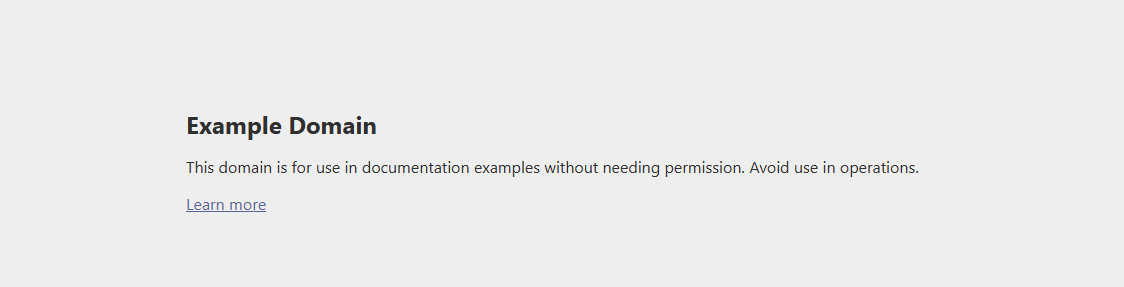
Screenshot screenshot.png will appear in your project directory.
Basic commands
1. Launching browsers
const browser = await chromium.launch({ headless: false }); // headful mode2. Navigating Pages
const page = await browser.newPage();
await page.goto('https://example.com');
3. Interacting with elements
Text inputs
await page.getByRole('textbox').fill('Example Text');Checkboxes / Radio buttons
await page.getByLabel('Agree to Terms').check();
await expect(page.getByLabel('Subscribe to Newsletter')).toBeChecked();
Select options
await page.getByLabel('Select Color').selectOption('blue');Mouse interactions
- Click: await page.getByRole('button').click();
- Double click: await page.getByText('Item').dblclick();
- Right click: await page.getByText('Item').click({ button: 'right' });
- Hover: await page.getByText('Item').hover();
- Click with Modifiers: await page.getByText('Item').click({ modifiers: ['Shift'] });
Click with Coordinates: await page.getByText('Item').click({ position: { x: 0, y: 0 } });
Keyboard interactions
await page.locator('#area').pressSequentially('Hello World!');
await page.getByText('Submit').press('Enter');
File uploads
await page.getByLabel('Upload File').setInputFiles('path/to/file.txt');Focus & Drag-and-drop
await page.getByLabel('Input Field').focus();
await page.locator('Draggable Item').dragTo(page.locator('Drop Area'));
Advanced interactions
Frames & Pop-ups
const frame = page.frame({ name: 'frame-name' });
await frame.click('button#submit');
Downloads
const [ download ] = await Promise.all([
  page.waitForEvent('download'),
  page.click('a#downloadLink')
]);
Network conditions
You can simulate offline mode in Playwright by using page.setOfflineMode(true); This allows you to test your application's behavior without network connectivity and evaluate how it handles offline scenarios.
Selectors
-
CSS: page.click('button.class')
-
XPath: page.click('//button[@id="submit"]')
-
Text: page.click('text="Submit"')
-
Custom attributes: await page.$('data-testid=submit-button');
Note: To ensure an element is visible before interacting with it, use a visible await pattern.
For example:
await page.waitForSelector('button.class', { state: 'visible' });This visible await approach helps avoid flaky tests by waiting for the selector to be visible before proceeding.
Assertions
Basic assertions
const title = await page.title();
expect(title).toBe('Expected Title');
Automation recipes
Login example
await page.type('input[name="username"]', 'user');
await page.type('input[name="password"]', 'pass');
await page.click('text="Log in"');
Data scraping
const data = await page.evaluate(() => {
  return document.querySelector('.elementClass').textContent;
});
E-Commerce checkout scenario
- Launch the browser and open the site.
- Log in.
- Select product and add to cart.
- Review cart and proceed to checkout.
- Fill delivery & payment info.
- Place order and verify confirmation.
- Logout and close browser.
Debugging Playwright scripts
Console logs
page.on('console', message => console.log(message.text()));API logs
DEBUG=pw:api node firstTest.jsCommon errors
-
Element not found → check selector.
-
Timeout → increase timeout or use page.waitForSelector().
Visual logs
await page.screenshot();
await page.video();
Browser contexts and multiple contexts
Managing browser context is a cornerstone of reliable Playwright automation. A browser context serves as an isolated browser environment within a single browser instance, keeping cookies, local storage, and session storage separate from those of other contexts. This means you can run multiple tests in parallel without worrying about data leakage or session conflicts.
To create a new browser context, use:
const context = await browser.newContext();
const page = await context.newPage();
By leveraging multiple contexts, you can simulate different users or roles within the same browser instance, making it easy to test scenarios such as user-to-user messaging, admin versus regular user permissions, or concurrent sessions. This approach is essential for robust test execution, especially when your suite includes complex testing scenarios that require strict isolation.
For example, to test two users interacting in parallel:
const contextA = await browser.newContext();
const pageA = await contextA.newPage();

const contextB = await browser.newContext();
const pageB = await contextB.newPage();
//Each context is a clean slate, no shared cookies or storage.
Using a new browser context for each test ensures that your tests are independent and repeatable, a best practice for any modern QA workflow.
Error handling in Playwright
Robust error handling is essential for maintaining reliable automated testing pipelines. Playwright provides several mechanisms to catch and manage errors during test execution. Wrapping your test steps in try-catch blocks allow you to gracefully handle unexpected issues:
try { await page.goto('https://example.com'); // ...test steps }
catch (error) { console.error('Test failed:', error); }
For capturing page-level errors, you can use the:
page.on('pageerror',handler)
});
event:
page.on('pageerror', err) => {
  console.error('Page error:', err);
});
If you need to explicitly fail a test based on a condition, use test.fail() within your Playwright test:
import { test, expect } from '@playwright/test';
test('should display error message', async ({ page }) => {
  await page.goto('https://example.com');
  await expect(page.locator('.error')).toBeVisible();
});
To run your Playwright tests, use the
npx playwright test
command. For custom test configuration, leverage export default defineConfig in your Playwright config file:
// playwright.config.js
import { defineConfig } from '@playwright/test';
export default defineConfig({
  testDir: './tests',
  use: {
    baseURL: 'https://example.com',
    browserName: 'chromium',
  },
});
You can also retrieve the current page title and URL for validation:
const pageTitle = await page.title();
const pageUrl = await page.url();
These tools and patterns help you build resilient test suites that can handle complex user interactions, unexpected errors, and edge cases, ensuring your automated testing remains stable as your application evolves.
Essential Playwright commands
Below is a table-styled cheatsheet containing the most frequently used automation commands. These commands form the foundation of most modern testing workflows and appear in almost every Playwright Cheat Sheet.
| Action | Playwright code snippet |
|---|---|
| Launch Browser | const browser = await chromium.launch({ headless: false }); |
| Open New Page | const page = await browser.newPage(); |
| Navigate | await page.goto('https://example.com'); |
| Type Input | await page.fill('#username', 'testdino'); |
| Click Button | await page.click('#submit'); |
| Wait for Element | await page.waitForSelector('.item'); |
| Assert Text | await expect(page.locator('h1')).toHaveText('Dashboard'); |
| Take Screenshot | await page.screenshot({ path: 'page.png' }); |
| Close Browser | await browser.close(); |
This table keeps your most common Playwright commands within reach, making your test-writing workflow faster and smoother. You can extend this table with your team's project-specific patterns for even faster development.
Core automation patterns every QA should know
Automation patterns help you eliminate flaky tests and enforce consistency across your automation framework. The patterns below are widely used by professional QA teams adopting Playwright at scale.
Page object model (POM)
-
Organizes selectors and reusable actions into clean, structured classes.
-
Keeps test cases readable and easier to maintain as the project grows.
-
Stores selectors in a single location, allowing quick updates without touching multiple files.
-
Reduces duplication across tests and prevents scattered hard-coded selectors.
-
Improves scalability, especially for large E2E test suites.
Auto-waiting pattern
-
Uses Playwright's built-in auto-waiting engine for stable, flake-free test automation.
-
Automatically waits for elements to be visible, enabled, and ready before interaction.
-
Eliminates the need for manual wait() calls, timeouts, or retry logic.
-
Prevents race conditions and speeds up writing reliable Playwright scripts.
-
Offers a major upgrade compared to Selenium-style manual waits or sleep statements.
Tools every Playwright QA should use
Below are tools that integrate beautifully with Playwright and help increase productivity and test reliability.
-
VS Code: Best code editor for Playwright development
-
GitHub Actions: Popular CI pipeline for running Playwright at scale
-
Jenkins: Enterprise CI option for companies with long workflows
-
Docker: Useful for deterministic environment setup
-
ESLint: Ensures code quality in Playwright projects
-
Prettier: Enforces consistent formatting across test files
These tools make Playwright automation smoother and more scalable. When combined with this Playwright Cheatsheet, you can create production-level automation frameworks efficiently.
Conclusion
This Playwright Cheatsheet provides everything you need to write fast, stable, and scalable Playwright tests. You now have quick commands, reusable patterns, advanced strategies, and deep technical insights that will help your automation team move faster.
Playwright's efficiency, flexibility, and modern architecture make it perfect for replacing outdated testing tools. With the right patterns and this Playwright Cheat Sheet, your team can build high-performance automation frameworks that last for years.
FAQs

Pratik Patel
Founder & CEO