What is the Accessibility Tree? How Testing Framework Use It Differently
Web pages have a DOM and an accessibility tree. Playwright uses the accessibility tree for stable, user-focused locators, while Cypress and Selenium rely on DOM selectors by default.
![What is the Accessibility Tree_ How Playwright, Cypress, and Selenium Use It Differently [2026]](/_next/image?url=https%3A%2F%2Fcms.testdino.com%2Fwp-content%2Fuploads%2F2026%2F03%2FWhat-is-the-Accessibility-Tree_-How-Playwright-Cypress-and-Selenium-Use-It-Differently-2026.webp&w=3840&q=75)
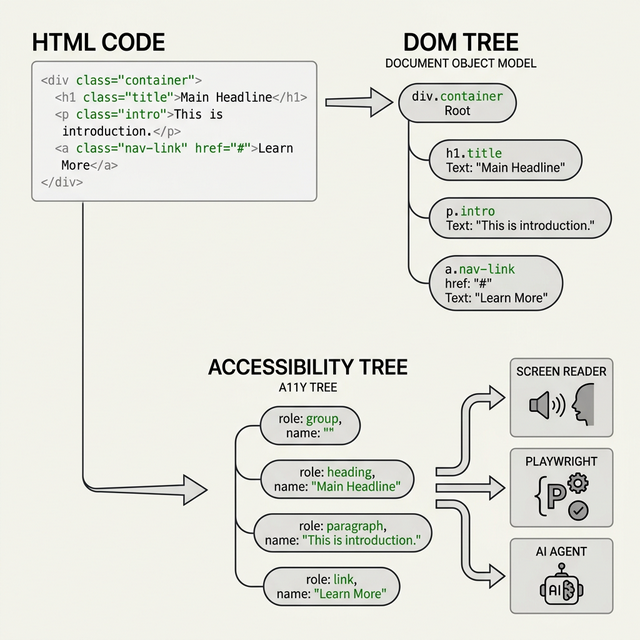
Every web page has 2 tree structures running behind the scenes.
The first is the DOM (Document Object Model). It's the full representation of your HTML code. Every div, span, button, image, and text node lives in the DOM. Think of it as the complete blueprint of your page, with every single element included, even the ones users never see.
The second is the accessibility tree. Browsers build this automatically from the DOM, but it's a stripped-down version. It removes all the wrapper divs, styling containers, decorative images, and hidden elements. What's left is only what carries meaning: roles, names, states, and relationships. This is what screen readers like NVDA, JAWS, and VoiceOver actually read to users.
Here's why this matters for testing: Playwright queries the accessibility tree every time you use getByRole(). Cypress and Selenium don't touch it at all by default. That one difference changes how stable your tests are, how fast you debug failures, and whether your app is actually accessible.
This article covers what the accessibility tree is, how it's different from the DOM, where you can see both in your browser, and how Playwright, Cypress, and Selenium each interact with it. We'll also look at the newer Playwright MCP and Playwright CLI tools that use the accessibility tree as the main interface for AI agents.
What Is the DOM?
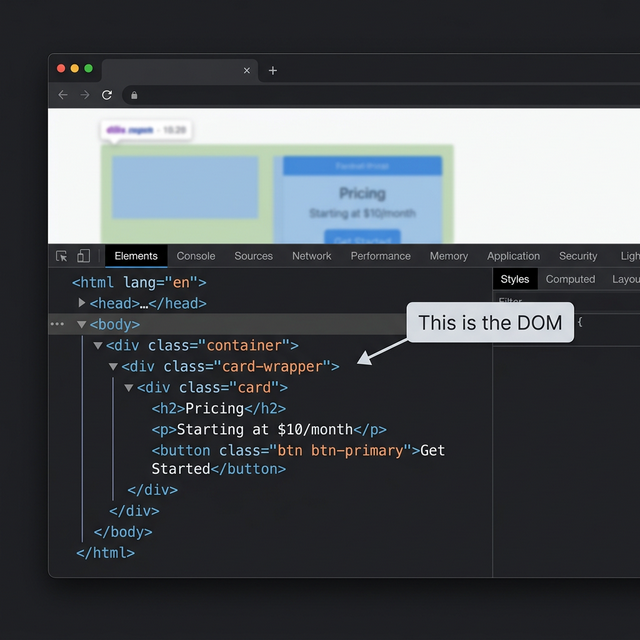
The DOM is your page's complete structure in tree form. When a browser loads your HTML, it parses every tag and creates a tree where each element is a node. Parent elements contain child elements, and the whole thing mirrors your HTML nesting.
<div class="card-wrapper">
  <div class="card">
    <h2>Pricing</h2>
    <p>Starting at $10/month</p>
    <button class="btn btn-primary cta-main">Get Started</button>
  </div>
</div>
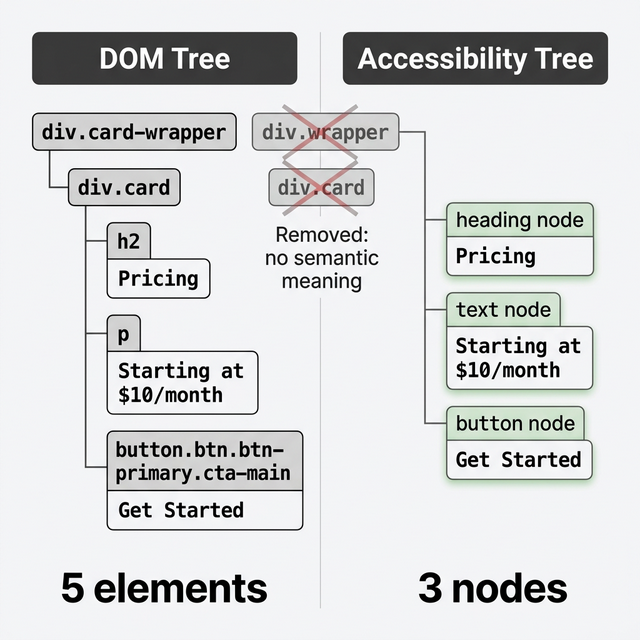
In this example, the DOM has 5 elements. 2 div wrappers, 1 h2, 1 p, and 1 button. Every CSS class, every attribute, every piece of nesting is preserved. The DOM holds everything, whether it's meaningful to users or just there for layout.
You can see the DOM by opening Chrome DevTools (press F12 or right-click and choose "Inspect"). The Elements tab shows the full DOM tree. This is what most developers look at every day.
What Is the Accessibility Tree?
The accessibility tree is a second tree that the browser builds from the DOM. But instead of keeping everything, it strips out the noise. Wrapper divs that exist only for CSS layout? Gone. Decorative images? Removed. Elements with display: none or aria-hidden="true"? Filtered out.
What remains is a tree of nodes where each one has up to 4 properties:
- Role tells you what kind of thing it is. A <button> gets the role "button". A <nav> becomes "navigation". An <h2> becomes "heading".
- Name tells you what it's called. For a button with the text "Submit", the name is "Submit". For an input with a label, the name comes from that label.
- State tells you the current condition. Is a checkbox checked? Is a menu expanded? Is an input disabled?
- Description gives extra context if available, usually from aria-describedby.
For example, the accessibility tree for the above HTML code snippet looks like below:
The browser sends this tree to the operating system's accessibility API. That's how screen readers know what to announce. When VoiceOver says "Submit, button", it's reading the role and name from the accessibility tree, not from the DOM.
Using the card HTML example from above, the DOM has 5 elements. The accessibility tree has 3: a heading named "Pricing", a block of text, and a button named "Get Started". The 2 wrapper divs are gone because they carry no meaning for users or assistive technology.
This is exactly why CSS-based test selectors like div.card-wrapper > div.card > button.btn break so often. They depend on DOM structure that changes every time a developer refactors the layout. The accessibility tree doesn't see any of those classes or that nesting. It just sees a button called "Get Started".
Where Can You See the DOM and the Accessibility Tree?
You don't need special tools. Both are visible right in your browser.
DOM in Chrome DevTools: Open DevTools with F12. The Elements tab shows the full DOM. Click any element to see its HTML, attributes, and position in the tree. This is the standard view every developer knows.
Accessibility tree in Chrome DevTools: Click any element in the Elements tab, then look for the "Accessibility" pane on the right side panel (you might need to scroll down or expand it). This shows the element's computed role, name, and other properties. Chrome also has a full-page accessibility tree view: in the Accessibility pane, toggle "Enable full-page accessibility tree" and the entire Elements panel switches from DOM view to accessibility tree view. Now you see the page exactly the way a screen reader sees it.
Accessibility tree in Firefox: Right-click any element and choose "Inspect Accessibility Properties". Firefox's accessibility inspector is quite good for spotting missing roles and names.
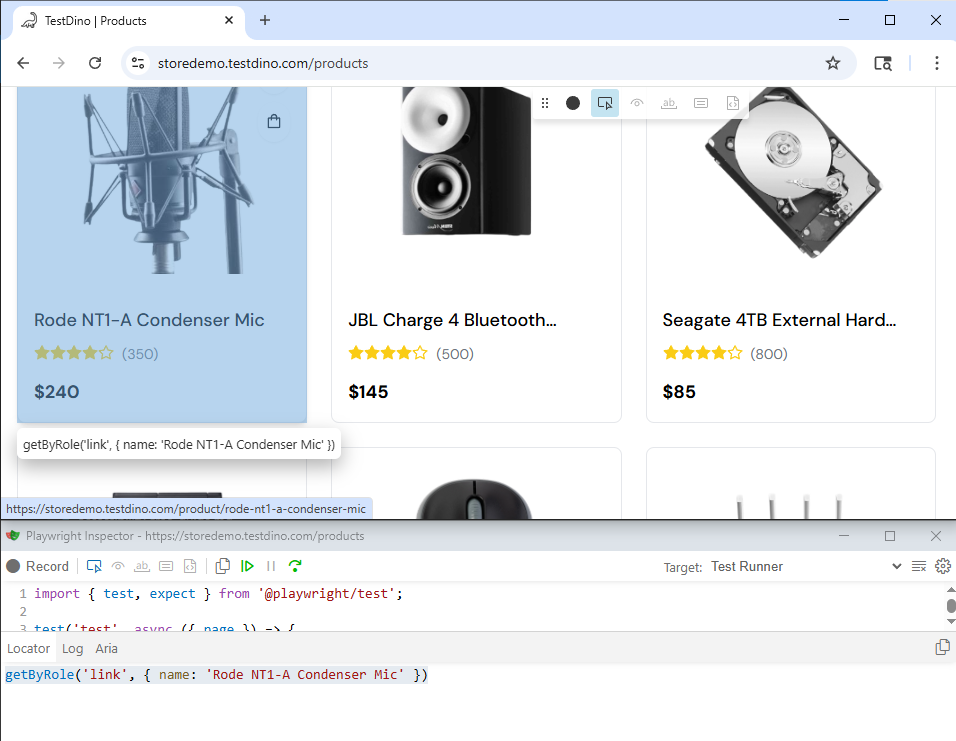
Playwright Inspector: Run npx playwright test --debug. The Inspector opens alongside your browser. Click any element and the locator picker shows the accessibility tree-based locator Playwright would suggest. If it picks getByRole('button', { name: 'Submit' }), the element has a proper role and name. If it falls back to a CSS selector, there's a gap in the accessibility tree.
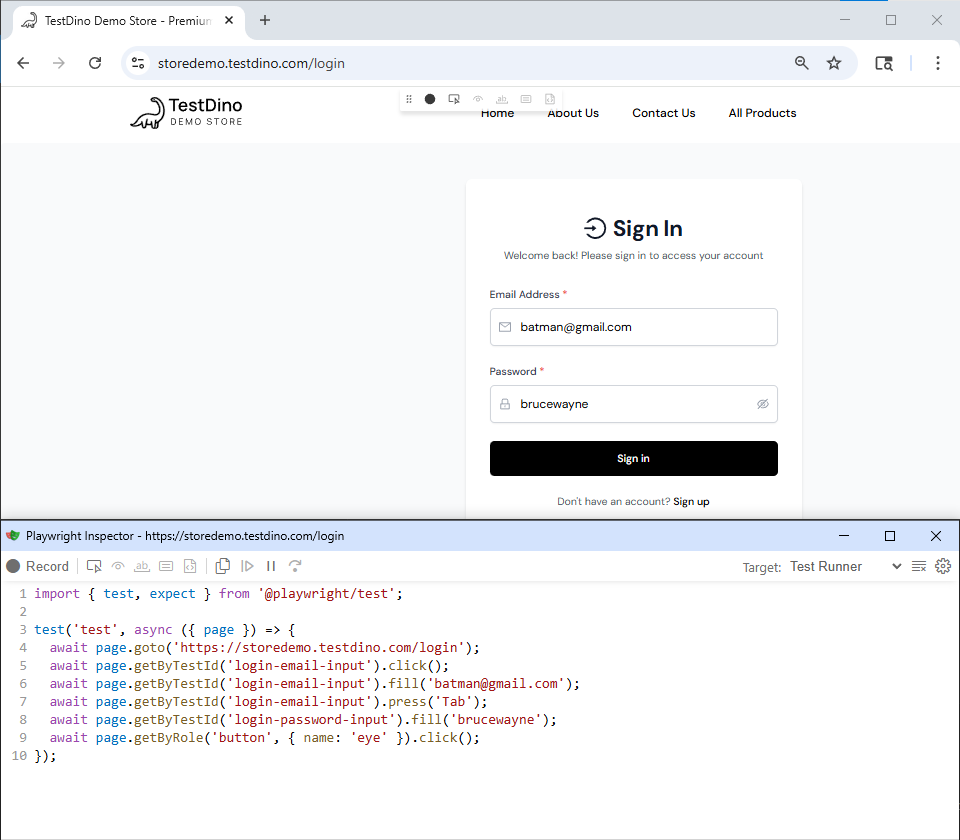
Playwright Codegen: Run npx playwright codegen your-site.com and click around. Playwright generates test code using accessibility tree locators by default. This is the fastest way to check how well your page's accessibility tree is built. If codegen picks getByRole for most elements, your tree is clean. If it falls back to .locator('.some-class'), you've found gaps.
How Playwright Uses the Accessibility Tree
Playwright built its entire locator strategy on the accessibility tree. Every time you use getByRole(), Playwright looks up the element in the accessibility tree by its role and accessible name, not in the DOM by CSS class or XPath.
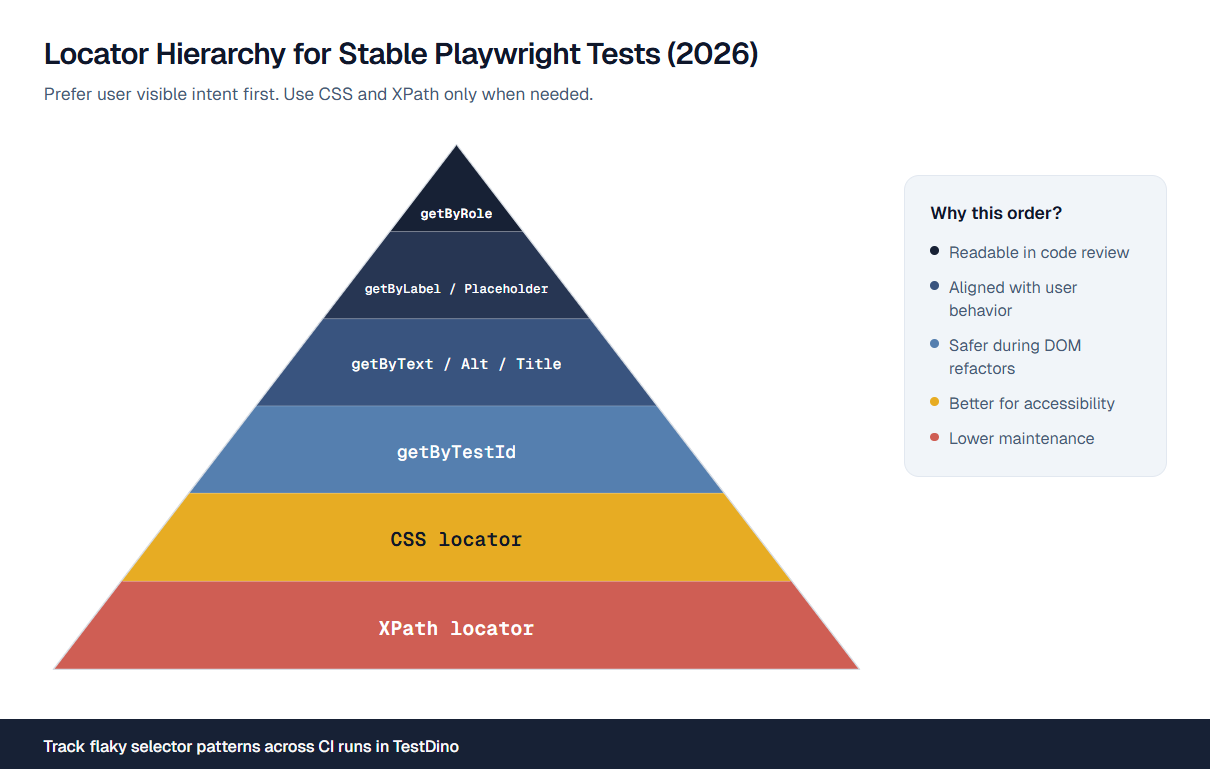
The Playwright docs list a clear priority for how you should find elements:
- getByRole() - queries the accessibility tree for role + name
- getByLabel() - finds form controls by their associated label (accessibility property)
- getByPlaceholder() - finds inputs by placeholder text
- getByText() - matches visible text content
- getByTestId() - the fallback when the accessibility tree isn't good enough
The top 3 all query the accessibility tree. The last one queries a data-testid attribute in the DOM. Playwright's own recommendation is to start from the top and only go down the list when the higher options don't work.
When you write page.getByRole('button', { name: 'Submit' }), Playwright finds a node in the accessibility tree with the role "button" and the name "Submit". It doesn't look at CSS classes. It doesn't care about div nesting. If a developer changes the button's class from btn-primary to btn-action, your test keeps passing. If they wrap it in extra divs for layout, still fine. But if they change the button text or swap the <button> for a <div>, the test fails. And it should, because the page's meaning changed for real users.
This is the key difference from DOM-based locators. When the DOM changes but the meaning stays the same, accessibility tree locators survive. When the meaning actually changes, they break, which is exactly when you want your tests to break.
How Playwright Waits for the Accessibility Tree
In single-page apps built with React, Vue, or Angular, the accessibility tree changes as components render. A button might not exist in the tree until an API call finishes and the component mounts.
Playwright handles this with auto-waiting. When getByRole() doesn't find a match right away, it keeps checking until the accessibility tree stabilizes or the timeout hits. This means clean, consistent accessibility tree output from your components leads to faster tests. If a component renders a loading skeleton with different roles before the real content appears, Playwright might wait longer or match the wrong element.
The practical takeaway: components that render their final accessibility tree state quickly give you faster, more reliable Playwright tests.
Aria Snapshots
Playwright also lets you take a snapshot of the accessibility tree for any part of the page and assert against it:
await expect(page.getByRole("navigation")).toMatchAriaSnapshot(`
  - navigation "Main":
    - list:
      - listitem:
        - link "Home"
      - listitem:
        - link "Products"
      - listitem:
        - link "Contact"
`);
If someone removes a nav link or changes its text, this test catches it. You're testing the structure that users and screen readers experience, not raw HTML.
This is especially useful for complex components like navigation menus, data tables, and form layouts where both the structure and the content matter.
How Cypress Uses the Accessibility Tree
Cypress takes a different approach. Its default locators are DOM-based, not accessibility tree-based.
You find elements with cy.get() using CSS selectors, or cy.contains() using text matching. There's no built-in getByRole. If you want role-based locators, you install the @testing-library/cypress plugin, which adds findByRole(), findByLabelText(), and similar commands.
But there's a catch that the Cypress docs themselves point out: finding an element by its role doesn't guarantee it's actually accessible. A <div role="button"> passes findByRole('button'), but it's missing keyboard support and focus management that a real <button> gives you for free. The locator finds it. Real users with assistive technology can't use it properly.
// Default Cypress - DOM based
cy.get(".btn-primary").click();
cy.get("#email-input").type("hello@example.com");

// With Testing Library plugin - accessibility tree based
cy.findByRole("button", { name: "Submit" }).click();
cy.findByLabelText("Email address").type("hello@example.com");
Cypress and Accessibility Scanning
Where Cypress does work with the accessibility tree is through violation detection. The open-source cypress-axe plugin and the paid Cypress Accessibility (Cloud feature) use Axe Core to scan the page and report WCAG violations:
beforeEach(() => {
  cy.visit("/");
  cy.injectAxe();
});

it("has no accessibility violations", () => {
  cy.checkA11y();
});
This checks for accessibility tree problems after the fact. It tells you "this button has no accessible name" or "this form field has no label". But it's a separate step from how you find elements. Your cy.get('.btn') locator works fine even when the button has zero accessibility, and the problem stays hidden until someone runs an Axe scan.
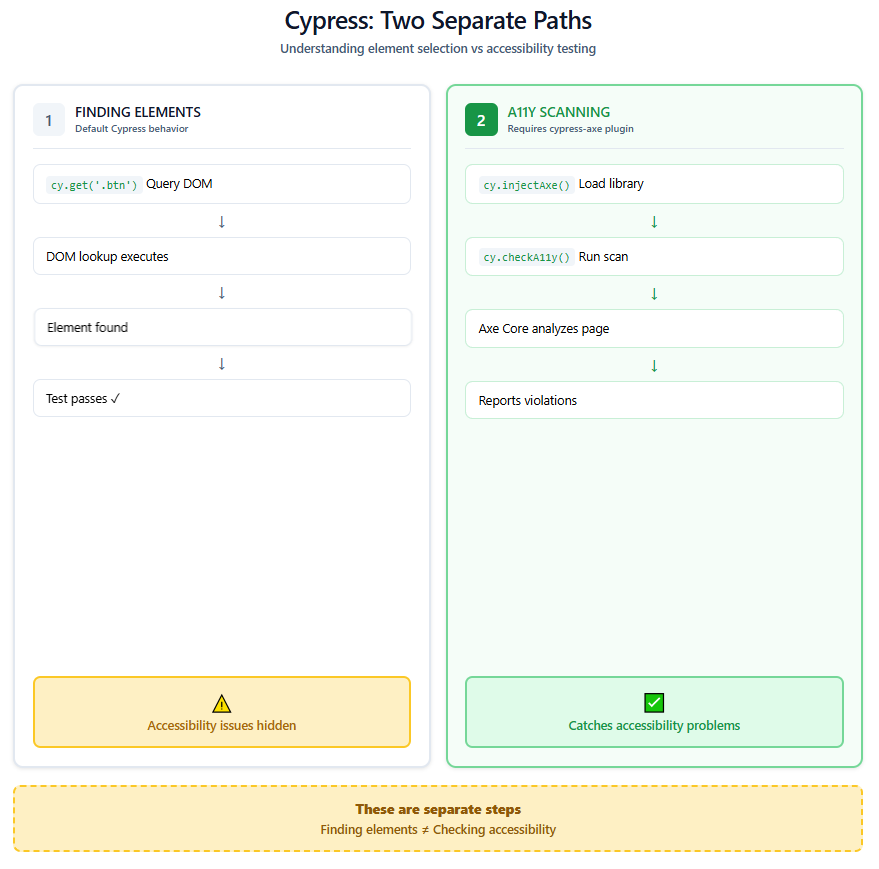
The practical difference is in the feedback loop. On a Playwright project, if your button has no accessible name, getByRole can't find it. Your test fails. You fix it. On a Cypress project, cy.get('.btn-primary').click() passes regardless. The accessibility problem stays hidden until someone remembers to run an Axe scan.
How Selenium Uses the Accessibility Tree
Short answer: it doesn't. Not directly.
Selenium's locator strategies are entirely DOM-based:
By.id() finds elements by their HTML id attribute
- By.className() finds by CSS class
- By.cssSelector() finds by CSS selector patterns
- By.xpath() finds by XPath expressions
- By.tagName() finds by HTML tag name
- By.linkText() and By.partialLinkText() find anchor elements by their text
There's no By.role(). No By.accessibleName(). No way to query the accessibility tree directly.
As of early 2026, there's an open feature request on the Selenium GitHub repo (issue #16135, filed August 2025) proposing find_element_by_role(). Someone built a working proof-of-concept using Chrome DevTools Protocol to query the accessibility tree and return matching elements. But it hasn't been merged into Selenium itself.
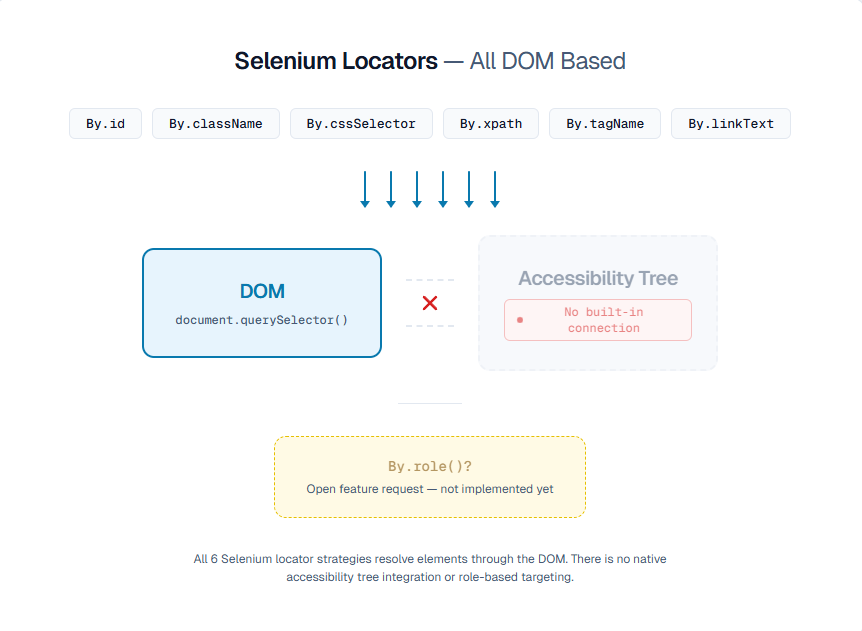
For accessibility testing, Selenium teams inject Axe Core through JavaScript execution:
JavascriptExecutor js = (JavascriptExecutor) driver;
js.executeScript(axeScript);
String results = (String) js.executeScript(
    "return JSON.stringify(axe.run())"
);
This runs an accessibility audit on the current page and returns WCAG violations. But it's bolted on, not built in. It doesn't change how you find elements.
What this means practically: Selenium tests are the most affected by DOM changes. A CSS class rename, a structural refactor, or a moved element breaks XPath and CSS selectors immediately. The accessibility tree doesn't change during a layout refactor (the button is still a button named "Submit"), but Selenium can't see that. Every UI refactor means going through tests and updating selectors.
Playwright vs. Cypress vs. Selenium: Complete Comparison
Here's the full picture of how each framework relates to the accessibility tree.
| Feature | Playwright | Cypress | Selenium |
|---|---|---|---|
| Default locator strategy | ✓ Accessibility treegetByRole() |
✗ DOMcy.get() with CSS |
✗ DOMBy.cssSelector,By.xpath |
| Built-in getByRole | ✓ Yes (native) | No (needs plugin) @testing-library/cypress |
✗ No (not available) |
| Forces accessibility fixes | ✓ Yes Test fails if a11y tree is wrong |
✗ No DOM locators work anyway |
✗ No DOM locators work anyway |
| Accessibility scanning | ✓ Built-intoMatchAriaSnapshot() |
Plugin cypress-axe |
Plugin Axe via JavascriptExecutor |
| Auto-waiting for a11y tree | ✓ Yes | ✗ No (waits for DOM) | ✗ No (waits for DOM) |
| AI agent support | ✓ MCP + CLI Reads accessibility tree |
✗ None | ✗ None |
Playwright uses the accessibility tree as the primary way to find elements. getByRole() is the default, recommended locator. The framework auto-waits for the accessibility tree to stabilize. Aria snapshot testing lets you assert on the full accessibility tree structure of a component. If the accessibility tree has problems, your tests break, which forces you to fix accessibility issues as part of normal development.
Cypress uses the DOM for element finding. Accessibility tree integration is optional. You can add @testing-library/cypress for findByRole() locators and cypress-axe for WCAG violation scanning. But neither is required or included by default. You can write a complete Cypress test suite that never touches the accessibility tree.
Selenium uses the DOM exclusively for element location. There are no built-in accessibility tree locators and no plans to add them to the core framework in the near term. Accessibility testing means injecting external JavaScript libraries like Axe Core. Selenium tests are purely DOM-dependent.
The pattern is clear. Playwright treats the accessibility tree as a first-class citizen. Cypress treats it as an optional add-on. Selenium doesn't interact with it at all for finding elements.
For test maintenance, this has real consequences. Teams using Playwright's getByRole locators report fewer broken tests after UI refactors because roles and names don't change when CSS classes or div nesting changes. Teams relying on CSS selectors and XPath spend more time fixing locators after every frontend update.
When getByRole Doesn't Work: What Teams Actually Do
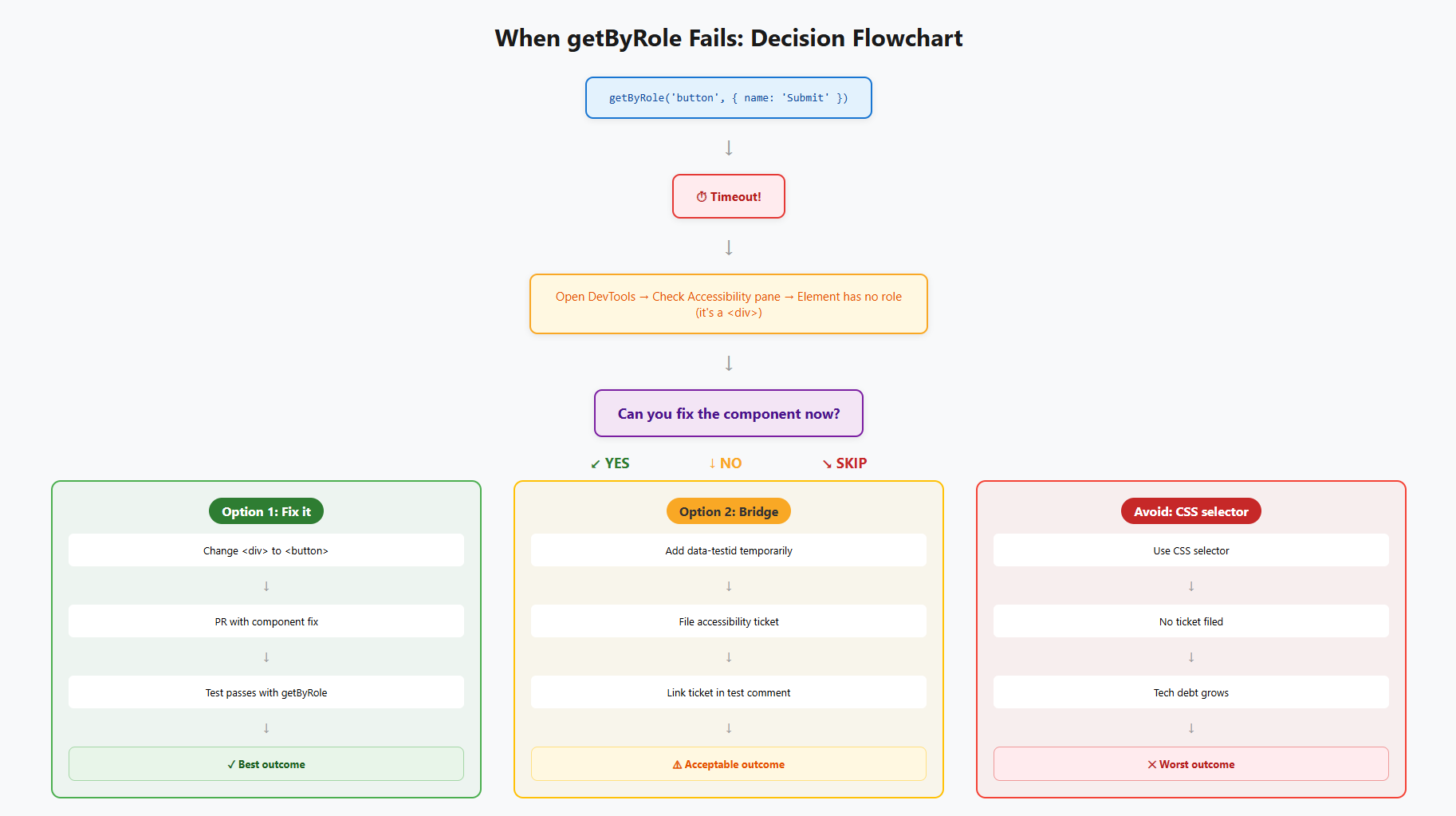
If you're writing Playwright tests daily, you'll hit this regularly. You write page.getByRole('button', { name: 'Submit' }). Timeout. You open Chrome DevTools, check the Accessibility pane, and discover the "button" is actually a styled <div> with an onclick handler. No role in the accessibility tree. Playwright can't see it.
You have 3 choices.
Option 1: Fix the component. Change the <div> to a <button>. This fixes the accessibility tree, makes the locator stable, and makes the element accessible to real users. But it means your test PR now depends on a frontend code change, which might need a separate review cycle.
Option 2: Fall back to getByTestId. Use page.getByTestId('submit-btn'). The test passes, but you've papered over an accessibility problem. And the locator is tied to a data-testid attribute in the DOM, not the accessibility tree, so you lose the stability benefit.
Option 3: File a ticket and bridge. Add a data-testid as a temporary fix, write a comment in the test explaining why, and link an accessibility ticket. Come back and fix it properly later.
Most teams do Option 3. The key is making sure "later" actually happens.
If you're using TestDino, you'll notice these fallback-locator tests tend to cluster together when failures happen. A UI refactor breaks 5 getByTestId tests at once while the getByRole tests keep passing. That cluster pattern is a signal. It tells you exactly which components still have accessibility gaps you deferred.
Common Accessibility Tree Problems That Break Tests
These problems affect everyone: screen reader users, Playwright locators, Axe Core scans, and AI agents.
Missing accessible names. An icon-only button with no text and no aria-label shows up as "button" with an empty name. Playwright can't target it specifically. Screen readers just say "button" with no context. Fix it by adding aria-label:
<!-- Bad: no accessible name -->
<button><svg>...</svg></button>

<!-- Good: accessible name from aria-label -->
<button aria-label="Close dialog"><svg>...</svg></button>
Divs pretending to be buttons. <div onclick="submit()">Submit</div> has no role in the accessibility tree. It's invisible to getByRole, screen readers, and AI agents. It also can't be focused with Tab and doesn't respond to Enter or Space like a real button. Use a real <button> element instead.
Duplicate accessible names. 3 buttons all called "Click here" cause Playwright's strict mode error:
Error: strict mode violation:
getByRole('button', { name: 'Click here' }) resolved to 3 elements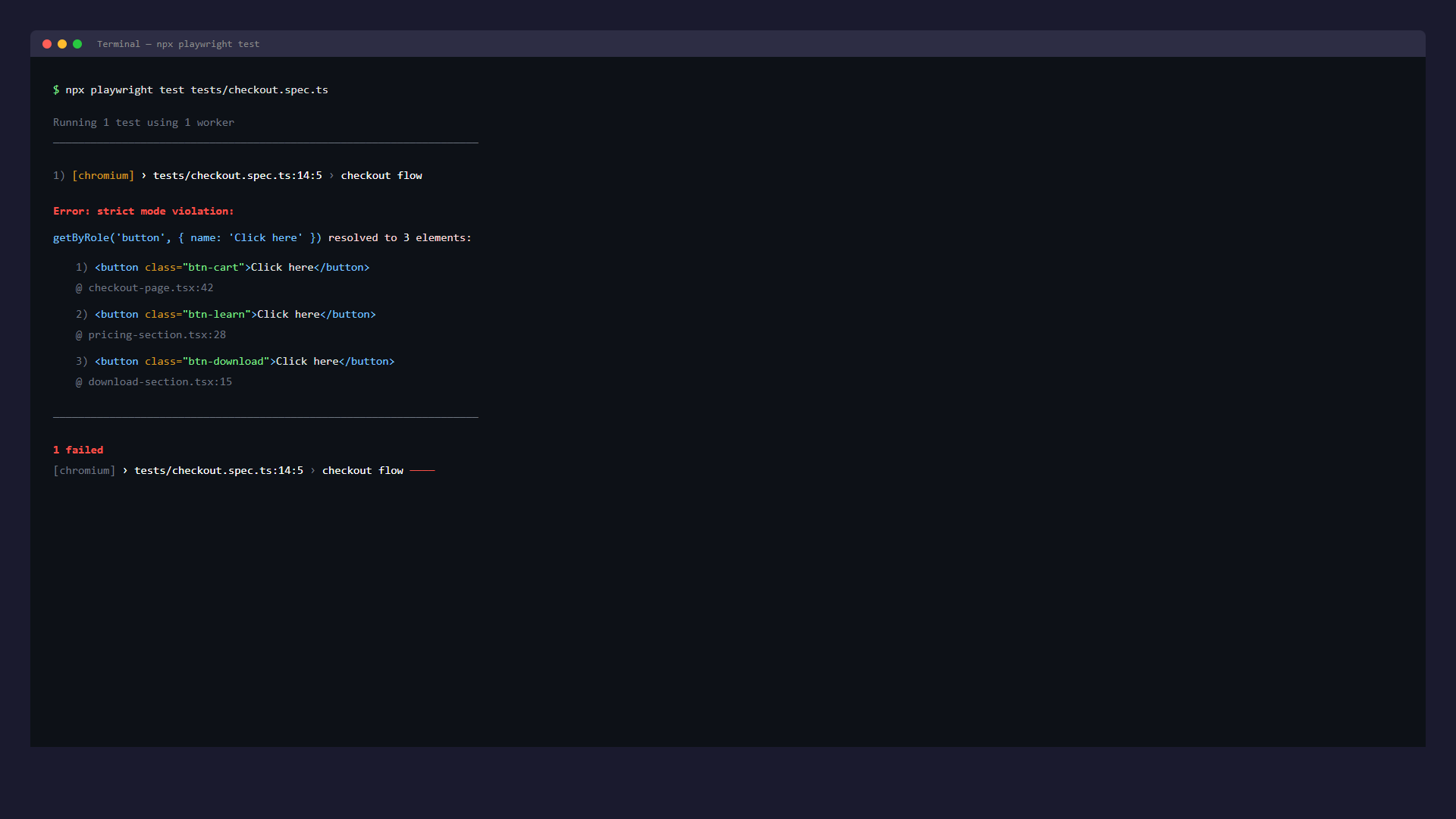
Give each button a unique accessible name: "Add to cart", "Learn more about pricing", "Download report". This fixes the Playwright error and makes the page better for screen reader users who hear these names read out loud.
Overusing aria-hidden. Adding aria-hidden="true" on interactive elements removes them from the accessibility tree entirely. Playwright can't find them. Screen readers skip them. Only use aria-hidden on decorative elements that carry no meaning.
Bad ARIA roles. Setting role="checkbox" on a <div> without adding keyboard event handling creates a lie in the accessibility tree. The tree says it's a checkbox, but pressing Space does nothing. Interestingly, this is exactly what Cypress's findByRole misses. The locator works because the role matches, but the element is broken for real users.
ARIA: When Native HTML Isn't Enough
Semantic HTML should always be your first choice. A <button> is better than <div role="button"> because the browser gives you keyboard support, focus management, and the correct accessibility tree node automatically.
But some UI patterns don't map to native HTML elements. Tabs, accordions, combo boxes, tree views, and custom dropdowns all need ARIA attributes to create the right accessibility tree structure. You set roles (role="tablist"), states (aria-selected="true"), and relationships (aria-controls="panel-1") that the browser can't figure out on its own.
3 rules worth remembering:
Don't use ARIA when semantic HTML works. role="heading" on a <div> is worse than just using <h2>, because the <h2> also gets you proper heading-level behavior for free.
ARIA only affects the accessibility tree, not behavior. aria-disabled="true" makes the accessibility tree say the element is disabled, but it doesn't actually disable it. You still need to handle that in your JavaScript.
Bad ARIA is worse than no ARIA. A role="checkbox" that doesn't respond to keyboard input is a broken promise to every user and tool that reads the accessibility tree.
The Bigger Picture: AI Agents and the Accessibility Tree
The accessibility tree isn't just for screen readers and Playwright locators anymore. It's become the primary way AI agents interact with web browsers.
Playwright MCP (Model Context Protocol), released by Microsoft in March 2025, is a server that lets AI models like Claude or Copilot control a browser. The AI doesn't read the DOM or look at screenshots. In its default mode, it reads the accessibility tree as structured YAML data. It finds elements by roles and names, exactly like Playwright's getByRole. If your buttons have clear names, the AI finds them. If your forms are labeled, the AI fills them correctly.
The tradeoff is token cost. Every interaction returns the full accessibility tree to the AI, which can mean thousands of tokens per step.
Playwright CLI (@playwright/cli), released in early 2026, takes a lighter approach built for coding agents like Claude Code, Cursor, and Copilot. Instead of streaming the full accessibility tree into the AI's context, it saves snapshots to disk as files. The agent gets compact element references like e15 and e21, then uses those for clicks, fills, and other actions. Microsoft's benchmarks showed the CLI approach uses about 4x fewer tokens than MCP for the same tasks.
# Save accessibility tree snapshot to disk
playwright-cli snapshot

# Use compact references from the snapshot
playwright-cli click e21
playwright-cli fill e15 "spiderman@peter.com"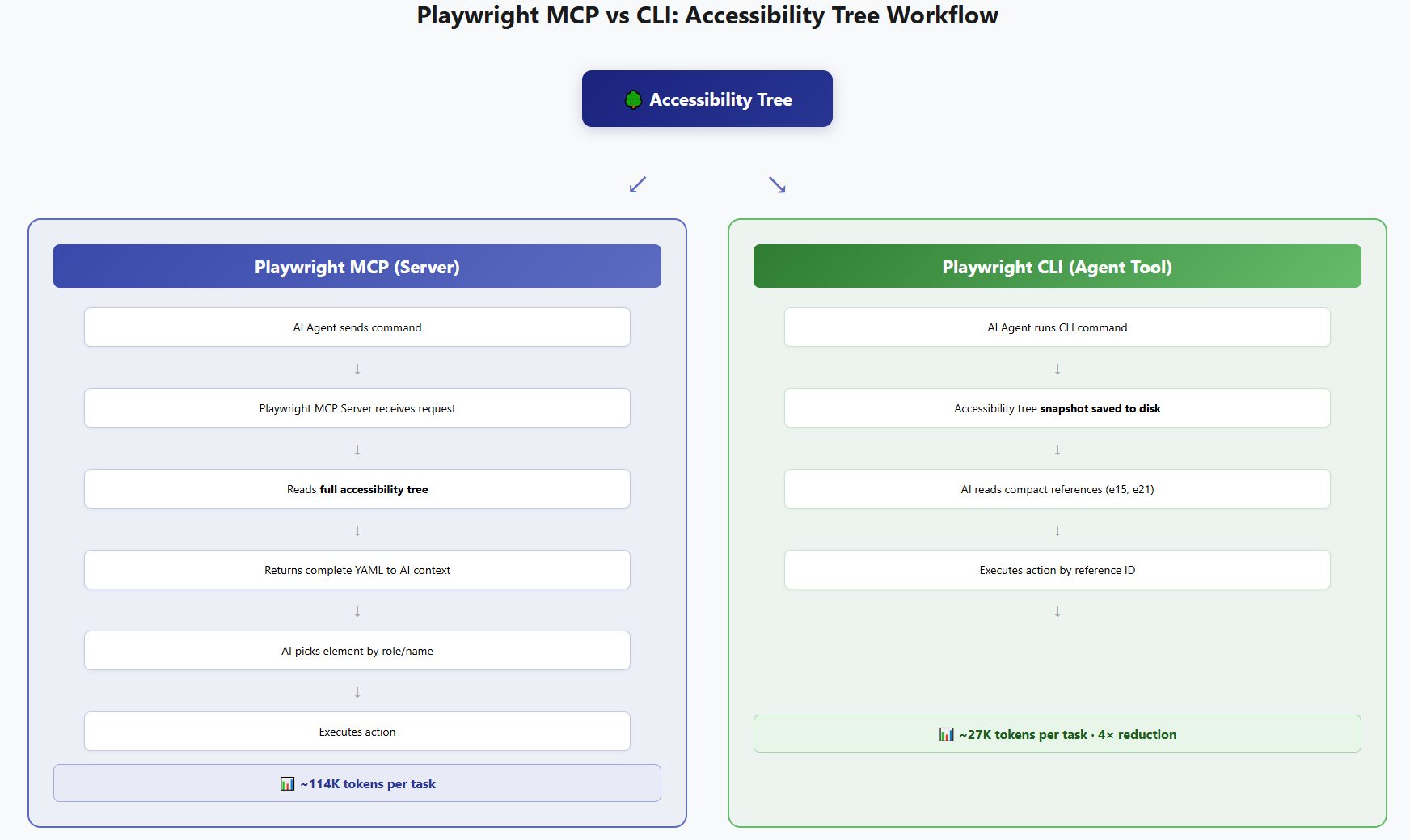
Both tools prove something important. The accessibility tree isn't just about compliance or helping users with disabilities. It's becoming the control layer for AI-powered automation. Teams that build clean accessibility trees today are building apps that AI tools can operate tomorrow.
How the Accessibility Tree Affects Test Stability
Test flakiness often comes from bad locator strategies. And bad locators usually mean you're testing against the DOM when you should be testing against the accessibility tree.
Here's a common scenario. Your CI runs 500 Playwright tests. A frontend redesign ships. Thirty tests fail. You start investigating and realize it's actually three problems: a nav component got restructured, a modal's buttons lost accessible names, and a form switched from <select> to a custom dropdown.
3 root causes. 30 broken tests. Without grouping, you investigate each one separately. With tools like TestDino, you see 3 failure clusters instead of 30 individual failures. Fix the nav, 15 tests pass. Fix the modal names, 10 more. Fix the dropdown, the last 5. 30 minutes of targeted work instead of a full day of separate debugging.
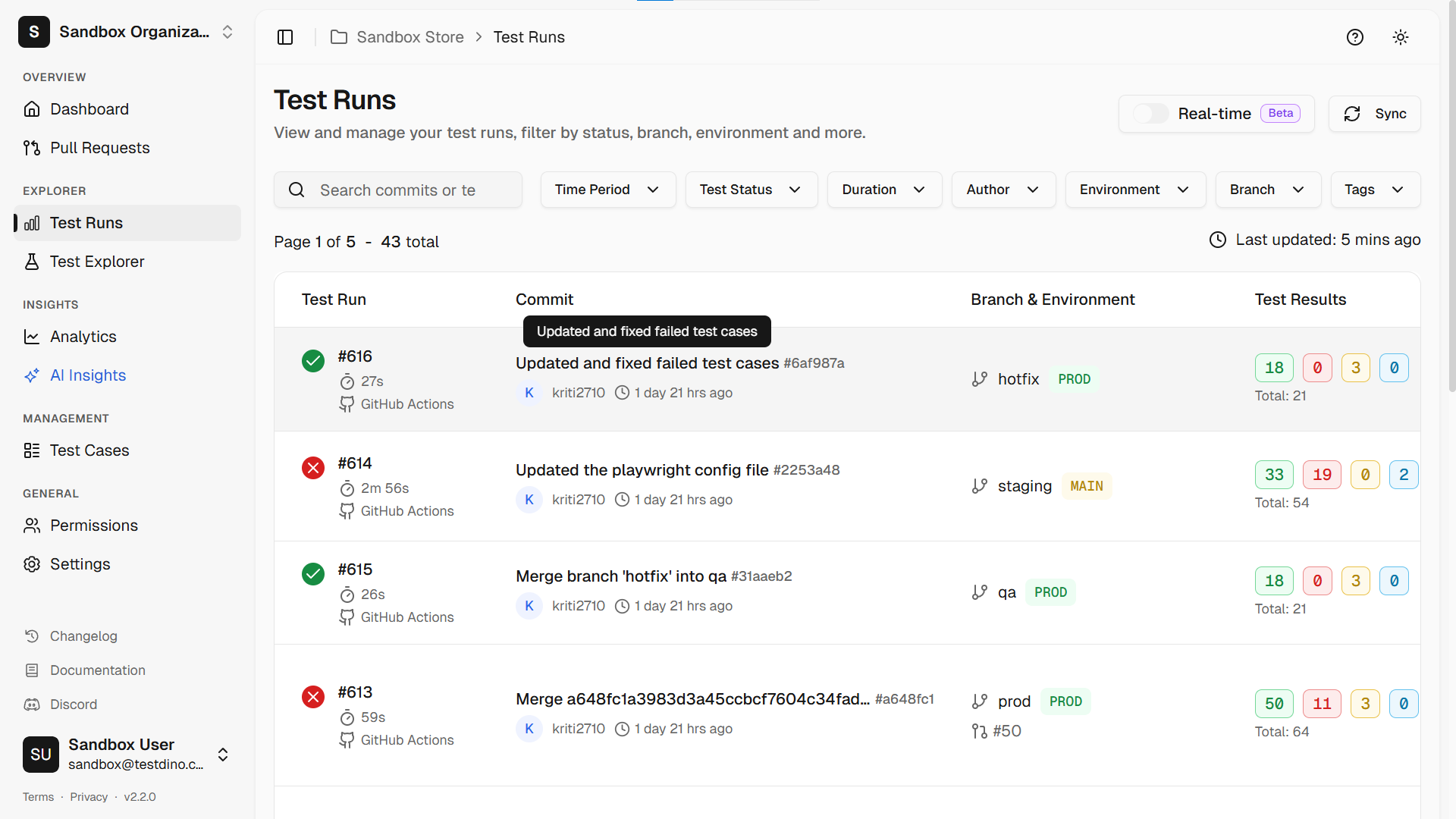
The deeper point: if the 15 nav tests had used getByRole('link', { name: '...' }) instead of CSS selectors like cy.get('nav > ul > li:nth-child(2) > a'), the nav restructuring wouldn't have broken them at all. The CSS classes and DOM nesting changed, but the links still had the same roles and names in the accessibility tree. Accessibility tree-based locators don't just make your app accessible. They make your test suite cheaper to maintain.
If you use AI coding agents like Claude Code, Cursor, or Copilot to write Playwright tests, this becomes even more important. By default, most AI agents generate whatever locator works first, which is often a CSS selector or XPath. TestDino has published an open-source Playwright skills package that teaches AI agents to follow Playwright's recommended locator strategy and locator best practices. Drop it into your project, and your AI agent will use getByRole, getByLabel, and other accessibility tree-based locators instead of falling back to brittle CSS selectors. You get stable, accessible tests out of the box without having to review and fix every locator the AI generates.
Check GitHub Playwright skills
Quick Checklist for a Clean Accessibility Tree
Use semantic HTML elements (<button>, <nav>, <h2>) before reaching for ARIA attributes.
Run npx playwright codegen on your pages, and if it falls back to CSS selectors, you've found an accessibility tree gap.
Give every interactive element a clear, unique accessible name.
Use getByRole() as your default Playwright locator.
Add toMatchAriaSnapshot() tests for critical components like navigation and forms.
Don't hide interactive elements with aria-hidden.
When getByRole can't find something, file an accessibility ticket before reaching for getByTestId.
Check the Accessibility pane in Chrome DevTools when debugging locator failures, not just the Elements tab.
Frequently Asked Questions

Ayush Mania
Forward Development Engineer