
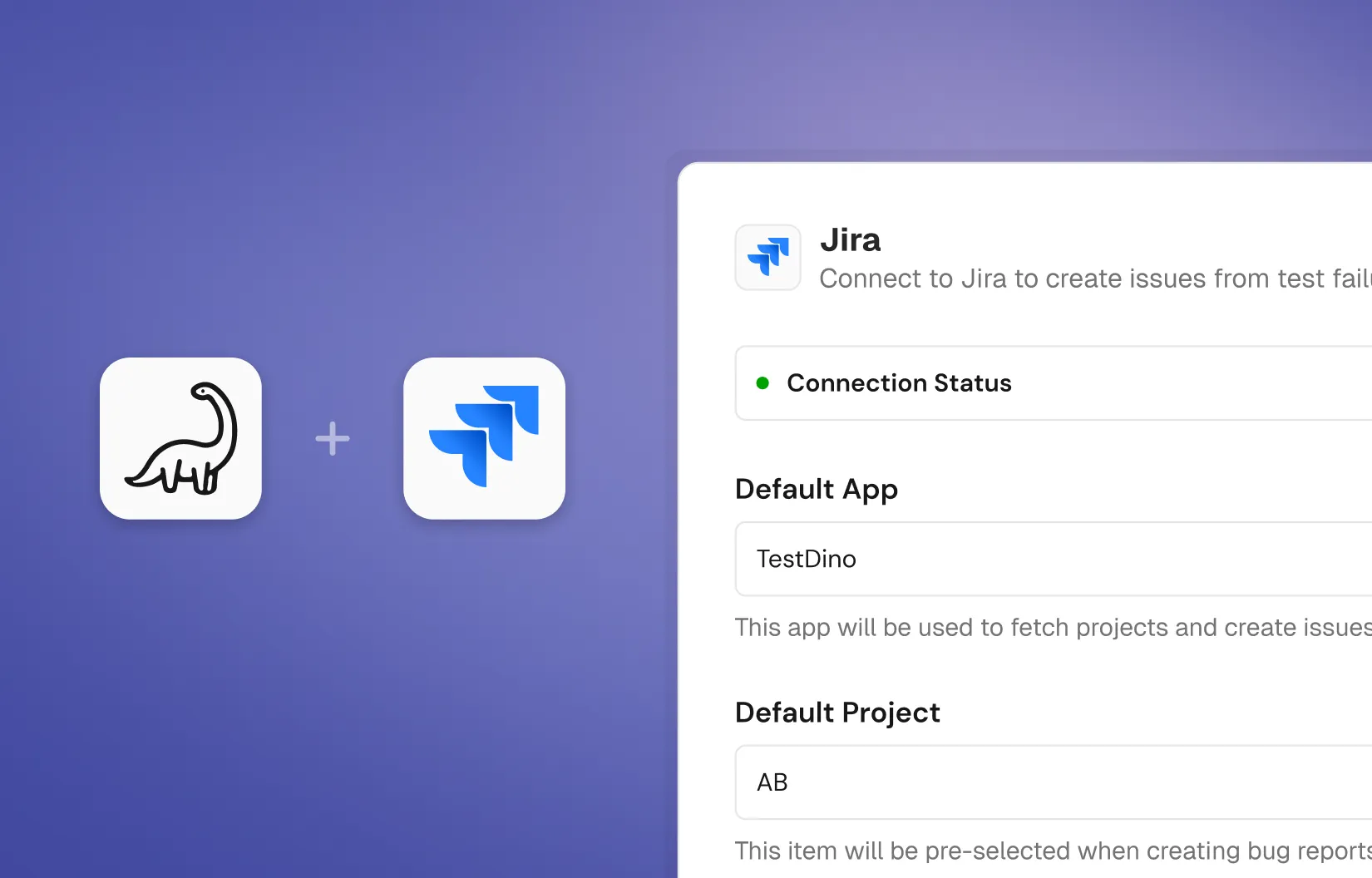
Overview
The Jira integration lets you create issues directly from failed or flaky Playwright tests. Each issue is prefilled with the test name, error type, file path, branch, commit details, environment, duration, and the failing code frame.
Developers land on the ticket with all the proof they need to reproduce and fix the issue. Screenshots and trace links are attached automatically.
Key features
- Prefilled issues with error details, code frame, and screenshots
- Configurable project, issue type, priority, and sprint fields
- Assignee and reporter routing for faster triage
- Links to TestDino run, Git commit, and CI job in every ticket
- Supports Jira Cloud (Pro, Team, and Enterprise plans)
How it works

Connect your Jira account
In Project Settings, then Integrations, connect a Jira account and set a default Jira app and project.
Raise a bug from any failure
Open a failed or flaky test case, click Raise bug, review the prefilled form, and create the issue.
Keep fields in sync
Use Sync after Jira projects or fields change. Disconnect any time from the Integrations page.
What TestDino prefills for you
Every Jira issue includes the project, issue type, priority, labels, assignee, reporter, sprint, and optional dates and estimate points. The summary follows the format [TestCase] test name followed by the short failure hint.
The description contains test details, failure information with the error type and key error message, the failing attempt with a code frame, and links to the TestDino run, Git commit, and CI job. Screenshots are attached as thumbnails.
Jira Cloud is supported via Atlassian OAuth. The integration is user-level — each teammate authorizes their own Jira account and issues are filed under their identity, so reporter and assignee defaults respect who actually raised the bug.