Troubleshooting Playwright MCP Errors
Troubleshooting Playwright MCP errors is easier when you treat them as context gaps, not just failures, understanding what changed, what the test expected, and what the environment actually delivered.
Browser automation is getting smarter with AI agents, and this shift is changing how teams test and validate workflows.
Microsoft's official Playwright MCP server allows AI systems to control real browsers directly, reducing brittle scripts and manual effort.
But reality hits fast.
Many teams fail on their first setup attempt. Installation errors, missing browser binaries, and silent configuration issues quickly block progress.
These failures are not random or mysterious.
Most problems trace back to version mismatches, incomplete installs, or environment quirks around Node.js and browser dependencies. Ignore these details, and Playwright MCP will break.
The upside is simple. Once you recognize the patterns, fixes are usually fast and repeatable.
This guide breaks down the most common issue types with clear explanations and practical solutions. For complete setup instructions, see our Playwright MCP ultimate guide before troubleshooting.
Quick Diagnostic Playwright MCP Issues
Before diving into fixes, it helps to identify where things are breaking. Most Playwright MCP issues fall into a few predictable categories.
| What’s breaking | How to fix it |
|---|---|
| Outdated Node version | Check your Node version using node -v command. If your Node version is less than 18, reinstall or update to Node version 18 or higher. |
| Playwright browsers are missing | Install browsers with npx playwright install. Confirm they work by running npx playwright open chromium before starting MCP. |
| Playwright and MCP versions don’t match | Use compatible, pinned versions of @playwright/test and @playwright/mcp. Reinstall dependencies after pinning. |
| Browser binaries are outdated or incompatible | Reinstall browsers for the current version using npx playwright install --force or MCP’s bundled CLI. |
| Dependencies or lock file are out of sync | Delete node_modules, regenerate the lock file, reinstall cleanly, and commit the updated lock file. |
| playwright.config.js is breaking MCP | Start from a minimal config. Disable custom reporters/plugins. Ensure npx playwright test passes without MCP. |
| MCP config JSON is invalid or misplaced | Validate the JSON, place it in the correct IDE config path, and restart the IDE after changes. |
| MCP server fails to start | Run the server from the terminal to see logs. Remove extra flags, free the port, and restart cleanly. |
| IDE can’t connect to MCP (port refused) | Use a free port, confirm IDE host/port settings, and check VPN, firewall, or Docker port mappings. |
| IDE shows “No tools detected.” | Fix browser installs, align versions, correct MCP config, then restart both MCP and the IDE. |
| Path or display issues on Windows/WSL2 | Keep Node, Playwright, and MCP in the same environment. Fix PATH and display variables on Windows. |
| Browsers fail inside Docker | Install required system libraries, run browsers headless, expose ports, or debug MCP outside Docker. |
If you are using Claude Code or Claude Desktop, you can find this guide very helpful regarding how to debug or fill MCP errors -
Debugging - Model Context Protocol
Setup and Installation Issues
Most Playwright MCP issues happen during setup, especially for first-time users. Let’s look at the most frequent ones.
1. Outdated Node.js Version (MOST COMMON)
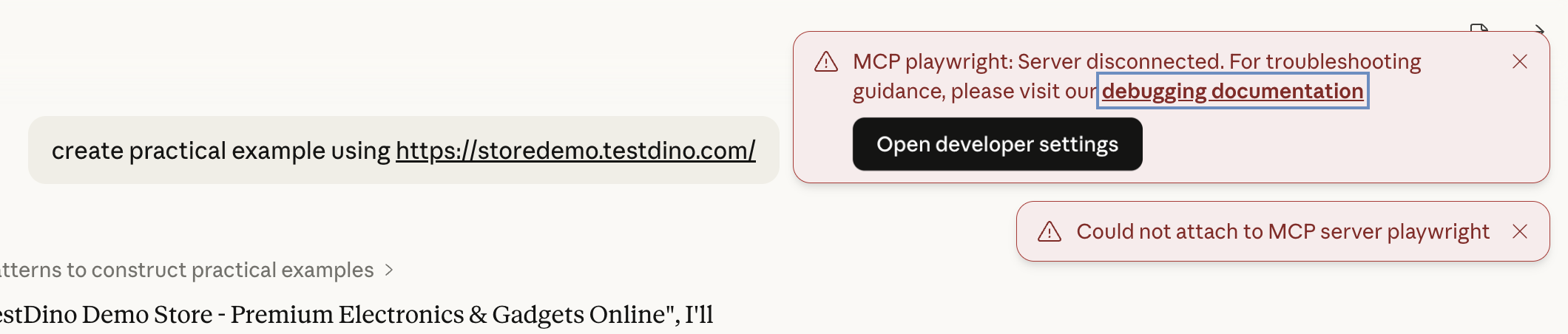
The MCP server starts but immediately disconnects. Logs show performance is not defined followed by "Server transport closed unexpectedly." The connection never fully initializes.
This typically means the Node.js version is too old to run the Playwright MCP server.
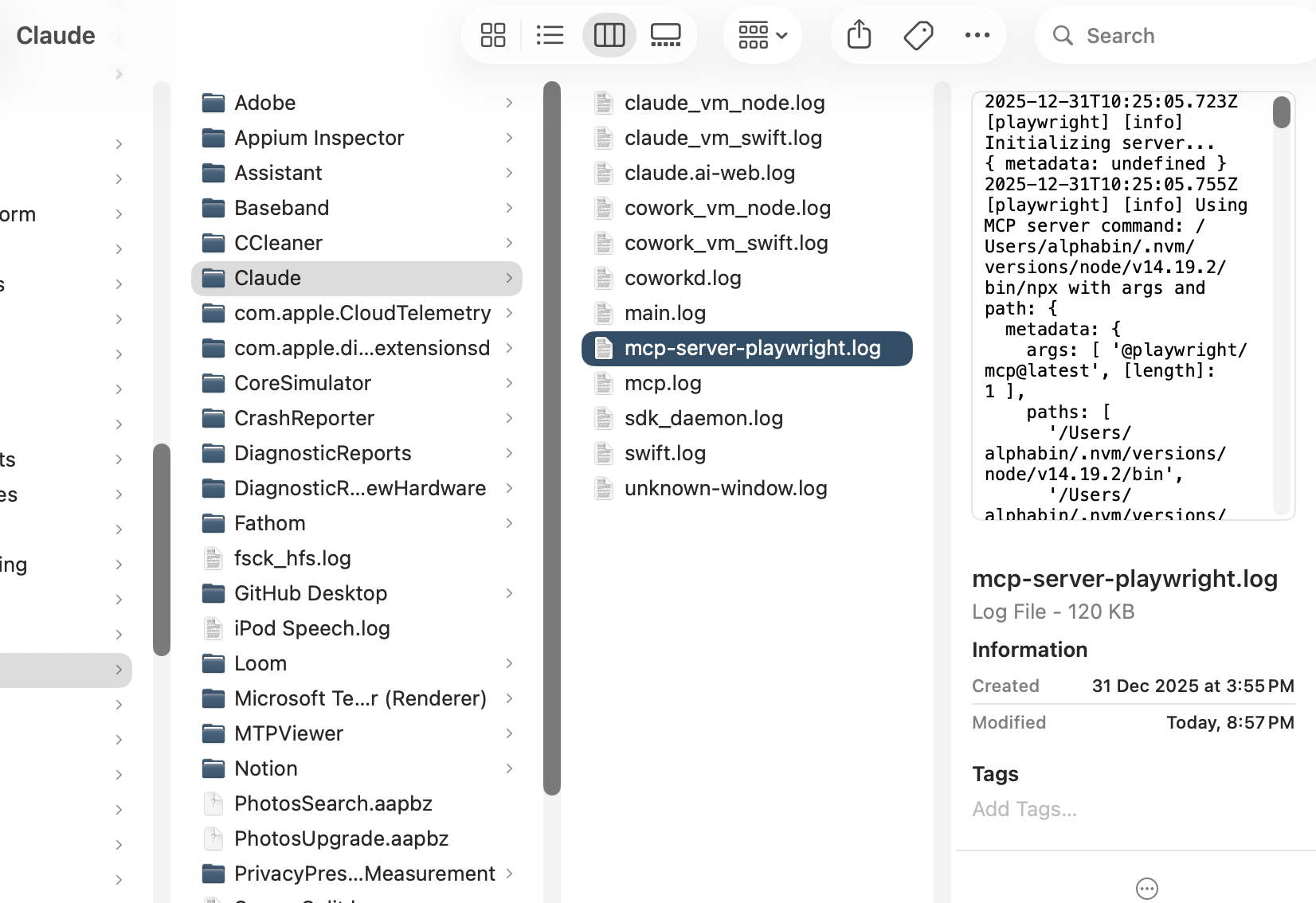
Sometimes you also see following error if you use Claude Desktop app.
Why this happens
The performance global API was introduced in Node.js v16. Common causes:
-
NVM defaults to an older Node.js version (v14 or earlier)
-
Multiple Node.js versions are installed, and the system resolves to the wrong one
-
The PATH prioritizes an outdated Node.js installation
How to fix it
1. Check your current Node.js version:
node -v
2. If using NVM, switch to Node.js v20 or later:
nvm use 20
nvm alias default 20
3. Remove outdated Node.js versions to avoid conflicts:
nvm uninstall 14.19.2
nvm uninstall 16.18.1
4. Verify the correct version is active:
which node
node -v
5. Restart your IDE or Claude desktop app completely to pick up the new PATH
Following these steps ensures the Playwright MCP server runs on a supported Node.js runtime.
2. Missing Browser Dependencies
The MCP server starts, the IDE shows a connection, but browser-related actions fail. Pages do not open. Screenshots never appear. The agent seems confident, but nothing happens.
This typically means Playwright browsers were never installed.
Why this happens
This usually means Playwright browsers are not installed or cannot run. Common causes:
- Playwright was added as a dependency, but browser binaries were skipped
- System-level dependencies are missing on Linux or Docker
- The environment cannot download browser binaries due to permissions
How to fix it
1. Install Playwright browsers explicitly
npx playwright install
2. On Linux or Docker environments, install system dependencies as well
sudo apt-get install -y libnss3 libatk1.0-0 libxss1 libgtk-3-0 libasound2
3. Verify that Chromium or Firefox launches outside MCP first
npx playwright open chromium
npx playwright open firefox
4. If running in CI/CD, ensure the agent has network access or provide pre-installed browser binaries
Following these steps ensures that MCP can actually control the browsers it depends on.
3. Playwright Version Mismatch
The MCP server starts, but tools are missing or behave inconsistently. Errors appear after upgrading dependencies, even though everything worked yesterday.
This usually happens when Playwright and Playwright MCP are out of sync.
Why this happens
This occurs when Playwright and Playwright MCP are out of sync. Common causes:
- Using @latest for MCP or Playwright, which can pull incompatible versions
- Automatic dependency upgrades via npm
- Node.js versions outside Playwright’s supported range
How to fix it
- Pin versions instead of relying on the latest, for example
npm install @playwright/[email protected] @playwright/[email protected]
- Ensure MCP and Playwright versions match exactly
- Use LTS Node.js versions for stability
- Lock dependencies in CI environments
4. Browser version mismatch or outdated versions
You see errors like:
Executable doesn't exist at
C:\Users\username\AppData\Local\ms-playwright\chromium-1179\chrome-win\chrome.exe
But your installed version is:
Chromium 136.0.7103.25 (playwright build v1169)
The MCP expects version 1179, but you have 1169.
Why this happen?
Playwright MCP depends on specific browser build numbers. When you install Playwright normally with npx playwright install, you get the latest stable versions. But the MCP package might expect different versions.
This is especially common because @playwright/mcp often depends on alpha or pre-release Playwright versions that don't match stable releases.
How to fix it
- Force install the browsers matching your Playwright version:
npx playwright install --force
- Or install browsers for the specific MCP version:
cd node_modules/@playwright/mcp
node node_modules/playwright/cli.js install
- Better yet, install Playwright globally first, then run the MCP server without @latest:
npm install -g @playwright/test
npx playwright install
npx @playwright/mcp  # No @latest
The @latest suffix makes npx fetch from the npm registry instead of using your local installation. This prevents it from finding your locally installed browsers.
Configuration Issues
Even after installation, misconfigured files can stop MCP from detecting tools or starting browsers.
Fix the configuration to ensure MCP runs reliably with your Playwright setup.
1. Playwright.config.js Misconfigurations
MCP depends on Playwright’s configuration, but it doesn’t support every advanced or experimental setup.
If Playwright itself is unstable, MCP will inherit that instability.
Why this happens
MCP inherits Playwright’s configuration but cannot handle non-standard setups, plugins, or overrides, which break its startup.
- Custom reporters or plugins that interfere with MCP startup
- Non-standard test directories or paths
- Environment variables overriding defaults
- Heavy CI-oriented configuration reused in local environments
How to fix it
- Start with a minimal playwright.config.js when debugging MCP
- Temporarily disable plugins and reporters
- Confirm Playwright runs cleanly outside MCP first
npx playwright test
This approach isolates configuration issues and ensures MCP runs reliably before adding complex setups.
2. MCP Config File Errors
MCP configuration files fail quietly. One small JSON mistake can remove all tools without a clear error message.
Why this happens
Configuration files are sensitive. Even a tiny mistake prevents MCP from loading tools properly. Typical reasons include:
- Invalid JSON syntax
- File was placed in the wrong location, so the IDE cannot read it
- Transport type not matching the environment (stdio, HTTP, etc.)
- Typos in tool definitions
How to fix it
- Validate the config file with a JSON formatter
- Confirm the IDE is reading the correct file
- Match transport type to your setup (stdio for local, http for remote)
- Restart the IDE after changes
If MCP suddenly has “no tools,” assume config first, not Playwright.
Server and Connectivity Issues
Once MCP is installed and configured, connection problems can block IDE integration or browser automation.
These server and connectivity issues explain why MCP fails to respond or report tools.
1. MCP Server Won’t Start
Sometimes the MCP server never actually runs, even though the command was issued.
The IDE shows disconnected indicators, or nothing happens.
Why this happens
The server can fail silently due to system or environment issues. Common causes are:
- Port already in use by another process
- Missing permissions to bind ports or run Node
- Environment variables interfering with startup
- Silent crashes caused by an invalid configuration
How to fix it
- Check if the port is already occupied
- Run the server manually to observe logs
- Remove optional flags and start minimal
- Verify Node.js has proper system permissions
If the server isn’t running, no amount of IDE clicking will help.
2. Port Conflicts and Connection Refused
Here, the server exists, but the client cannot reach it. This often feels like a networking problem because it is one.
Why this happens
Connection failures occur when the MCP client is unable to reach the server. This usually happens due to a few common issues, such as:
- Another process is using the same port
- Firewalls or VPNs block connections
- Docker containers isolate networks
- IDE is trying to connect to the wrong host
How to fix it
- Change the MCP server port
- Disable VPN temporarily
- Use explicit localhost addresses
- Verify Docker port exposure
Connection errors are boring, but they are rarely mysterious.
3. No Tools Detected
This is the most common and most frustrating MCP error. The server runs. The IDE connects. And yet, the agent reports zero tools.
Why this happens
In practice, “No tools” appears when MCP cannot register or detect any Playwright capabilities. Common reasons include:
- Playwright browsers are not installed
- Version mismatch between MCP and Playwright
- MCP server failed during tool registration
- Configuration file errors
- IDE cache not refreshed after updates
How to fix it
- Confirm Playwright can launch a browser independently
- Align the MCP and Playwright versions
- Restart MCP and the IDE
- Revalidate the MCP config file
If MCP shows no tools, check browsers, versions, config, and server logs first. This error always points to a setup problem, not Playwright itself.
Environment-Specific Issues
Your operating system and Docker environment add another layer of complexity to Playwright MCP setup.
Windows, WSL2, and Docker each introduce unique challenges around file paths, process isolation, and network configuration that standard troubleshooting steps don't cover.
Here's how to handle the most common environment-specific problems.
1. Windows & WSL2 Specific Fixes
Windows adds complexity through PATH handling, shells, and subsystem boundaries.
WSL2 adds another layer on top of that.
Why this happens
Windows and WSL2 can create environment mismatches that prevent MCP from finding Node, browsers, or the correct display. Common reasons:
- PATH changes are not reflected in IDEs
- Node is installed in Windows, but MCP runs in WSL2
- Missing display variables in WSL
- Browser GUI not forwarded correctly
How to fix it
- Keep Node, MCP, and Playwright in the same environment
- Restart IDEs after environment changes
- Configure display variables in WSL
- Avoid mixing Windows and WSL installations
Consistency is key. Running everything in a single environment prevents most Windows and WSL2 issues.
2. Docker Environment Issues
Docker is excellent for CI. It is not always friendly to interactive browsers or local development.
Why this happens
Containers isolate environments in ways that MCP and browsers may not expect. Typical issues include:
- Missing system libraries required by browsers
- Network isolation blocking MCP connections
- No display available for headed browsers
- Incorrect port exposure
How to fix it
- Prefer headless mode in containers
- Install all Playwright dependencies explicitly
- Expose and map ports correctly
- Run MCP outside Docker when possible
If Docker complicates debugging, it is okay to step outside it temporarily.
Best Practices for Playwright MCP
To avoid common Playwright MCP errors and ensure a stable setup, follow these practical best practices that address the most frequent pitfalls.
1. Pin Versions and avoid using @latest
Version differences are the fastest way to create a Playwright MCP error.
Therefore, always pin your Playwright MCP version instead of using @latest. If something breaks without code changes, it is almost always a version mismatch.
2. Install Browsers Before starting MCP
Run npx playwright install manually before starting the MCP server.
Letting the MCP server download browser binaries during startup often leads to timeouts, crashes, or Playwright MCP setup failed errors.
Downloading 300MB of browsers during a handshake is optimistic at best.
3. Use Non-Interactive Installs Every Time
Always add the ’-y’ flag when using npx playwright mcp install.
Without it, the process can hang silently waiting for confirmation while your AI client reports a Playwright MCP timeout issue.
If nothing is happening, it is probably waiting for your confirmation
4. Always use absolute paths
Use absolute paths everywhere, especially on Windows and WSL.
Add Windows paths properly in JSON to avoid Playwright MCP server error. Relative paths work great until the IDE launches MCP from a directory.
5. Treat “No Tools Detected” as a Symptom
When you see “Playwright MCP tools not found”, this usually means browser binaries are missing, versions are mismatched, or the MCP server failed during startup.
The tools did not disappear. They are not registered yet.
6. Lock Down Ports and Bindings
Explicitly set the port and binding when running MCP in Docker, WSL, or remote environments.
Most Playwright MCP server connection refused errors come from simple networking misconfigurations, not MCP itself.
If the client cannot reach the server, even a perfect config is completely useless.
7. Align Node.js Across Your Entire Stack
Use the same Node.js version across your terminal, IDE, and MCP server.
When Node versions don’t match, errors start showing up as confusing Playwright MCP installation or permission issues.
Keep one Node version per environment. Mixing versions here only creates problems, not flexibility.
8. Debug MCP Outside the IDE First
When something feels wrong, start the MCP server directly from a terminal.
The raw output quickly reveals real problems like missing permissions, bad environment variables, or failed handshakes.
IDEs often abstract or suppress low-level errors. Terminals show the actual failure output.
How TestDino Helps with Failing MCP Tests?
Once Playwright MCP starts generating tests, failures show up quickly. The hard part is figuring out why they failed and which ones actually need your attention.
TestDino gives you that visibility.
Every MCP-generated Playwright run is collected in one place. TestDino looks at the results and separates failures into clear buckets:
- CI or infrastructure problems like timeouts, browser crashes, or network issues
- Real product bugs introduced by code changes
- Flaky tests that fail sometimes and pass on reruns
This separation matters. You stop wasting time chasing noise.
When MCP-generated tests fail in CI, TestDino highlights the failures that deserve action and hides the ones caused by unstable environments.
Similar failures are grouped together, so you debug one root cause instead of opening dozens of identical logs.
Debugging is also easier because all the context is already there:
- Screenshots and Playwright traces side by side for failed runs
- Past runs of the same test, so you can see when the failure started
- Environment-level signals that show if a test fails only in CI, staging, or production
MCP-generated tests are still real tests.
They need the same level of inspection as handwritten ones. TestDino helps you keep that quality as your test suite grows, without slowing down your team.
Conclusion
Playwright MCP errors follow predictable patterns. Version mismatches, missing browsers, and configuration mistakes cause most failures.
The fix is systematic. Pin versions. Install browsers upfront. Keep environments consistent. Debug outside the IDE when things break.
Most setup issues resolve in minutes once you identify the category.
Once you understand these patterns, troubleshooting becomes straightforward instead of chaotic. Trust the logs over assumptions. Run diagnostics in the terminal before blaming your IDE.
Fix the fundamentals first. Once MCP is stable, everything else becomes easier.
If you're managing Playwright tests at scale and need better visibility into failures and performance, TestDino provides observability tools built specifically for Playwright workflows.
Yes, it supports both manual and automated authentication. You can log in during a session interactively.
Alternatively, pass a --storage-state file to start pre-authenticated.

Pratik Patel
Co-founder