How to Pierce Salesforce Shadow DOM in Playwright
Struggling with hidden elements inside Salesforce Lightning components? Learn how Playwright automatically pierces Shadow DOM and makes Salesforce UI testing reliable.
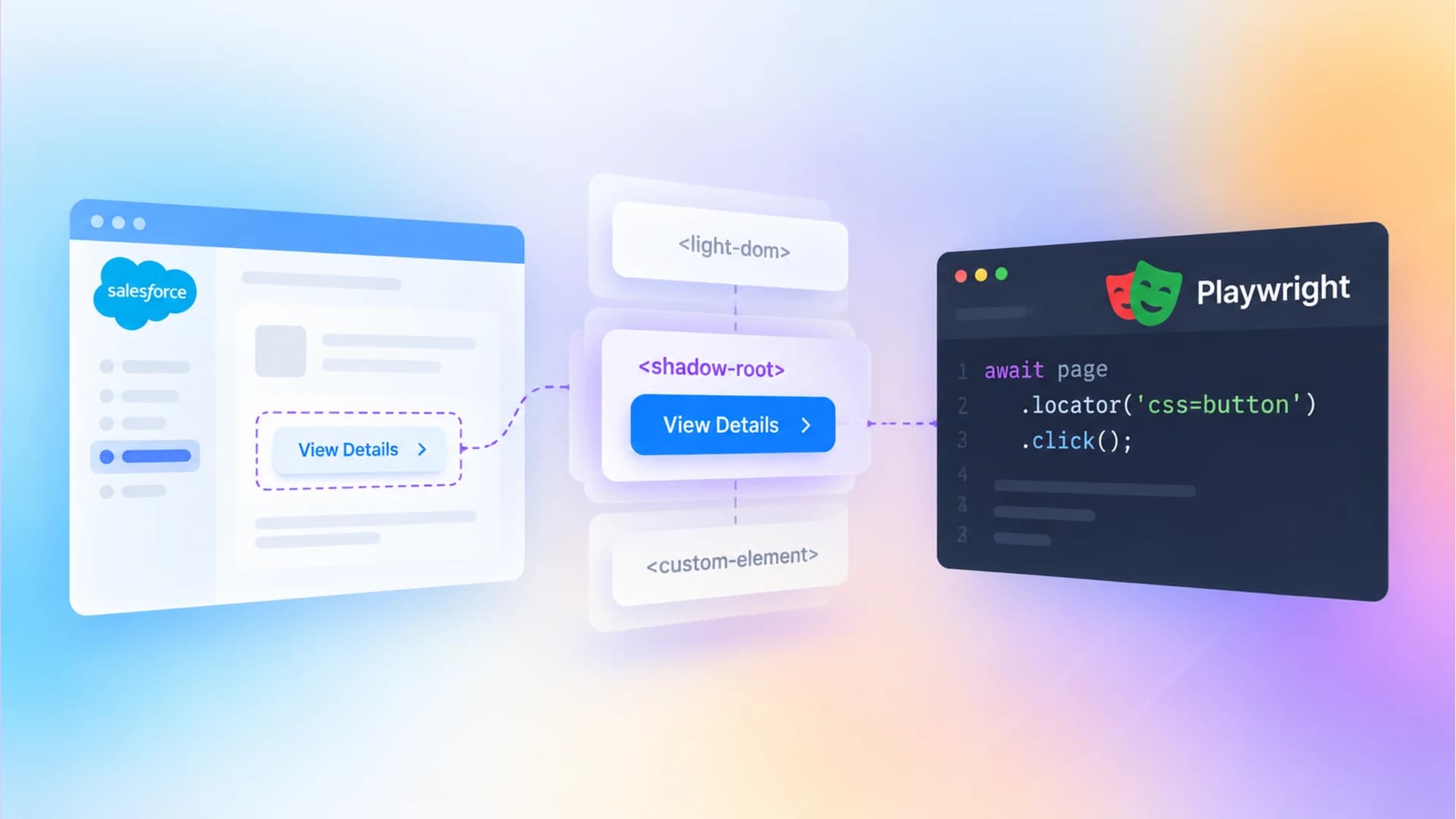
Salesforce powers over 150,000 businesses worldwide, and nearly every one of them has a QA team trying to automate the Lightning Experience UI. The problem? Every button, input, and dropdown sits behind layers of Shadow DOM that most test automation frameworks simply cannot reach.
Traditional tools force you to write brittle JavaScript hacks just to click a single field inside a Lightning Web Component. Teams waste entire sprints debugging selectors that break after every Salesforce seasonal release, and flaky tests pile up faster than anyone can fix them.
This guide walks you through exactly how Salesforce Shadow DOM in Playwright works, from the architecture behind LWC shadow roots to production-ready code patterns that survive release cycles. By the end, you will have a complete playbook for stable, scalable Salesforce E2E tests.
What is Shadow DOM and why does Salesforce use it?
Definition: Shadow DOM is a browser standard that lets a web component hide its internal HTML, CSS, and JavaScript behind a boundary called a shadow root. Code outside the component cannot accidentally style or query elements inside it.
Think of it like an apartment building. Each apartment (component) has its own walls. You cannot reach into someone else's kitchen from the hallway. That encapsulation is exactly what Salesforce needs.
Salesforce Lightning Web Components (LWC) use Shadow DOM for three practical reasons:
- Style isolation. A custom component's CSS cannot leak into the rest of the page, and global page styles cannot break the component.
- DOM scoping. A standard document.querySelector() from a parent component cannot reach into a child component's internals. This keeps every component modular.
- Security. Salesforce enforces Lightning Web Security (formerly Locker Service) to prevent third-party apps on the AppExchange from interfering with each other.
The catch is that a typical Salesforce Lightning page nests components five to seven levels deep. A simple Account Name input might live behind this structure:
<!-- salesforce-lightning-dom-tree.html -->
<lightning-app>
  #shadow-root (open)
    <lightning-page>
      #shadow-root (open)
        <lightning-record-form>
          #shadow-root (open)
            <lightning-input-field>
              #shadow-root (open)
                <lightning-input>
                  #shadow-root (open)
                    <input type="text" />  <!-- The actual input -->
That is five separate shadow boundaries between your test script and the element you need. Traditional selectors built on top of standard DOM APIs stop at the very first #shadow-root line. This is the core challenge of Salesforce Shadow DOM in Playwright testing, and it is what makes the right locator strategy so important.
Synthetic shadow vs native shadow DOM in Salesforce LWC
Before you write a single test, you need to know which type of Shadow DOM your Salesforce org is actually running. Salesforce has shipped two fundamentally different implementations over the years.
What is synthetic shadow DOM?
When LWC launched, many browsers (especially IE11) did not support native Shadow DOM. Salesforce built a JavaScript polyfill called @lwc/synthetic-shadow that faked shadow root behavior. Under synthetic shadow:
- No real #shadow-root node appears in Chrome DevTools.
- Salesforce added scoping attributes (like lwc-xxxx) to elements to simulate style isolation.
- Standard document.querySelector() could still reach internal elements because no real shadow boundary existed.
If your org still runs synthetic shadow, basic CSS selectors work without any piercing. But this is the old world.
The migration to native shadow DOM
Starting with the Spring '22 release, Salesforce began migrating orgs to native Shadow DOM. With native shadow:
- Real #shadow-root (open) nodes appear in DevTools.
- The browser enforces true encapsulation. Standard DOM queries stop at the boundary.
- Salesforce reports that LWC components on native shadow DOM render up to 50% faster than on the synthetic polyfill (source: Salesforce LWC release notes).


Tip: Open Chrome DevTools on your Salesforce org, inspect a Lightning component, and look for #shadow-root (open). If you see it, your org is on native shadow DOM. If you only see scoping attributes like lwc-xxxx, you are still on synthetic shadow.
Salesforce also introduced Mixed Shadow Mode, which lets orgs run native shadow for newer components while keeping synthetic shadow for legacy ones on the same page. And with the static renderMode = 'light' option in LWC, individual components can opt out of Shadow DOM entirely.
This mix of native, synthetic, and light DOM on a single page is exactly why you need a testing tool that handles shadow DOM piercing automatically. That tool is Playwright.
How Playwright pierces shadow DOM by default
Here is where Salesforce Shadow DOM in Playwright gets refreshingly simple. Unlike Selenium, Puppeteer, or Cypress, Playwright pierces open shadow roots automatically. No special syntax. No plugins. No configuration.
When you write page.getByRole('textbox', { name: 'Account Name' }), Playwright's locator engine does the following under the hood:
- It queries the browser's Accessibility Tree, which natively spans across shadow root boundaries.
- For CSS-based selectors like page.locator('lightning-input input'), Playwright's custom CSS engine recursively enters every open #shadow-root it encounters.
- The matched element is returned as if it were a regular part of the page.
This means the five-level nesting from the earlier example collapses into a single line:

await page.getByRole('textbox', { name: 'Account Name' }).fill('Acme Corporation');Compare that to what the same action looks like in Selenium 4:
WebElement lwcInputHost = driver.findElement(By.cssSelector("lightning-input"));
SearchContext shadowRoot1 = lwcInputHost.getShadowRoot();
WebElement primitiveInput = shadowRoot1.findElement(By.cssSelector("lightning-primitive-input-simple"));
SearchContext shadowRoot2 = primitiveInput.getShadowRoot();
WebElement actualInput = shadowRoot2.findElement(By.cssSelector("input"));
actualInput.sendKeys("Acme Corporation");
Six lines versus one. And every time Salesforce adds, removes, or renames an intermediate component in a seasonal release, the Selenium version breaks. The Playwright version keeps working because it targets the user-facing label, not internal DOM structure.
The XPath trap
There is one critical exception. XPath selectors do not pierce Shadow DOM in Playwright. This is not a Playwright limitation. It is a browser-level constraint: the native XPath evaluator does not cross shadow boundaries.
// This will NOT find the button inside a shadow root:
await page.locator('xpath=//button[text()="Save"]').click();
// This WILL find it:
await page.getByRole('button', { name: 'Save' }).click();
If your team is migrating from Selenium and carrying over XPath selectors, replace them with role-based or CSS-based locators before they silently fail against shadow DOM.
Note: If you ever need to restrict a query to only the light DOM and skip shadow roots, Playwright provides the css:light engine: page.locator('css:light=div.container'). This is rarely needed for Salesforce testing but useful in edge cases.
Locator strategies for Salesforce Shadow DOM in Playwright
Knowing that Playwright pierces shadow DOM is step one. Picking the right locator for Salesforce components is step two. Salesforce generates dynamic IDs like input-45:1890;a that change every page load, so ID-based selectors are useless.

Strategy 1: accessibility-first locators
getByRole and getByLabel are the most reliable choices for Salesforce. They query the browser's accessibility tree, which already spans shadow boundaries, and they match based on how a user perceives the element.
// Find a button by its accessible role and visible name
await page.getByRole('button', { name: 'Save' }).click();
// Find an input by its associated label
await page.getByLabel('Account Name').fill('Acme Corporation');
// Find a combobox (dropdown) by its label
await page.getByRole('combobox', { name: 'Stage' }).click();
await page.getByRole('option', { name: 'Closed Won' }).click();
These selectors survive Salesforce seasonal releases because Salesforce rarely changes the visible label of a standard field.
Strategy 2: data-testid in custom LWC components
For custom LWC components that your team builds, add explicit data-testid attributes. getByTestId pierces shadow DOM just like every other Playwright locator.
<!-- accountCard.html (Custom LWC Template) -->
<template>
  <lightning-card title="Account Details">
    <lightning-input label="Account Name" data-testid="account-name-input"></lightning-input>
    <lightning-button label="Save" data-testid="save-button" onclick={handleSave}></lightning-button>
  </lightning-card>
</template>await page.getByTestId('account-name-input').fill('Acme Corporation');
await page.getByTestId('save-button').click();Strategy 3: chained locators for scoping
When a page has multiple instances of the same component (like two lightning-input fields with different labels), chain locators to narrow the scope.
const opportunityCard = page.locator('c-opportunity-card').filter({ hasText: 'Enterprise Deal' });
await opportunityCard.getByLabel('Close Date').fill('2026-131');
await opportunityCard.getByRole('button', { name: 'Update' }).click();
Chaining preserves shadow DOM piercing at every level. The first locator scopes to the component, and the second dives into its shadow tree.
Step-by-step: automating a Salesforce Lightning page
This section puts everything together into a real-world scenario. You will log into Salesforce, navigate to the Accounts object, and create a new record, all through nested shadow DOM.
Setting up the project
# terminal
npm init playwright@latest ./
Configure your Playwright config to use a single browser and store authentication state so you do not re-login for every test:
import { defineConfig } from '@playwright/test';
export default defineConfig({
  use: {
    baseURL: 'https://your-org.lightning.force.com',
    storageState: './auth/salesforce-session.json',
    trace: 'on-first-retry',
  },
  projects: [
    { name: 'chromium', use: { browserName: 'chromium' } },
  ],
});
Using the Playwright trace viewer with trace: 'on-first-retry' lets you visually step through every action when a test fails, which is invaluable for debugging shadow DOM issues.
Handling Salesforce authentication
Salesforce requires login before you can access Lightning pages. Use Playwright's global setup to authenticate once and reuse the session:
import { chromium } from '@playwright/test';
async function globalSetup() {
  const browser = await chromium.launch();
  const page = await browser.newPage();
  await page.goto('https://login.salesforce.com');
  await page.getByLabel('Username').fill(process.env.SF_USERNAME!);
  await page.getByLabel('Password').fill(process.env.SF_PASSWORD!);
  await page.getByRole('button', { name: 'Log In' }).click();
  await page.waitForURL('**/lightning/**');
  await page.context().storageState({ path: './auth/salesforce-session.json' });
  await browser.close();
}
export default globalSetup;Writing the create-account test
import { test, expect } from '@playwright/test';
test('create a new Account in Salesforce Lightning', async ({ page }) => {
  // Navigate to Accounts
  await page.goto('/lightning/o/Account/list');
  await page.getByRole('button', { name: 'New' }).click();
  // Fill the form (all fields are inside nested shadow DOM)
  await page.getByLabel('Account Name').fill('Acme Corporation');
  await page.getByRole('combobox', { name: 'Type' }).click();
  await page.getByRole('option', { name: 'Customer - Direct' }).click();
  await page.getByLabel('Phone').fill('+555-0100');
  await page.getByLabel('Website').fill('https://acme.example.com');
  // Save the record
  await page.getByRole('button', { name: 'Save' }).click();
  // Assert the success toast (also inside shadow DOM)
  await expect(page.getByText('Account "Acme Corporation" was created.')).toBeVisible();
});
Tip: Playwright's auto-waiting mechanism automatically waits for elements to be attached, visible, and stable before performing actions. This is critical for Salesforce, where Lightning components load data asynchronously and render progressively.
Not a single shadowRoot.querySelector() call in the entire test. Every locator pierces through all nested shadow boundaries automatically.
Handling iframes mixed with shadow DOM in Salesforce
Salesforce does not use Shadow DOM everywhere. Classic Visualforce pages, Canvas apps, and certain setup wizards are embedded inside iframes. When a Visualforce page contains LWC components, you get the hybrid scenario: an iframe wrapping shadow DOM.
Shadow DOM is pierced automatically. Iframes are not. You need page.frameLocator() for the iframe, then Playwright resumes automatic shadow piercing inside the frame.
const vfFrame = page.frameLocator('iframe[title="Visualforce Page"]');
// Inside the iframe, shadow DOM piercing works normally
await vfFrame.getByLabel('Contact Name').fill('Jane Doe');
await vfFrame.getByRole('button', { name: 'Submit' }).click();
This pattern shows up frequently in orgs that have a mix of legacy Visualforce and modern LWC components.
Playwright vs Selenium vs Cypress for Salesforce shadow DOM
When it comes to handling Salesforce Shadow DOM in Playwright compared to other tools, the differences are significant. Here is a direct feature comparison:
| Capability | Playwright | Selenium 4 | Cypress |
|---|---|---|---|
| Auto-pierce open shadow DOM | Yes (default, all locators) | No (manual getShadowRoot() per level) | Partial (chain .shadow() per level) |
| Nested shadow DOM handling | Automatic, unlimited depth | Manual recursion through each level | Chain .shadow() at each boundary |
| Closed shadow DOM access | No (browser restriction) | ||
| XPath inside shadow DOM | Not supported (use CSS/roles) | Not supported | Not supported |
| Auto-waiting for dynamic LWC | Built-in, all actions | Requires explicit WebDriverWait | Built-in for some commands |
| iframe + shadow DOM hybrid | frameLocator() + auto-pierce | switchTo().frame() + manual shadow | cy.iframe() plugin + .shadow() chain |
| Lines of code for nested shadow interaction | 1 line | 6-10 lines per element | 5 lines per element |
Playwright's architecture connects directly to the browser via the Chrome DevTools Protocol (CDP) and WebSocket, which eliminates the HTTP roundtrips that slow down Selenium. For Salesforce pages with dozens of nested shadow DOM components, this translates to measurably faster test execution.
You can quantify the yearly cost of flaky Salesforce tests using TestDino's free tools, including a calculator that puts a dollar figure on debug hours, CI reruns, and engineer days lost to flakiness.
Common pitfalls and how to avoid them
Even with Playwright's automatic shadow piercing, Salesforce testing has traps that catch teams off guard. Here are the most common ones.
Pitfall 1: using XPath out of habit
Teams migrating from Selenium often carry over XPath selectors. In Playwright, XPath does not pierce shadow DOM. Replace every XPath with a role-based or CSS selector locator.
Pitfall 2: relying on dynamic IDs
Salesforce generates IDs like input-45:1890;a that change on every render. Never use page.locator('#input-45'). Use page.getByLabel() or getByText instead.
Pitfall 3: not waiting for LWC lifecycle completion
Lightning components load data asynchronously. Even though Playwright auto-waits for element actionability, some Salesforce pages have spinners that overlay the entire viewport. Use element visibility checks to wait for the spinner to disappear before interacting:
await page.locator('lightning-spinner').waitFor({ state: 'hidden' });
await page.getByLabel('Account Name').fill('Acme Corporation');
Pitfall 4: ignoring seasonal release DOM changes
Salesforce ships three major releases per year (Spring, Summer, Winter). Internal DOM structure changes frequently. Protect your tests by using semantic locators (getByRole, getByLabel) instead of structural CSS paths. Structure your tests with the page object model pattern so DOM changes only require updates in one place.
The Page Object Model (POM) is a design pattern where each page or component in your application gets its own class. The class encapsulates locators and interaction methods, so test files never contain raw selectors. When Salesforce changes its DOM in a release, you update one page object instead of every test.
Pitfall 5: not using trace-on-failure for debugging
When a test fails against a Salesforce shadow DOM element, the Playwright trace viewer shows you exactly what the page looked like at the moment of failure, including the full shadow DOM tree. Always enable trace: 'on-first-retry' in your Playwright debugging setup.
If you are building Playwright tests at scale and want AI to generate locators and page objects for you, the TestDino Playwright skill integrates with AI coding assistants to accelerate test authoring for complex UIs like Salesforce.

Source: HTTP Archive Web Almanac 2024
Conclusion
Salesforce Shadow DOM in Playwright is not the nightmare it once was with older frameworks. Playwright's locator engine pierces open shadow roots by default, which means you write one-line selectors instead of multi-step shadow root traversal code. The three principles to remember are:
- Use accessibility-first locators. getByRole, getByLabel, and getByText pierce shadow DOM and survive Salesforce DOM changes across seasonal releases.
- Never use XPath for shadow DOM. XPath does not cross shadow boundaries. Switch to CSS or role-based locators.
- Isolate iframe from shadow DOM. Use frameLocator() for iframes, then let Playwright handle shadow piercing automatically inside the frame.
With Playwright's end-to-end testing capabilities, AI codegen for generating test scripts, and best practices for structuring your suite, you can build a Salesforce test automation framework that stays green through every release cycle.
FAQs

Ayush Mania
Forward Development Engineer