Playwright Salesforce Login and MFA: The Ultimate Working Setup
Struggling to automate Salesforce logins due to MFA? Discover expert strategies to handle Playwright Salesforce Login and MFA flawlessly
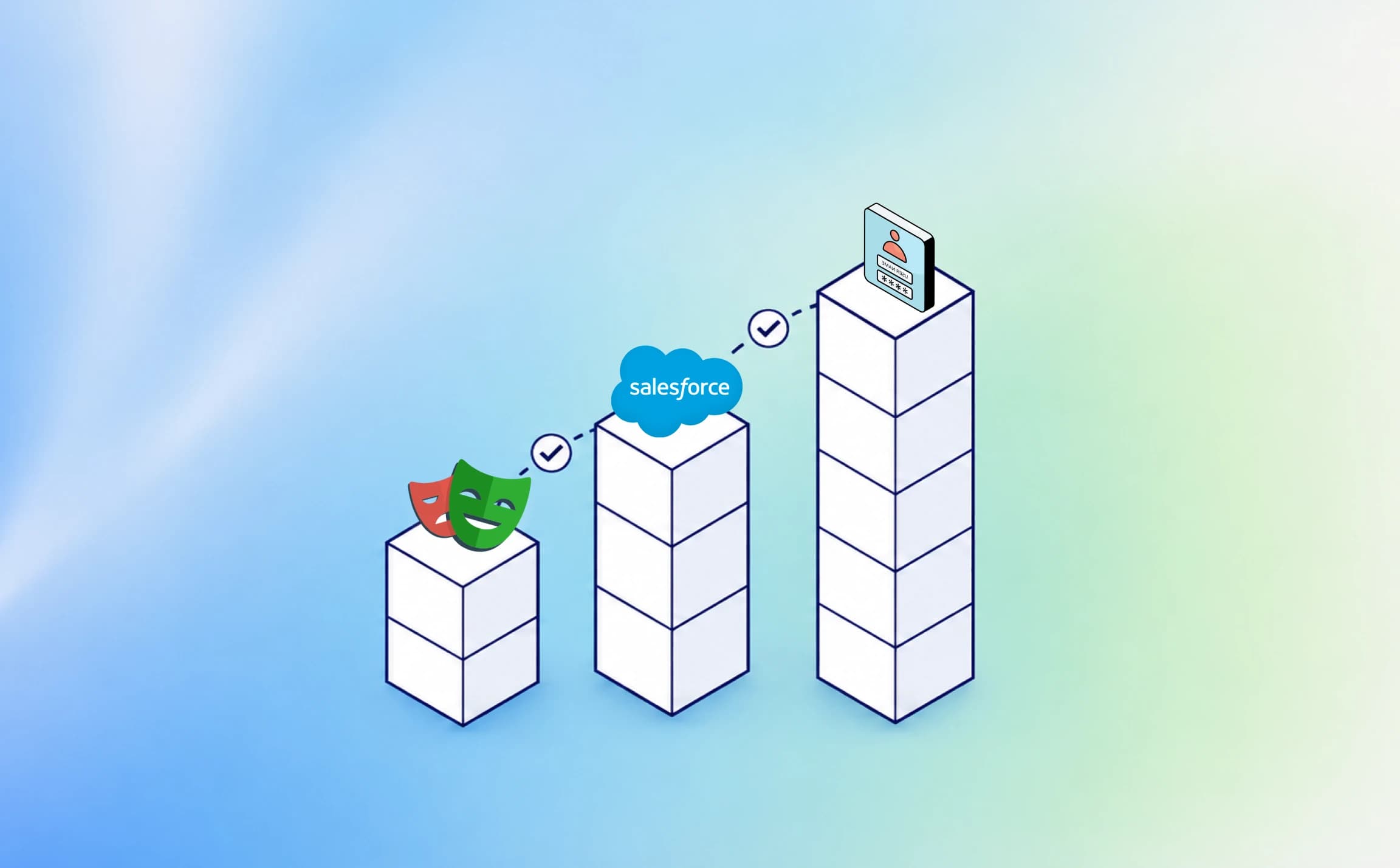
When companies build modern software today, they enforce strict rules requiring employees to verify their identity via phone apps or codes. While this blocks malicious actors, it creates a massive headache for automated test runners. Because these dynamic security prompts require human interaction every 30 seconds, automated checks inevitably hit a brick wall and fail constantly.
This slows the entire release process, forcing engineering teams to wait hours just to identify what broke. If you face this exact bottleneck, mastering the Playwright Salesforce Login and MFA flow is the only way to restore smooth automation. In this guide, we break down field-tested strategies to navigate these security hurdles without sacrificing organizational safety or pipeline speed.
Getting past the login screen should never be the hardest part of your testing strategy. A robust approach to Playwright authentication saves countless hours of frustrating debugging. Let us explore exactly why this happens, the underlying mechanics of Salesforce security, and how to overcome it with precision.
Understanding Playwright Salesforce Login and MFA Challenges
Salesforce is known for its rigorous security standards, and rightly so. In recent years, they have made Multi-Factor Authentication (MFA) a mandatory requirement for all organizations. This means that merely passing a username and password is no longer enough to establish a secure, authenticated session.
For human users, pulling out a smartphone to approve a push notification on the Salesforce Authenticator app, or entering a 6-digit Time-Based One-Time Password (TOTP) from Google Authenticator is a minor inconvenience.
But for an automated browser session, this represents a major roadblock. If you try to run a standard login script, your test runner will simply get stuck on the verification screen until it times out and fails.
Multi-Factor Authentication (MFA) requires users to provide two or more verification factors to gain access to a resource, typically involving something they know (password) and something they have (a mobile device or hardware security token).
Many engineers mistakenly try to "bypass Salesforce MFA in testing" by hacking around the UI elements or convincing admins to disable crucial security measures in production-like environments.
This is a massive compliance risk and often violates SOC 2 regulations. Instead, the goal should be to programmatically handle the requirement or securely sidestep it using approved architectural patterns.
When developing your testing strategy, incorporating Playwright best practices ensures that you are building resilient scripts. The right setup will prevent authentication logic from bloating your actual test cases, keeping your codebase clean. The next section details the most efficient way to achieve this using native framework features.
Approach 1: Using Playwright storageState for Session Reuse
The absolute golden rule of modern test automation is simple: you should not log in through the User Interface for every single test. Doing so is incredibly slow, computationally expensive, and drastically increases the chances of hitting Salesforce rate limits or triggering automated security lockouts.
This is where Playwright's built-in session management shines. By leveraging the Playwright storageState feature, you can log in exactly once, complete the MFA challenge (either manually or programmatically), and save the resulting session cookies and local storage tokens to a local JSON file.

Tip: Always add your storageState JSON files to your .gitignore immediately to prevent accidentally leaking active authentication tokens into your version control system.
By saving this state, subsequent tests can launch a new browser context that is already authenticated. They inject the saved cookies directly into the browser, completely skipping the login page and the MFA prompt.
import { test as setup, expect } from '@playwright/test';
const authFile = 'playwright/.auth/user.json';
setup('authenticate user', async ({ page }) => {
  await page.goto('https://login.salesforce.com/');
  await page.getByLabel('Username').fill(process.env.SF_USERNAME!);
  await page.getByLabel('Password').fill(process.env.SF_PASSWORD!);
  await page.getByRole('button', { name: 'Log In' }).click();
// If running locally, you have 60 seconds to pull out your phone // and approve the MFA request manually before the setup script saves the state.await expect(page.locator('text=Salesforce Home')).toBeVisible({ timeout: 60000 });
  // Save the authenticated state
  await page.context().storageState({ path: authFile });
});
This pattern drastically reduces the time it takes to run a massive test suite. In fact, if you want to further reduce Playwright CI runtime, separating authentication from functional testing is arguably the most impactful architectural change you can make. While this solves the repetition issue for local development, you still need a way to fully automate that initial setup phase without human intervention for your CI pipelines.
Approach 2: Automating TOTP for Dynamic MFA Generation
In modern CI environments, you cannot rely on a human to manually click "Approve" on a phone to generate the initial storage state. The pipeline must be zero-touch. If your organization uses TOTP for Salesforce, you can generate the 6-digit code dynamically during the test run.
You need the original "Shared Secret" key Salesforce generates during MFA setup. Instead of scanning the QR code, copy the text string and save it securely as an encrypted environment variable in your CI platform (like GitHub Secrets or HashiCorp Vault).
You can then use a robust Node.js library like otplib to programmatically calculate the current 6-digit code exactly when the test execution requires it.

import { authenticator } from 'otplib';
import { test, expect } from '@playwright/test';
test('login with TOTP', async ({ page }) => {
  await page.goto('https://login.salesforce.com/');
  await page.getByLabel('Username').fill(process.env.SF_USERNAME!);
  await page.getByLabel('Password').fill(process.env.SF_PASSWORD!);
  await page.getByRole('button', { name: 'Log In' }).click();
  // Generate the 6-digit code using the secure secret
  const token = authenticator.generate(process.env.SF_MFA_SECRET!);
  // Enter the code into the Salesforce MFA prompt
  await page.getByLabel('Verification Code').fill(token);
  await page.getByRole('button', { name: 'Verify' }).click();
  await expect(page).toHaveURL(/.*home/);
});
This method provides true end-to-end automation without compromising the security model of the application. It ensures that the Playwright Salesforce Login and MFA step is fully unattended.
Note: Using TOTP automation is considered highly secure as long as the shared secret is stored in an encrypted vault or secure environment variables, and never hardcoded in the repository. Also, remember to handle secret rotation policies according to your company's security guidelines.
While this code-based approach works flawlessly, it assumes the MFA prompt always appears. In the real world, Salesforce is smarter than that.
Advanced Technique: Handling Conditional MFA Prompts
A frustrating edge case is the Conditional MFA Prompt. Salesforce employs dynamic risk-based authentication. If your CI runner uses a "Trusted IP" or the user recently logged in, Salesforce may skip the MFA prompt entirely and go straight to the dashboard.
If your Playwright script blindly waits for page.getByLabel('Verificate Code') when the dashboard has already loaded, the test will time out and fail. To build a truly bulletproof Playwright Salesforce Login and MFA solution, we must handle this gracefully using Promise.race() or conditional locators.
Here is an enterprise-grade example of handling conditional MFA:
import { authenticator } from 'otplib';
import { test as setup, expect } from '@playwright/test';
setup('conditional login with TOTP', async ({ page }) => {
  await page.goto('https://login.salesforce.com/');
  await page.getByLabel('Username').fill(process.env.SF_USERNAME!);
  await page.getByLabel('Password').fill(process.env.SF_PASSWORD!);
  await page.getByRole('button', { name: 'Log In' }).click();
  // Define our two possible outcomes
  const mfaPrompt = page.getByLabel('Verification Code');
  const homeDashboard = page.locator('text=Salesforce Home');
  // Wait to see which one appears first (timeout after 15 seconds)
  const isMfaRequired = await Promise.race([
    mfaPrompt.waitFor({ state: 'visible' }).then(() => true),
    homeDashboard.waitFor({ state: 'visible' }).then(() => false)
  ]).catch(() => {
    throw new Error('Neither MFA prompt nor Home Dashboard loaded in time.');
  });
  if (isMfaRequired) {
    console.log('MFA challenge detected. Generating TOTP...');
    const token = authenticator.generate(process.env.SF_MFA_SECRET!);
    await mfaPrompt.fill(token);
    await page.getByRole('button', { name: 'Verify' }).click();
    await expect(homeDashboard).toBeVisible();
  } else {
    console.log('MFA bypassed by Salesforce risk assessment. Proceeding...');
  }
  await page.context().storageState({ path: 'playwright/.auth/user.json' });
});
By anticipating environmental variables and dynamic security behaviors, you elevate your automation from a fragile script to a resilient engineering tool.
Approach 3: Exempting Automation Users (Best for Sandbox)
If managing TOTP secrets and conditional logic in your CI pipeline feels too complex, there is an easier, administrator-approved path specifically designed for non-production environments. Salesforce provides a native permission to bypass MFA entirely for dedicated system accounts.
This approach involves creating an API-only or Automation-only user account in your Salesforce Sandbox and assigning a special Permission Set to it. This cleanly resolves the Playwright Salesforce Login and MFA hurdle by turning it off at the server level, but only for the robot.
Here are the exact, step-by-step instructions to configure this in Salesforce:
- 1. Log in to your Salesforce environment as an Administrator.
- 2. Navigate to Setup and search for "Permission Sets".
- 3. Click "New" to create a new Permission Set (name it something descriptive, like "MFA Exemption for Automation").
- 4. Scroll down to the "System" section and click on "System Permissions".
- 5. Click "Edit" and check the box for "Waive Multi-Factor Authentication for Exempt Users".
- 6. Save the Permission Set and assign it specifically to your test automation user account.
This method completely removes the need for complex Playwright auth setup scripting. However, your InfoSec or Security team must explicitly approve this. It should never be applied to human users or used in a live production environment.
Handling such differences is a hallmark of senior engineering. A mature pipeline relies on test generation strategies to choose the auth approach based on the environment (e.g., TOTP for Staging, Waiver for Sandbox). Evaluate these options carefully to find the right fit.
Comparing the Best Salesforce MFA Strategies
Choosing the right approach depends heavily on your company's specific security policies, the environment you are testing against, and the overall maturity of your CI pipeline. Below is a detailed comparison to help clarify the specific trade-offs of each method.

Using a combination of these approaches yields the best results. For example, you might use Automated TOTP to securely generate the initial authenticated session, and then rely entirely on Playwright's storageState to distribute that active session across 50 parallel workers for lightning-fast execution.
When your login steps are brittle, they lead to entirely unpredictable test runs. If you find yourself constantly dealing with random failures at the login screen, you need to prioritize Playwright flaky test debugging. Building a stable foundation at the authentication layer prevents massive amounts of noise downstream.
Real-World Implementation: Structuring Your Playwright Auth Setup
A well-structured testing repository keeps authentication logic strictly separated from business logic. You should never see page.fill('Username') inside a test that is supposed to be verifying a sales dashboard or a customer record.
If we were to map out a highly scalable project architecture, the efficiency gains become immediately obvious:

Source: Internal performance benchmarks for UI test suites
The data conclusively proves that isolating your Playwright Salesforce Login and MFA step is not just about security compliance; it is fundamentally about performance and pipeline speed.
By applying the Playwright page object model, you can abstract the login page entirely. When the Salesforce UI inevitably changes its login button ID or input field structure, you only have to update a single file in your repository, saving your team from a massive, multi-file refactoring headache.
Cost Implications of Flaky Salesforce Auth Tests
When your automation gets randomly stuck on an MFA prompt, the entire test suite fails. These are known as false negatives, and they are incredibly expensive to modern software teams.
When developers push code, the CI pipeline runs tests. If tests fail due to an MFA timeout rather than a bug, developers must switch contexts, investigate logs, and re-trigger the build. This wastes cloud compute minutes, delays features, and drains engineering morale.

You can quantify the yearly cost of flaky tests using the TestDino free tools page. Their Flaky Cost Calculator puts a concrete dollar figure on how much these random auth failures cost your company in lost days and wasted CI resources.
A flaky test is a software test that yields both passing and failing results despite no changes being made to the code or the test itself, often caused by timing issues, network latency, or environmental instability.
To further understand the impact, diving into a thorough Playwright test failure analysis will reveal just how many of your red builds are stemming from the very first step of the test. Fixing this root cause pays massive dividends immediately.
Scaling Your Playwright Tests in CI/CD
Once your Playwright Salesforce Login and MFA setup is rock solid and handles conditional prompts natively, you can confidently deploy it to your CI/CD pipelines. Whether you are using Jenkins, GitLab CI, AWS CodeBuild, or GitHub Actions, the core principles remain the same.
You must ensure that your environment variables are securely passed into the test runner without leaking to the console logs.
# Example GitHub Actions snippet
jobs:
  test:
    runs-on: ubuntu-latest
    steps:
      - name: Checkout Code
        uses: actions/checkout@v3
      - name: Install Node.js
        uses: actions/setup-node@v3
        with:
          node-version: 18
      - name: Install Dependencies
        run: npm ci
      - name: Run Playwright Tests
        run: npx playwright test
        env:
          SF_USERNAME: ${{ secrets.SF_USERNAME }}
          SF_PASSWORD: ${{ secrets.SF_PASSWORD }}
          SF_MFA_SECRET: ${{ secrets.SF_MFA_SECRET }}
Running Playwright tests in GitHub Actions is remarkably seamless when your secrets are properly mapped. Just remember to configure a generous timeout for the global setup phase, as Salesforce login portals can occasionally experience significant latency. Tuning your Playwright timeout settings appropriately ensures your setup script does not fail prematurely while waiting for the dashboard to render.
Tip: If you are running hundreds of tests, consider using native sharding in CI. Your global setup will run exactly once per shard, dynamically generating the necessary storageState for that specific parallel worker in real-time.
As your suite grows, so will your infrastructure bills. Monitoring your Playwright CI cost optimization will become a critical engineering task, making session reuse even more vital to your bottom line.
Troubleshooting Common Salesforce Auth Errors
Even with a perfect script, enterprise environments can throw curveballs. Here are the most common issues you might encounter during setup and how to fix them immediately:
| Error / Symptom | Root Cause | Solution |
|---|---|---|
| Timeout 3000ms exceeded while waiting for locator | Salesforce took too long to load the MFA prompt, or it was conditionally skipped. | Implement Promise.race() to conditionally handle the prompt, and increase the timeout for the login action to 60000ms. |
| TOTP code is consistently rejected as "Invalid" | Server clock drift or an incorrectly copied Shared Secret. | Ensure the CI server's clock is synced via NTP. Verify the SF_MFA_SECRET was copied as raw text, not a QR code URL. |
| Session expires in the middle of a long test suite | Salesforce Org has a strict inactivity timeout (e.g., 15 minutes). | Check the "Session Settings" in Salesforce Admin panel. If you cannot increase it, have your tests dynamically re-authenticate if they catch a 401 Unauthorized response. |
By anticipating these edge cases, you equip your team to resolve pipeline failures in minutes rather than hours.
Conclusion
Navigating the complexities of Playwright Salesforce Login and MFA does not have to be an engineering nightmare. By moving away from brittle, repetitive UI logins and embracing native session reuse via storageState, you instantly make your test suite faster, cheaper, and infinitely more reliable.
Whether you choose to fully automate the TOTP generation with a robust library like otplib for strict environments, implement conditional prompt handling, or work with your Salesforce admins to waive MFA for automation users in lower sandboxes, the absolute key is consistency.
As the industry continually shifts toward higher security postures, keeping up with the latest software testing trends means adopting robust, scalable authentication patterns. Stop letting security gates block your CI pipelines, and start building intelligent automation that works synchronously with your security posture, not against it.
Frequently Asked Questions (FAQs)

Savan Vaghani
Product Developer