Playwright Staging vs Production: What to Run Where
Learn exactly which Playwright tests belong in staging, which run in production, and how to configure them safely.
Most teams run the same Playwright tests against every environment. Staging gets the full suite, production gets the full suite, and everyone hopes nothing breaks. When it comes to staging vs production testing, this "run everything everywhere" approach silently eats into pipeline time and creates noise that teams learn to ignore.
The real problem is not a lack of tests. It is running the wrong tests in the wrong place. A destructive data mutation test running against production can corrupt real user accounts. A flaky visual regression check running only in staging can miss layout shifts caused by CDN differences on the live site.
This guide walks through exactly which Playwright tests belong in staging, which ones are safe for production, how to configure your Playwright environments setup, and the CI/CD wiring to make it all automatic. It assumes you have Playwright v1.42+ installed and a basic CI/CD pipeline in place.

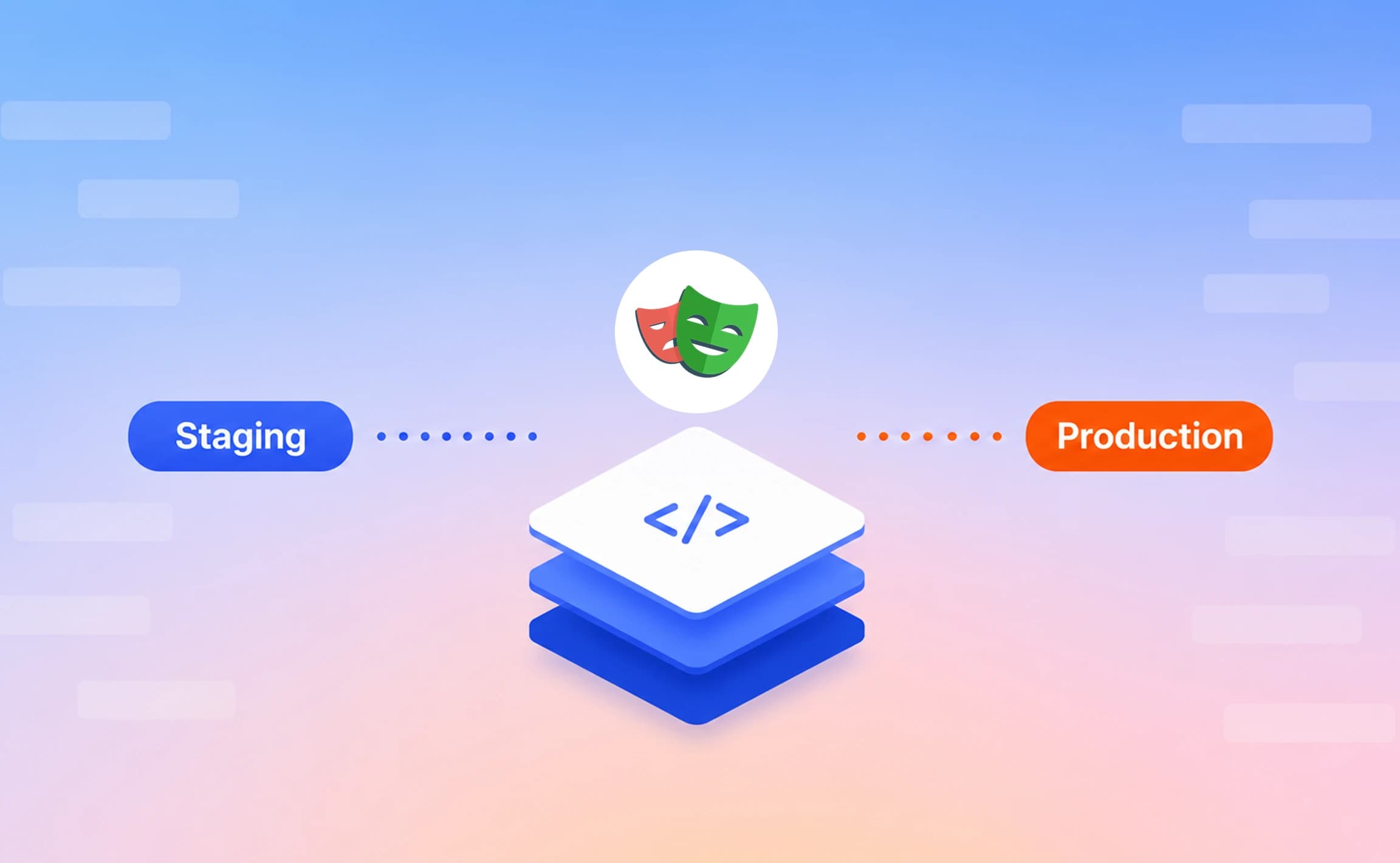
Infographic showing the split of tests between staging and production environments, highlighting full regression in staging and smoke tests in production
Why splitting tests across environments matters now
Definition: A staging environment is a near-exact replica of production used to validate features, integrations, and bug fixes before they reach real users. A production environment is the live system serving actual customer traffic and data.
Staging and production serve fundamentally different purposes. Running the same tests against both is a misuse of both environments. Here is why the distinction matters more in 2026 than it did even two years ago.
Release velocity has outpaced test strategy. Teams shipping multiple times per day cannot afford a 45-minute "end-to-end test" suite blocking every deploy. Splitting tests by environment lets you run a fast smoke suite in production (under 5 minutes) and defer the full regression to staging, where failures are cheap.
Staging drift is a real thing. No matter how carefully a team mirrors staging, the environment drifts. Third-party APIs behave differently, CDN edge caching changes, and data volumes never quite match. A test that passes in staging and fails in production is not flaky, it caught a real gap between your environments.
Production testing is no longer controversial. The industry has moved from "never touch production" to "test what you can, safely." Synthetic monitoring, canary deploys, and feature flags have made post-deployment verification possible without putting real users at risk.

Tip: If your full test suite takes more than 10 minutes, that is a strong signal you need to split it. Run the expensive suite in staging and a lean smoke suite in production.
One e-commerce team reduced their deployment pipeline testing time from 38 minutes to under 7 by moving visual regression and payment flow tests to staging-only, while keeping a 12-test smoke suite in production. That kind of improvement is typical once you stop running every test against every environment.
Staging vs production: a side-by-side comparison
The table below summarizes the core differences between testing environments staging and production:
| Factor | Staging | Production |
|---|---|---|
| Primary goal | Validate new features and catch regressions before release | Verify live system health and real-user experience |
| Risk level | Low (isolated from real users) | High (impacts actual customers) |
| Data | Synthetic, anonymized, or seeded test data | Real customer data (sensitive, regulated) |
| Test scope | Full regression, destructive tests, performance tests | Smoke tests, read-only checks, synthetic monitors |
| Failure cost | Developer time to investigate | User-facing outages, revenue loss, brand damage |
| Retry tolerance | Higher (can retry flaky tests multiple times) | Lower (every retry adds latency to deploy gates) |
| Run frequency | Every PR and pre-deploy | Post-deploy + scheduled cron (every 5-15 min) |
What belongs in staging and what belongs in production
The decision of what to run where comes down to one question: can this test cause harm if it runs against real user data and real infrastructure?
Tests that belong in staging
Staging is your pre-production testing zone. Every test that writes data, modifies state, or simulates edge cases should live here.
- Full regression suites. The complete set of "Playwright test automation" scenarios covering every feature. A failure only blocks a deploy, it does not break the product for real users.
- Destructive and mutation tests. Deleting accounts, canceling subscriptions, clearing carts. These verify critical business logic but would cause real harm in production.
- Integration tests with third-party services. Payment gateways, email providers, SMS APIs. Staging should use sandbox or test-mode credentials. Keep in mind that some APIs (like Stripe live mode vs. test mode) behave differently, so production smoke tests may still catch gaps.
- Performance testing and load tests. Simulating high traffic or measuring page load times under stress. Running these against production would degrade the experience for real users.
- Visual regression testing. Screenshot comparisons that may produce false positives due to content differences. Staging gives you a controlled baseline.
- Database migration and schema tests. Any test that runs against or validates database changes before they go live.
Tests that belong in production
Production testing is the "observe without touching" zone. Every test here must be read-only or use completely isolated test accounts.
- Smoke and sanity checks. A small, curated set of tests that verify the critical path: can a user load the homepage, log in, see their dashboard, and reach checkout? These usually cover 5 to 10 flows.
- Synthetic monitoring. Automated Playwright scripts that run on a schedule (every 5 to 15 minutes) to confirm production is healthy. They act as an early warning system before users report issues.
- API health checks. Lightweight "API tests" that hit production endpoints and verify response codes, latency, and payload structure without modifying any data.
- Accessibility spot checks. Running "accessibility audits" against production catches issues introduced by CDN optimizations, third-party scripts, or lazy-loaded content that behaves differently from staging.
- Feature flag verification. Confirming that a newly toggled feature flag renders the correct UI for the right audience segment. In a typical 400-test suite, roughly 85% should be staging-only, 10% should run in both environments, and 5% should be production-only smoke tests. If your ratios look very different, revisit which tests truly need production data to be meaningful.
Per-environment Playwright configuration
The cleanest way to manage staging vs production testing in Playwright is through the projects array in your config file. Each project gets its own baseURL, timeout, retry count, and even browser list.
Using projects for environment separation
import { defineConfig } from '@playwright/test';
export default defineConfig({
  projects: [
    {
      name: 'staging',
      use: {
        baseURL: 'https://staging.yourapp.com',
        trace: 'on-first-retry',
        video: 'on-first-retry',
      },
      retries: 2,
      timeout: 60_000,
    },
    {
      name: 'production',
      use: {
        baseURL: 'https://www.yourapp.com',
        trace: 'retain-on-failure',
        video: 'retain-on-failure',
      },
      retries: 0,
      timeout: 30_000,
      grep: /@smoke/,
    },
  ],
});
A few things to notice in this config:
- Staging gets retries, production does not. A "flaky test" retrying in production adds latency to your deploy pipeline. If a production test fails, you want to know immediately, not after three retries.
- Production uses grep: /@smoke/. This ensures only tests tagged with @smoke run against production. More on tagging in the next section.
- Traces and videos differ by environment. Staging captures on first retry (useful for debugging intermittent failures). Production captures on failure only (minimal overhead).

A light theme diagram illustrating how playwright.config.ts splits configurations into projects for staging and production
Managing secrets with dotenv
Never hardcode credentials or API keys in your config. Use environment-specific .env files and load them with dotenv. First, install the package:
npm install dotenv --save-devThen load the correct .env file based on the target environment:
import { defineConfig } from '@playwright/test';
import dotenv from 'dotenv';
import path from 'path';
dotenv.config({
  path: path.resolve(__dirname, `.env.${process.env.TEST_ENV || 'staging'}`),
});
export default defineConfig({
  use: {
    baseURL: process.env.BASE_URL,
    // httpCredentials handles HTTP Basic Auth headers, not form-based login
    httpCredentials: {
      username: process.env.TEST_USER!,
      password: process.env.TEST_PASS!,
    },
  },
});
Your .env.staging and .env.production files would look like:
BASE_URL=https://staging.yourapp.com
TEST_USER=staging-bot@yourcompany.com
TEST_PASS=s3cure-staging-pass

# .env.production
BASE_URL=https://www.yourapp.com
TEST_USER=prod-monitor@yourcompany.com
TEST_PASS=s3cure-prod-pass
Tip: Add .env.staging and .env.production to your .gitignore immediately. Commit only an .env.example file with placeholder values so new team members know which variables to configure.
If BASE_URL is missing or undefined, Playwright falls back to relative paths. This causes cryptic ERR_INVALID_URL errors that are difficult to debug. Always validate your environment variables before test execution. Then run tests for a specific environment:
TEST_ENV=staging npx playwright test --project=staging
TEST_ENV=production npx playwright test --project=production
Tagging tests for environment-specific runs
Playwright v1.42+ introduced the tag property for tests. This is the recommended way to label tests for filtering. Combined with the --grep flag, tags let you control exactly which tests run in each environment.
Adding tags to tests
import { test, expect } from '@playwright/test';
test('user can log in with valid credentials', {
  tag: ['@smoke', '@production'],
}, async ({ page }) => {
  await page.goto('/login');
  await page.getByLabel('Email').fill('test@example.com');
  await page.getByLabel('Password').fill('password123');
  await page.getByRole('button', { name: 'Sign in' }).click();
  await expect(page.getByRole('heading', { name: 'Dashboard' })).toBeVisible();
});
test('user sees error for invalid credentials', {
  tag: ['@regression'],
}, async ({ page }) => {
  await page.goto('/login');
  await page.getByLabel('Email').fill('wrong@example.com');
  await page.getByLabel('Password').fill('badpass');
  await page.getByRole('button', { name: 'Sign in' }).click();
  await expect(page.getByText('Invalid email or password')).toBeVisible();
});
Running tagged subsets
# run only smoke tests
npx playwright test --grep @smoke
# run only regression tests
npx playwright test --grep @regression
# run tests tagged with BOTH smoke AND production
npx playwright test --grep "(?=.*@smoke)(?=.*@production)"
# exclude quarantined tests
npx playwright test --grep-invert @quarantine
Setting grep in config per project
You can also hard-wire the filter into your "Playwright config" so the production project always runs smoke tests only:
projects: [
  {
    name: 'production',
    grep: /@smoke/,
    grepInvert: /@destructive/,
    use: { baseURL: 'https://www.yourapp.com' },
  },
],
Note: Embedding grep inside the project config is safer than relying on CLI flags. It prevents someone from accidentally running the full regression suite against production.
This approach aligns with "grouping Playwright tests" by purpose rather than by file location. Tags are visible in the built-in "HTML reporter", making it straightforward to audit which tests ran in which environment.
Building production-safe test suites
Running tests against production is powerful, but it requires discipline. A single bad test can send real emails, charge real credit cards, or delete real user data. The following five rules keep your production suite safe by design.
Rule 1: read-only interactions only
Every production test should verify state without modifying it. If your test needs to click "Buy Now" to verify the checkout flow, do not let it proceed past the confirmation step.
import { test, expect } from '@playwright/test';
test('checkout page loads with cart items', {
  tag: ['@smoke', '@production'],
}, async ({ page }) => {
  await page.goto('/checkout');
  await expect(page.getByRole('heading', { name: 'Order summary' })).toBeVisible();
  await expect(page.getByTestId('cart-total')).not.toHaveText('$0.00');
  // Do NOT click "Place order" in production
});
Rule 2: use dedicated test accounts
Create isolated accounts in production that are clearly marked as test accounts. These accounts should: Have their own email domain (e.g., @test.yourcompany.internal) Be excluded from billing and analytics pipelines Have feature flags set to a known state Never appear in customer-facing reports
Rule 3: clean up after yourself
If a production test must create data (e.g., adding an item to a cart), use an API call in the teardown to remove it.
import { test, expect } from '@playwright/test';
test.afterEach(async ({ request }) => {
  // Clean up test data via API
  await request.delete('/api/test/cart/clear', {
    headers: { 'x-test-account': 'true' },
  });
});
Rule 4: set strict timeouts
Production tests should fail fast. If the homepage does not load within 10 seconds, something is wrong. Long "timeouts" [Playwright Timeout: Configure, Debug, and Fix Every Type | TestDino ] mask real issues and slow down your feedback loop.
{
  name: 'production',
  timeout: 15_000,
  expect: { timeout: 5_000 },
  use: {
    actionTimeout: 5_000,
    navigationTimeout: 10_000,
  },
}
Rule 5: alert, do not block
Production test failures should trigger alerts (Slack, PagerDuty, email), not block deploys. The deploy has already happened. The goal now is to detect and respond, not to gate.
Compliance note: If your application handles PII or operates under GDPR, HIPAA, or SOC 2, verify that your production test accounts do not access real customer data. Dedicated test tenants with synthetic data are the safest approach.

A light-colored checklist infographic listing the 5 rules for production safe testing including read-only interactions and dedicated accounts
CI/CD pipeline setup for multi-environment testing
The real power of environment-split testing shows up in your deployment pipeline testing workflow. Here is how to wire it together using GitHub Actions, though the pattern applies to "GitLab CI", Azure Pipelines, and CircleCI as well.
GitHub Actions workflow
name: Playwright Tests
on:
  push:
    branches: [main]
  pull_request:
    branches: [main]
jobs:
  staging-tests:
    name: Staging - Full Regression
    runs-on: ubuntu-latest
    environment: staging
    steps:
      - uses: actions/checkout@v4
      - uses: actions/setup-node@v4
        with:
          node-version: 20
      - run: npm ci
      - run: npx playwright install --with-deps
      - name: Run staging tests
        run: npx playwright test --project=staging
        env:
          TEST_ENV: staging
          BASE_URL: ${{ secrets.STAGING_URL }}
          TEST_USER: ${{ secrets.STAGING_USER }}
          TEST_PASS: ${{ secrets.STAGING_PASS }}
      - uses: actions/upload-artifact@v4
        if: always()
        with:
          name: staging-report
          path: playwright-report/
  production-smoke:
    name: Production - Smoke Tests
    needs: staging-tests
    runs-on: ubuntu-latest
    environment: production
    steps:
      - uses: actions/checkout@v4
      - uses: actions/setup-node@v4
        with:
          node-version: 20
      - run: npm ci
      - run: npx playwright install --with-deps
      - name: Run production smoke tests
        run: npx playwright test --project=production
        env:
          TEST_ENV: production
          BASE_URL: ${{ secrets.PRODUCTION_URL }}
          TEST_USER: ${{ secrets.PROD_MONITOR_USER }}
          TEST_PASS: ${{ secrets.PROD_MONITOR_PASS }}
      - uses: actions/upload-artifact@v4
        if: always()
        with:
          name: production-report
          path: playwright-report/
Key details in this workflow:
- Staging runs first and must pass. The needs: staging-tests dependency ensures production smoke tests only run after the full regression is green.
- Secrets come from GitHub environment settings, not .env files. This is the recommended approach from both "GitHub Actions integration" guides and Playwright's official docs. Enable GitHub's environment protection rules to require approvals before production deploys.
- Upload reports as artifacts for both environments. This makes it straightforward to compare failures across environments. Teams using "test automation reporting" dashboards can push results to a centralized platform for historical comparison.
Tip: Run production smoke tests on a cron schedule (every 15 minutes) in addition to post-deploy. This turns your smoke suite into a synthetic monitor that catches issues between deploys.
Scheduled production monitoring
Add a separate workflow that runs production smoke tests on a recurring schedule:
name: Production Monitor
on:
  schedule:
    - cron: '*/15 * * * *'  # Every 15 minutes
  workflow_dispatch:
jobs:
  monitor:
    runs-on: ubuntu-latest
    environment: production
    steps:
      - uses: actions/checkout@v4
      - uses: actions/setup-node@v4
        with:
          node-version: 20
      - run: npm ci
      - run: npx playwright install --with-deps
      - name: Run production monitors
        run: npx playwright test --project=production --reporter=list
        env:
          TEST_ENV: production
          BASE_URL: ${{ secrets.PRODUCTION_URL }}
This gives you continuous post-deployment verification without any manual intervention.
Common mistakes teams make with environment testing
In practice, teams that split their "Playwright best practices" across environments keep hitting the same five mistakes. Here is what to watch for.
Mistake 1: running the full suite in production
This is the most common error. Teams copy their staging config, swap the URL, and run everything. Within a week, a test sends a password reset email to a real user or creates duplicate records in the billing system. Fix: Use the grep property in your production project to whitelist only @smoke or @production tagged tests.
Mistake 2: ignoring staging drift
Teams set up staging once and assume it stays in sync with production. Over time, database schemas diverge, third-party integrations expire, and staging becomes a false confidence machine. Fix: Automate staging refreshes. Use Infrastructure as Code (Terraform, Pulumi) to rebuild staging from the same templates as production. Schedule weekly data anonymization syncs. Run a periodic comparison test against both environments to catch drift early.
Mistake 3: not isolating test data
A test in staging creates a user called test@test.com. Another developer's test relies on that same email. Both tests become "flaky" because they share mutable state. Fix: Generate unique test data per run. Use timestamps or UUIDs in email addresses and usernames. Use API-based seeding in "test fixtures" to create the exact state each test needs.
Mistake 4: hardcoding environment logic in tests
Tests peppered with if (process.env.ENV === 'production') checks become impossible to maintain. Every new environment requires updating every test file. Fix: Push all environment-specific logic into playwright.config.ts and "Page Object Model" classes. Tests should be environment-agnostic.
Mistake 5: no alerting on production test failures
A production smoke test fails at 3 AM. Nobody notices until a customer complains at 9 AM. Six hours of downtime, all because the alert was a GitHub Actions notification that nobody checks outside business hours. Fix: Integrate with PagerDuty, Opsgenie, or Slack webhooks. Route production test failures to the same on-call rotation as infrastructure alerts.
Conclusion
If you are managing Playwright tests across multiple environments, tracking which tests pass in staging but fail in production becomes critical. TestDino is a Playwright cloud companion. It records CI runs, detects flakes, and keeps traces and fix workflows ready for teams and AI agents over MCP.
Splitting your Playwright tests across staging and production is not about running fewer tests. It is about running the right tests in the right place. Staging handles the heavy lifting: full regression, destructive tests, performance benchmarks, and "visual testing". Production handles the guardrails: smoke tests, synthetic monitors, and read-only health checks.
The implementation boils down to three things:
- Config-level separation. Use Playwright projects with per-environment baseURL, timeouts, retries, and grep filters.
- Test tagging. Label every test with @smoke, @regression, @destructive, or @production so you can filter precisely.
- Pipeline wiring. Run staging tests before deploy, production smoke tests after deploy, and scheduled monitors continuously. The teams that get this right ship faster and break less. The ones that do not end up with a test suite that nobody trusts and a staging environment that nobody believes.
FAQs

Ayush Mania
Forward Development Engineer