Handling Salesforce Dynamic IDs in Playwright: The Ultimate Guide
Struggling with flaky Salesforce tests? Learn how to handle Salesforce dynamic IDs in Playwright using stable Lightning locators.
Testing enterprise web applications often feels like trying to hit a moving target, especially when the screens change every single time you load them.
The biggest pain point is that elements on the screen lack stable, permanent addresses, causing automated checks to fail randomly even when the application works perfectly fine.
This guide explains exactly how to handle Salesforce dynamic IDs in Playwright, so you can build robust test automation frameworks that will not break on the next deployment.
Why Salesforce UI Automation is Historically Brittle
Salesforce is an incredibly powerful platform, but it was built for customization and scalability, not necessarily for easy UI testing. The underlying architecture heavily relies on the Lightning Component framework, which dynamically renders the user interface on the fly.
Because of this dynamic rendering, the HTML structure of a Salesforce page is rarely static.
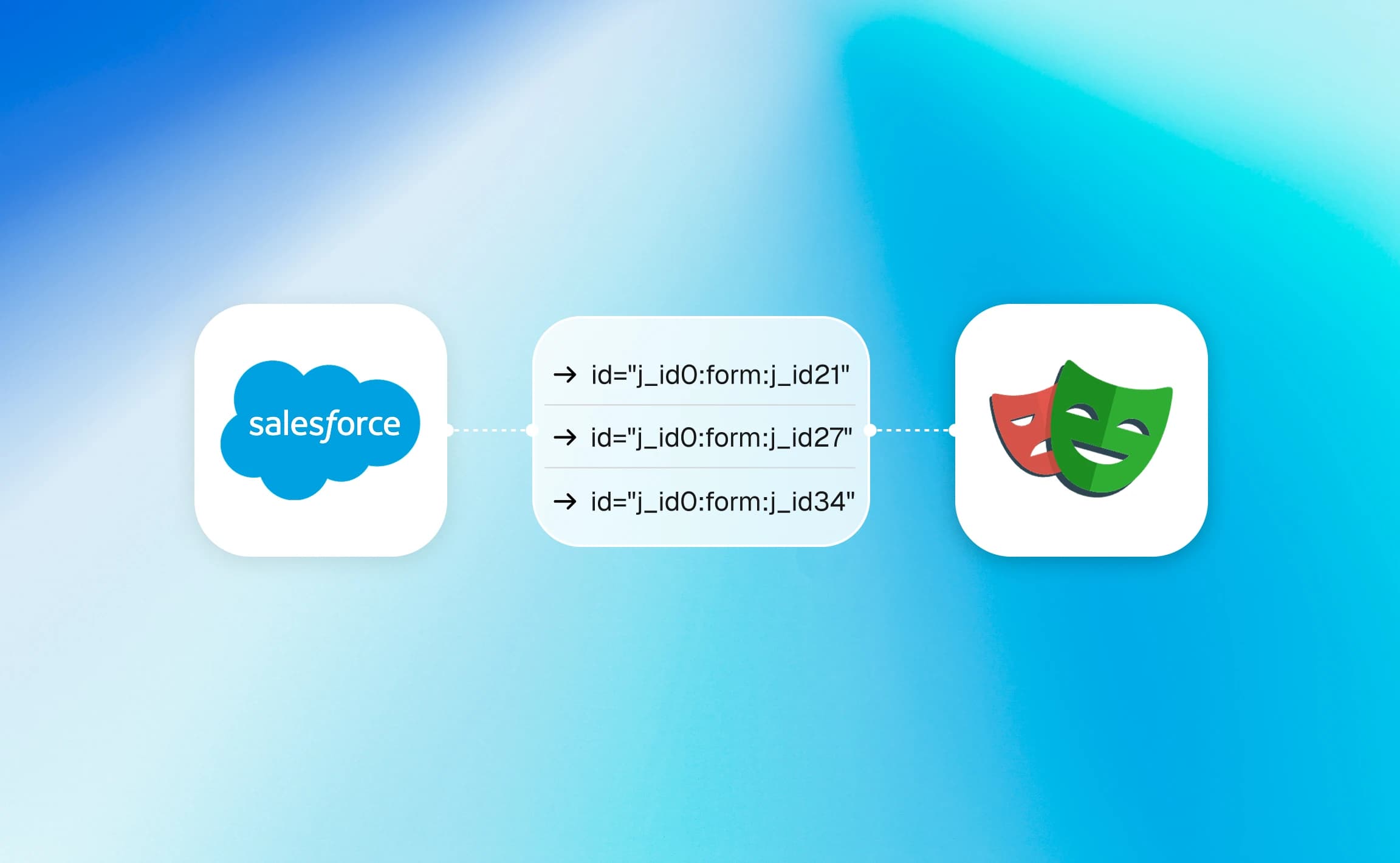
When a page loads, the framework assigns random strings to the ID attributes of HTML elements. This means an input field that had an ID of "input-15" yesterday might have an ID of "input-82" today.
If your automation relies on these exact ID strings, your scripts will inevitably fail on the very next test run. This constant breakage is a primary reason why teams struggle with test failure analysis.
Dynamic ID: A runtime-generated identifier assigned to an HTML element by a web framework. These IDs change upon page reload, making them unreliable for test automation locators. You must avoid these to successfully handle Salesforce dynamic IDs in Playwright.
Furthermore, Salesforce updates its platform three times a year with massive seasonal releases. These updates often restructure the underlying DOM completely, changing class names and element hierarchies.
Understanding this environment is crucial before we discuss how to fix it.
The Problem with Salesforce Dynamic IDs in Playwright
Playwright is an exceptional tool for modern web testing, offering incredible speed and native auto-waiting capabilities. However, if you feed it bad locators, even the best tool will produce unstable results.
When engineers first attempt playwright test automation on Salesforce, they often use the record-and-play feature.
The recorder might capture a locator like page.locator('#input-188:2;a') playwright test This selector will work flawlessly during the initial recording session. However, as soon as you run the test in your continuous integration pipeline, the framework generates a new ID. The test times out, and the build fails with an error trace like this:
TimeoutError: page.locator('#input-188:2;a').click()
=========================== logs ===========================
waiting for locator('#input-188:2;a')
============================================================
This is exactly why learning to manage Salesforce dynamic IDs in Playwright is a mandatory skill for any QA engineer. You cannot rely on the default ID attributes provided by the Lightning framework.
Instead, you must shift your mindset toward how a human user actually perceives and interacts with the page. Users do not look for an element with the ID of "button-42", they look for a button that says "Save".
3 Reliable Ways to Handle Salesforce Dynamic IDs in Playwright
To build resilient tests, you must stop targeting the unstable attributes of the DOM. Here are the three most effective strategies for identifying elements in a constantly shifting UI. Implementing these will drastically reduce the time you spend maintaining broken tests.
1. Adopt Semantic Locators (The Recommended Approach)
The absolute best way to handle Salesforce dynamic IDs in Playwright is to ignore them entirely and use semantic locators. Semantic locators mimic human behavior by finding elements based on their accessible text, roles, or placeholder values.
Playwright provides powerful built-in methods like getByRole and getByLabel specifically for this purpose.
For example, instead of querying an ID, you can use page.getByRole(''button",{name :'New Contact'}). This approach is incredibly stable because the visual label "New Contact" rarely changes, even if the underlying HTML does. If you want to master this technique, reading about advanced playwright locators is highly recommended. Semantic locators also ensure your Salesforce application remains accessible to users relying on screen readers.
2. Implement Custom Data Attributes
If you have a strong relationship with your Salesforce development team, request custom data attributes. Developers can add static data-testid attributes to custom Lightning Web Components (LWC).
A static attribute like data-testid="submit-form-button" will never change upon page reload.
This method provides an absolute anchor for your automation scripts. You can easily target these attributes using page.getByTestId('submit-form-button'). While you cannot add these to standard Salesforce out-of-the-box components, they are perfect for custom-built solutions. It is the most foolproof way to solve the locator problem if you have access to the source code.
3. Use CSS and XPath with Partial Matches
Sometimes, you cannot use semantic locators, and developers cannot add custom attributes. In these rare cases, you can use CSS or XPath selectors with partial matching rules. While standard IDs change completely, they often retain a consistent prefix or suffix.
For instance, an ID might change from input-10 to input-55. You can use a CSS attribute selector like page.locator('input[id^="input-"]') to find an input whose ID starts with "input- ". To make this more precise, you should scope it within a specific parent container. This ensures you do not accidentally interact with the wrong input field on the page.

Conquering Salesforce Lightning Locators Playwright
Beyond standard text inputs, Salesforce uses complex Lightning components like comboboxes, data tables, and lookup fields. These components consist of deeply nested HTML nodes that can confuse standard automation tools.
Effectively managing Salesforce Lightning locators Playwright requires understanding how to traverse these nested structures safely.
When dealing with a complex component, never try to write a single massive XPath to reach the target element. Instead, use Playwright's locator chaining feature to narrow down your search area progressively. First, locate the parent container, and then search for the specific interactive element inside it. This keeps your selectors clean, readable, and highly resilient to minor UI changes.

Tip: Always scope your locators to a specific region of the page. Use page.locator('section[aria-label="Contact Details"]').getByRole('button', { name: 'Edit' }) to avoid interacting with a button of the same name in a different section.
Another common challenge is the Lightning Combobox, which does not behave like a standard HTML select element. It is actually a read-only input field that triggers a dropdown menu built with list items. To automate this, you must first click the input field to open the dropdown menu. Then, use getByRole('option',{ name : 'Desired Value'}) to select the item from the newly rendered list. Following these playwright best practices ensures you interact with the UI exactly as a user would.
Navigating the Shadow DOM in Salesforce
One of the most defining architectural features of modern Salesforce is its extensive use of the shadow DOM. Lightning Web Components encapsulate their styling and markup using this web standard.
Historically, testing tools struggled immensely with this because elements inside a shadow root are hidden from standard document queries.
Fortunately, Playwright natively pierces open shadow DOMs without requiring any complex configuration or plugins. When you use semantic locators like getByText or getByRole, Playwright automatically searches through all open shadow roots on the page. This makes dealing with shadow DOM Playwright Salesforce scenarios surprisingly straightforward compared to older tools like Selenium.

However, it is important to note that you cannot use standard XPath selectors to pierce shadow boundaries. XPath engine limitations mean it will simply fail to find elements hidden inside a component. If you must use CSS selectors to target these elements, you can use Playwright's special css:light engine if needed, though semantic locators remain superior. To learn more about configuring CI environments for such complex tests, refer to our guide on playwright in github actions.

Handling Asynchronous Loads and API Interception
Salesforce is a highly asynchronous application that makes numerous background API calls when loading a page. Elements might appear on the screen, disappear, and reappear as data is fetched from the server. This asynchronous behavior is a massive contributor to test flakiness if not handled correctly.
The worst possible approach is to hardcode arbitrary wait times using static sleep commands.
Playwright's auto-waiting feature automatically waits for elements to be visible, stable, and actionable before interacting. But in a heavy application like Salesforce, you often need to wait for the underlying network requests to complete.
Learning how to handle dynamic IDs in Salesforce goes hand-in-hand with learning how to wait for network state. You should leverage page.waitForResponse() page.waitForResponse() to pause your script until a specific API endpoint returns a success status.
By waiting for the actual data to load, your tests execute exactly as fast as the environment allows. This dynamic waiting strategy is essential for managing a complex playwright timeout without resorting to hardcoded delays. Ultimately, this is how enterprise teams manage to reduce playwright ci runtime while maintaining rock-solid stability.
Playwright Salesforce Testing Examples
To put this theory into practice, let us look at a concrete automation scenario. Imagine we need to navigate to an Account record and update its phone number. We will avoid all dynamic IDs and rely entirely on semantic locators and ARIA attributes.
import { test, expect } from '@playwright/test';
test('Update Account Phone Number', async ({ page }) => {
  // Navigate to the Salesforce org and login
  await page.goto('https://login.salesforce.com');
  await page.getByLabel('Username').fill('test@example.com');
  await page.getByLabel('Password').fill('securepassword123');
  await page.getByRole('button', { name: 'Log In' }).click();
  // Wait for the Salesforce Lightning dashboard to load completely
  await expect(page.getByRole('banner')).toBeVisible();
  // Search for the specific Account using the global search
  await page.getByPlaceholder('Search Setup').fill('Acme Corp');
  await page.getByRole('option', { name: 'Acme Corp Account' }).click();
  // Click the Edit button scoped to the details section
  await page.locator('article', { hasText: 'Account Details' })
            .getByRole('button', { name: 'Edit Phone' })
            .click();
  // Fill the new phone number and save
  await page.getByLabel('Phone').fill('555-123-4567');
  await page.getByRole('button', { name: 'Save' }).click();
  // Verify the success toast message appears
  await expect(page.getByText('Account Acme Corp was saved')).toBeVisible();
});
These Playwright Salesforce testing examples demonstrate how readable and maintainable your code becomes. There is not a single brittle CSS hash or dynamic ID in the entire script. To structure these scripts efficiently across a large team, you should implement the playwright page object model pattern. Additionally, utilizing playwright fixtures will help you manage authentication state seamlessly across multiple test files.

Scaling Your Salesforce Automation Strategy
Once you have mastered locators and waiting strategies, the next challenge is running your suite at scale. Enterprise Salesforce implementations are massive, requiring hundreds or thousands of automated checks. Running these reliably in a CI/CD pipeline requires a deeper level of observability.
You can quantify the yearly cost of flaky tests using TestDino's free tools. These engineering utilities help you calculate CI budgets and determine exactly how many shards your Playwright suite needs.
If tests continue to fail intermittently, leveraging advanced flaky test detection tools is crucial to identify environmental issues. Many modern teams are even exploring how fixing playwright tests with ai can automate the maintenance of their test suites entirely.
When debugging failures in a headless CI environment, reading terminal logs is rarely enough. You must enable and utilize the playwright trace viewer to visually inspect the DOM state at the exact moment a failure occurred. For teams looking to integrate AI agents deeply into their testing workflows, exploring the playwright mcp context protocol provides exciting new possibilities.
Conclusion
Automating Salesforce does not have to be a nightmare of constant maintenance and brittle scripts. By shifting away from brittle DOM attributes and adopting semantic, user-centric locators, you build resilience into your automation foundation.
You now possess the knowledge to effectively manage Salesforce dynamic IDs in Playwright, handle complex shadow DOM structures, and eliminate static sleep commands. Implement these practices today, and watch your CI pipeline transform from a source of anxiety into a reliable safety net.
FAQs

Ayush Mania
Forward Development Engineer