WebMCP Testing: How to Test Your Site’s AI Agent Tools in 5 Steps
WebMCP lets sites hand AI agents real tools. Learn to test those tools with Playwright 1.64, DevTools, and evals.
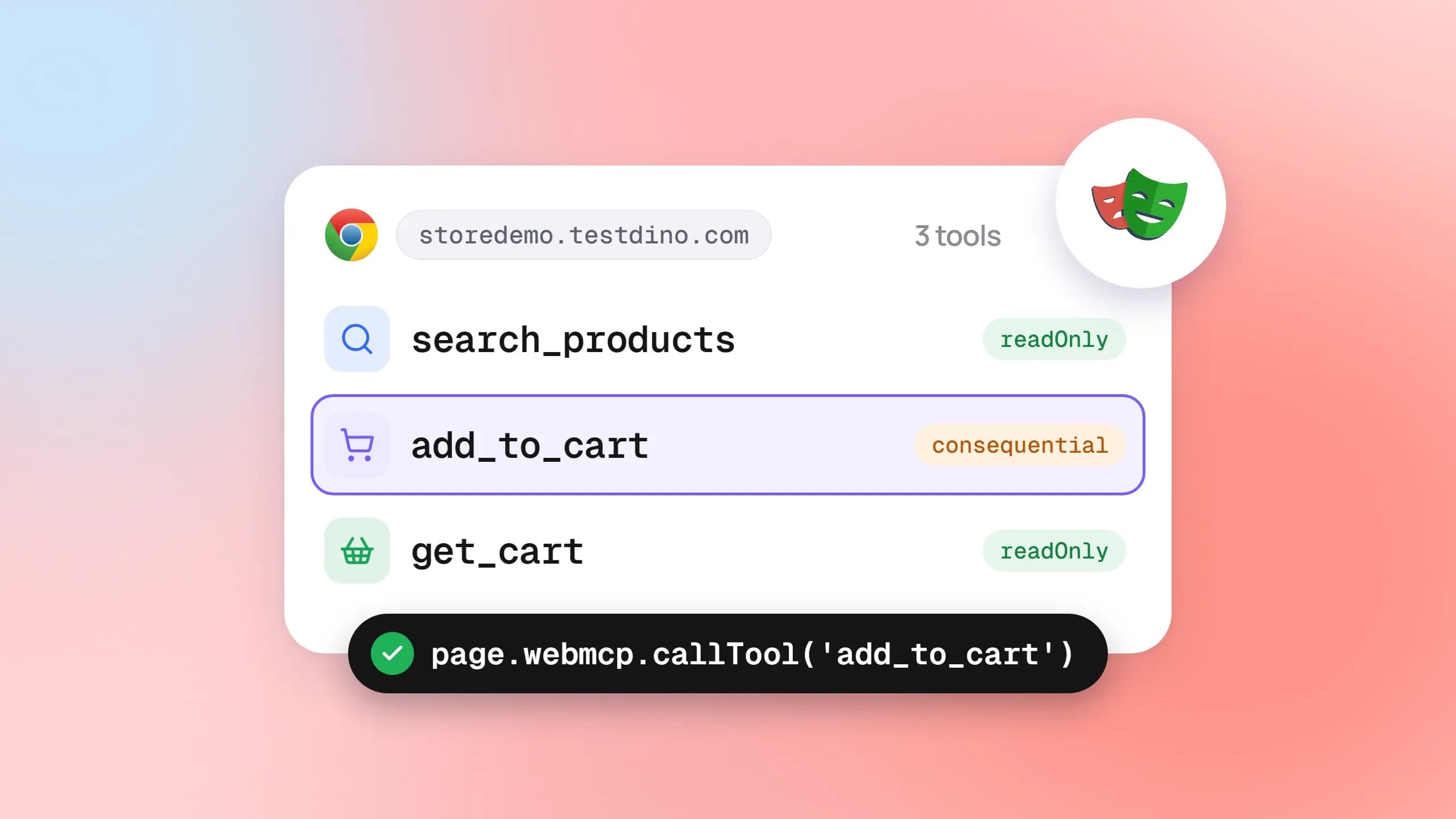
Websites are starting to hand AI agents a short menu of actions, like "search products" or "add to cart", instead of making the agent guess from buttons. Chrome is trialing the idea as WebMCP, and WebMCP testing just became a real QA job.
The catch is that a tool can report success while the page shows the wrong cart, and nobody notices until an agent places a bad order. Most teams have no AI agent testing step that calls these tools the way an agent would.
This guide covers the whole loop: enabling the browser, listing and calling tools with Playwright 1.64, debugging in Chrome DevTools and playwright-cli, and running evals. Every step ran against the TestDino demo store, and the screenshots come from those runs.
What WebMCP testing means and why it is different
WebMCP is "a proposed web standard to help you build and expose structured tools for AI agents", in the words of the Chrome WebMCP documentation. A page registers tools with a name, a description, and a JSON Schema for inputs. An agent running in the browser reads that list and calls the tools directly.
WebMCP testing is the practice of verifying the tools a web page registers for AI agents: that the right tools exist, that their names, descriptions, and schemas are correct, that each tool behaves as promised with valid and invalid input, and that the page and backend end up in the state the tool reported.
Classic end-to-end tests click what a person sees. The agent path skips the accessibility tree entirely and calls a function the page author wrote. So a green UI suite tells you nothing about whether add_to_cart actually works.
The specification is still a Draft Community Group Report from the W3C Web Machine Learning Community Group. The WebMCP draft dated 15 October 2026 lists editors from Microsoft and Google and states plainly that it is not a W3C Standard. The API surface has already changed once, which matters for anyone writing tests against it.
3 reasons WebMCP testing needs its own suite
- It is a separate code path. The draft's security section warns that agents calling tools directly "may take a different code path than agents using the UI", with different validation. Your UI tests never touch that path.
- Everything the page returns is untrusted. Playwright's own API reference says tool names, descriptions, schemas, and results are supplied by the page and must be treated as untrusted input. Tests need to assert on them, not trust them.
- Agent choice is probabilistic. Whether an agent picks your tool for a given prompt is not something a unit test can assert. That layer needs evals, which we cover later.
Agents reach pages through harnesses such as Playwright MCP, which now lists page tools beside its own browser tools. To test those tools well, you first need to know how a page creates them.
How WebMCP tools work under the hood
Imperative tools with document.modelContext
The current draft exposes a modelContext object on document with three methods and three events. Pages call registerTool(); agents and test harnesses call getTools() and executeTool(). The events are toolchange, toolactivated, and toolcancel.
Each tool is a plain object. Here is the read-only cart tool we registered on the demo store during our WebMCP testing run:
document.modelContext.registerTool({
  name: 'get_cart',
  description: 'Read the current shopping cart: line items, quantities, and total price. Makes no changes.',
  inputSchema: { type: 'object', properties: {}, additionalProperties: false },
  annotations: { readOnlyHint: true },
asyncexecute() {
return { content: [{ type: 'text', text: JSON.stringify(readCart()) }] };
  },
});
There is no unregisterTool() in the current IDL. You pass an AbortSignal in the options of registerTool() and abort it when the tool should disappear, for example when a React route unmounts.
One naming trap: many tutorials, and Playwright's own reference page, still say navigator.modelContext. In Chromium 156, the build bundled with Playwright 1.64, we found document.modelContext present and navigator.modelContext absent. Feature-detect before you assume.
Declarative tools from HTML forms
The second path needs no JavaScript. The declarative API explainer adds toolname and tooldescription attributes to a form, plus toolparamdescription on each input. The browser builds the input schema from the form controls.
Two details change how you test these. Without toolautosubmit, the browser focuses the submit button and the agent asks the user to review before submitting. And the explainer calls the schema synthesis rules "TBD", so expect generated schemas to shift between Chrome versions.
| API surface | What it does | Who normally calls it |
|---|---|---|
| registerTool(tool, { signal }) | Adds a tool to the page's list | Page code |
| getTools() | Lists registered tools with schemas and annotations | Agents, DevTools, test harnesses |
| executeTool(tool, input) | Runs a tool and returns its result | Agents, DevTools, test harnesses |
| toolchange event | Fires when the tool list changes | Agents watching for new tools |
| toolactivated / toolcancel events | Fire when a tool starts or is cancelled | Page code updating UI state |
| form[toolname] attributes | Turns an HTML form into a tool | Page markup |
WebMCP vs MCP: what you are actually testing
An MCP server is a separate process that speaks JSON-RPC and owns its own credentials. A WebMCP tool is a function that lives inside a page. Its lifetime is the document's lifetime, and it shares the tab's logged-in session and the state on screen.
That changes the test type. A WebMCP test is a browser test, not an API test, because the tool can read and change the DOM. The concerns from MCP server security still apply, and the draft adds page-level ones: prompt injection hidden in tool descriptions or outputs, and tools whose declared purpose does not match what they do.
The browser gates both APIs behind a tools Permissions Policy. Per the Chrome docs it defaults to self, so cross-origin iframes need allow="tools" to register anything, and a tools=() header turns WebMCP off for a document and its frames. All of this only exists in browsers that have switched it on, which is the setup problem we solve next.
Setting up a WebMCP testing environment
Browser flags and versions
Support is uneven and flag-driven, so the first job is picking a browser that will expose the API to your tests. The table below comes from the Chrome docs, the Playwright reference, and the WebMCP implementation status page in the spec repo.
| Browser | How to enable | Official status |
|---|---|---|
| Chrome 149 and later | chrome://flags/#enable-webmcp-testing for local work, or the origin trial for a live site | Origin trial live. Chrome Status lists it for Chrome 149 through 156 |
| Chrome DevTools pane | Also enable chrome://flags/#devtools-webmcp-support | Experimental. Appeared for us in Chrome 155 stable with both flags set |
| Chromium under Playwright | Launch with --enable-features=WebMCP | Documented in the Playwright WebMCP class |
| Edge 150 and later | Origin trial, or --enable-features=WebMCP for automation | Origin trial live per the spec repo. Edge 155 stable exposed the API for us with the launch argument |
| Firefox | Set dom.modelcontext.enabled and dom.modelcontext.testing.enabled | Playwright documents the preferences. Chrome Status records "No signal" from Mozilla |
| Safari / WebKit | Not available | Playwright: WebKit does not implement it. Chrome Status records "No signal" |
The WebMCP origin trial post from June 2026 is where a production site registers. For a local or staging environment, the flag is enough, and for Playwright the launch argument is enough.
We checked that argument on the browsers already installed on our Windows machine. Chrome 155 stable and Edge 155 stable both exposed document.modelContext when started with --enable-features=WebMCP, and neither exposed it without the argument.

Tip: Do not mix the flag families. chrome://flags settings apply to the Chrome profile you click in. A Playwright-launched Chromium ignores them and only honors --enable-features=WebMCP. If page.webmcp.tools() throws "launched without WebMCP support", the launch argument is missing.
Playwright 1.64 and the WebMCP class
Playwright 1.64 shipped in October 2026 with a new WebMCP class reachable as page.webmcp for the main frame and frame.webmcp for child frames. It has exactly 2 methods: tools() lists what the frame registered, and callTool(name, input, { timeout }) runs one and returns whatever its execute resolved to.
The bundled browser in 1.64 is Chromium 156.0.8078.4, which is the build our Playwright screenshots come from. The DevTools and CLI screenshots later in this guide come from the Chrome 155 stable installed on the same machine. The config change is a single launch argument:
import { defineConfig, devices } from'@playwright/test';exportdefaultdefineConfig({
testDir: './tests',
reporter: [
['list'],
['@testdino/playwright', { token: process.env.TESTDINO_TOKEN, tags: ['webmcp', 'storedemo'] }],
],
use: {
...devices['Desktop Chrome'],
baseURL: 'https://storedemo.testdino.com',
launchOptions: { args: ['--enable-features=WebMCP'] },
trace: 'on',
screenshot: 'on',
},
projects: [{ name: 'chromium-webmcp' }],
});The second reporter is TestDino's. It streams each test to the dashboard as it finishes, so there is no upload step at the end, and the trace and screenshot settings decide what it can attach. The token is a project API key from Project Settings, kept in the environment and never in the file.
If you are starting from zero, the Playwright framework setup walkthrough covers the rest of the config, and the Config Generator on TestDino's free tools page produces a production-ready playwright.config.ts you can drop the launch argument into. With the browser exposing the API, the real work can begin.
How to test WebMCP tools with Playwright, step by step
The loop below is what we ran against the demo store. It is deliberately boring: list, assert, call, assert again. That is the point of WebMCP testing. No model, no prompts, just deterministic calls against the contract an agent will read.
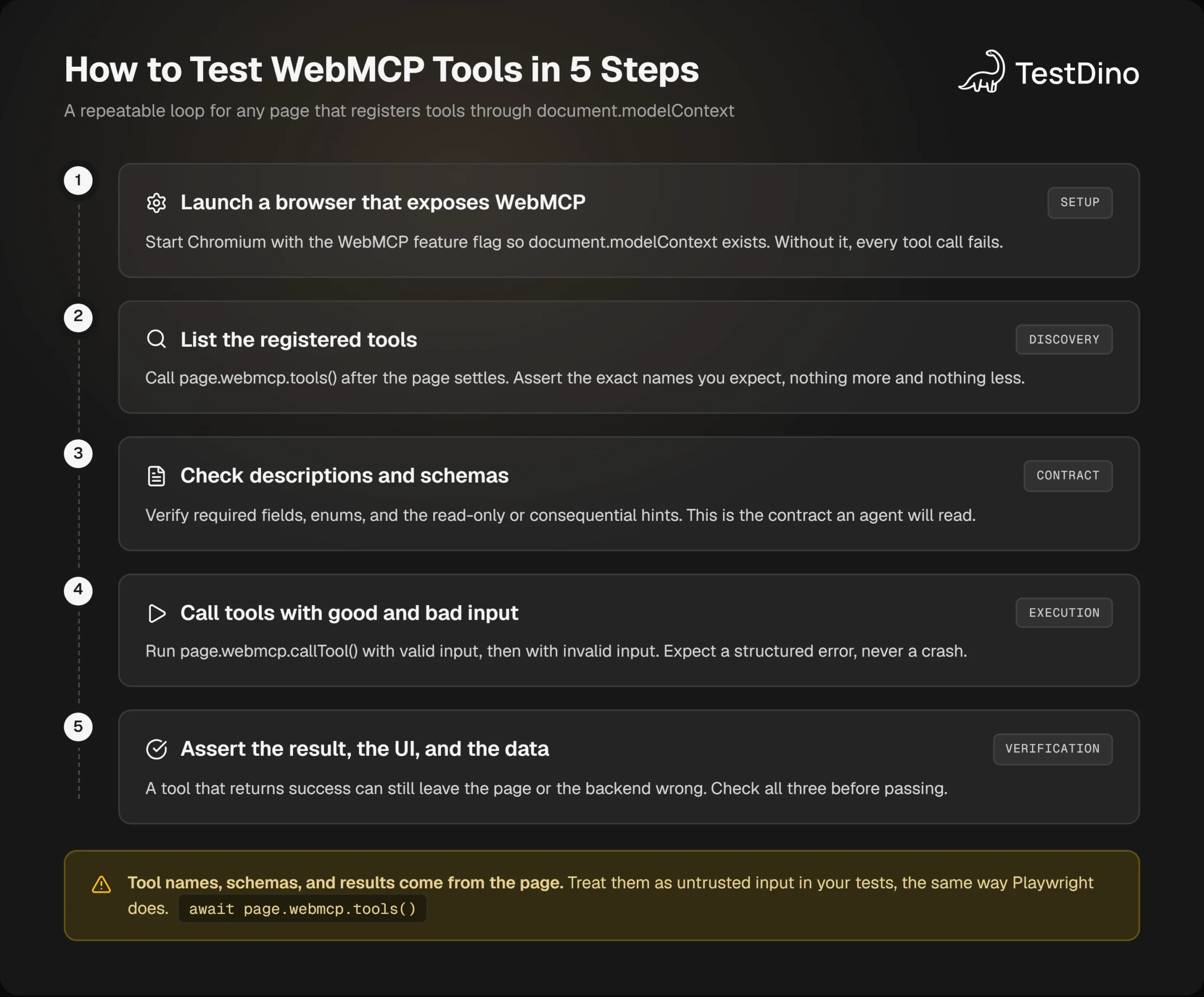
Here is the short version of how to test WebMCP tools with Playwright 1.64:
- Launch Chromium with --enable-features=WebMCP and open the page.
- Call page.webmcp.tools() and assert the exact tool names.
- Assert each tool's description, required fields, and annotations.
- Call page.webmcp.callTool() with valid input and assert the result.
- Call it with invalid input, expect isError, then check the page and data match every result.
Step 1: register tools you can test against
The demo store at storedemo.testdino.com does not ship WebMCP tools yet. The first test in our suite proves it: on the untouched site, page.webmcp.tools() returns an empty array. That is a useful baseline test for any site, because it fails the day someone registers a tool you did not expect.
Note: To show real WebMCP testing on the store, we registered 3 tools at test time through an init script. They call the real document.modelContext.registerTool() API in Chromium 156 and drive the real search box, product cards, and cart drawer underneath. When the store ships its own tools, the tests below run unchanged against them.
The init script is attached through a fixture, so every test gets the tools before any page script runs. This is the same pattern you would use for any page-level shim, and Playwright fixtures explains the mechanics if the extend call is new to you.
import { test as base, expect } from'@playwright/test';
import path from'node:path';
exportconst test = base.extend({
page: async ({ page }, use) => {
await page.addInitScript({ path: path.join(__dirname, '..', 'tools', 'store-webmcp-tools.js') });
awaituse(page);
  },
});
export { expect };
The three tools are search_products (read-only), add_to_cart (consequential, takes a slug and a quantity from 1 to 5), and get_cart (read-only). Each returns the MCP-style { content: [{ type: 'text', text }] } shape, with isError: true on expected failures.
Step 2: list the tools and lock the contract
The first real test pins the contract. It asserts the exact set of names, the required fields, the numeric bounds on quantity, and the annotations. If anyone renames a tool or loosens a schema, this fails before an agent ever sees it.
test('registers 3 tools with the expected contracts', async ({ page }) => {
const tools = await page.webmcp.tools();|
expect(tools.map((t) => t.name).sort()).toEqual(['add_to_cart', 'get_cart', 'search_products']);
const add = tools.find((t) => t.name === 'add_to_cart')!;expect(add.inputSchema.required).toEqual(['slug']);
expect(add.inputSchema.properties.quantity).toMatchObject({ type: 'integer', minimum: 1, maximum: 5 });
expect(add.annotations?.consequential).toBe(true);
expect(tools.find((t) => t.name === 'get_cart')!.annotations?.readOnly).toBe(true);
});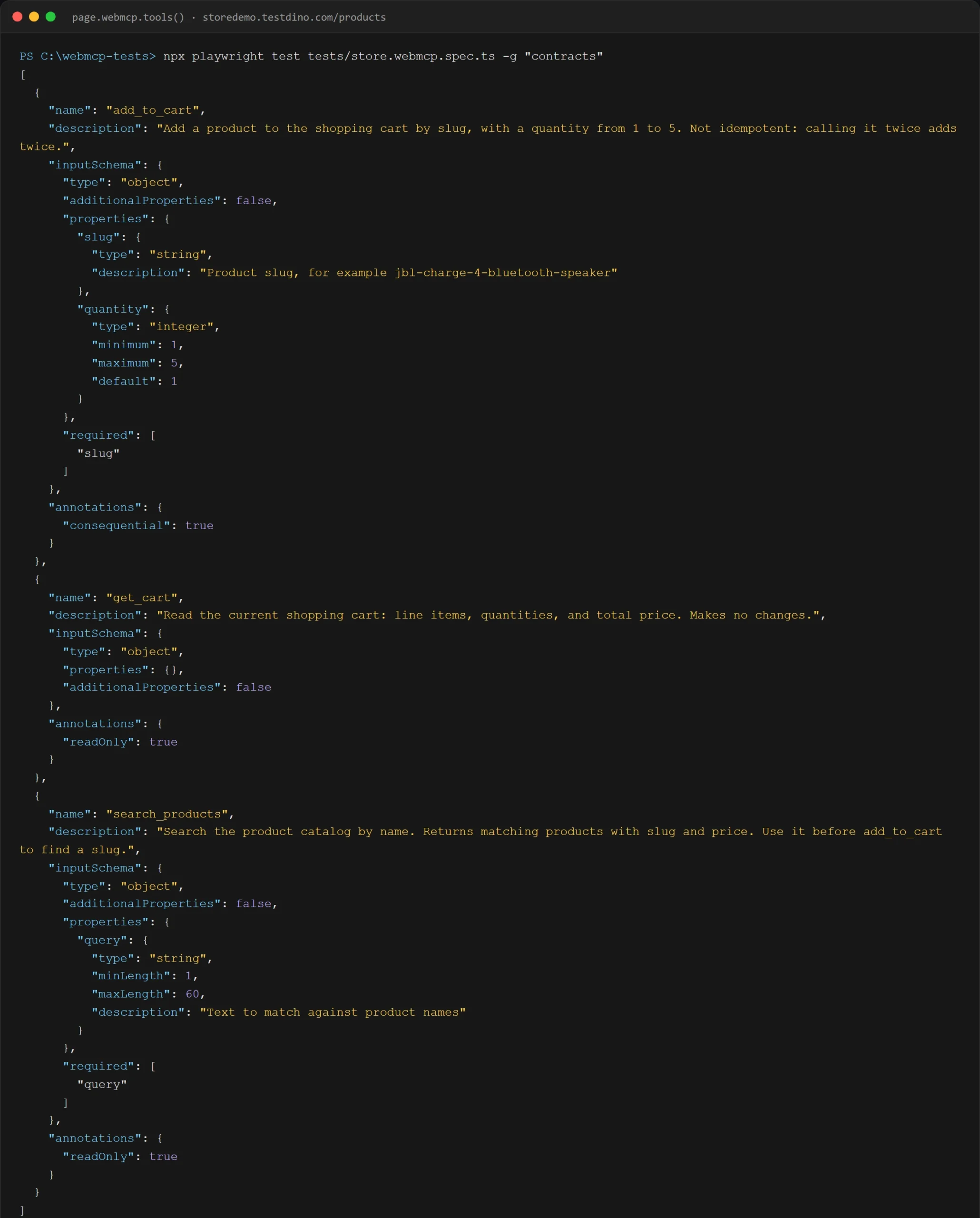
Notice the annotation names in the output. The page registered readOnlyHint and consequentialHint, as the spec defines them. Playwright reports them as readOnly and consequential, as its reference documents. Assert against Playwright's names, not the spec's.
Step 3: call tools and check the page agrees
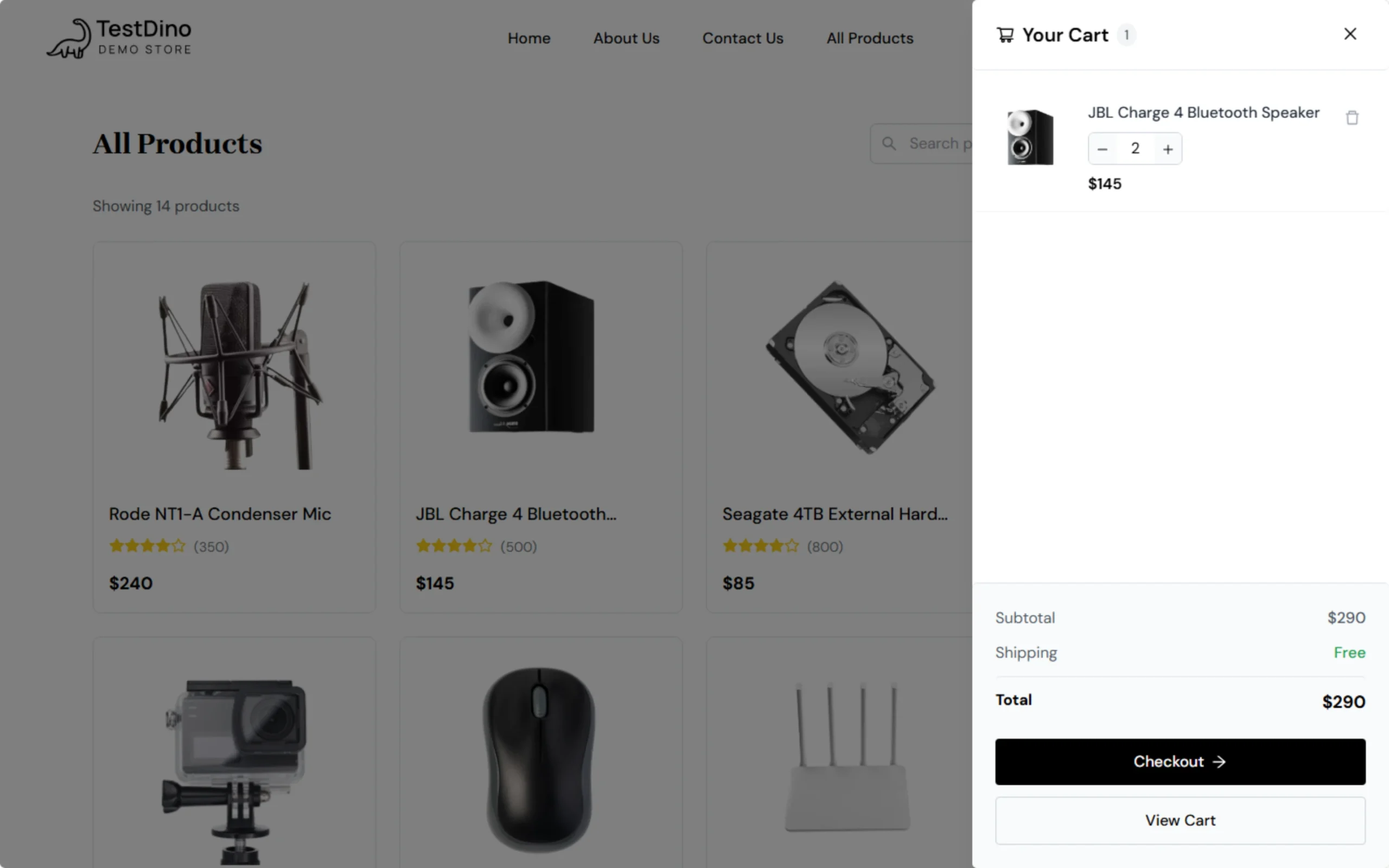
A tool result is a claim. The test below calls add_to_cart for 2 speakers, checks the returned cart, then opens the real drawer and checks the quantity and total the user would see. Three sources of truth, one assertion block.
test('add_to_cart changes the cart and the drawer agrees', async ({ page }) => {
const result = await page.webmcp.callTool('add_to_cart', { slug: 'jbl-charge-4-bluetooth-speaker', quantity: 2 });
expect(result.isError).not.toBe(true);
const { cart } = JSON.parse(result.content[0].text);
expect(cart.items).toEqual([{ slug: 'jbl-charge-4-bluetooth-speaker', name: 'JBL Charge 4 Bluetooth Speaker', price: 145, quantity: 2 }]);
expect(cart.totalPrice).toBe(290);
await page.getByTestId('header-cart-icon').click();
const drawer = page.getByTestId('cart-drawer');
awaitexpect(drawer.getByTestId('item-quantity')).toHaveText('2');
awaitexpect(drawer.getByTestId('total-value')).toHaveText('$290');
});
The web-first checks at the end are ordinary Playwright assertions. They retry until the drawer renders, which matters because the store only mounts cart line items after the drawer opens.
That lazy rendering caused our first failure. The tool clicked the quantity button before the line item existed, the tool reported quantity 2, and the store had quantity 1. Only the UI assertion caught it, which is the whole argument for Step 5 of the loop.
Step 4: test the failure paths
Agents send bad input. The spec's own best practice is "validate strictly in code, loosely in schema", because schema constraints are not guaranteed to be enforced. So a test must send a wrong slug and expect a structured error, not an exception.
test('add_to_cart rejects an unknown product with isError', async ({ page }) => {
const result = await page.webmcp.callTool('add_to_cart', { slug: 'not-a-real-product' });
expect(result.isError).toBe(true);
expect(result.content[0].text).toContain('unknown product slug');
const cart = JSON.parse((await page.webmcp.callTool('get_cart')).content[0].text);
expect(cart.totalItems).toBe(0);
});
Playwright draws a clear line here. A result with isError: true comes back unchanged. If the tool is not registered, or its execute function throws, callTool() throws instead.
We hit the second case on our second run. The message was "UnknownError: Tool was executed but the invocation failed", because an SVG icon has no click() method. Treat a throw as a bug in the tool, and an isError result as the tool working as designed.
Step 5: run it and read the report
With the quantity bug fixed, the whole suite runs in a single command, with the project API key in the environment:
exportTESTDINO_TOKEN="td_api_..."
npxplaywrighttest
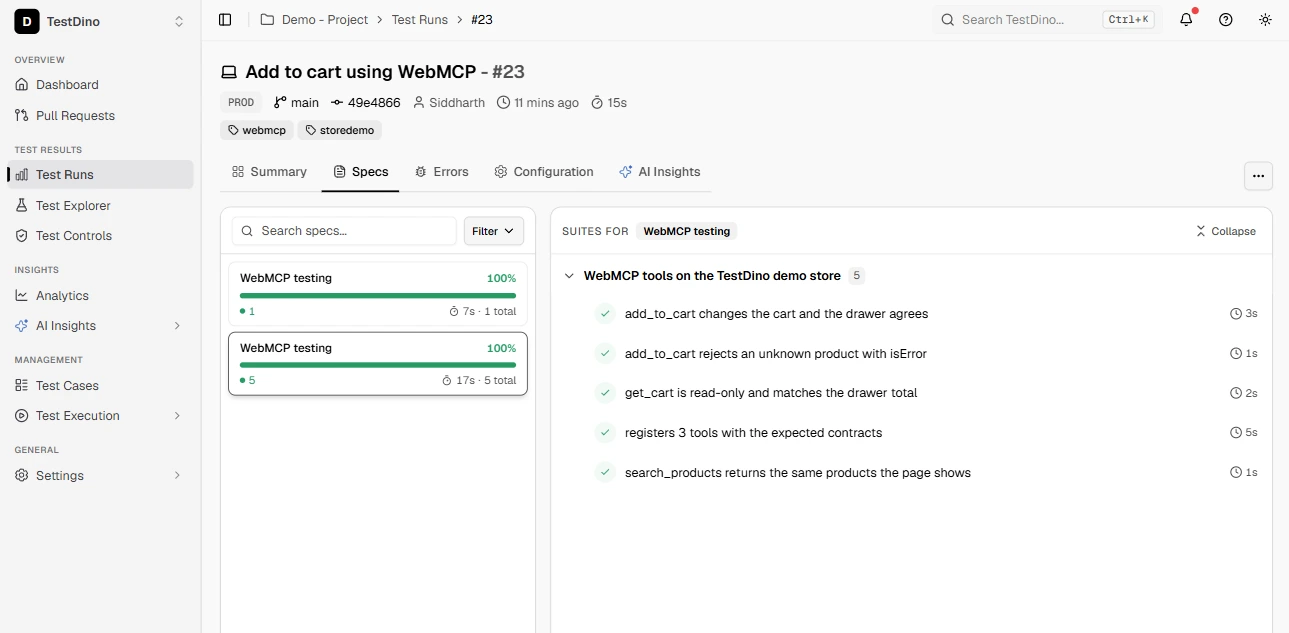
Six tests passed in 15.9 seconds on 2 workers, including the baseline test on the untouched site. The reporter authenticated before the first test, printed a live results link, and closed with a run summary: 6 of 6 passed, the git branch and commit, and 6 screenshots plus 6 traces attached.
In TestDino the run splits by spec file on the Specs tab, with the 5 store tests under their describe block and the baseline test on its own, each with its duration. Open any test from there and you get the step tree Playwright recorded. For the add_to_cart test that tree shows a single Call WebMCP tool step of 1.8 seconds, followed by the assertions, the drawer click, and the screenshot, with the trace attached beside it.
If you write Playwright with Claude Code, the playwright-skill project gives the agent the conventions above so it generates tests in this shape rather than inventing its own. A passing run is only as good as the assertions inside it, so the next section is about which ones matter.
What to assert in a WebMCP test
The 5 assertions every tool needs
Every tool in your suite should have one test for each of these. Missing any one of them leaves a gap an agent will eventually fall through.
- Presence. The exact set of tool names on each page state, including the pages that should expose nothing.
- Contract. Description text, required fields, enums, numeric bounds, and the additionalProperties: false guard.
- Happy path. Valid input returns the expected structured result.
- Error path. Invalid input returns isError: true with a message an agent can act on, and no unhandled exception.
- State. Write tools change the UI and the backend; read-only tools change neither. Compare all three to the tool's own report.
The state assertion is the one teams skip, and it is the one that caught our only real bug. It relies on stable selectors, which is why the demo store's data-testid hooks mattered, and why Playwright locators discipline carries straight over to WebMCP suites.
Annotations are promises, so test them
The draft defines 3 hints. readOnlyHint means the tool "does not modify any state and only reads data". consequentialHint marks "consequential actions that are significant, real-world, or non-reversible", with booking a flight as the draft's example. untrustedContentHint says the output "contains data that is untrusted" from the page author's point of view. A tool that claims to be read-only but writes is a security bug, not a style issue.
Harnesses show the hints in their own shape. Google's chrome-devtools-mcp server, which we cover in the next section, prints all three for every tool on the page in a single call. That makes it the quickest manual audit of what a page promises.
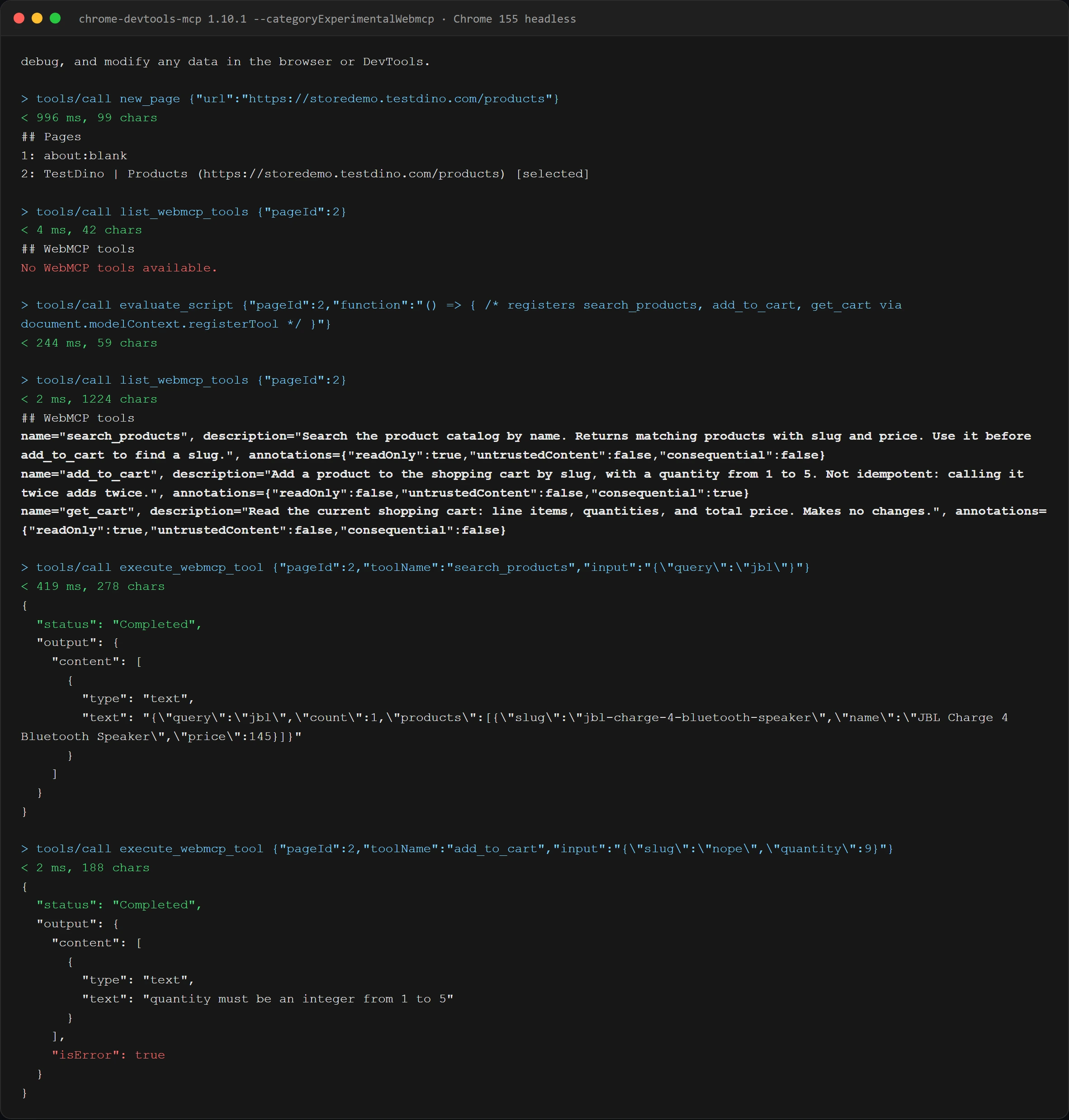
The test is cheap. Call a read-only tool twice and assert the two results are deep-equal, then assert the DOM did not change. For a consequential tool, assert the annotation is present, because an agent client may rely on it before asking the user to confirm.
The untrusted hint deserves its own check. If a tool returns text a visitor typed, such as a review or a support message, assert that the hint is set, because it is the only signal a client gets that the text came from someone other than the page author.
Tip: Give every write tool a fresh browser context. Our tools stored the cart in localStorage, so sharing a page between tests would have made the error-path test see a non-empty cart. The same isolation rules that prevent flaky UI tests prevent flaky WebMCP tests.
Timing is the other classic source of flaky tests, and WebMCP adds a new one: a tool can resolve before the UI re-renders. Return results only after the state you report is visible, and assert the UI with retrying expectations rather than fixed waits.
Automated checks tell you a tool broke. They do not always tell you why, and that is where the browser's own debugging surfaces come in.
Debugging WebMCP tools in Chrome DevTools and the CLI
Finding the why means seeing exactly what a tool received and returned. There are now 4 first-party surfaces for that: the DevTools pane, playwright-cli, Playwright MCP, and chrome-devtools-mcp. We ran all four against the demo store on the same day, with the same three tools.
Each one answers a different question, so the matrix below is the shortest way to pick. Automation proves the contract, DevTools and the CLIs show a single call in detail, and evals, covered in the next section, tell you whether an agent would call the tool at all.
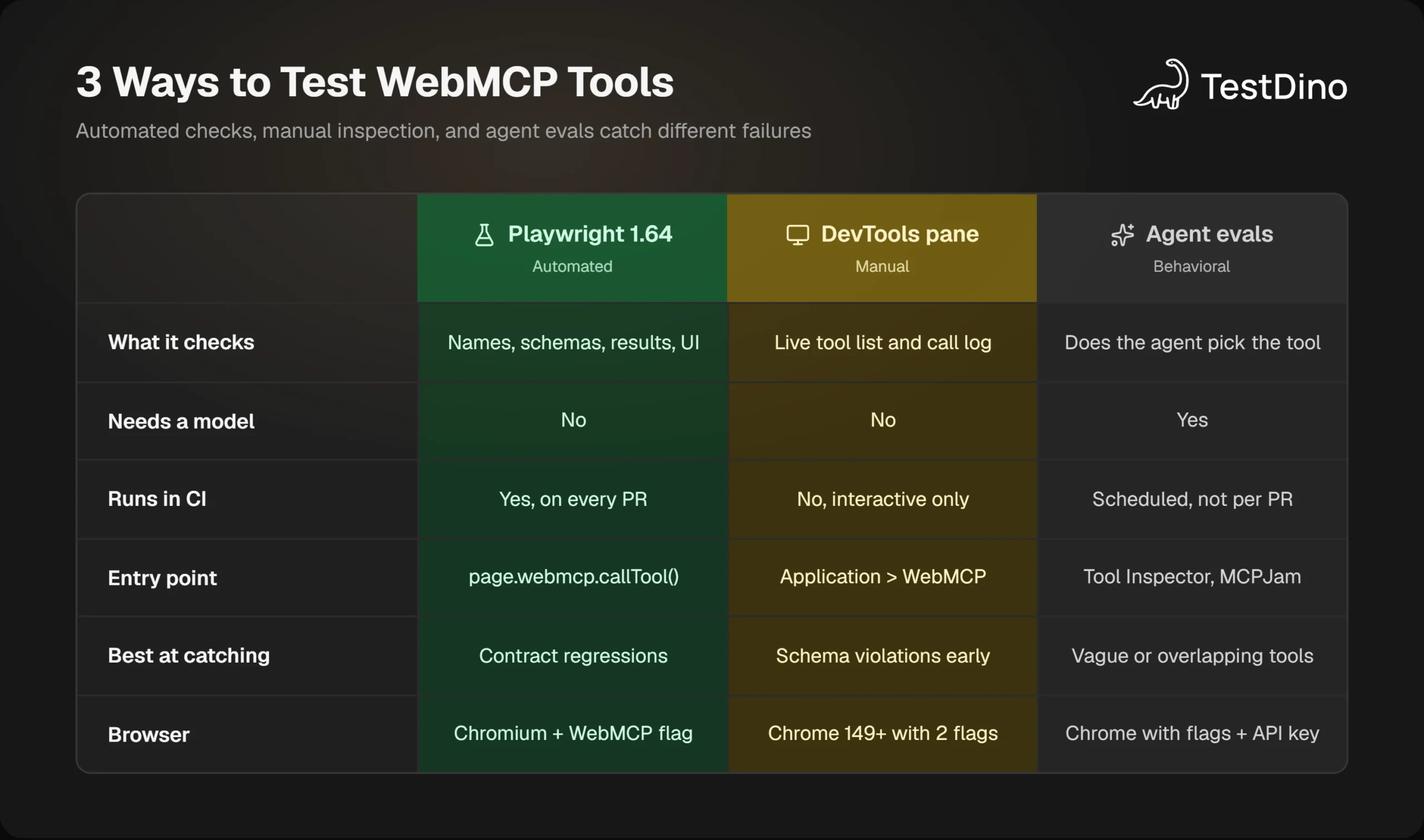
The Application panel WebMCP pane
Chrome 149 added a WebMCP section to the DevTools Application panel. The Chrome 149 DevTools notes from June 2026 call it experimental and list 2 flags to enable it: #devtools-webmcp-support and #enable-webmcp-testing.
We switched both on in Chrome 155 stable, opened the store with the test-time tools, and the pane appeared under Application with a NEW badge. It needed no origin trial and no extension, just the two flags on a fresh profile.
The Debug WebMCP tools page describes two sections. Available Tools is a live list showing each tool's name and description "as they appear to the AI agent", plus an invocation counter. Invoked Tools is a chronological log where each entry shows a status of Completed, Canceled, In Progress, or Error, with its input and output.
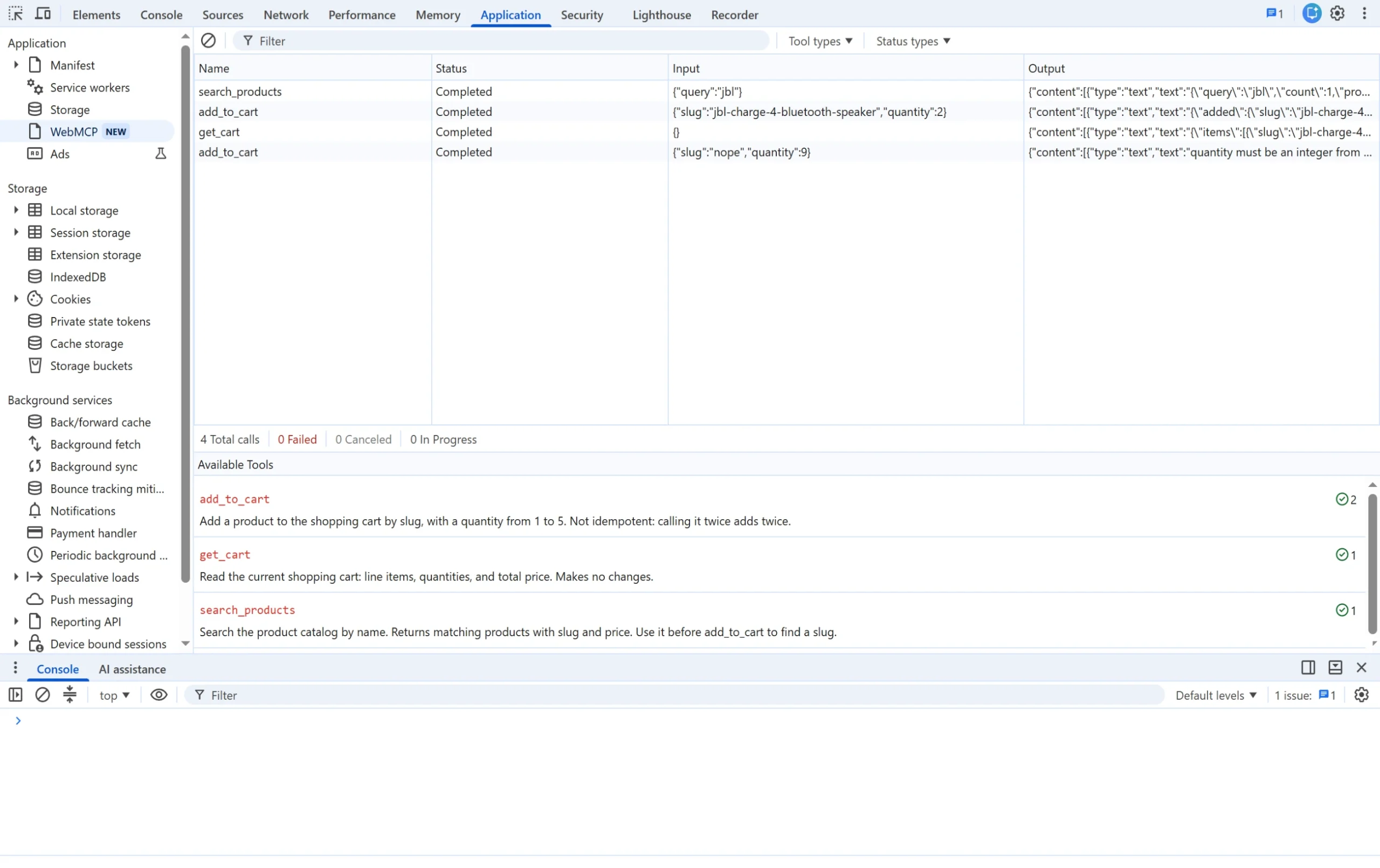
That is the pane after our four calls. Each row carries the exact JSON the tool received and returned, and the counter beside each tool shows which ones a test, or an agent, actually touched. Filters by tool type and status sit above the log.
Two debugging signals stand out for WebMCP DevTools work:
- Schema violations. The output pane shows an error when parameters or return values do not match the declared schema. That is a free, browser-side validation of your inputSchema.
- Agent rejection. If the invocation counter for a tool stays at zero across prompts, the agent never considered it. That usually means a vague description, not a broken tool.
One reading trap showed up in our run. The fourth call sent a quantity of 9, the tool returned isError: true, and the pane still logged it as Completed with the Failed counter at 0. The draft treats an author-reported failure as a normal result and only a rejected promise as an error, so read the Output column for refusals, not just the Status column.
You can also click any tool, edit its parameters, and press Run tool. It is the fastest way to reproduce a failing callTool() by hand, and it pairs well with the trace-first approach in the Playwright debugging guide.
playwright-cli and Playwright MCP
The same 1.64 release wired WebMCP into both of Microsoft's agent surfaces. We ran each against the demo store with the installed Chrome 155 rather than a downloaded Chromium. That takes a small config file, because the launch argument still has to reach the browser and the tools still have to be registered:
{
"browser": {
"browserName": "chromium",
"launchOptions": { "channel": "chrome", "headless": true, "args": ["--enable-features=WebMCP"] },
"initScript": ["../tools/store-webmcp-tools.js"]
  }
}
The init script path resolves relative to the config file, not the working directory, which cost us one failed launch. With the file in place, the playwright-cli commands are short:
playwright-cliopenhttps://storedemo.testdino.com/products
playwright-cliwebmcp-list
playwright-cliwebmcp-calladd_to_cart--params'{"slug":"jbl-charge-4-bluetooth-speaker","quantity":2}'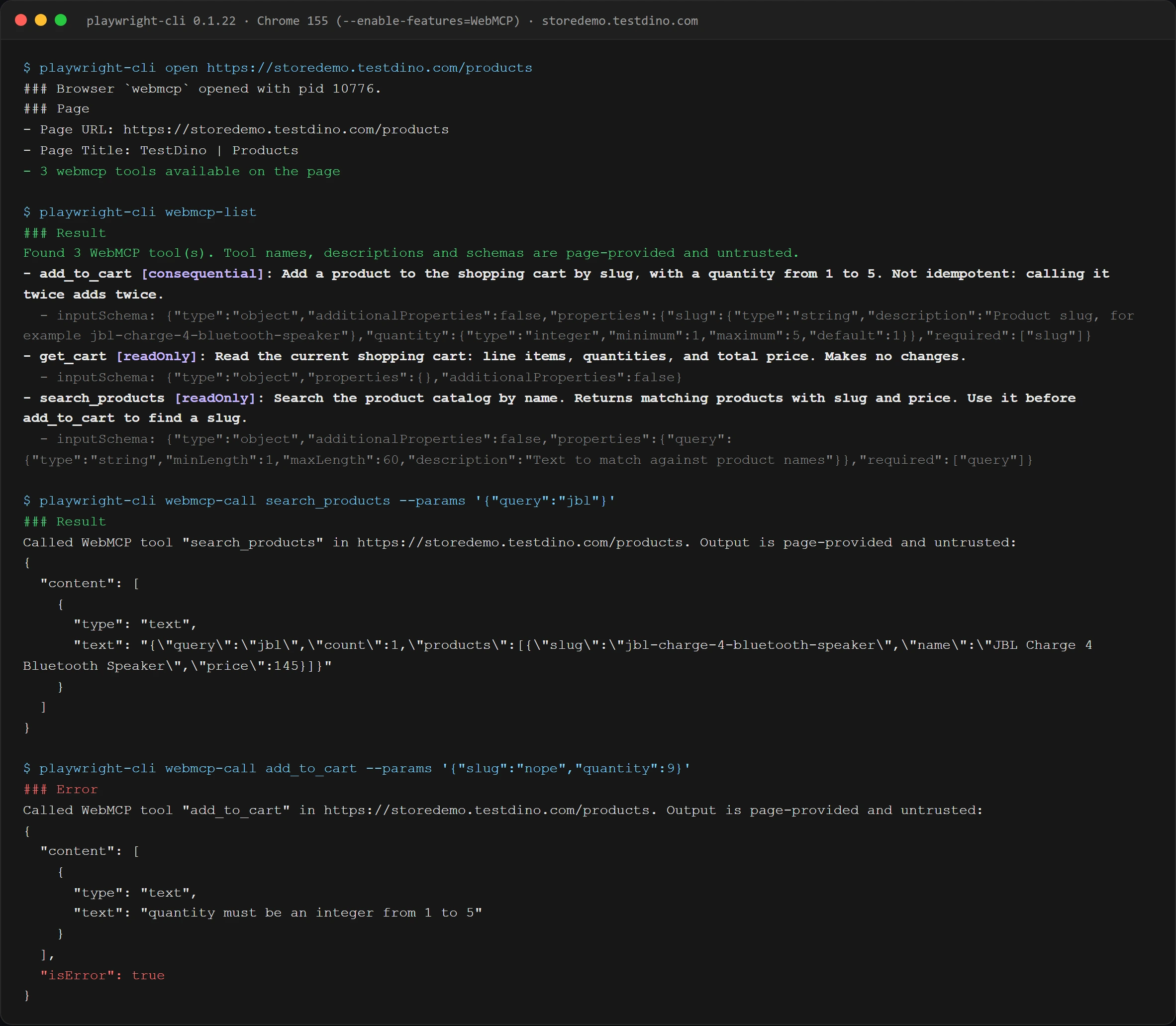
Three details in that output matter for testing. The open command reports "3 webmcp tools available on the page" before you ask for them. Every result is labelled page-provided and untrusted. And a tool refusal comes back under an Error heading with the same isError body that callTool() returns in a test.
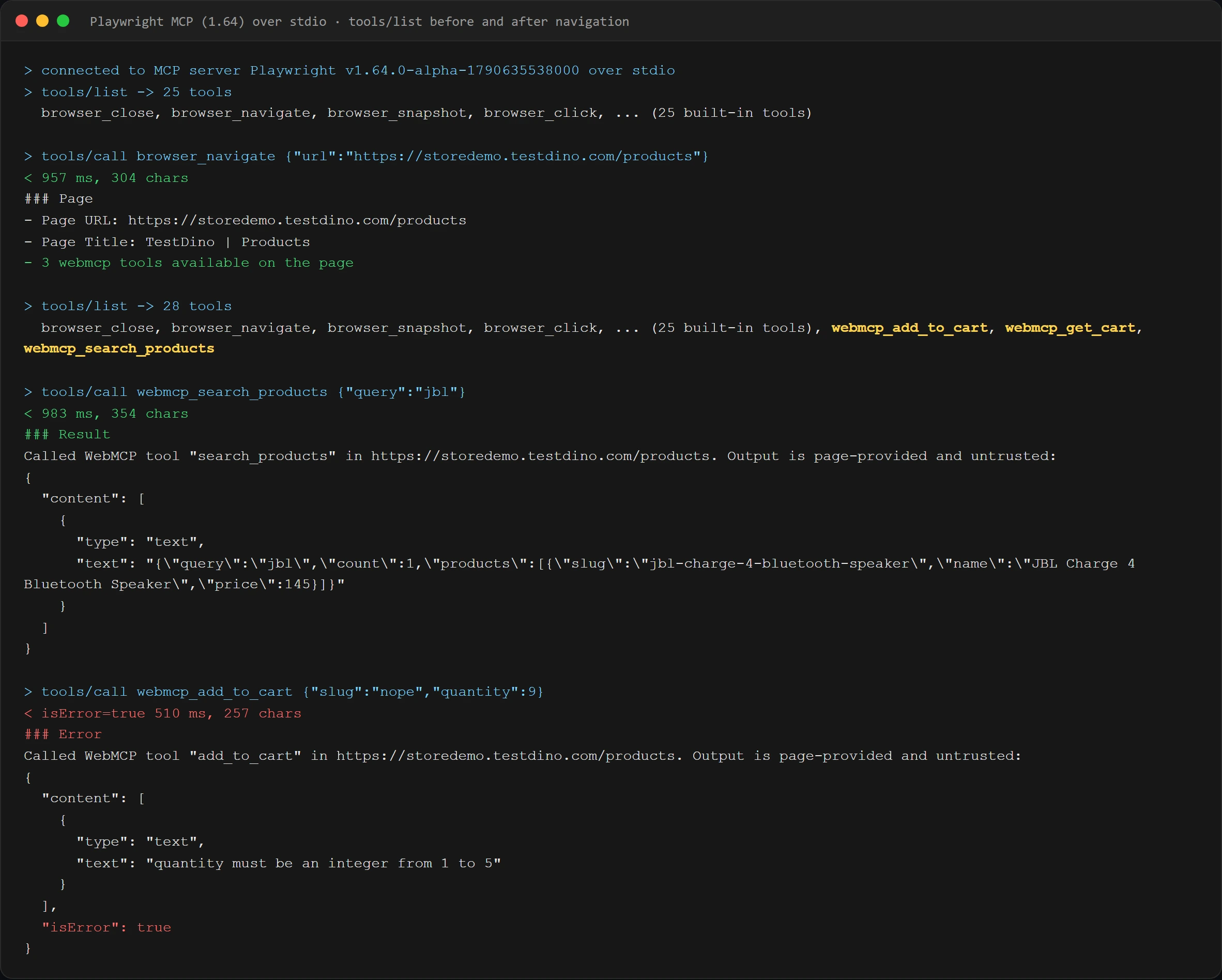
Playwright MCP enables WebMCP by default and exposes page tools to the agent as webmcp_. We drove it over stdio with a small MCP client. Before navigation the server listed 25 browser tools. After one browser_navigate call it listed 28, with webmcp_add_to_cart, webmcp_get_cart, and webmcp_search_products next to browser_click. Pass --no-webmcp to turn that off.
That moving list is the thing to test when your agent runs through Playwright MCP. The tools exist only after the page loads and are gone again when the tab closes, so a client that reads the tool list once at startup never sees them. The difference between the CLI and MCP surfaces is the subject of Playwright CLI vs MCP.
Google's chrome-devtools-mcp server, shown in the previous section, covers the same ground from the Chrome side. Its list_webmcp_tools and execute_webmcp_tool tools are off by default and switch on with --categoryExperimentalWebmcp. The help text asks for Chrome 150 or later with the same launch argument, which we passed through --chromeArg.
Two details differ from Playwright's surface. Both tools take a numeric pageId, and execute_webmcp_tool wants its input as a JSON string rather than an object. Its result wraps the tool output in a status field, and that status read Completed for our isError call too, the same reading trap as the DevTools pane.
When a run fails in CI, the Playwright trace viewer still records every callTool() as an action, so you can replay the exact input. None of these surfaces answers whether an agent will pick your tool in the first place. That question needs a model in the loop.
Testing agent behavior with evals
Tool inspector extensions
The Chrome docs have a section titled "Imitate an agent to test your tools" with two options. The Example Agentic Chrome Extension inspects, monitors, and executes tools from natural-language prompts. It runs a local Node server with an AI SDK, keeps API keys in a .env file, and defaults to the gemini-3.6-flash model.
The lighter option is the Model Context Tool Inspector extension, which lists registered tools and invokes them, and needs a Gemini API key to test agent selection. For client-side models, Chrome also lists a chrome://flags/#prompt-api-tool-use flag.
Writing evals the Chrome team recommends
The WebMCP best practices page is direct: "Create evaluation tests and make your tools available for debugging." It also sets expectations that break the unit-test mindset: "Unlike deterministic unit tests, evaluations cannot be hard-coded, as outputs can take unanticipated forms."
Note: Keep the two layers separate in CI. Playwright WebMCP tests are deterministic and run on every pull request. Agent evals cost model calls and vary between runs, so schedule them nightly and track a pass rate rather than a binary result.
The recommended structure is an API contract: input type, output format, constraints. Then "define a baseline and an ideal result", score rule-based criteria with code, and use an LLM as a judge for subjective quality. The page warns against narrow rules that patch one model's quirks, and suggests making an ambiguous field optional so the agent asks the user instead.
Lighthouse adds a static check. Its Registered WebMCP tools audit lists every tool on a page and warns above 40, because each tool consumes context tokens and makes selection harder. Pair that with the AI agent evaluation metrics you already track for other agent features.
If you are choosing a harness for the eval layer, agentic testing tools compared covers the current options. Whichever you pick, the browsers you can run it in are limited, which brings us to support and CI.
Browser support, CI, and common WebMCP testing mistakes
Where WebMCP runs today
The web-platform-tests project maintains a public WebMCP suite, and wpt.fyi publishes results for every browser. We pulled the latest runs on 15 October 2026 and compared stable builds with experimental ones.
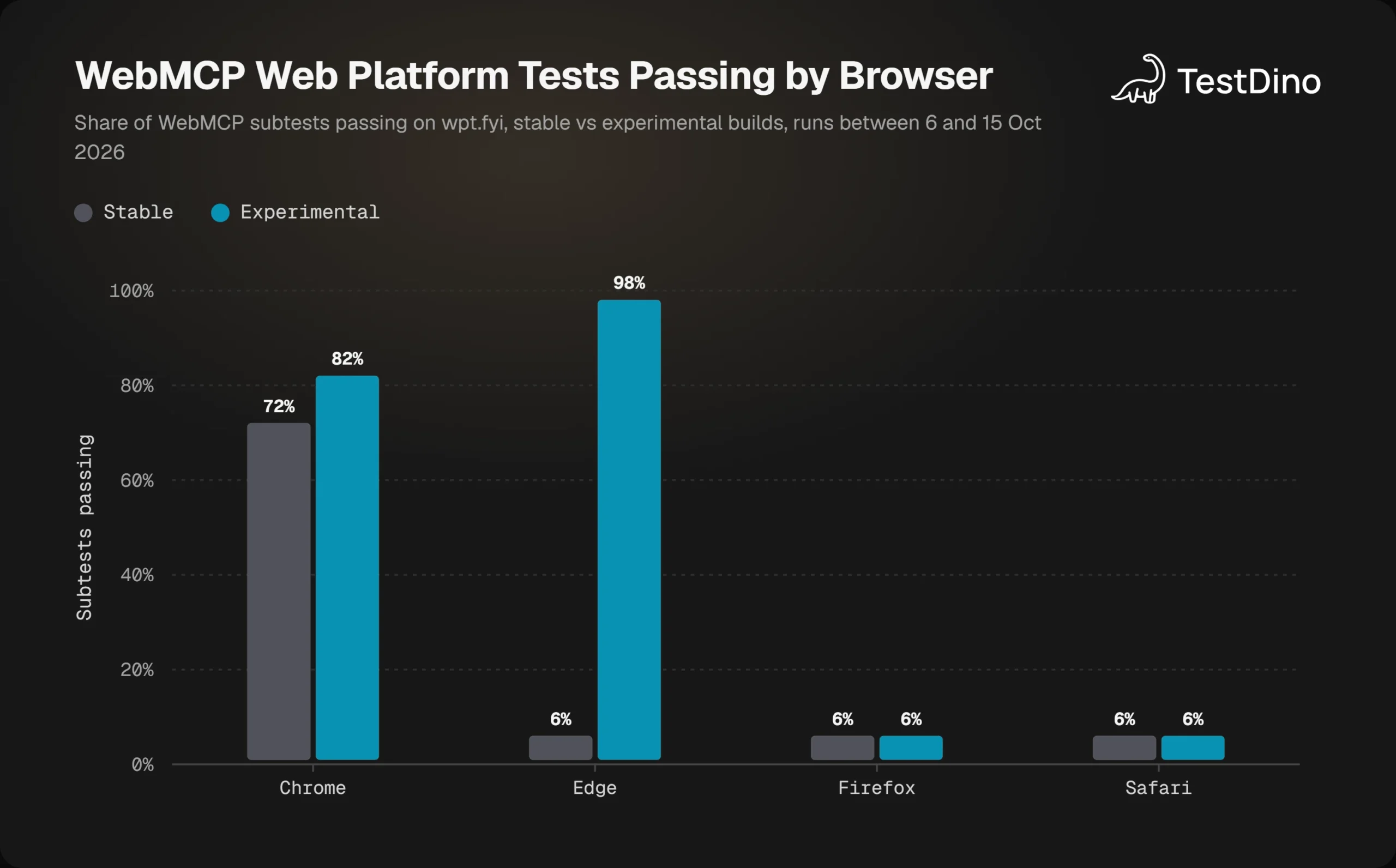
The exact counts behind the chart are below. The 13 passing subtests in Firefox and Safari are harness checks that pass when the interface is simply absent, which is why those browsers show 6% rather than 0%.
| Browser build | Subtests passing | Run date |
|---|---|---|
| Chrome 155 stable | 149 of 207 | 14 Oct 2026 |
| Chrome 158 canary | 171 of 209 | 15 Oct 2026 |
| Edge 155 stable | 13 of 212 | 15 Oct 2026 |
| Edge 157 dev | 203 of 208 | 14 Oct 2026 |
| Firefox 157 stable | 13 of 204 | 6 Oct 2026 |
| Firefox 160 nightly | 13 of 212 | 14 Oct 2026 |
| Safari 27.0 | 13 of 212 | 14 Oct 2026 |
| Safari Technology Preview 254 | 13 of 212 | 14 Oct 2026 |
The practical reading: run WebMCP tests on Chromium only, in a dedicated Playwright project, and do not block cross-browser suites on them. The usual browser compatibility issues playbook applies in reverse here, since only one engine has anything to test.
Running WebMCP tests in CI
The Chrome docs list headless browsing as a limitation, saying it is "possible in some environments, but the API is primarily for local browser workflows with a human in the loop". That caveat is about agents in production. For tests, Playwright's headless Chromium exposed document.modelContext and ran our entire suite without a display.
The CI wiring is the same as any other project. Add the launch argument, keep the WebMCP project separate so a flag change cannot fail unrelated suites, and let the reporter stream the run instead of shipping an HTML report as an artifact. The steps in Playwright in GitHub Actions work unchanged, and Playwright test reporting explains how to surface tool-call failures next to UI failures.
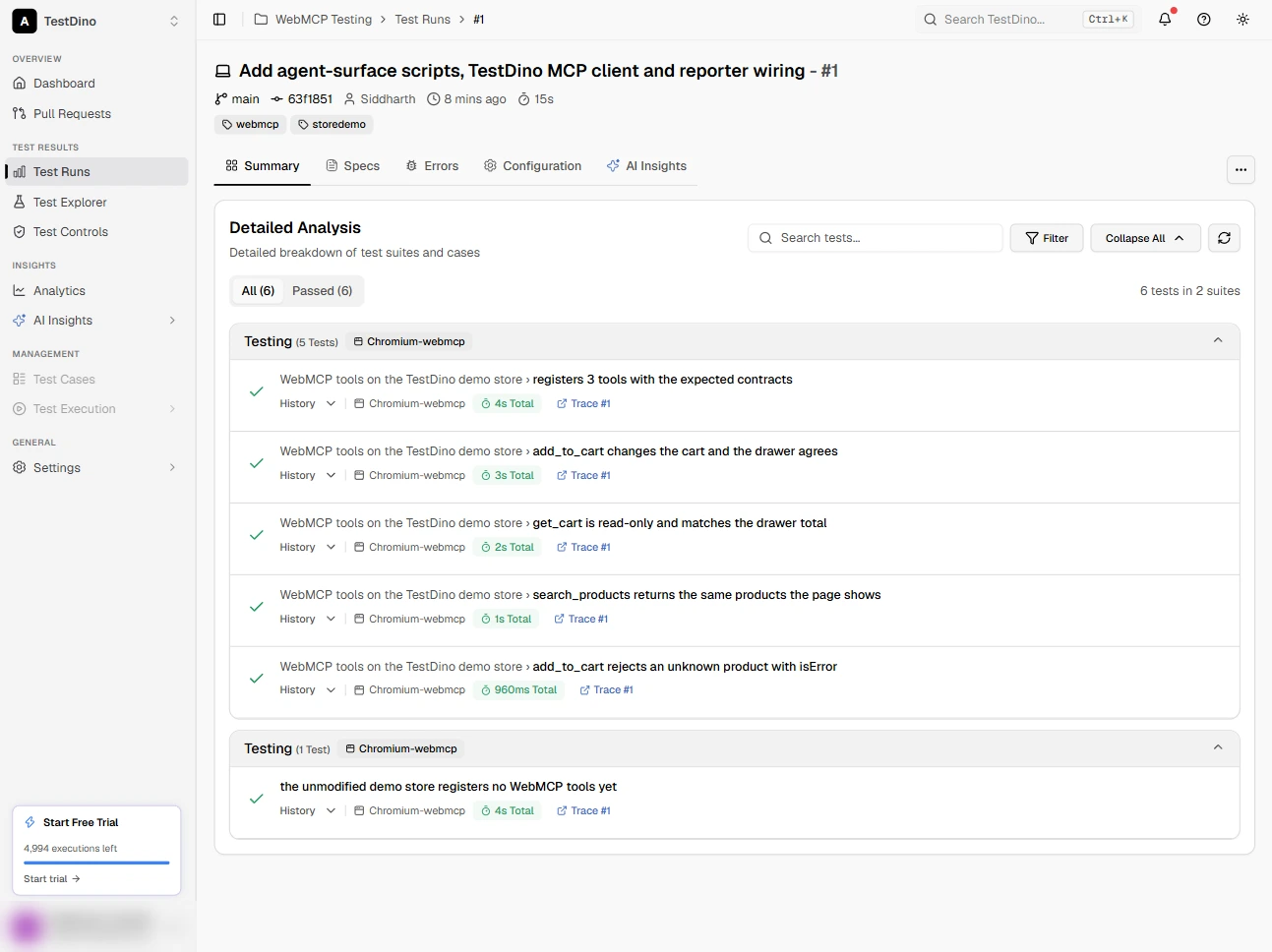
Our run landed in TestDino tagged webmcp and storedemo, with the branch and commit recorded. The Summary tab lists all 6 tests across the 2 spec files as passed, each with a history dropdown and a link to its trace, and the Errors and AI Insights tabs sit beside it for the day something fails. The tags are what keep WebMCP runs apart from the rest of the suite.
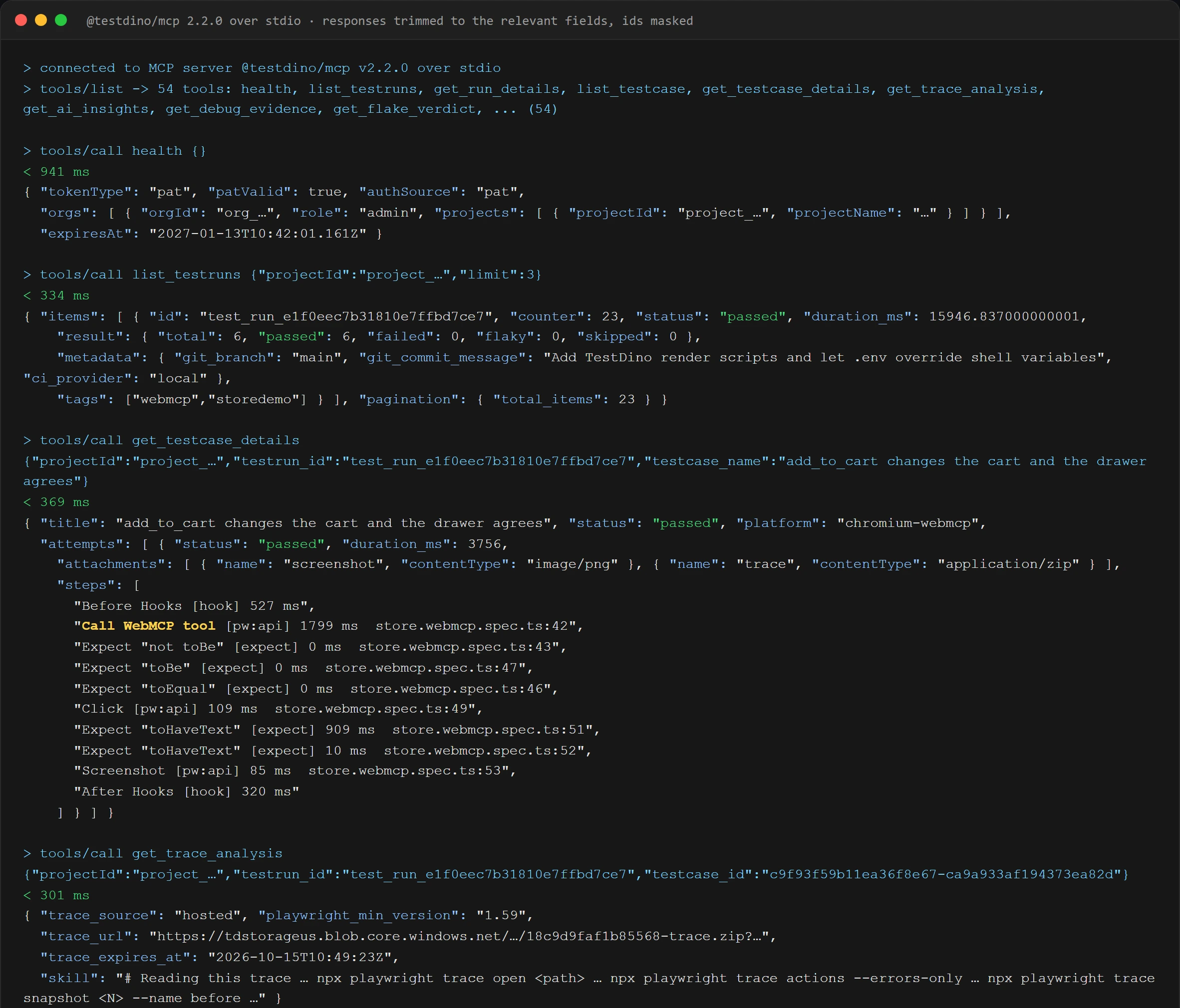
The part that matters for an agent-first feature is that the results are readable by an agent too. The TestDino MCP server exposes 54 tools over MCP, authenticated with a Personal Access Token, and we pointed it at the run from a small stdio client, the same path Claude Code or Cursor would use.
Four calls told the whole story. The health tool confirmed the token and listed the project. Then list_testruns returned the run with its result counts, commit message, and tags, which is enough for an agent to find the right run on its own.
Next, get_testcase_details returned the add_to_cart test with its two attachments and the step tree, including the Call WebMCP tool step with its duration and source line. Finally, get_trace_analysis handed back a hosted trace URL that expires within minutes, plus instructions for reading it with the Playwright trace CLI.
That closes the loop. The same kind of agent that calls your WebMCP tools in a browser can ask TestDino whether the tests for those tools passed, pull the trace for the one that failed, and read the exact input it was given. Run-level AI insights stayed empty for us, because the server only generates them once a run has failed or flaky tests.
Tip: Two different tokens are involved. A project API key (prefix td_api_) streams results from the reporter. A Personal Access Token (prefix td_pat_) is what the MCP server authenticates with. Keep both in a local .env, and check your shell profile for an old TESTDINO_PAT: a stale one there cost us a 401 on every MCP call until the .env value was made to win.
Mistakes we hit on the first run
Our suite failed twice before it passed, and both failures are ones you will meet. The full list, including the ones we avoided only because of the research above:
- Assuming the global. Checking navigator.modelContext in a browser that only has document.modelContext. Feature-detect both until the naming settles.
- Trusting the tool's own report. Our tool said quantity 2 while the store had 1. Only the drawer assertion caught it.
- Throwing instead of returning. An SVG without click() threw inside execute, so callTool() threw an UnknownError rather than returning isError. Wrap DOM work and return structured errors.
- Wrong flag for the context. chrome://flags for manual sessions, the launch argument for Playwright, the origin trial for production. Each one alone.
- Asserting on spec names. The spec says readOnlyHint; Playwright reports readOnly.
- Reading Status instead of Output. The DevTools pane and chrome-devtools-mcp both logged our isError result as Completed. Only the output body said the tool refused.
- Letting agent tools fetch their own browser. playwright-cli and Playwright MCP ship a newer Playwright build that wanted a Chromium headless shell we had not installed. Pointing both at the installed Chrome with channel: 'chrome' fixed it without a download.
When one of these shows up as a red test in CI, the triage flow is the same as for any UI failure, and a structured test failure analysis habit gets you from symptom to cause fast. That is the whole practice. The remaining question is how much of it to adopt now.
Conclusion
WebMCP is early, flag-gated, and Chromium-only, but the test surface is already stable enough to automate. Playwright 1.64 gives you tools() and callTool(), playwright-cli and Playwright MCP put the same tools in front of an agent, Chrome DevTools gives you a live tool list and an invocation log, and the Chrome team has published how it expects evals to be written.
The WebMCP testing loop in this guide is small on purpose. List the tools, lock the contract, call each one with good and bad input, and then check the page and the data agree with what the tool said. Our run on the demo store found a real mismatch between a tool's report and the UI on the first attempt, and only the UI assertion caught it.
Fold these checks into your test automation strategy as a separate Chromium project today. When a site's tools ship for real, the suite is already waiting, and streaming the run to TestDino puts tool failures next to the UI failures your team already reads, with the trace one call away for people and for agents.
FAQs
The same release gives playwright-cli the webmcp-list and webmcp-call commands and lets Playwright MCP expose page tools as webmcp_. If tool calls behave oddly through an agent, Playwright MCP troubleshooting covers the harness side.

Savan Vaghani
Product Developer