Cross Browser Testing: The Complete 2026 Guide in 6 Steps
Chrome works, Safari breaks, and nobody noticed until launch. Learn how to run cross browser testing that catches this early.
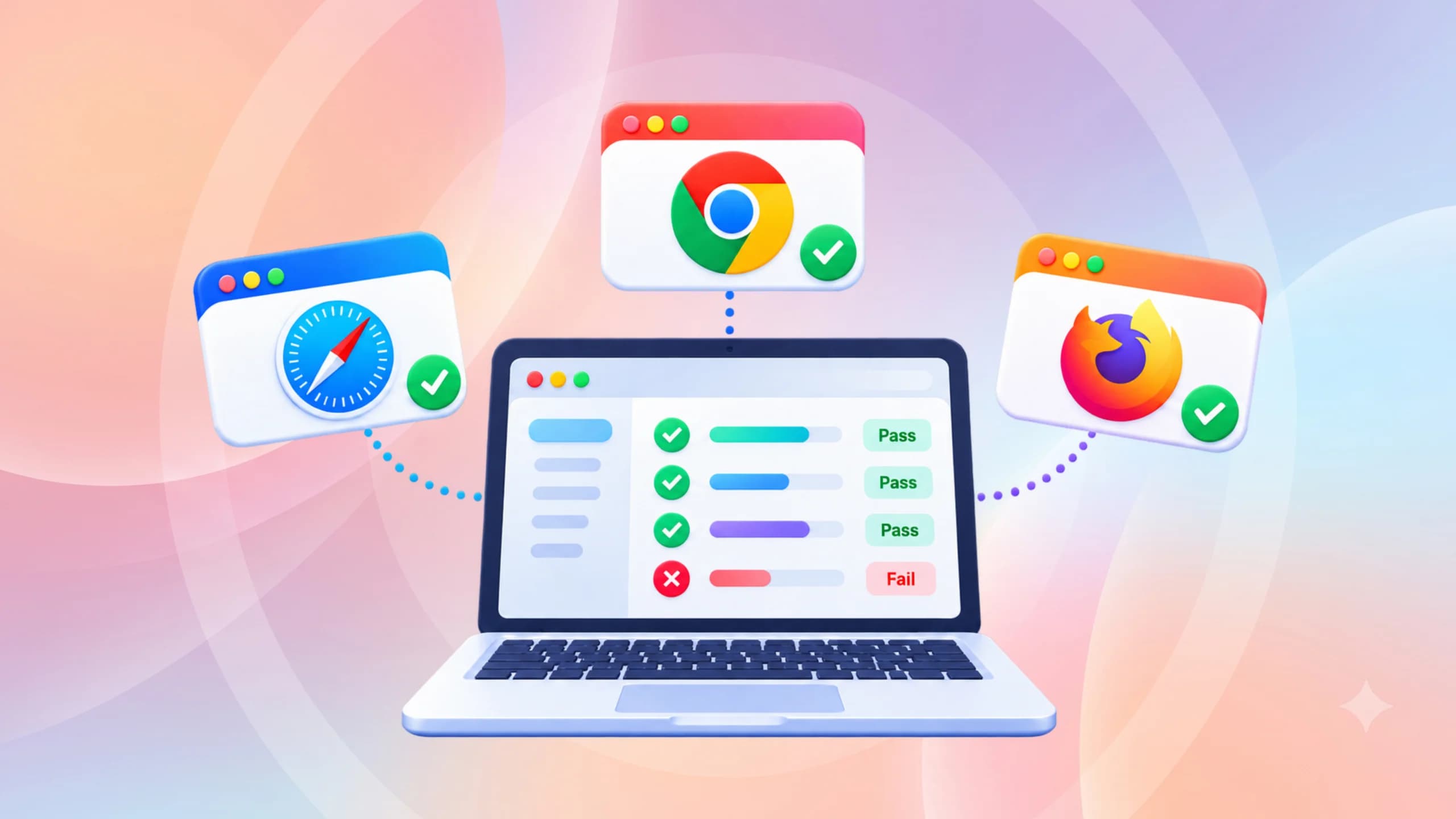
A page can look perfect in Chrome and still fall apart the moment someone opens it on an iPhone. Cross browser testing is how teams catch that before a customer does, and in 2026 the gap between browsers has not gone away. Chrome now ships a new version to everyone every two weeks, and Safari, Firefox, and Edge each move on their own schedule.
The pain point is not a lack of browsers to test. It is that most teams test in the one browser they use every day, ship, and then learn about browser compatibility issues from a support ticket that reads "the checkout button does nothing."
This guide gives you a strategy that starts with your own traffic data, a 6-step process you can repeat every sprint, and working Playwright browser testing examples for running the same suite on every engine. By the end, you will know exactly which browsers to cover and how to keep that coverage cheap.
What is cross browser testing?
Cross browser testing is the practice of checking that a website or web app works, looks, and behaves the same way across different browsers, browser versions, operating systems, and devices. It covers functionality, layout, and user experience, and it can be done manually or through automation.
Every browser reads the same HTML, CSS, and JavaScript, but each one turns that code into pixels with its own rendering engine. Those engines follow shared standards, yet they implement new features at different speeds and sometimes carry their own bugs. That is why a layout that is pixel-perfect in one browser can shift, overflow, or lose a button in another.
Among the many types of software testing, this one sits in the non-functional bucket. You are not asking "does the login work?" You are asking "does the login work the same way in Safari on an iPhone as it does in Chrome on a laptop?"
Cross browser testing vs browser compatibility testing
People use these terms interchangeably, and in practice they overlap almost completely. Browser compatibility testing tends to focus on whether specific features are supported at all. Cross browser testing is broader and includes layout, interaction, and performance differences even when a feature is technically supported everywhere.
What it does and does not cover
It does cover rendering, JavaScript behaviour, form controls, fonts, and responsive layout. It does not replace unit tests, accessibility audits, or load tests. Pairing it with Playwright visual testing gives you the screenshot layer, but the two are separate concerns.
Knowing what it is only matters if the browser landscape still justifies the effort. So the next question is whether anyone outside Chrome is really worth testing for.
Why cross browser testing still matters in 2026
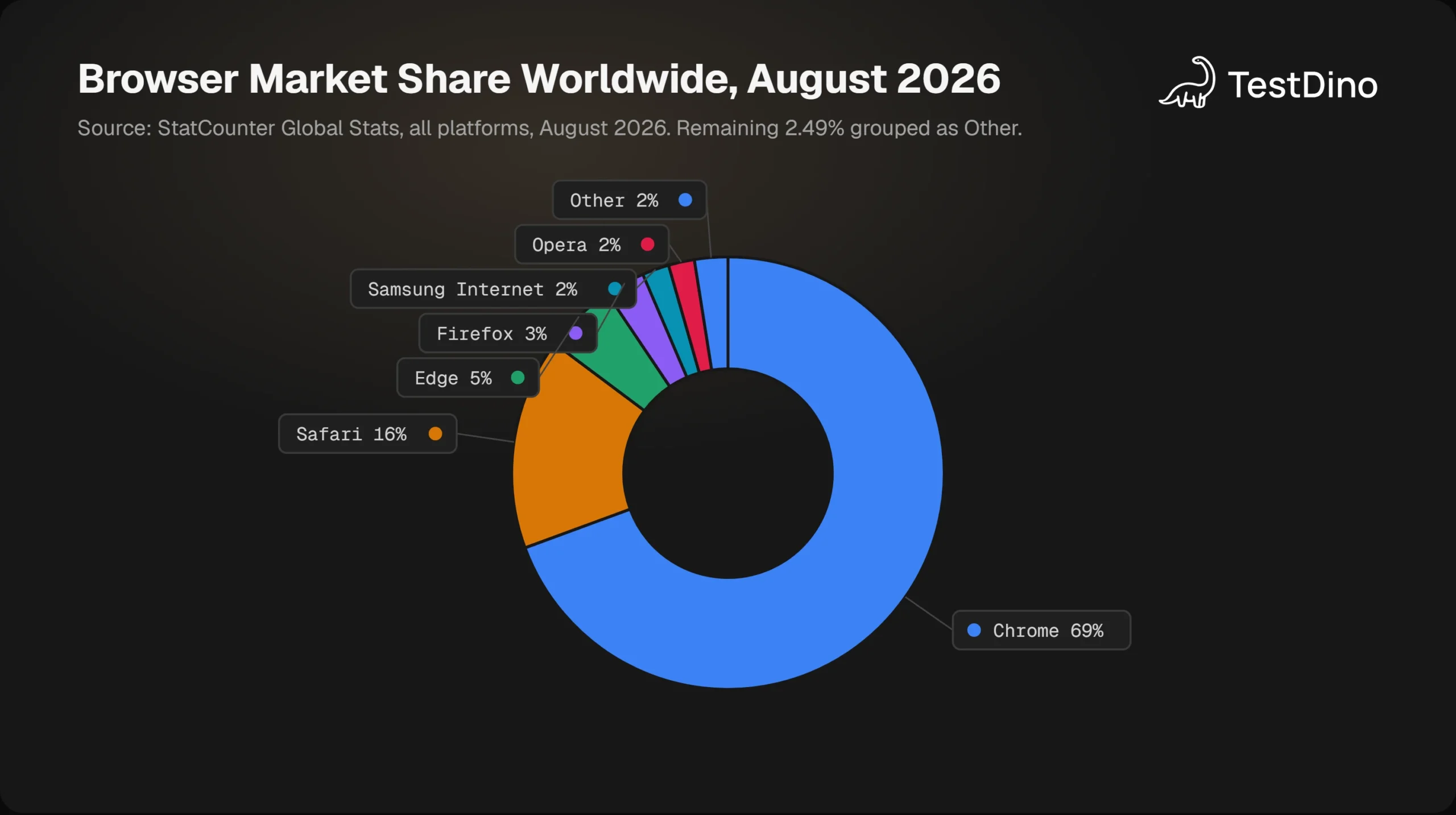
Chrome is dominant, and the temptation is to treat everything else as rounding error. The numbers say otherwise. According to StatCounter Global Stats, Chrome held 69.39% of worldwide browser usage in August 2026, Safari held 15.83%, Edge 5.36%, Firefox 2.98%, Samsung Internet 2.01%, and Opera 1.94%.
Put differently, roughly 3 in 10 page views come from a browser that is not Chrome. If your product handles a million sessions a month, that is around 300,000 sessions you have not looked at when you only test in Chrome. Safari alone is bigger than every other non-Chrome browser combined.
The engine, not the logo, is what you test
Chrome, Edge, Opera, and Samsung Internet all build on Chromium, so they share the Blink rendering engine and usually behave alike. Safari runs on WebKit. Firefox runs on Gecko. That means three engines cover the overwhelming majority of real traffic, and it is why the Playwright architecture ships exactly those three.
Testing in Chromium, WebKit, and Firefox catches most rendering differences. You only add branded Chrome or Edge builds when you are chasing a bug that depends on a vendor-specific feature, such as media codecs or an enterprise policy.
Browsers ship faster than your release train
The Chromium release cycle documentation states that Chrome ships a new milestone to the stable channel every two weeks. Even when your app does not change, the browser underneath it does.
Vendors are actively working to close gaps too. Interop 2026 is a joint effort by Apple, Google, Igalia, Microsoft, and Mozilla that tracks 20 focus areas, from anchor positioning and view transitions to the Navigation API and WebTransport. The list itself is a map of where browsers still differ today.
Those focus areas are also a very good preview of what tends to break. The next section walks through the specific categories that show up most often in bug reports.
What actually breaks across browsers
Most cross browser bugs fall into a handful of predictable categories. If you know the categories, you can write targeted tests instead of clicking through the whole app in four browsers.
Layout and newer CSS features
Features like container style queries, CSS anchor positioning, scroll-driven animations, and the shape() function are all on the Interop 2026 list precisely because support still varies. A sticky header that anchors correctly in Chrome can float away in a browser that has not finished implementing the spec.
JavaScript and web platform APIs
The same list includes the Navigation API, getAllRecords() for IndexedDB, fetch uploads, WebRTC, and WebTransport. When your code calls an API that one engine has not shipped, the failure is usually silent: a promise never resolves, or a feature quietly does nothing.
Note: MDN is blunt about the fix for this class of bug. Detect the feature, not the browser. Its guide on feature detection calls browser sniffing "a terrible practice that should be discouraged at all costs."
Native form controls and dialogs
Date pickers, select menus, file inputs, and the newer dialog and popover elements all render with browser-owned UI. Dialog and popover additions are an Interop 2026 focus area for that reason.
Your automated tests should interact with these controls through accessible roles, which is also why Playwright accessibility checks belong in the same suite.
Fonts, anti-aliasing, and screenshots
The Playwright screenshot documentation puts it plainly: "Screenshots differ between browsers and platforms due to different rendering, fonts and more, so you will need different snapshots for them." A visual diff that flags a one-pixel font shift is not a bug, and your tolerance settings need to reflect that.
Mobile viewports and touch
A layout designed at 1440px can hide the primary button below the fold on a 390px phone. Touch targets, hover states that never fire, and the on-screen keyboard shrinking the viewport all count. Dedicated Playwright mobile testing with emulated devices catches most of this before you reach for a real phone.
Knowing the failure categories tells you what to test. It does not tell you where to spend your limited testing budget, which is a strategy question, and that comes next.
How to build a cross browser testing strategy
The wrong strategy is "test everything everywhere." The right one starts from your own data and grades browsers by how much they matter to your users.
Grade browsers from your own traffic
MDN's cross browser testing strategies guide recommends a graded approach. Pull the browser and device breakdown from your analytics, then sort every browser into one of three tiers.
| Grade | Who is in it | What you do |
|---|---|---|
| A-grade | Common, modern browsers known to be capable | Test thoroughly and provide full support |
| B-grade | Older or less capable browsers | Test, and provide a more basic experience with full access to core content |
| C-grade | Rare or unknown browsers | Do not test, but assume they are capable and serve the full site with fallbacks |
For most teams, the A-grade list ends up as the latest Chrome, Safari, Edge, and Firefox on desktop plus Chrome on Android and Safari on iOS. Anything on that list runs in CI on every pull request. B-grade browsers get a lighter smoke check before a release. C-grade browsers get nothing beyond defensive coding.
This is the same logic behind risk based testing: put effort where the probability and cost of failure are highest.
Check feature support before you write code
The cheapest cross browser bug is the one you never write. Web Platform Baseline labels a feature "Newly available" once Chrome, Edge, Firefox, and Safari all support it, and "Widely available" once 30 months have passed since that date. Anything still in "Limited availability" needs a fallback or a feature check.

Tip: Add a Baseline check to your pull request template. If a change uses a feature that is not "Widely available", the reviewer asks for a @supports block or a JavaScript feature check. That single habit removes a whole category of cross browser testing failures before CI ever runs.
Can I Use gives you the per-version detail behind those labels and draws its usage data from StatCounter, so you can see how many of your users are on a version that lacks a feature.
Desktop and mobile are not the same list
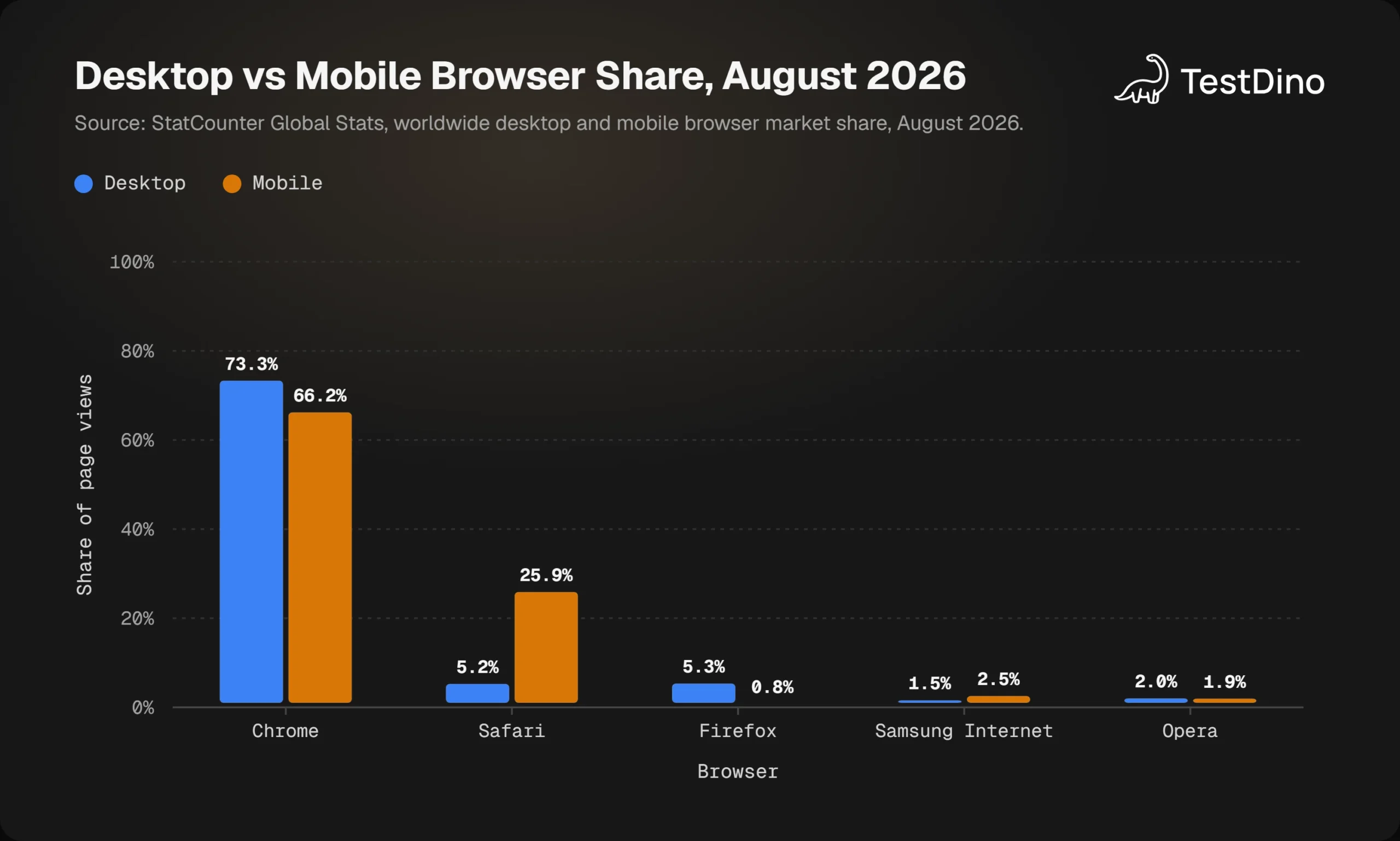
The overall market share hides an important split. StatCounter's desktop browser share for August 2026 puts Chrome at 73.28%, Edge at 10.46%, Firefox at 5.31%, and Safari at 5.24%.
On mobile, Safari jumps to 25.87% while Firefox drops to 0.75%. Edge does not even make the top 6.
If your product is mobile-heavy, Safari on iOS is your second most important browser by a wide margin. If it is a desktop admin tool, Edge deserves more attention than Safari. Your analytics decide, not the global average.
With a graded browser list and feature checks in place, you are ready for the actual process. Here is the loop that turns that strategy into tests.
How to do cross browser testing in 6 steps
Here is the process in order. Each step feeds the next, and the whole loop repeats every sprint.
- Pick browsers from real traffic. Export browser and device share from your analytics and grade each browser A, B, or C.
- Check feature support first. Run every new CSS or JavaScript feature in a change through Baseline and Can I Use before writing tests.
- Automate the critical user flows. Cover login, search, checkout, and forms with one automated project per engine and device profile.
- Add visual and mobile checks. Keep separate screenshot baselines per browser and run emulated mobile projects, then confirm on real devices before major launches.
- Run the matrix in CI. Shard by browser, merge the reports, and make sure every failure records the engine, OS, and viewport that produced it.
- Triage and re-score. Separate real browser bugs from flaky tests, fix with feature detection, and revisit the browser list every quarte
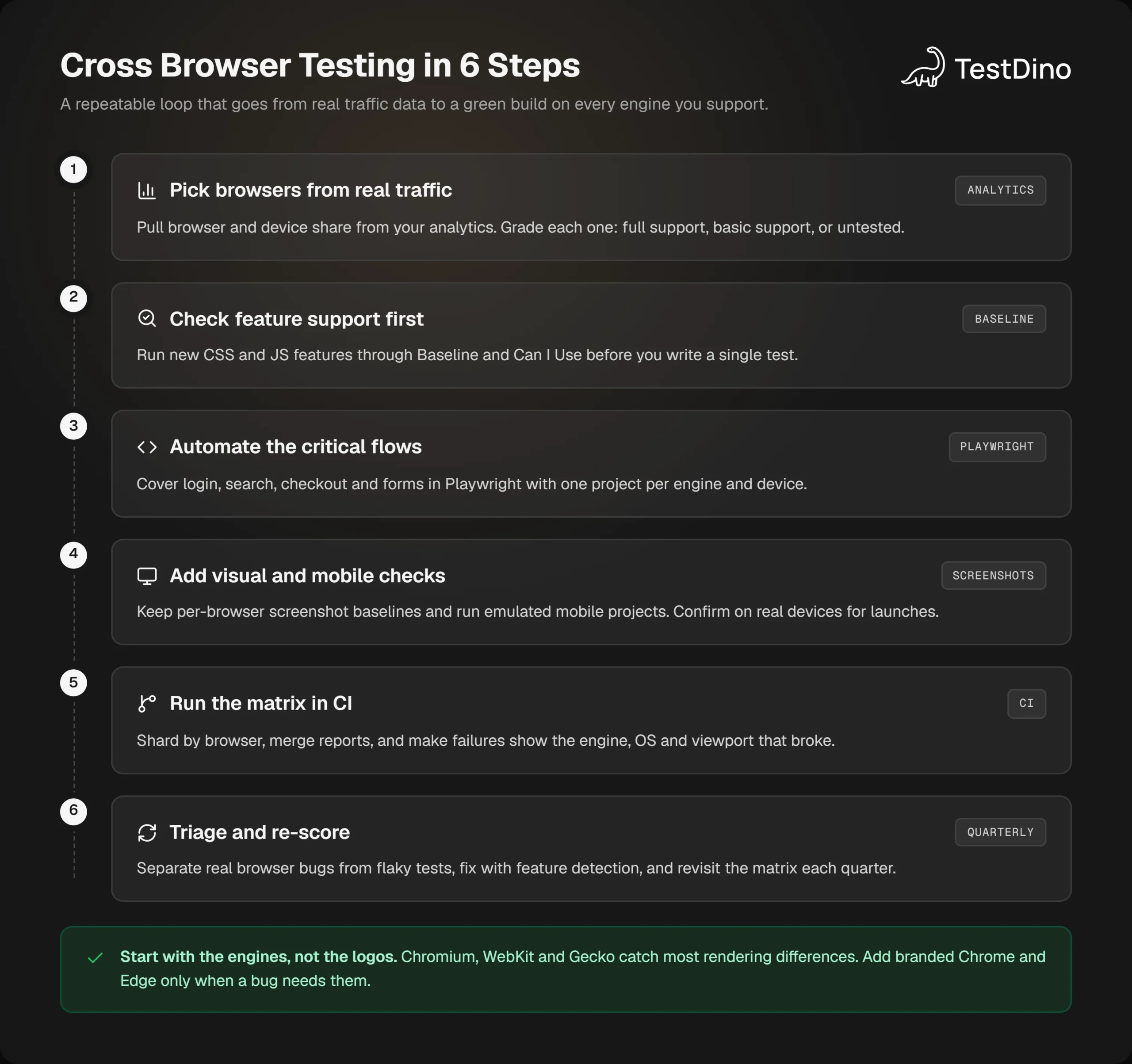
Step 3 is where most of the engineering time goes, and it is where Playwright test automation earns its place. One spec file runs unchanged on Chromium, WebKit, and Firefox, so the cost of adding a browser is CI minutes rather than more test code.
Step 6 is the one teams skip. A failure that only appears in WebKit on Linux may be a real Safari bug, or it may be a timing issue that happens to surface there first. Good flaky test detection tools separate the two by looking at history across runs and browsers, which stops you from filing fake browser bugs.
The list above is intentionally tool-agnostic. The next section makes it concrete with the framework most teams reach for today.
Cross browser testing with Playwright
The Playwright documentation describes support for "Chromium, WebKit and Firefox on Windows, Linux and macOS, locally or in CI, headless or headed, with native mobile emulation for Chrome (Android) and Mobile Safari." That one sentence covers most of a typical browser matrix.
One config, every engine
Playwright groups tests into projects, and each project can target a different browser or device. This config runs the same tests on three desktop engines, two emulated phones, and a branded Edge build.
import { defineConfig, devices } from '@playwright/test';
export default defineConfig({
  projects: [
    { name: 'chromium', use: { ...devices['Desktop Chrome'] } },
    { name: 'firefox', use: { ...devices['Desktop Firefox'] } },
    { name: 'webkit', use: { ...devices['Desktop Safari'] } },
    { name: 'Mobile Chrome', use: { ...devices['Pixel 5'] } },
    { name: 'Mobile Safari', use: { ...devices['iPhone 13'] } },
    { name: 'Microsoft Edge', use: { ...devices['Desktop Edge'], channel: 'msedge' } },
  ],
});
Each device entry sets the viewport, user agent, device scale factor, and touch and mobile flags. It is emulation rather than a real phone, which is fine for layout and interaction bugs and not enough for OS-level behaviour.
If you would rather not hand-write this, the Config Generator on TestDino's free tools page lets you pick browsers, workers, retries, and reporters and outputs a ready config.
Run one browser or all of them
Locally you usually want a single fast engine. In CI you want everything.
npx playwright test --project=chromium
npx playwright test --project=webkit --project=firefox
npx playwright test
Tests should find elements by role and text rather than CSS paths so that the same locator resolves in every engine. Solid Playwright locators are the difference between a suite that runs in three browsers and a suite that needs three versions of every selector.
Handle browser-specific gaps without hiding them
Sometimes a feature genuinely is not supported in one engine yet. The Playwright annotations documentation shows how to skip or mark a test conditionally so it stays visible in the report instead of being deleted.
import { test, expect } from '@playwright/test';
test('share sheet opens', async ({ page, browserName }) => {
  test.fixme(browserName === 'firefox', 'Web Share API not available here yet');
  await page.goto('/article/42');
  await page.getByRole('button', { name: 'Share' }).click();
  await expect(page.getByRole('dialog')).toBeVisible();
});
A test.fixme shows up in the results as a known gap, which is exactly what you want a product owner to see. The wider set of Playwright annotations lets you tag tests as slow, browser-specific, or mobile-only without touching the config.
Tip: Before you skip a test in one engine, check the Browser Compatibility Matrix on TestDino's free tools page. It lists which Playwright features work on Chromium, Firefox, and WebKit, so you can tell a framework limitation from an application bug in seconds.
Screenshots per browser, on purpose
When you call toHaveScreenshot(), Playwright names the baseline with the browser and platform, for example header-1-webkit-linux.png. That is deliberate. You get one baseline per engine, and the docs warn that rendering also varies with OS, hardware, and headless mode, so generate baselines in the same environment where CI runs.
await expect(page).toHaveScreenshot('pricing-table.png', { maxDiffPixels: 100 });A small pixel allowance absorbs anti-aliasing noise while still catching a column that collapsed.
If you use an AI coding assistant to write these tests, the open source playwright-skill encodes these conventions. Generated tests then follow Playwright best practices out of the box.
Playwright covers the engines, but it does not give you a real iPhone or a Windows machine running Safari. For that, you need to decide where the browsers actually run.
Manual, self-hosted, and cloud cross browser testing tools
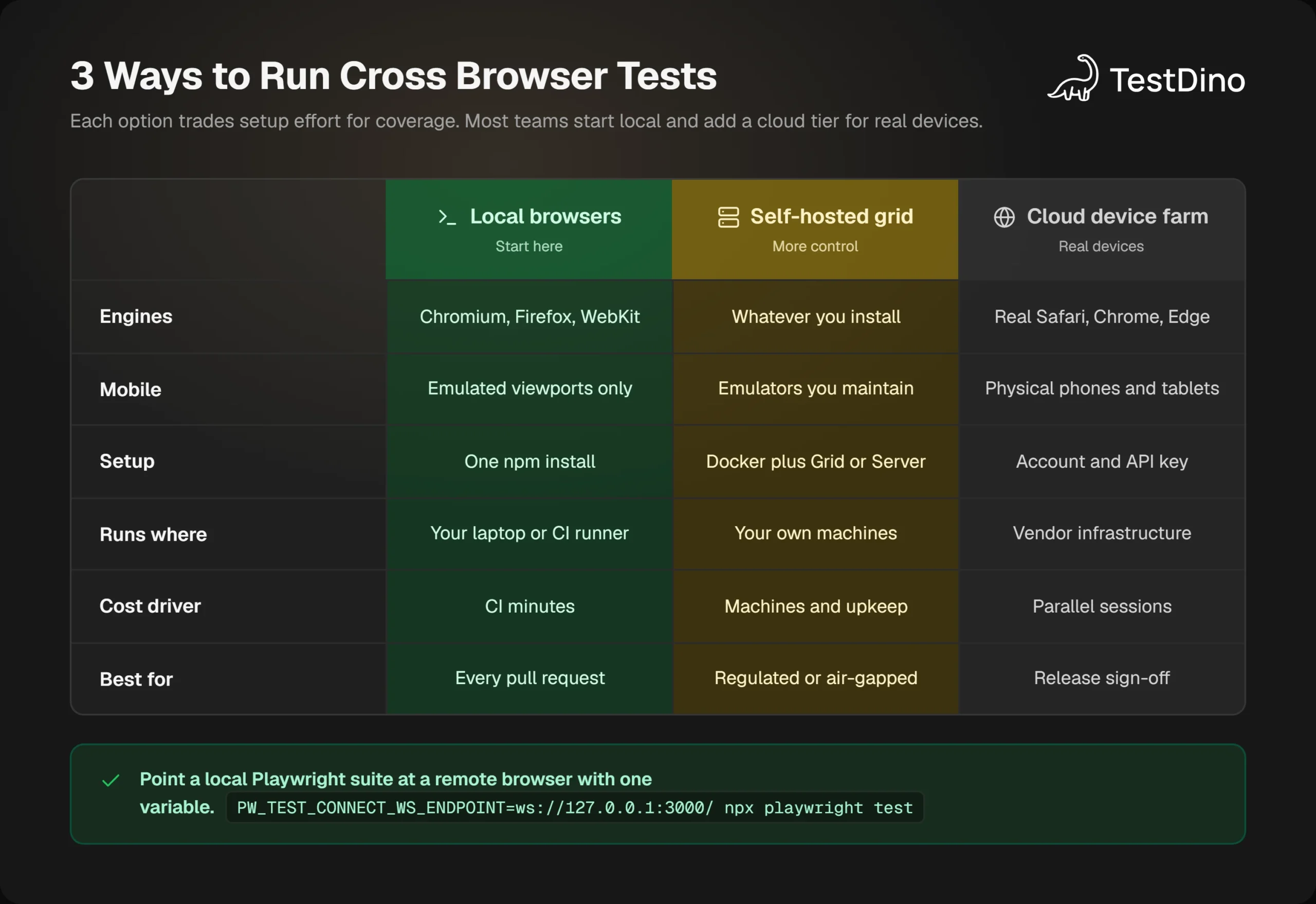
There are three places a browser can live during a test run: your own machine, a fleet you operate, or a vendor's cloud. Most mature teams use two of the three.
Local and manual checks
Every developer already has one or two browsers installed, and MDN's own testing workflow starts by checking "a couple of stable browsers on your system" before anything else. Manual checks are still the fastest way to eyeball a new page and catch something obviously wrong. They do not scale past a handful of browsers, and they cannot run on every pull request.
Running in headless vs headed mode matters here. Headed runs help you see the bug, while headless runs are what CI uses, and rendering can differ slightly between the two.
Self-hosted grids and browser servers
Selenium Grid is the original answer to this problem. Its documentation describes the goal as an easy way "to run tests in parallel on multiple machines," with support for different browser versions and cross-platform testing.
Playwright offers a similar model through a browser server that the test runner connects to over WebSocket.
The trade-off is upkeep. Running Playwright in Docker with the official image removes most of the browser installation pain, but you still own the machines, the OS updates, and the capacity planning.
Cloud device farms
Cloud providers give you real Safari on macOS, real iPhones and Android phones, and older browser versions on demand. MDN lists Sauce Labs and BrowserStack as the well-known commercial options that handle the testing infrastructure for you. You pay per parallel session, so most teams reserve them for release sign-off rather than every commit.
The framework question usually comes up at this point too. Playwright vs Selenium is less about which one can drive more browsers and more about protocol and ergonomics.
Selenium is moving to WebDriver BiDi, which it describes as the W3C bidirectional standard created with browser vendors. Playwright uses its own protocol with patched engine builds.
Wherever the browsers run, the matrix ends up in CI. That is where the cost of cross browser testing either stays flat or quietly triples your pipeline time.
Running cross browser tests in CI without slowing everything down
Adding three browsers to a suite that takes 10 minutes in one browser does not have to mean a 30-minute pipeline. The tools to keep it flat already exist.
Shard by browser, then by test
The Playwright sharding documentation lets you split a run with --shard=1/4 and run each shard on a separate CI job. Combined with a matrix over projects, every browser gets its own set of parallel jobs and the wall-clock time stays close to a single-browser run.
strategy:
  fail-fast: false
  matrix:
    project: [chromium, firefox, webkit]
    shardIndex: [1, 2, 3]
    shardTotal: [3]
steps:
  - run: npx playwright test --project=${{ matrix.project }} --shard=${{ matrix.shardIndex }}/${{ matrix.shardTotal }}
The Sharding Calculator on TestDino's free tools page tells you how many shards you need to hit a target CI time.
A deeper walkthrough of Playwright sharding covers the merge step. Running Playwright in GitHub Actions shows the full workflow file, including browser caching.
Merge reports so failures name the browser
Sharded runs produce separate blob reports. The documented merge step is one command.
npx playwright merge-reports --reporter html ./all-blob-reportsOnce merged, every failure carries its project name, so "checkout total mismatch (webkit)" is a very different ticket from "checkout total mismatch (chromium, firefox, webkit)". Structured Playwright test reporting makes that split obvious instead of burying it in logs.
Note: A test that fails only in WebKit on 1 run out of 20 is almost never a Safari bug. Track pass rate per browser over time before you file anything. TestDino groups failures by project and shows the history across runs, so a browser-specific flake looks different from a browser-specific regression.
Treat browser-only flakes as their own category
WebKit on Linux CI is the cheapest way to run the engine, but the Playwright browser docs note that the closest-to-Safari experience is WebKit on macOS. Timing-sensitive tests often surface there first.
Flaky tests that cluster in a single engine deserve a look at network idle handling and animation waits before you blame the browser.
When a failure is real, the Playwright trace viewer gives you the DOM snapshot, network calls, and console output from the exact browser that failed. Pair traces with per-browser screenshots and most cross browser bugs become a 10-minute diagnosis instead of a "cannot reproduce."
That closes the loop. Data picks the browsers, Baseline prevents avoidable bugs, Playwright runs the matrix, CI keeps it fast, and reporting tells you what actually broke.
Conclusion
Cross browser testing in 2026 is not about chasing every browser ever released. It is about knowing that roughly 3 in 10 of your users are not on Chrome, grading browsers by your own traffic, and running your critical flows on Chromium, WebKit, and Gecko on every pull request.
The practical version is short. Check Baseline before you code, keep one Playwright config with a project per engine and device, shard the matrix in CI, and merge reports so every failure names its browser. Then use Playwright test history to tell a real Safari regression from a test that was flaky all along.
Do that consistently and the "works in Chrome, broken in Safari" ticket stops arriving after launch and starts arriving as a red check on a pull request, where it costs minutes instead of customers.
FAQs

Krupa Gandhi
QA Tester