Playwright in Docker: The Complete 2026 Guide to Running Tests in Containers
Tests pass locally but fail in CI? Learn how to run Playwright in Docker with pinned images, Compose, and CI.
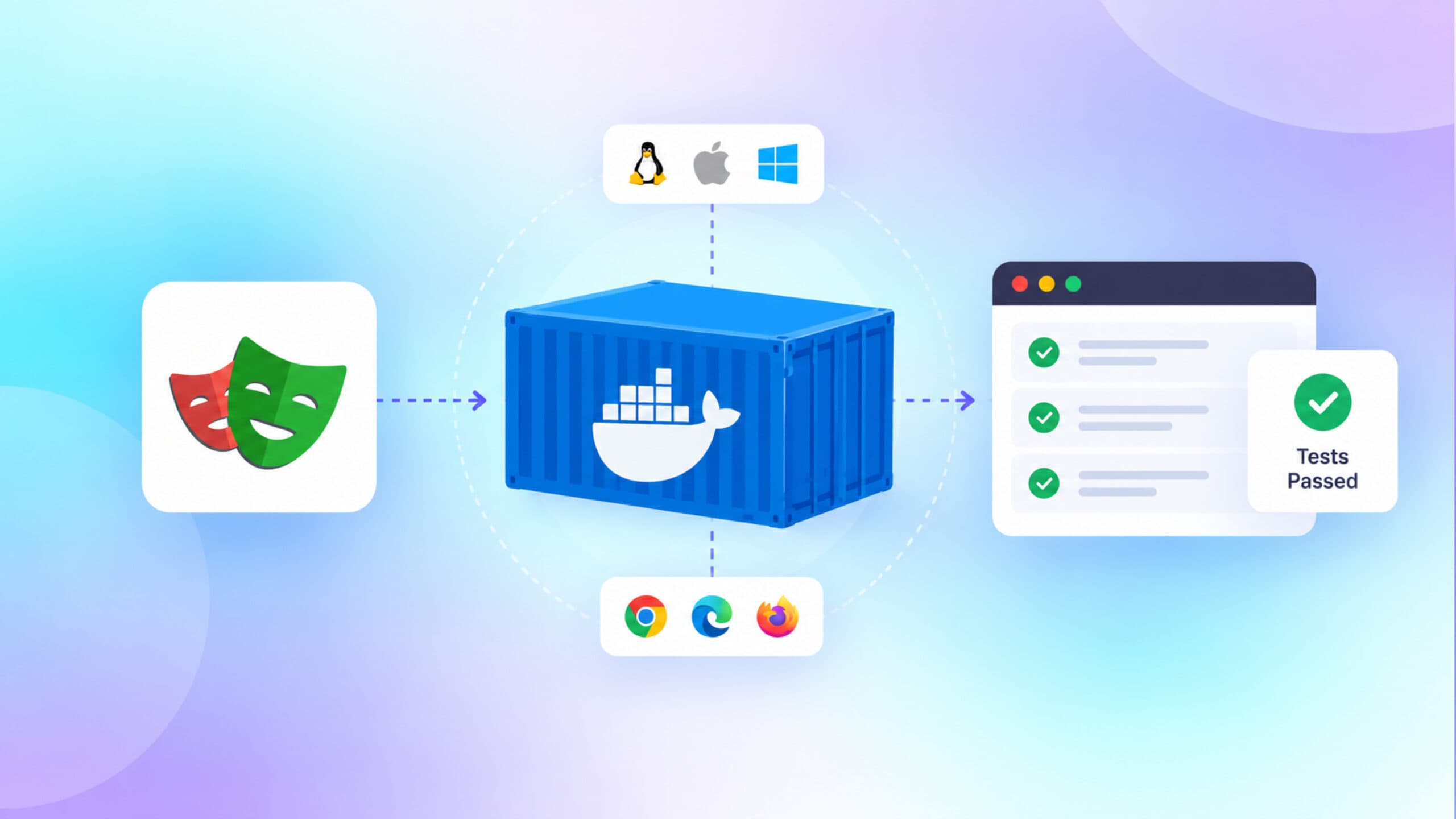
Seven out of 10 developers used Docker in the past year, according to the 2025 Stack Overflow Developer Survey. Running Playwright in Docker brings the same idea to browser tests: the browser, its libraries, and your tests travel together in one sealed box.
The trouble starts when that box is set up casually. A wrong image tag, a missing memory flag, or the wrong user turns a stable suite into a source of flaky tests that have nothing to do with your app.
This guide covers the official image, a production Dockerfile, Docker Compose, CI examples, security choices, image size, and the errors people hit most. Every step is checked against the Playwright and Docker docs, so it can go straight into your test automation setup.
Why run Playwright in Docker at all
Playwright drives three browser engines, and each one needs a long list of operating system libraries to render a page. On a developer laptop those pieces drift slowly as updates land. On CI they can drift every time the runner image changes. A container freezes all of it at one known state.
Playwright in Docker means running Playwright's browsers and your tests inside a Docker container, usually built from the official mcr.microsoft.com/playwright image, so the browser binaries, system libraries, and Playwright version are identical on every machine that runs the suite.
What the container fixes
The Playwright documentation describes the official image as containing the browsers and their system dependencies, while the Playwright package itself is installed separately by your project. That split is deliberate. The image owns the heavy, slow-changing layer, and your repository owns the fast-changing test code.
Three practical wins follow:
-
Identical rendering everywhere. Screenshot baselines for visual testing stop drifting between macOS laptops and Linux runners, because every run uses the same Linux build of each browser.
-
No dependency install in CI. The system libraries already live in the image, so the job skips the browser dependency install step entirely.
-
A reproducible bug report. Anyone can pull the same tag and get the same environment, which shortens the loop on browser compatibility issues.
Where Docker does not help
Containers do not make a slow suite fast, and they do not fix a locator that depends on timing. They also add a pull step. The compressed image is close to a gigabyte, which matters when CI runners start cold on every job. A later section covers how to keep that cost down.
Docker is also the container tool most developers report using, which is why this guide assumes it rather than Podman or another runtime. The Stack Overflow Developer Survey 2025 asked developers which cloud and container tools they had used in the past year.

Among the 24,473 people who answered that question, Docker was reported by 71.1%, Kubernetes by 28.5%, and Podman by 11.1%. Among professional developers the Docker figure rises to 73.8%. With that much of the industry already on Docker, the natural starting point is the image Microsoft publishes for exactly this job.
The official Playwright Docker image explained
The Playwright team publishes its Node.js image to the Microsoft Artifact Registry as mcr.microsoft.com/playwright. Separate playwright/python, playwright/java, and playwright/dotnet images live on the same registry.
The Dockerfile that builds the Node.js image is public in the Playwright repository, so you can read exactly what you are pulling.
What is inside the image
The Dockerfile.noble file in the Playwright repository builds from ubuntu:noble and installs:
-
Node.js 24 from the NodeSource repository, plus npm and Yarn.
-
Git, an OpenSSH client, and zstd, which a comment in the Dockerfile notes is used by the GitHub Actions cache action.
-
A non-root user named pwuser.
-
Chromium, Firefox, and WebKit under /ms-playwright, set through the PLAYWRIGHT_BROWSERS_PATH variable, with each browser in its own layer so pulls can run in parallel.
The Chromium layer also carries the headless shell and ffmpeg, which Playwright uses for video recording. The release notes list the exact browser builds for each version. Playwright 1.64 ships Chromium 156.0.8078.4, Firefox 157.0, and WebKit 27.2, and the Playwright 1.64 release notes cover what else changed.
Image tags: noble, jammy, and resolute
Every release ships with tags for three Ubuntu bases. The compressed amd64 sizes below are the sum of layer sizes in each image manifest on the Microsoft registry, retrieved on 23 October 2026.
| Tag | Ubuntu base | Compressed size (amd64) |
|---|---|---|
| v1.64.1 or v1.64.1-noble | Ubuntu 24.04 LTS (Noble Numbat) | 938 MB |
| v1.64.1-jammy | Ubuntu 22.04 LTS (Jammy Jellyfish) | 892 MB |
| v1.64.1-resolute | Ubuntu 26.04 LTS (Resolute Raccoon) | 988 MB |
The bare version tag with no suffix resolves to the noble image, according to the Playwright docs. The same docs state that Alpine and other musl-based distributions are not supported, because the Firefox and WebKit builds are compiled against glibc. Ubuntu 20.04 support ended with Playwright 1.63, per the release notes.

Tip: Docker's build documentation points out that image tags are mutable: a publisher can move a tag to new content. For a build you can reproduce months later, pin the digest too, as in FROM mcr.microsoft.com/playwright:v1.64.1-noble@sha256:..., and let Dependabot's docker ecosystem open a pull request when it changes.
Why the version must match your package
This rule is easy to miss and expensive when missed. The Playwright docs state that if the Playwright version in your Docker image does not match the version in your project, Playwright will be unable to locate browser executables.
The reason sits in the Playwright architecture: the client library asks for a specific browser revision, and the image holds the revisions for one release only. Ask for a different revision and the lookup fails.
Pin both to the same number and the problem disappears, which is exactly what the Dockerfile in the next section does.
How to run Playwright tests in Docker step by step
Here is the shortest reliable path from a working local suite to the same suite running inside a container. It assumes a Node.js project created with the standard Playwright framework setup.
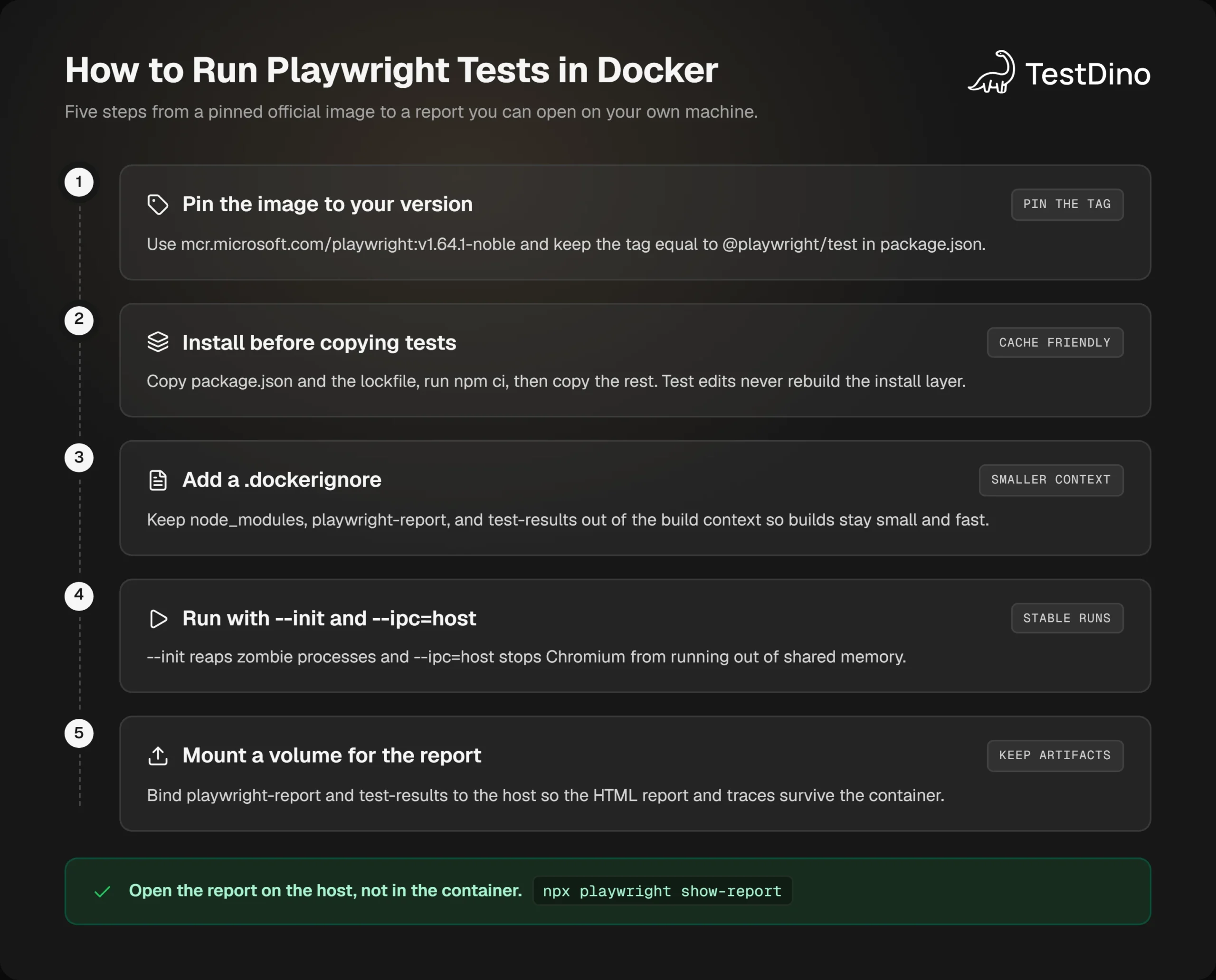
- Check your installed version with npx playwright --version and note the number.
- Create a Dockerfile that starts from the official image with the same version tag.
- Copy package.json and the lockfile first, run npm ci, then copy the rest of the project.
- Add a .dockerignore so node_modules, reports, and traces stay out of the build context.
- Build the image with docker build.
- Run it with --init and --ipc=host, and mount a volume for the report folder.
- Open the report on the host with npx playwright show-report.
A production-ready Playwright Dockerfile
The layer order below follows one rule: expensive, rarely changing steps first, frequently changing steps last. Docker checks its cache instruction by instruction, so an edit to a test file never triggers a fresh npm ci.
FROM mcr.microsoft.com/playwright:v1.64.1-noble

WORKDIR /app

# Install dependencies in their own cached layer
COPY package.json package-lock.json ./
RUN npm ci

# Copy the rest of the project (filtered by .dockerignore)
COPY . .

# Never wait on an interactive prompt inside a container
ENV CI=true

CMD ["npx", "playwright", "test"]node_modules
playwright-report
test-results
blob-report
.gitBecause the image already holds the browsers at /ms-playwright, you do not run npx playwright install in this Dockerfile. Doing so would download a second copy of each browser for no benefit, since the version in your lockfile matches the tag.
Build and run the container
docker build -t pw-tests .

docker run --rm --init --ipc=host \
  -v "$(pwd)/playwright-report:/app/playwright-report" \
  -v "$(pwd)/test-results:/app/test-results" \
  pw-tests
The two volume mounts are what make the run useful. Without them, the HTML reporter output disappears when the container exits. With them, npx playwright show-report on the host opens the result as if the tests had run locally.
The Playwright docs recommend --init to avoid special treatment for the process with PID 1, which they call a common reason for zombie processes. Docker describes the same flag as running an init that forwards signals and reaps processes.
Tip: The Playwright docs recommend --ipc=host because Chromium can run out of memory and crash without it. Docker's container run reference says the system uses 64m for /dev/shm when you omit a size, and sharing the host IPC namespace lifts that limit. If host IPC is not allowed where you run, --shm-size=1g is the usual fallback.
Passing options at run time
You will often want a subset of tests, one project, or a different worker count without rebuilding. Anything after the image name replaces the default command.
docker run --rm --init --ipc=host pw-tests \
  npx playwright test tests/checkout --project=chromium --workers=4
If you are unsure which workers, retries, and reporters make sense for a container with limited CPU, the Config Generator among TestDino's free tools produces a ready-to-use playwright.config.ts from a few choices.
One container running the test runner is the common case. The next step is putting the application under test in a container beside it.
Playwright Docker Compose: testing your app and tests together
Most real suites need a running application, and often a database behind it. Docker Compose describes the app, its dependencies, and the test runner as services on one private network, then starts and stops them together.
A compose file with the app under test
The file below starts a web application, waits until its health check passes, then runs the tests against it by service name. The health check assumes the app image has curl, so swap in the equivalent for your stack.
services:
  web:
    build: ./app
    ports:
      - "3000:3000"
    healthcheck:
      test: ["CMD", "curl", "-f", "http://localhost:3000/health"]
      interval: 5s
      timeout: 3s
      retries: 20

  tests:
    build: .
    init: true
    ipc: host
    depends_on:
      web:
        condition: service_healthy
    environment:
      CI: "true"
      BASE_URL: "http://web:3000"
    volumes:
      - ./playwright-report:/app/playwright-report
      - ./test-results:/app/test-results
The Compose documentation explains that depends_on on its own only waits for a container to start, not for the service inside it to be ready. Adding condition: service_healthy makes Compose wait for the health check, which removes the sleep-and-hope scripts many pipelines still carry.
Two of the keys map to flags from the previous section. The Compose specification documents init as running a PID 1 process that forwards signals and reaps processes.
For ipc the specification says values are platform specific, and Docker Engine accepts host. If you prefer to stay inside the documented set, shm_size: 1gb is the alternative.
Point the config at the container hostname
Inside the Compose network, the app is reachable as web, not localhost. Reading the base URL from the environment keeps one config working on a laptop, in Compose, and in CI, which is one of the simpler Playwright best practices to adopt.
import { defineConfig } from '@playwright/test';

export default defineConfig({
  retries: process.env.CI ? 1 : 0,
  workers: process.env.CI ? 2 : undefined,
  use: {
    baseURL: process.env.BASE_URL ?? 'http://localhost:3000',
    trace: 'on-first-retry',
  },
  reporter: [['html', { open: 'never' }], ['list']],
});
The open: 'never' option matters inside a container. The HTML reporter's default is on-failure, which tries to open a browser tab, and there is no browser tab to open. The trace setting follows the Playwright docs' recommendation for CI: record a trace on the first retry of a failed test.
Run everything with one command and let the exit code of the test service decide the result. The Compose CLI reference notes that --exit-code-from implies --abort-on-container-exit, so the whole stack shuts down when the tests finish.
docker compose up --build --exit-code-from testsIf your suite seeds data before the run, a Playwright global setup file can reach the database service the same way, by hostname over the Compose network. With local and Compose runs in place, the same image becomes the foundation of the CI job.
Playwright in Docker on CI: GitHub Actions, GitLab, and more
The official CI guide uses the same image on every major platform. The pattern never changes: run the job inside the container, check out the code, install the project, and run the tests. No browser install step appears anywhere.
Playwright Docker GitHub Actions job
GitHub Actions can run an entire job inside a container using the container key. The Playwright docs pair the image with --user 1001, which matches the runner's default user so files created during checkout stay writable by later steps.
name: Playwright Tests
on:
  push:
    branches: [main]
  pull_request:
    branches: [main]

jobs:
  playwright:
    runs-on: ubuntu-latest
    container:
      image: mcr.microsoft.com/playwright:v1.64.1-noble
      options: --user 1001 --init --ipc=host
    steps:
      - uses: actions/checkout@v6
      - uses: actions/setup-node@v6
        with:
          node-version: lts/*
      - name: Install dependencies
        run: npm ci
      - name: Run Playwright tests
        run: npx playwright test
      - uses: actions/upload-artifact@v4
        if: ${{ !cancelled() }}
        with:
          name: playwright-report
          path: playwright-report/
          retention-days: 14
GitHub's documentation says the options string accepts docker create flags, with the exception of --network and --entrypoint, so the three flags above are fine. The full walkthrough of Playwright in GitHub Actions adds caching, matrices, and pull request annotations on top of this base.
Note: The Playwright docs say caching browser binaries in CI is not recommended, because restoring the cache takes about as long as downloading them. Running Playwright in Docker removes the question: the browsers arrive with the image, and the only cache worth keeping is the npm cache.
GitLab CI and sharding across containers
GitLab treats the image as the job environment, and its parallel keyword hands each job an index. The Playwright docs show exactly this pattern for sharding.
stages:
  - test

tests:
  stage: test
  image: mcr.microsoft.com/playwright:v1.64.1-noble
  parallel: 4
  script:
    - npm ci
    - npx playwright test --shard=$CI_NODE_INDEX/$CI_NODE_TOTAL
  artifacts:
    when: always
    paths:
      - blob-report/
Each shard runs in its own container and writes a blob report when the reporter is set to blob on CI. A follow-up job merges them with npx playwright merge-reports --reporter html ./all-blob-reports, a flow the Playwright sharding guide walks through end to end.
On GitLab specifically, the Playwright in GitLab CI guide covers runners and artifact retention in more depth.
Azure Pipelines, Jenkins, and the rest
Azure Pipelines accepts the same image through its top-level container key, and Jenkins takes it as a Docker agent, both as shown in the Playwright CI docs. CircleCI, Bitbucket Pipelines, Google Cloud Build, and Drone appear in the same docs with the same image line.
The Playwright tests in Azure guide has a full pipeline, and the roundup of Playwright CI/CD integrations compares the platforms side by side.
One setting deserves a word on every platform: workers. The Playwright CI guide suggests setting workers to 1 in CI to favor stability, and its parallelism guide shows a cap of 2.
A container usually gets fewer cores than a laptop, so the right number is tied to the CPU you give it. The guide to optimize Playwright workers works through that trade-off.
Whatever the platform, treat the report artifacts as first-class outputs. Uploading the HTML report and traces on every run, not only on failure, is what makes Playwright CI reports useful for spotting slow drift before it becomes a red build.
Once the job is stable, the next question is who the browser runs as.
Security: root, pwuser, and the Chromium sandbox
By default the official image runs as root, and the Playwright docs are direct about the consequence: running as root disables the Chromium sandbox, which is not available for that user. For end-to-end tests against your own application, the docs say root is acceptable because you trust the code the browser runs.
When to switch to pwuser
The picture changes for crawling or scraping untrusted sites. For that case the docs recommend two things together: run as the pwuser account the image already creates, and apply the seccomp profile that ships in the Playwright repository.
docker run -it --rm --init --ipc=host \
  --user pwuser \
  --security-opt seccomp=seccomp_profile.json \
  mcr.microsoft.com/playwright:v1.64.1-noble /bin/bash
The docs describe that profile as Docker's default seccomp profile with extra user namespace permissions. The added rule allows the clone, setns, and unshare system calls, which Chromium needs to create its sandbox namespaces.
Two details trip people up here:
-
Files the container writes are owned by pwuser, so mounted report folders must be writable by that user.
-
If you add a USER pwuser line to your own Dockerfile, place it after npm ci so the install step keeps its permissions.
The SYS_ADMIN escape hatch
The docs list one more option for local development: if Chromium produces launch errors on your machine, try docker run --cap-add=SYS_ADMIN. Treat it as a diagnostic for a laptop, not a CI setting.
Docker's own reference says it drops most potentially dangerous kernel capabilities by default. Adding this one back hands the container far more power than the sandbox needs, and doing it in a shared pipeline is one of the Playwright mistakes a reviewer should flag.
Teams that lean on AI coding agents can encode these rules once instead of repeating them in every review. The playwright-skill repository bundles CI and Docker guidance in a format that Claude Code, Cursor, and similar tools load automatically.
With the security posture settled, the remaining cost is size and speed.
Playwright Docker image size, build speed, and cost
Nearly a gigabyte of compressed download per fresh runner adds up. There is no trick that shrinks three browser engines, but there are choices that remove the parts you do not use and avoid pulling what you already have.
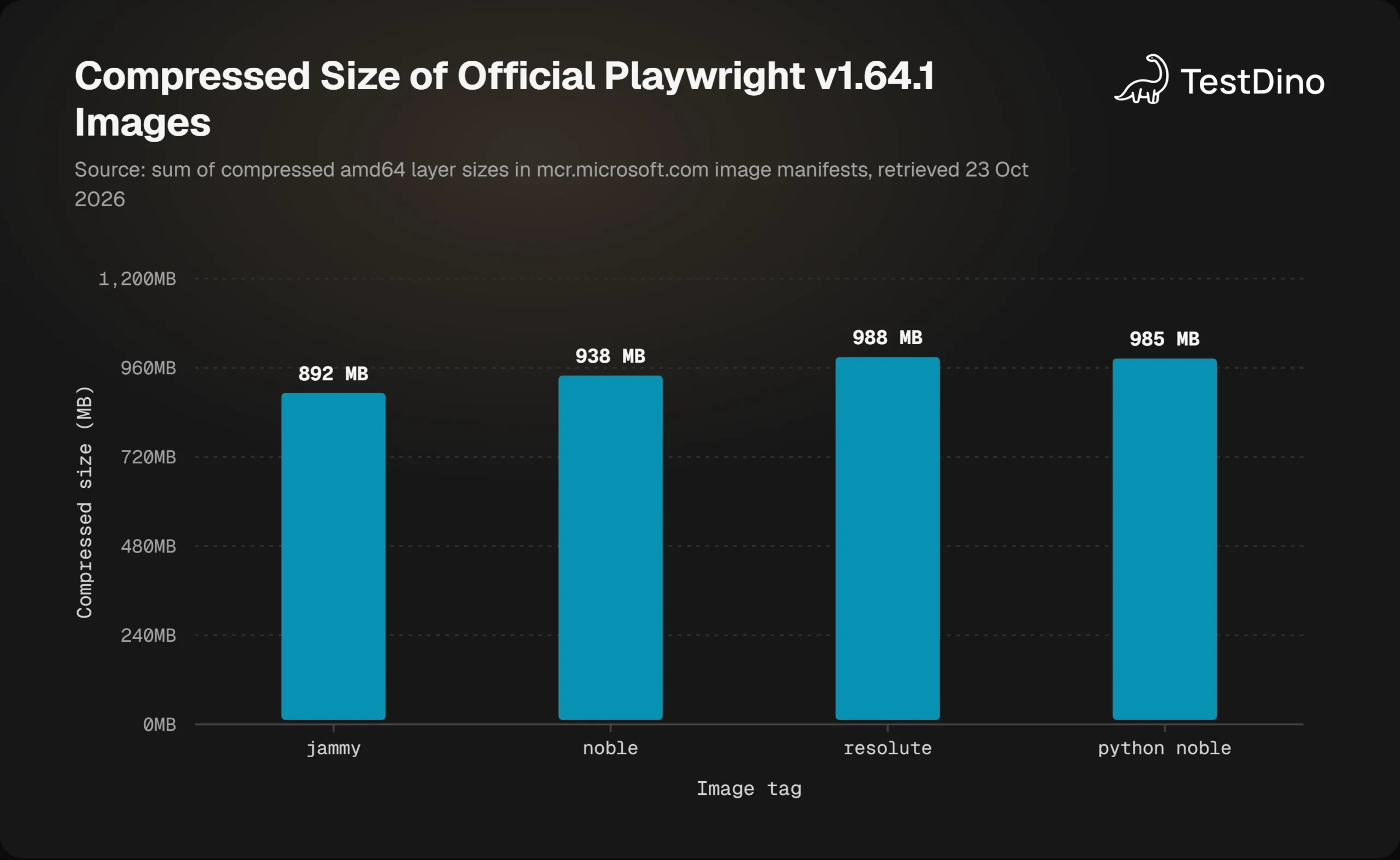
The figures are the sum of compressed layer sizes in each image manifest on the Microsoft registry. The jammy image is the smallest of the three Ubuntu bases. The Python image is larger than the Node.js noble image because it adds a Python runtime on top of the same browsers.
The arm64 noble image comes in at 914 MB, slightly below its amd64 counterpart. The trend across releases is slow but upward: measured the same way, the noble image grew from 880 MB in 1.60.0 to 938 MB in 1.64.1, so a budget of roughly 1 GB per cold pull is the safe assumption today.
Build your own image with one browser
If your suite only runs Chromium, the official image carries two engines you never launch. The Playwright docs show a two-line custom Dockerfile, and limiting it to one browser is a small change.
FROM node:22-bookworm

RUN npx -y playwright@1.64.1 install --with-deps chromium

WORKDIR /app
COPY package.json package-lock.json ./
RUN npm ci
COPY . .
CMD ["npx", "playwright", "test", "--project=chromium"]
The version in the install command must match @playwright/test in your lockfile, for the same reason the official tag must. Debian 12 and 13 and Ubuntu 22.04, 24.04, and 26.04 are the Linux versions listed in the Playwright system requirements, so bookworm is a supported base.
If every test runs headless, the browsers guide offers one more saving. Playwright ships a full Chromium build for headed runs and a separate headless shell for headless runs, and npx playwright install --with-deps --only-shell skips the full build.
Tip: Add a BuildKit cache mount to the install step so npm reuses downloaded packages across builds without adding a layer to the image: RUN --mount=type=cache,target=/root/.npm npm ci. Rebuilds after a dependency change get faster, and the final image stays the same size.
Reduce pulls, not just bytes
Image size matters less when the image is already on the machine. Self-hosted runners keep pulled images between jobs, so a 938 MB download happens once per version bump instead of once per job. Hosted runners that start cold pay the full pull every time, which is part of the math in any honest CI cost optimization exercise.
The other lever is doing less work per container. Sharding shortens wall-clock time but multiplies pulls, so the right shard count depends on how long the suite takes against how long a pull takes.
The Sharding Calculator gives you that number from your suite length and CI time target, and the guide on how to reduce Playwright CI runtime works through the trade-off with examples.
When something still goes wrong, the failures tend to fall into a short list.
Troubleshooting Playwright in Docker errors
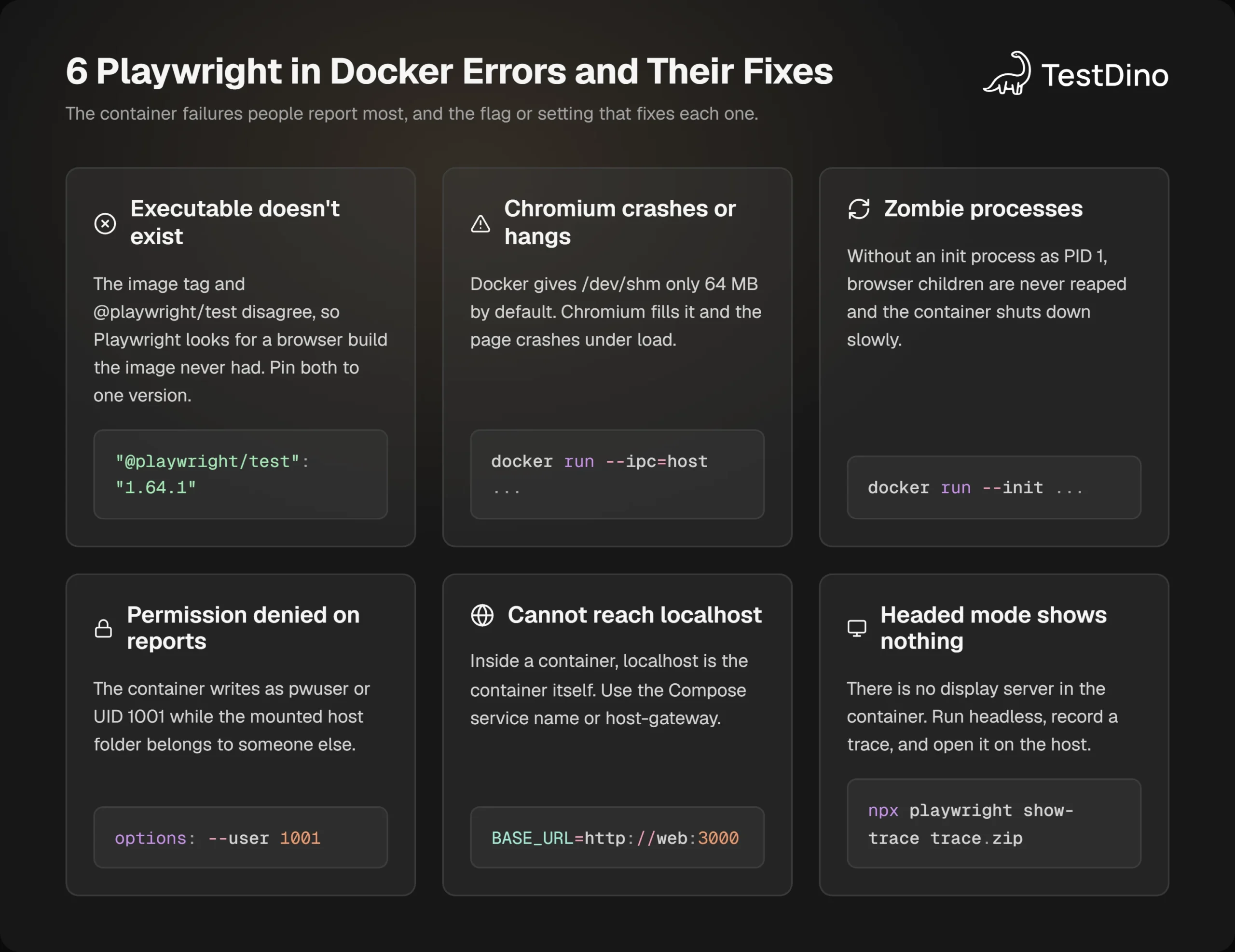
The problems people run into with Playwright in containers tend to fall into six groups. Each has a specific signature and a specific fix.
Executable does not exist
The error names a browser path under /ms-playwright that is not there. That is the version mismatch described earlier: your package.json pulls a different Playwright release than the image tag.
Align the two numbers and rebuild. Do not paper over it with npx playwright install inside the container, which hides the drift and doubles the image size.
Chromium crashes or pages hang
A Chromium tab that dies with a crash message, or a suite that stalls under load, usually points to shared memory. Run with --ipc=host as the Playwright docs recommend, or set --shm-size if host IPC is off limits. If the crash only happens on a laptop, try --cap-add=SYS_ADMIN as a diagnostic and remove it afterwards.
Zombie processes and slow shutdowns
Each test can spawn browser processes, and when the container has no init process those children are never reaped. The Playwright docs recommend --init for this reason, and in Compose the equivalent is init: true.
Permission denied on report folders
When you mount a host folder and run as pwuser or as a CI user like 1001, the container may not be allowed to write there. Create the folder on the host first, or match the user ID in the container to the owner on the host. On GitHub Actions, the --user 1001 option exists precisely so checkout and test steps agree on ownership.
Tests cannot reach localhost
Inside a container, localhost is the container itself, so a test that targets http://localhost:3000 finds nothing listening. In Compose, use the service name as shown earlier.
When the app runs on the host machine, the Playwright docs show --add-host=hostmachine:host-gateway on the run command. Tests then use hostmachine in place of localhost.
You need to see the browser
Containers have no display, so headed mode does nothing by default. The Playwright docs describe a devcontainer setup with the desktop-lite feature that exposes a noVNC viewer on port 6080, which lets you run codegen and watch tests inside the container.
For most debugging, recording a trace and opening it in the Playwright trace viewer on the host is faster than a remote desktop. The difference between headless vs headed runs matters more inside a container than on a laptop, because only headless works without extra setup.
Note: Playwright can also run as a server inside Docker while your tests stay on the host. Start it with npx playwright run-server in the container and point the runner at it with PW_TEST_CONNECT_WS_ENDPOINT=ws://127.0.0.1:3000/. The docs aim this at Linux distributions Playwright does not support directly, and both versions must match.
Everything else in the Playwright debugging guide applies unchanged, because traces, screenshots, and videos are files, and files come out through the volume mount.
That remote server is the third of three ways to run Playwright in Docker. The official image suits most teams, a custom Dockerfile suits teams that want one browser and a smaller image, and the server suits hosts Playwright cannot run on directly.

Conclusion
Running Playwright in Docker comes down to a handful of decisions made once:
-
Pin the image tag to the exact Playwright version in your lockfile, and pin the digest if you need byte-for-byte reproducibility.
-
Run with --init and --ipc=host, and mount the report folder.
-
Use root for your own app and pwuser with the seccomp profile for anything untrusted.
-
Put the app under test in Compose so the tests reach it by hostname, and gate the run on a health check.
Do those things and the Playwright Docker image stops being a source of surprises. The suite that passes on a laptop passes on the runner, and when it does not, the trace tells you why.
The remaining work is seeing the results. Containers produce artifacts, and artifacts are only useful when someone reads them across runs.
Good Playwright test reporting turns each container's blob report into a trend. A Playwright observability platform like TestDino turns that trend into a flaky test list with a root cause before the next pull request lands.
FAQs

Ayush Mania
Forward Development Engineer